
Assessment+ features
Everything Assessment+ does, in the order you would meet it: the course record, the program, the reports, and the help around them.
FreeOn the Microsoft StoreVersion 2.0For Windows PCs
On this page
Assessment+ keeps the continuous-improvement loop of a course and a program — plan, implement, assess, revise — and produces the evidence an accreditation review asks for. Faculty use the first part; program coordinators use all of it.
One window, one tree
Everything is reached from a tree on the left: your institution, its academic years, the programs, the courses, and the accreditation work built on them. Click a branch and its screen opens on the right. The bar at the bottom shows which department folder, program and academic year you are working in, and lets you change them.
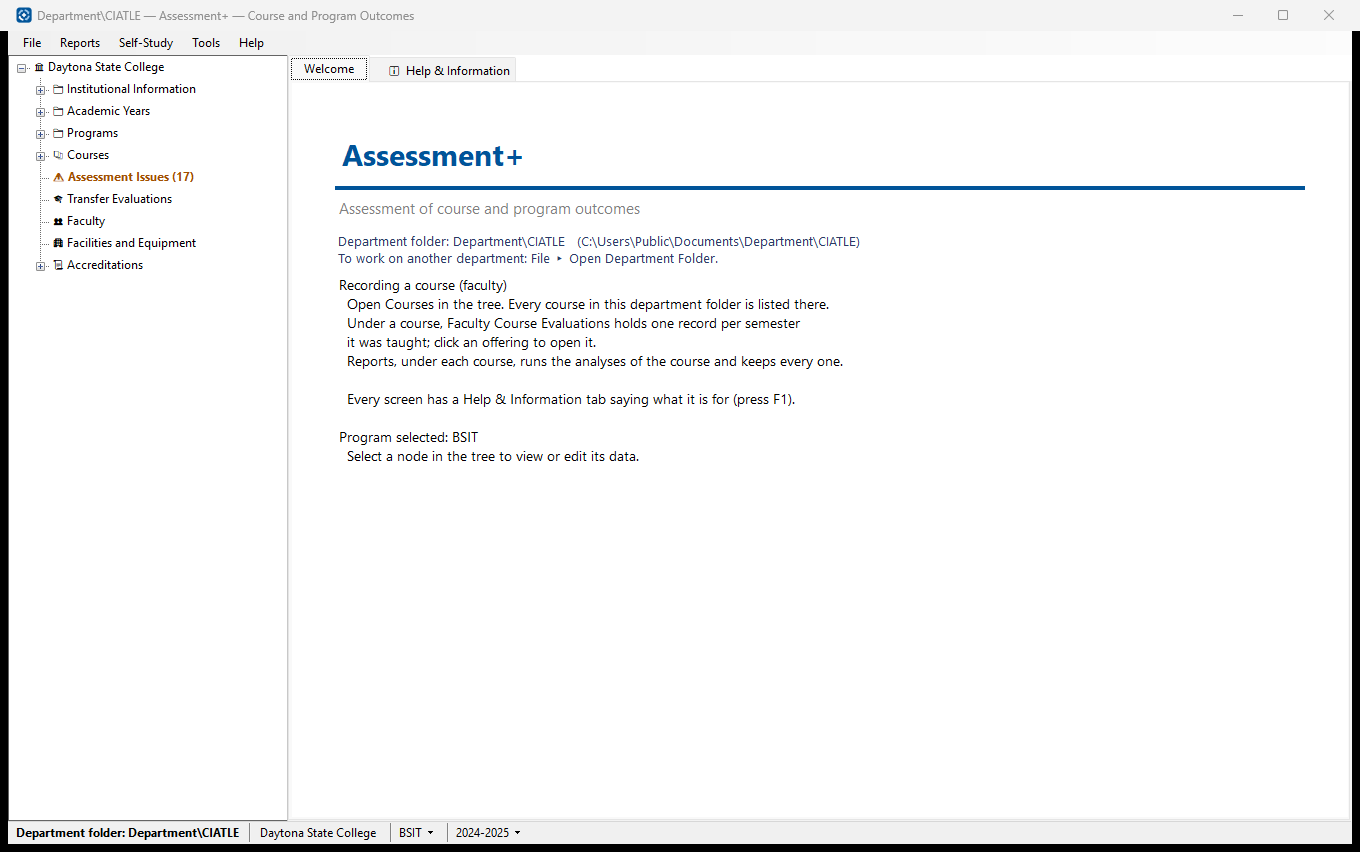
- The tree holds institutional information, academic years, programs, courses, transfer evaluations, faculty, facilities and equipment, and accreditations.
- Pick the program and academic year once, in the status bar; the screens and reports follow it.
- Every window fits the screen it opens on, with its OK and Cancel in view, from a 1366 × 768 laptop to a high-resolution display at 200 %.
For faculty: a record for every semester
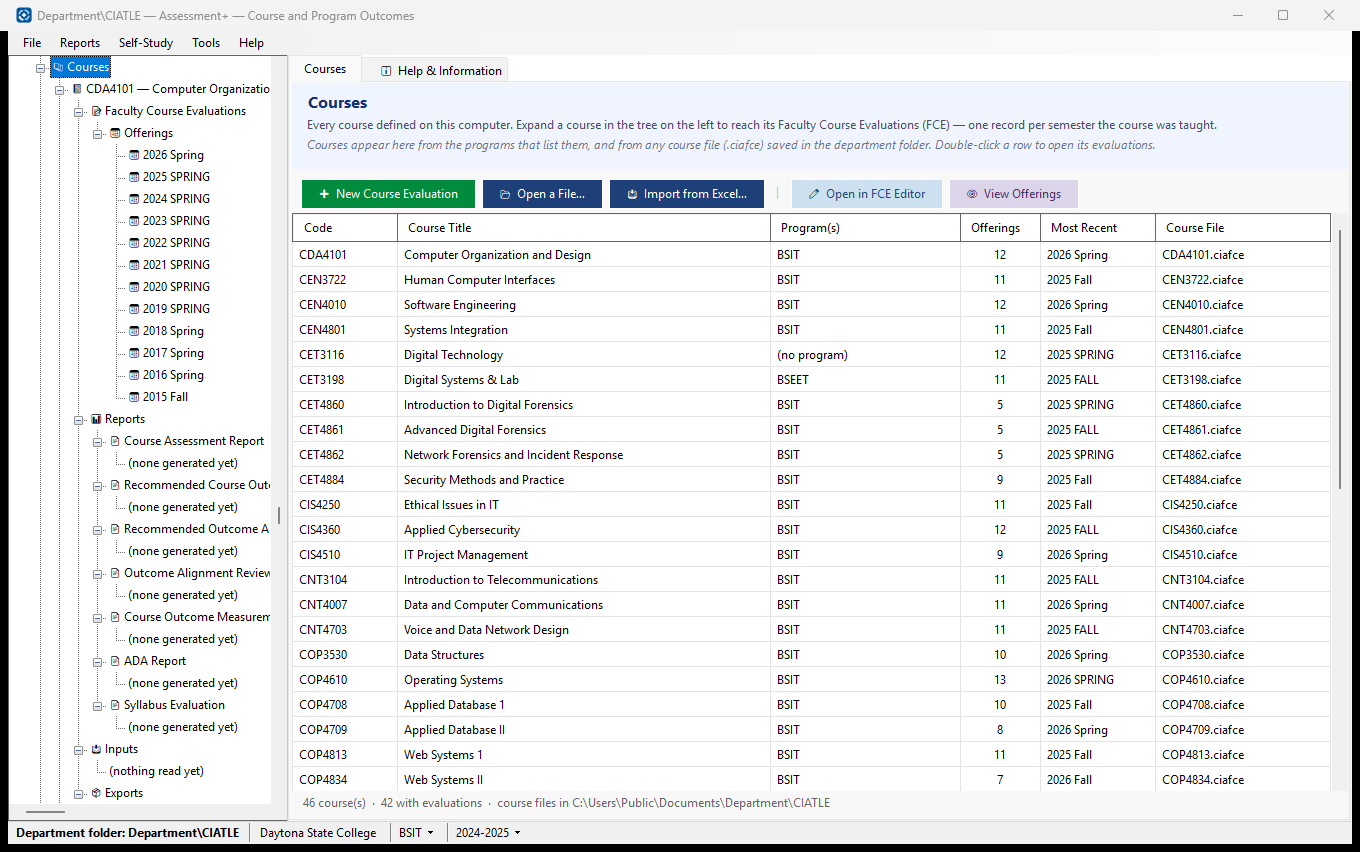
Each course keeps its whole history in one file: one record, or offering, for every semester it was taught. Next semester starts from this one, so the outcomes, the programs and the measures are already filled in and you only add what is new.
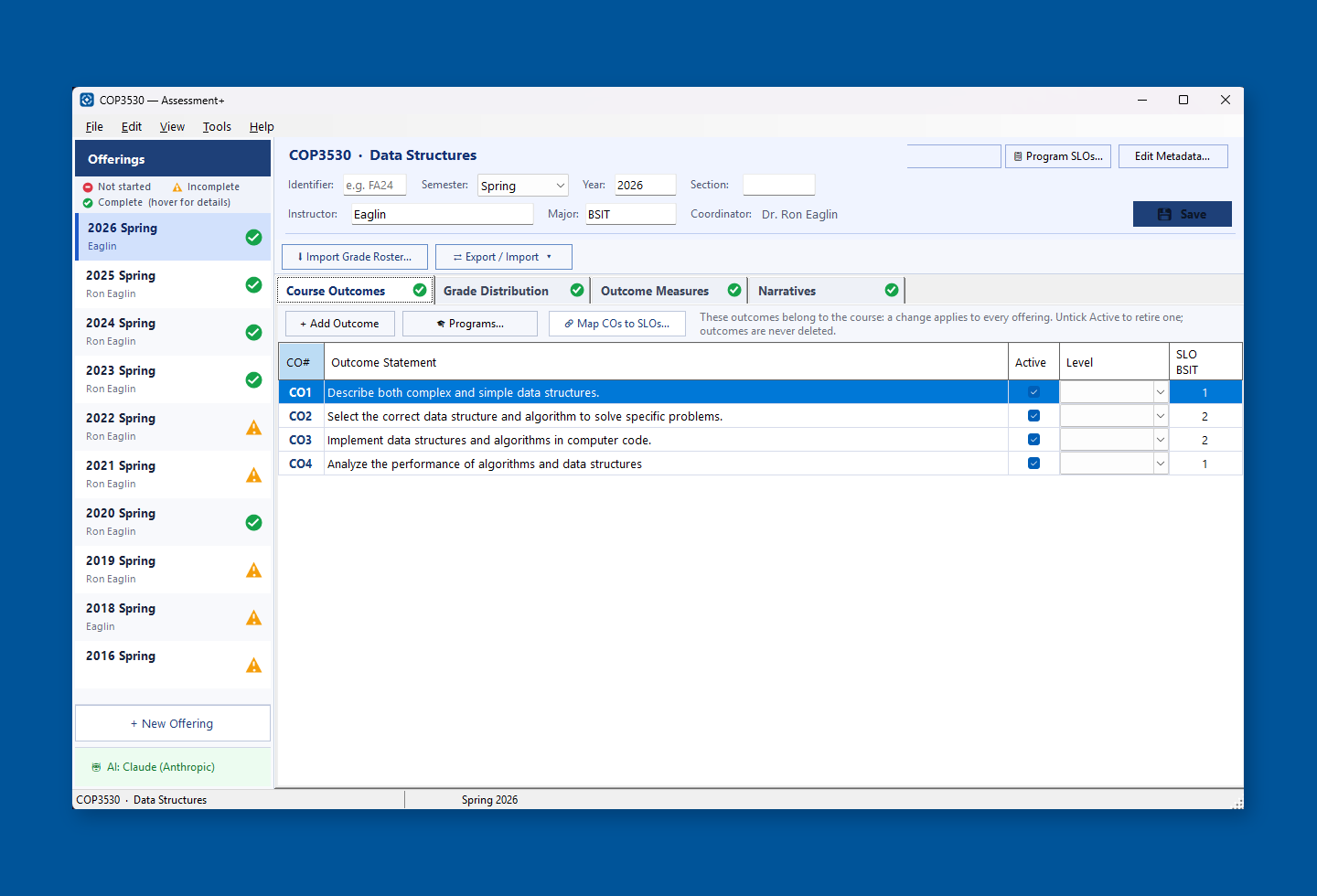
- Course outcomes (CO1, CO2 …) are written once and shared by every semester. Untick Active to retire one; old results are never deleted.
- Map each course outcome to the outcomes of every program the course serves — one column per program.
- Grade distribution for each semester: A, B, C, D, F, FN (failure for non-attendance) and W, with the total counted for you.
- Outcome measures: as many measures as you like for each outcome, each with its result.
- Threshold and target. Each measure has a Threshold %, the score a student must reach, and a Target %, the share of students expected to reach it — which decides met or not met.
- Mark one measure as the primary measure for the program's reports; an average of measures is worked out for you.
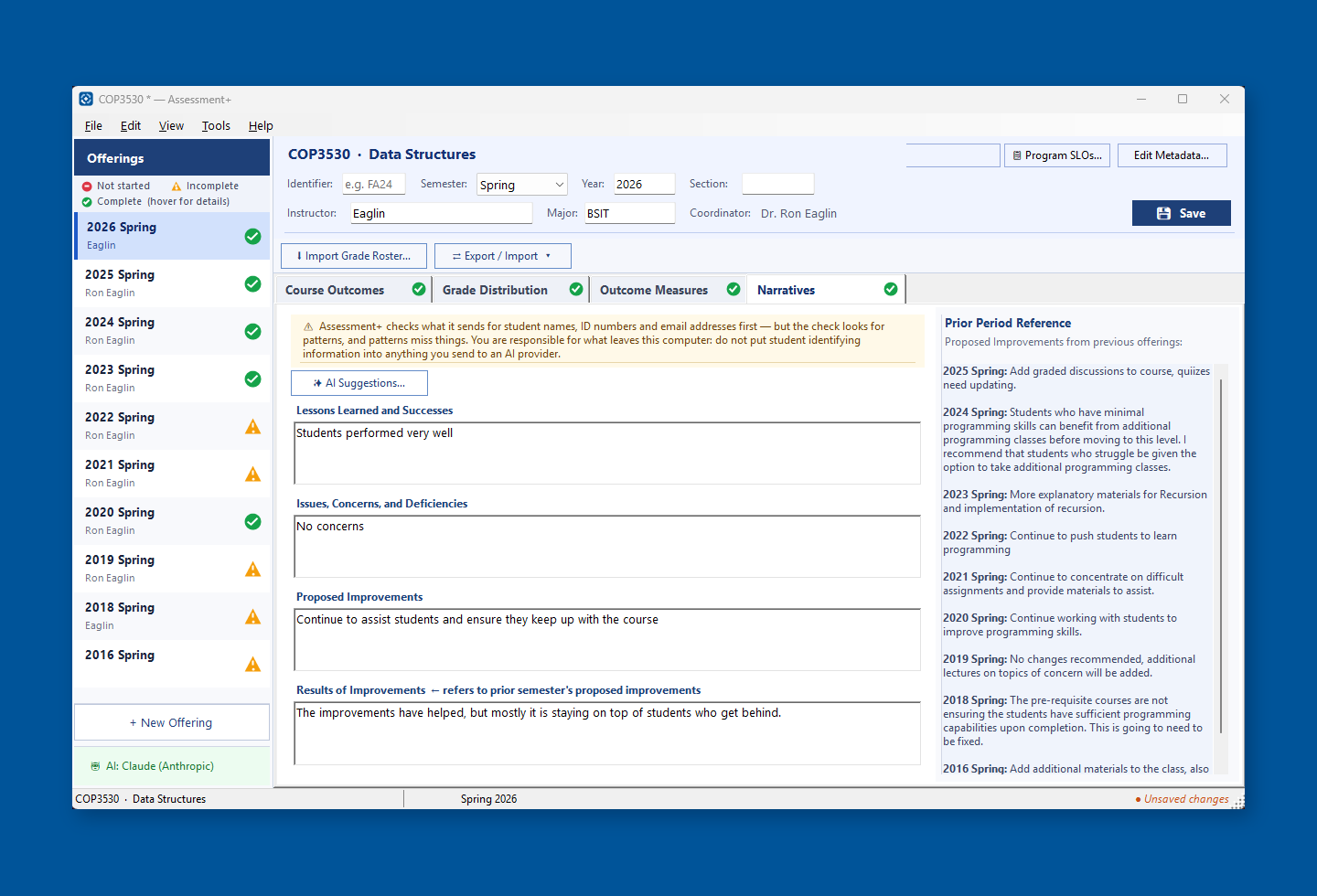
- Four narratives close the loop: Lessons Learned and Successes; Issues, Concerns and Deficiencies; Proposed Improvements; and Results of Improvements.
- While you write Results of Improvements, the improvements you proposed in earlier semesters are shown beside it.
- Each semester shows what it still needs before it can be reported — a green tick on each tab when it is complete.
- Prior Offering Comparison puts this semester beside the one before it: grades, measures and all four narratives.
- Fill In from a Syllabus reads a course's title, description and outcomes from a syllabus or master course description, and shows every change before making it.
- Course descriptions can be read from the catalog or class web page, or drafted from the course outcomes and kept as a proposal for a curriculum revision.
- When you are done, one file goes to your coordinator (a submission file), or the whole department works from a shared folder.
Bringing in what you already have
- Import Grade Roster: read a gradebook exported from your LMS and map its columns to your outcomes, with a threshold and target for each.
- Import from Excel: bring in older faculty course evaluation workbooks, one worksheet per semester, into the course's history. Optional AI can read irregular spreadsheets.
- An Excel workbook exported from Assessment+ imports back exactly.
- Keep a copy? Wherever you choose a course export or a gradebook, you decide whether a copy is kept with the course in the department folder, to use again.
- A course's Inputs and Exports are listed under it in the tree, so you can see what it was assessed from.
Course reports
Reports are kept under each course in the tree. A report made before is reopened rather than made again, and any report can be saved as PDF, Word or HTML.
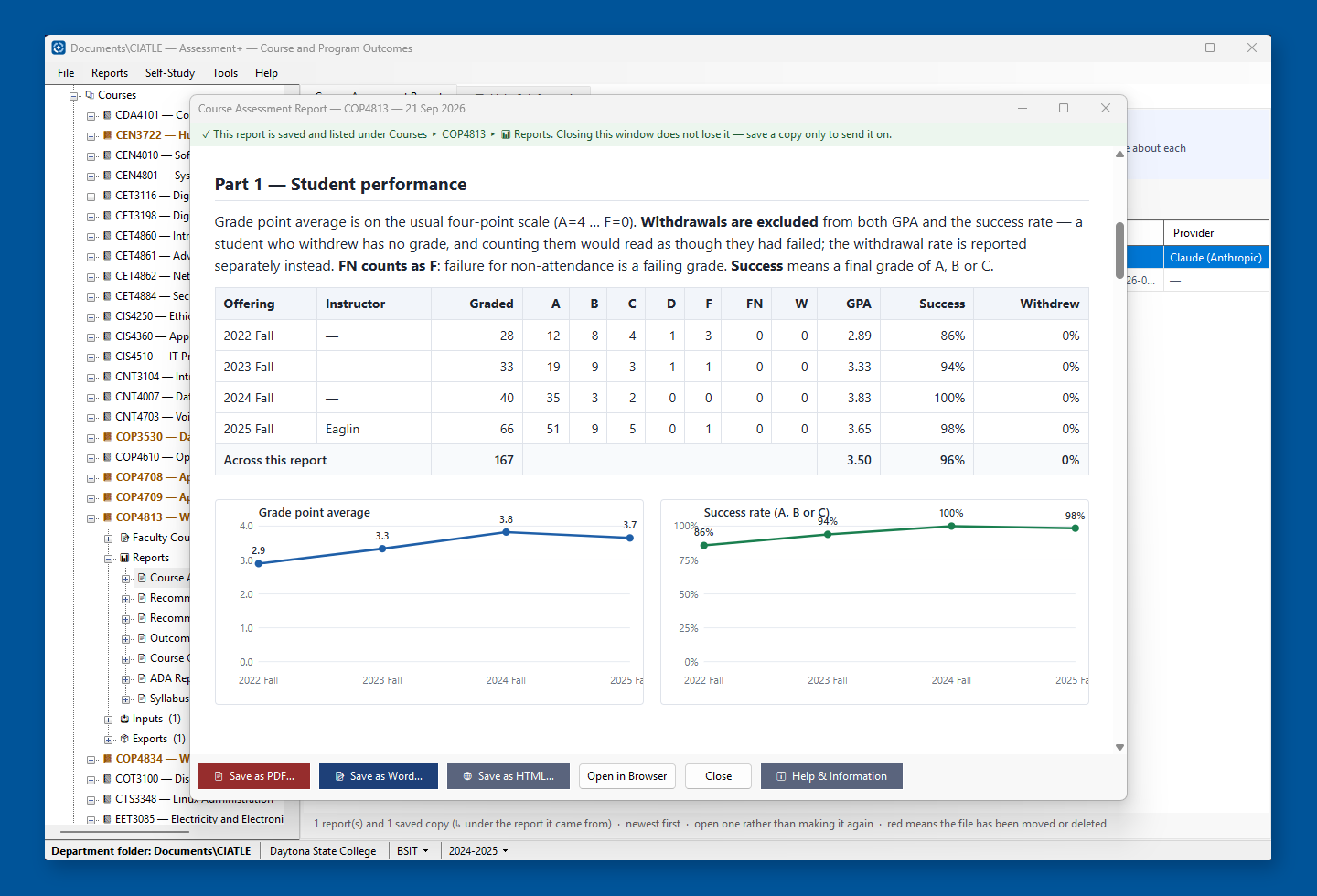
- Course Assessment Report: grades, outcomes and your commentary across the semesters you choose, with charts.
- ADA Report: every page, document and quiz in a course export checked against WCAG 2.1 AA, the accessibility standard.
- Syllabus Evaluation: a syllabus checked against your department's required items, with text to paste in for anything missing.
- Measurement assessment (optional AI): every graded item in a course export is evaluated as a possible measure of your outcomes, and the outcomes nothing measures are named.
- Outcome Alignment Review (optional AI): how well a course's outcomes line up with the program's.
- Review prints the current semester as one page.
For program coordinators: the program
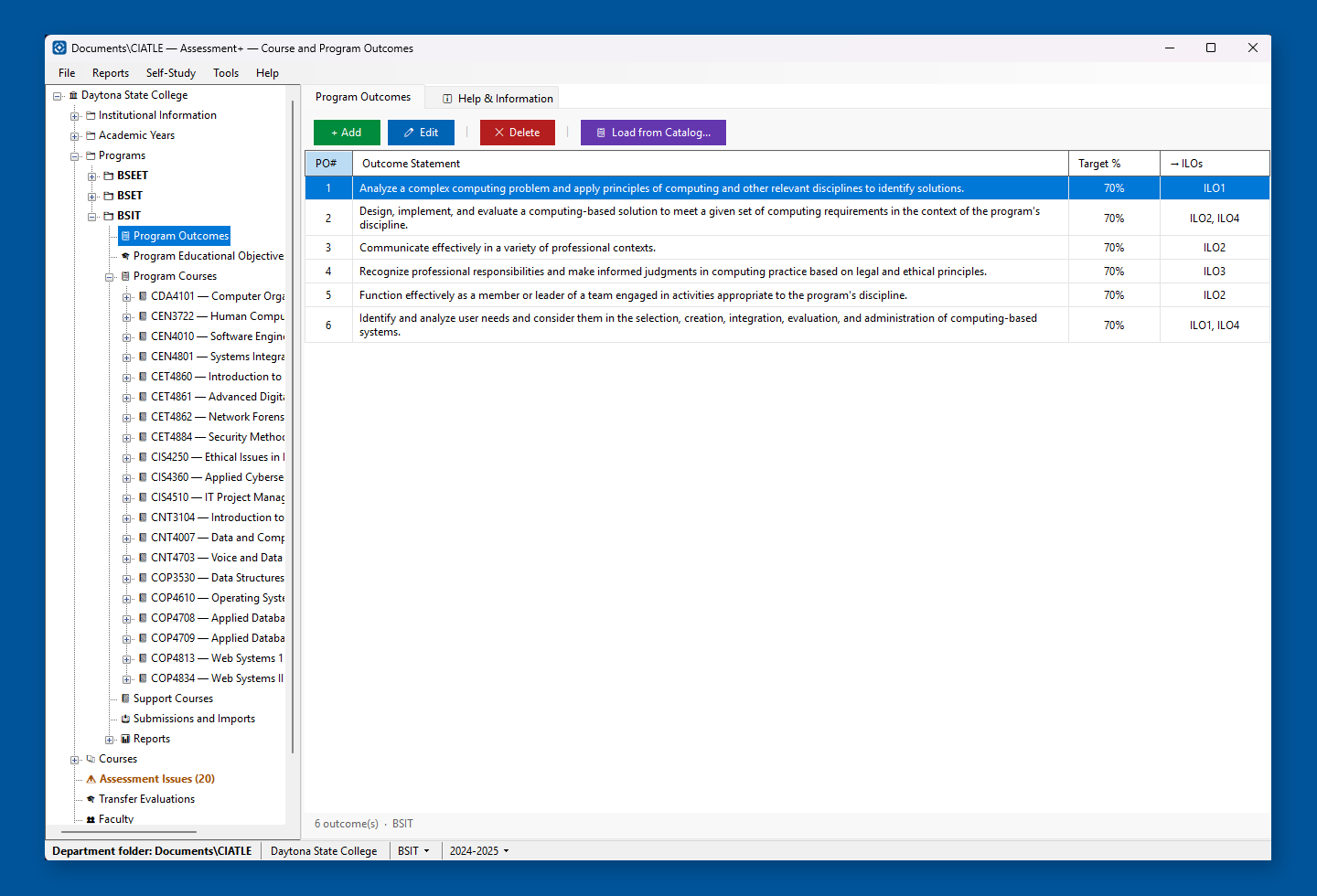
- Program outcomes and educational objectives — typed in, or read from the program's catalog web page or a document (optional AI), shown for you to tick before anything changes.
- Each program outcome has a target and is linked to institutional learning outcomes and accreditation criteria.
- Program courses and support courses: the courses the program assesses, and the required courses taught elsewhere.
- Choose which offerings count each year. A course with no offering in a year can be left out of that year's reports on purpose — never by accident.
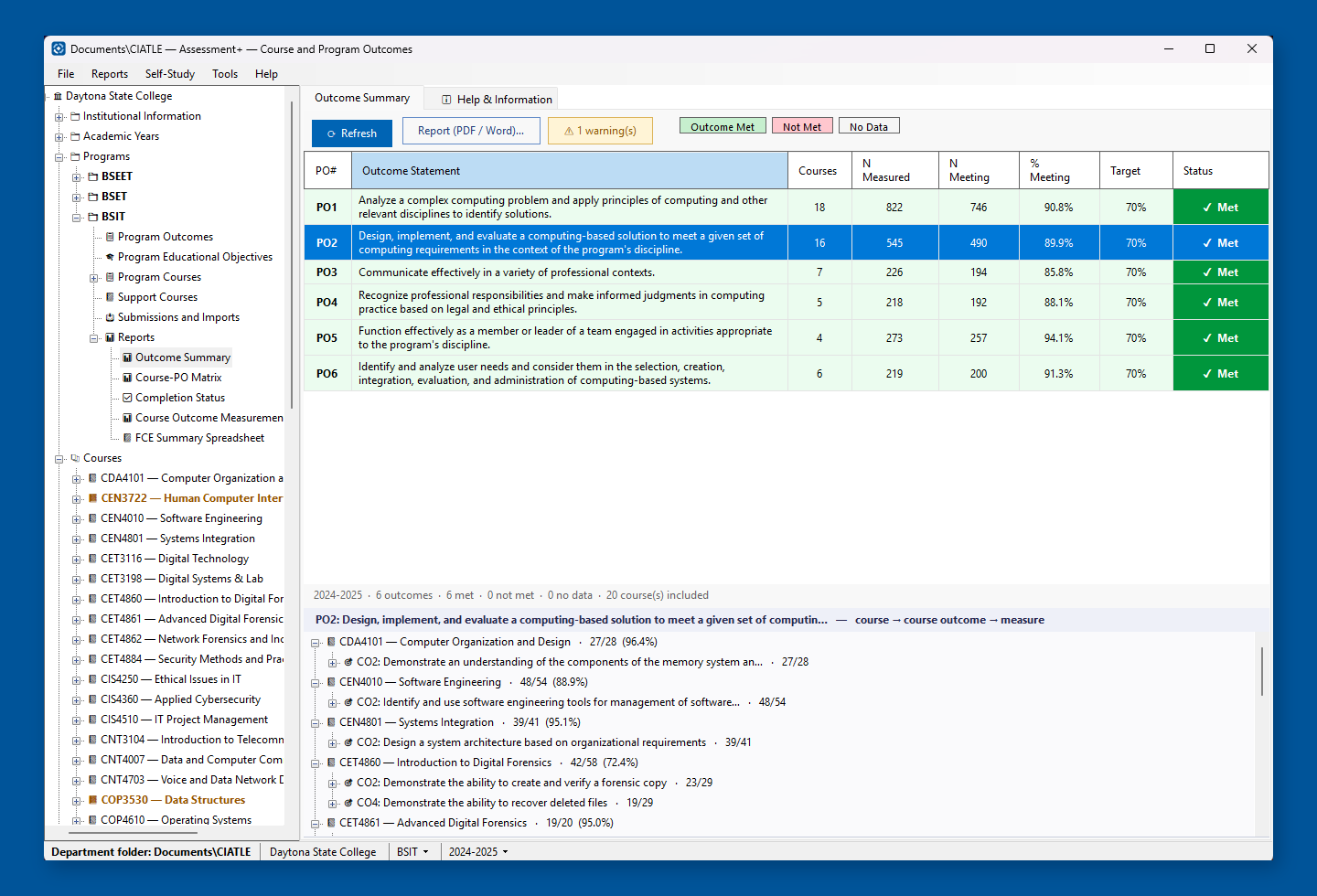
- Outcome Summary: how every program outcome did this year, from every course that contributes, met or not met, down to each course outcome and measure.
- Completion status: which courses are done and which are outstanding.
- Submissions and imports: the files faculty sent in, in one place.
- Assessment Issues lists the contradictions in your data — an outcome mapped to one that no longer exists, a course missing from its program, a file that could not be read — each with a button to the screen that fixes it.
- Institutional information, faculty, and facilities and equipment are kept alongside, for the self-study.
Program and accreditation reports
Every program report is kept and listed under the program with its PDF and Word copies, in two groups: reports with their own screen, and printable reports.
- Annual Learning Outcomes Assessment report for a program and year.
- Multi-year trend reports: how attainment of each outcome has moved year to year.
- Program Outcome Results for one year or all years.
- Measure Coverage by Program Outcome and the course-to-outcome matrix.
- Curriculum maps and course success rates.
- FCE (Faculty Course Evaluation) Summary Spreadsheet of every course's evaluation.
- ABET self-study (ABET accredits engineering and computing programs): build the sections against your accreditation's criteria (Criterion 3 and 4 among them), with your own narratives included, kept per accreditation.
Transfer evaluation
- Read a student's transcript or military Joint Services Transcript (JST), or type the courses in.
- Compare the incoming courses against every course of a program at once.
- Record the transfer credit decision for each course; accepted equivalents are kept under the course as articulations.
- An articulation can be analysed (optional AI): does the outside course meet the same outcomes at the same level?
- The student's name, report and grade are never copied into the course's articulations.
Optional AI
AI is optional. Nothing in the assessment record depends on it, and a suggestion changes nothing until you accept it.
- Use Claude (Anthropic), ChatGPT (OpenAI), Gemini (Google), Mistral or Grok (xAI), with your own API key — a code you get from the AI company. The company bills you for what you use; Assessment+ itself stays free.
- Keys are kept encrypted for your Windows account in AI Manager, shared with CourseBuilder+ and Gamify+ — enter a key once and it works in each.
- Tools ▸ AI Settings chooses the service and model; Tools ▸ AI Usage and Cost shows every request and what it cost.
- Suggest course outcomes, review how they align to a program's, and draft the narratives from your own data.
- Evaluate every graded item in a course export as a possible measure of your outcomes.
- Check a syllabus, read outcomes and objectives from a document or web page, and read irregular Excel workbooks.
- If an analysis needs AI and none is set up, Assessment+ offers AI Settings right there and carries on afterwards.
Student privacy
- Anything on its way to an AI service is checked first for student information — names, ID numbers, email addresses, roster columns. You are shown what was found and remove it, or nothing is sent.
- From a gradebook, the analyses use only its column headings and point values, never its rows. Gradebooks stay on your computer.
- Articulations recorded by older versions that may hold a student's details are listed in Assessment Issues, with a way to remove them.
- The check looks for patterns, and patterns can miss things — the program says so, and asks you not to put student details into anything you send. Read the privacy policy.
Your data stays yours
- Everything is plain files in a folder you choose — no database, no server, no account, no subscription.
- Put the folder on a shared or synced drive and a whole department works from the same data.
- Back up to a zip in one step, and restore without overwriting anything.
- Remove a course, program, accreditation or academic year and a full copy is kept first; ♻ Removed … brings it back exactly as it was.
- A damaged file or an unreachable network folder no longer stops Assessment+ starting; it says what happened and offers a way on.
- A save that fails says why — the file is open elsewhere, read-only, or the drive is gone — and offers Save As. Nothing on screen is lost.
Help on every screen
- Every screen in the tree has a Help & Information tab: what it is for, what to do in what order, and what each column means.
- Every dialog has a Help button. Press F1 anywhere; in the course editor, Shift+F1 explains the tab you are on.
- Written for a task done twice a year — nothing assumes you remember what you did last April.
Get it
Assessment+ is free on the Microsoft Store, for Windows 10 (version 1809 or later) and Windows 11. It was called CIATLE-FCE before version 2.0; your files stay in Documents\CIATLE with the same names, so nothing moves.
