
VideoStories+
Turn a true story, told to your phone, into a short captioned video — your voice and face, your photos on their words, and short animated clips.
FreeOn the Microsoft StoreVersion 1.0For Windows PCs
What it is
Everyone has a story they tell at dinner — something funny or surprising that really happened. VideoStories+ turns that story into a video of a minute or two that you can post or send: your own voice and face carry it, your photos and short animated clips illustrate it, and captions show the words.
You tell the story once, to your phone. VideoStories+ writes down every word with the moment it was said, and those words become the captions. Then it takes you through placing your photos on the words they go with and adding short clips, and it makes a wide video for YouTube and an upright one for phones. You don't need to know anything about video editing: there are eight steps, in order, and every page says what it is for and what to do next.

After it installs, open it from the Start menu and choose Open the sample story to see one finished from start to end. Want to see what it makes first? Watch Deep Hole below.
Watch a story it made: Deep Hole
Dr. Ron Eaglin tells what happened when he and his teammate Manny Otero paddled into Deep Hole, in Myakka River State Park, Florida, at night during an adventure race. It is the first story of the series Adventure Racing Stories, and the pilot VideoStories+ was built from: one minute and 49 seconds, made from a phone recording, photos and five short clips, step by step the way the program now works. VideoStories+ makes it again from its story file, to the same length and the same beats.
How Deep Hole was made
The program's eight steps, as they went for this story.
- Story. Ron wrote down the story the way he tells it: the night race, needing to pee, the alligators, the punchline.
- Record. He told it once, sitting at home, to his phone's camera — about a hundred seconds — and added the video to the story.
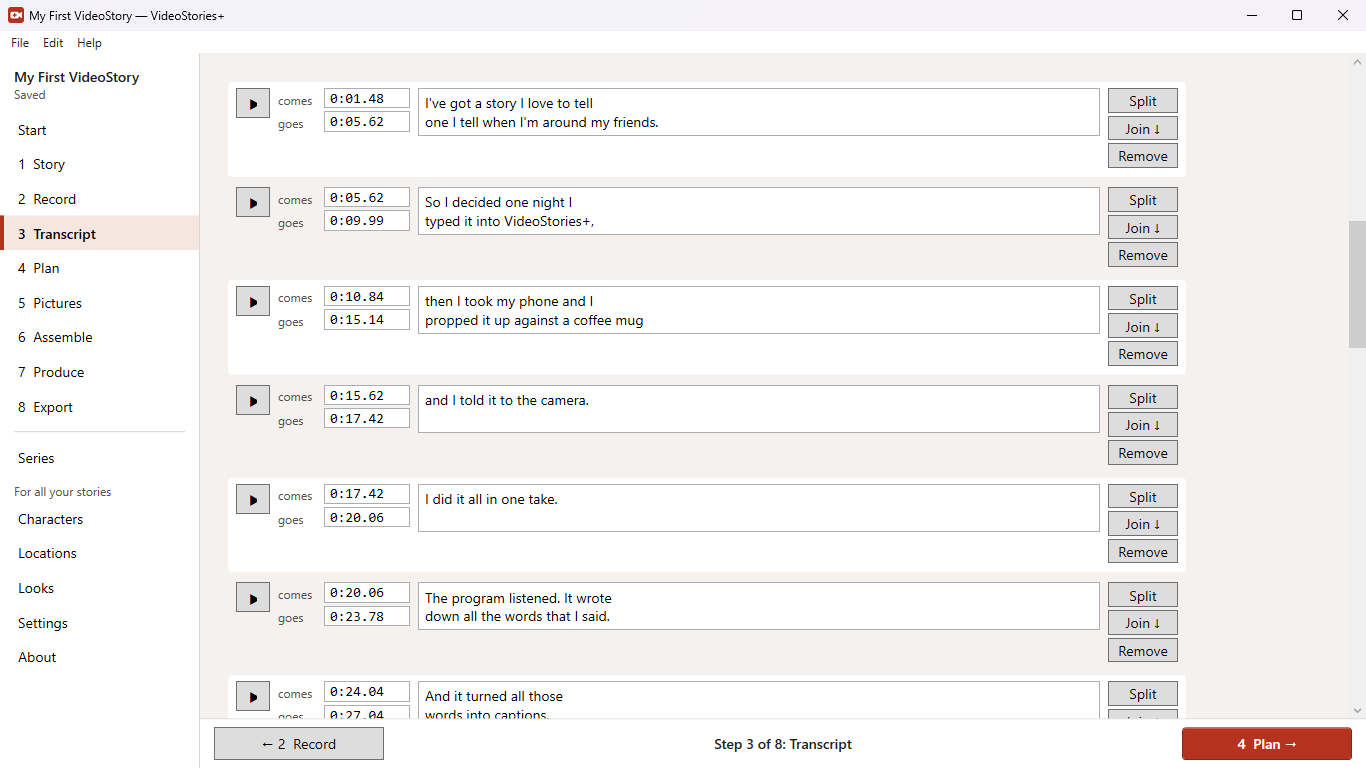
- Transcript. VideoStories+ listened to the recording on the computer and wrote down every word with its time. The names were typed in first, so it heard "Myakka", "Deep Hole" and "Manny Otero" correctly. The words fell into fourteen caption lines.
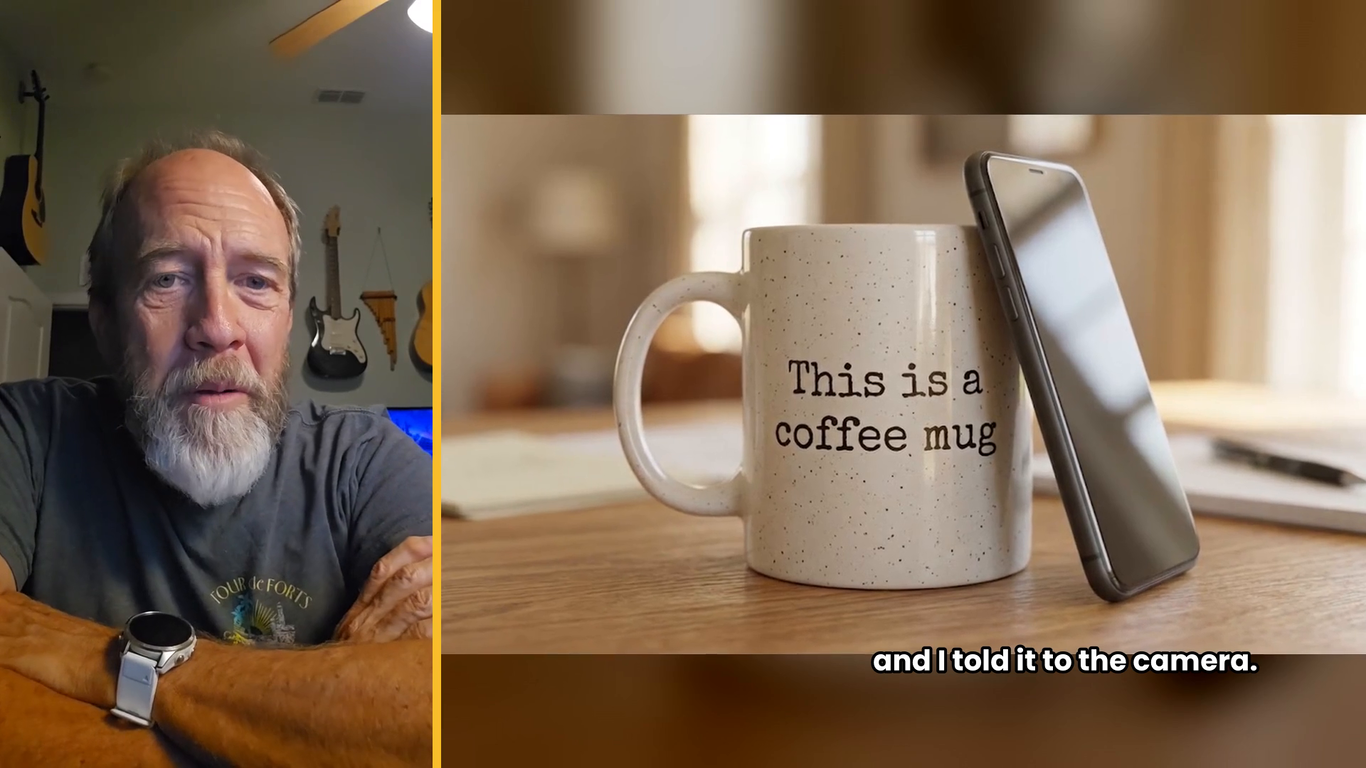
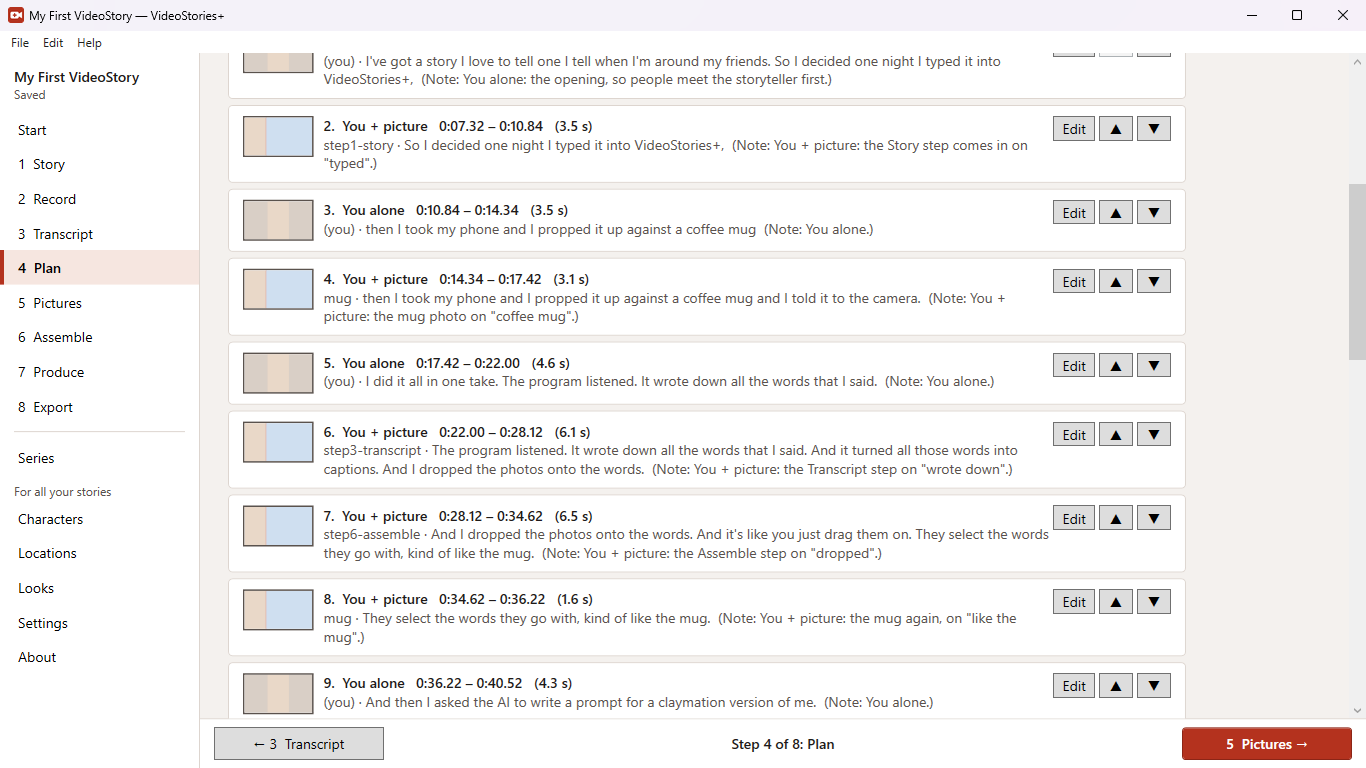
- Plan. Each line became a beat. The scariest moment — hundreds of glowing eyes on the water — was copied to the very start as a hook, with "I had to pee. Then THIS happened." on top. Most of the story is split screen: Ron on the left, the pictures on the right. The punchline is on Ron alone, then the series' closing gag and its end card.
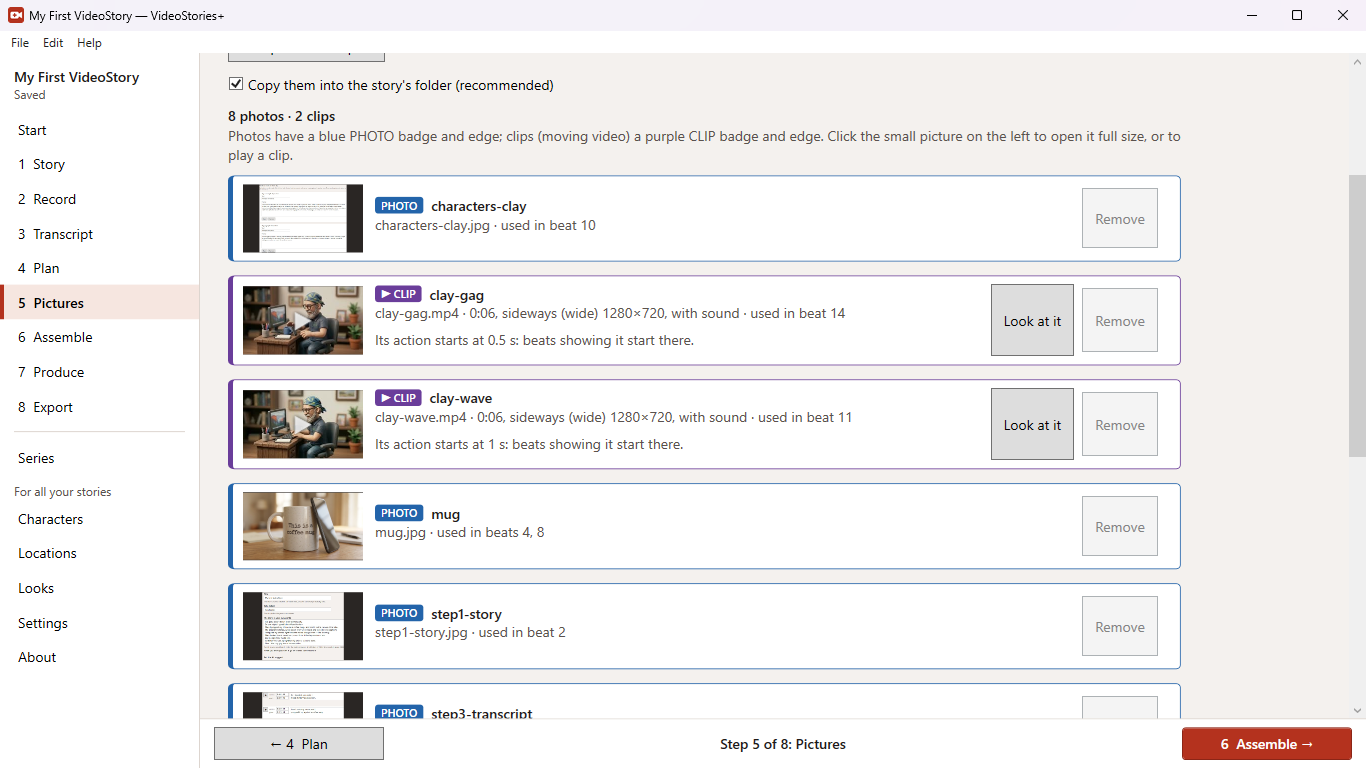
- Pictures. Nine photos (most are Ron's, the others taken by friends who gave permission), a map of the route, and five short clips — the eyes, the alligators piling up, the boat crawling across, making it to the other side, Deep Hole itself — made in Google Flow from prompts VideoStories+ wrote.
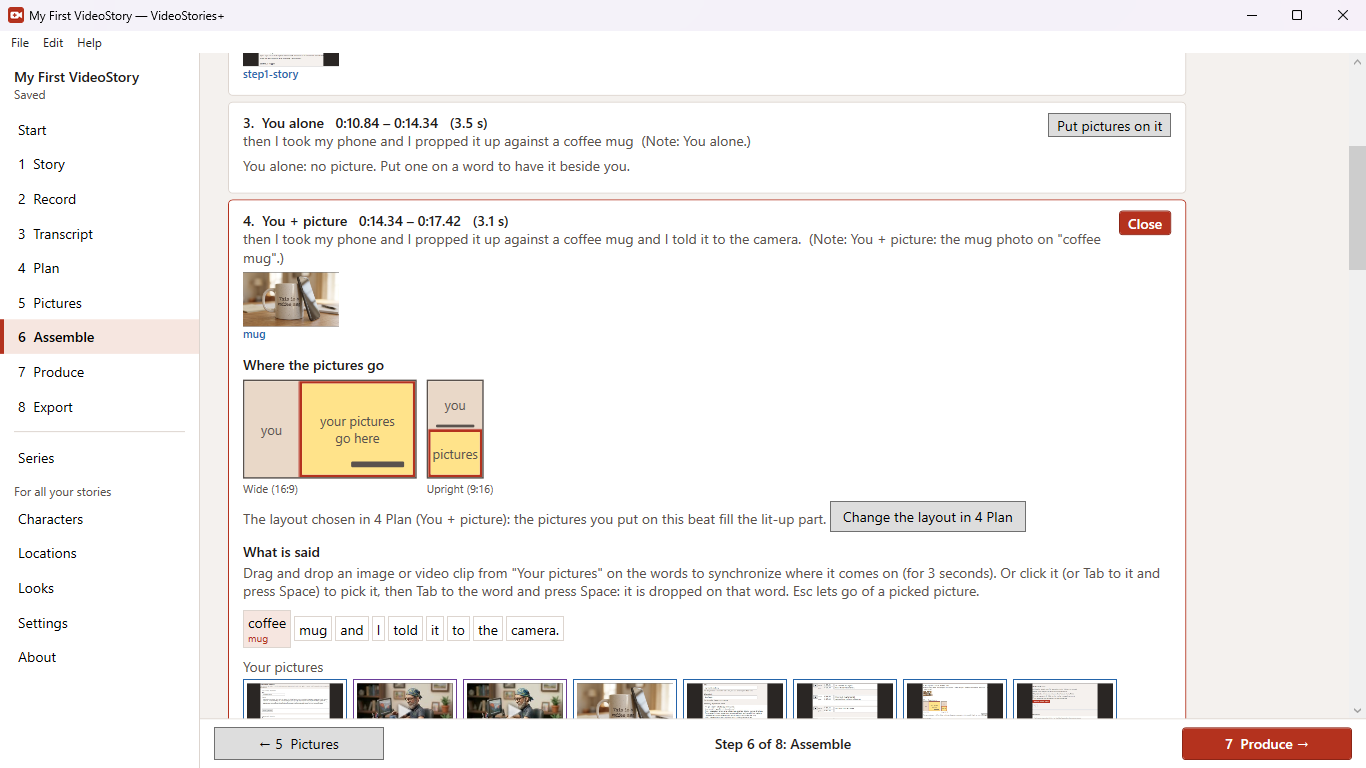
- Assemble. Each photo or clip was dragged onto the word it illustrates, so it comes in exactly then — the map on "I was navigating", the alligators on the bank on "hundreds and hundreds of alligators".
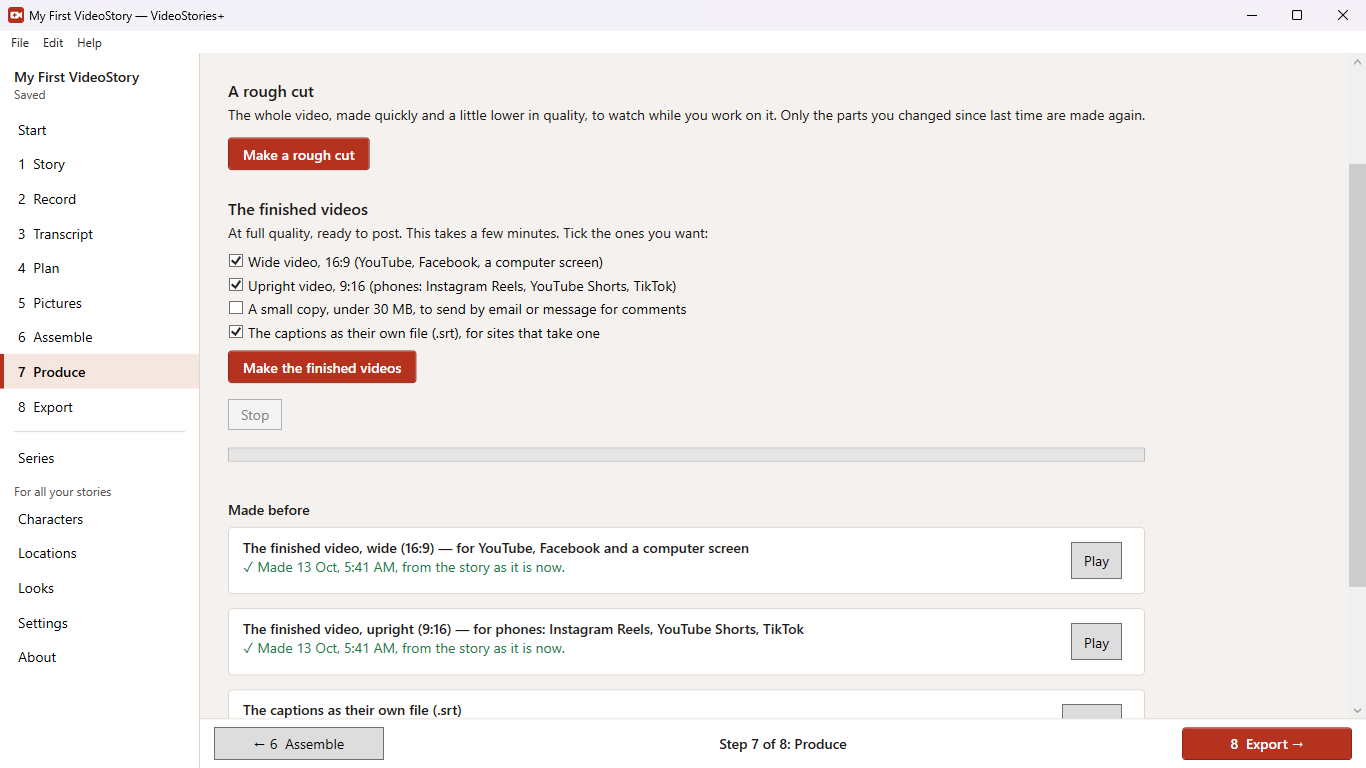
- Produce. A rough cut to watch, a few changes, then the finished videos: wide (16:9), upright (9:16), a small copy to send by email, and the captions as their own file.
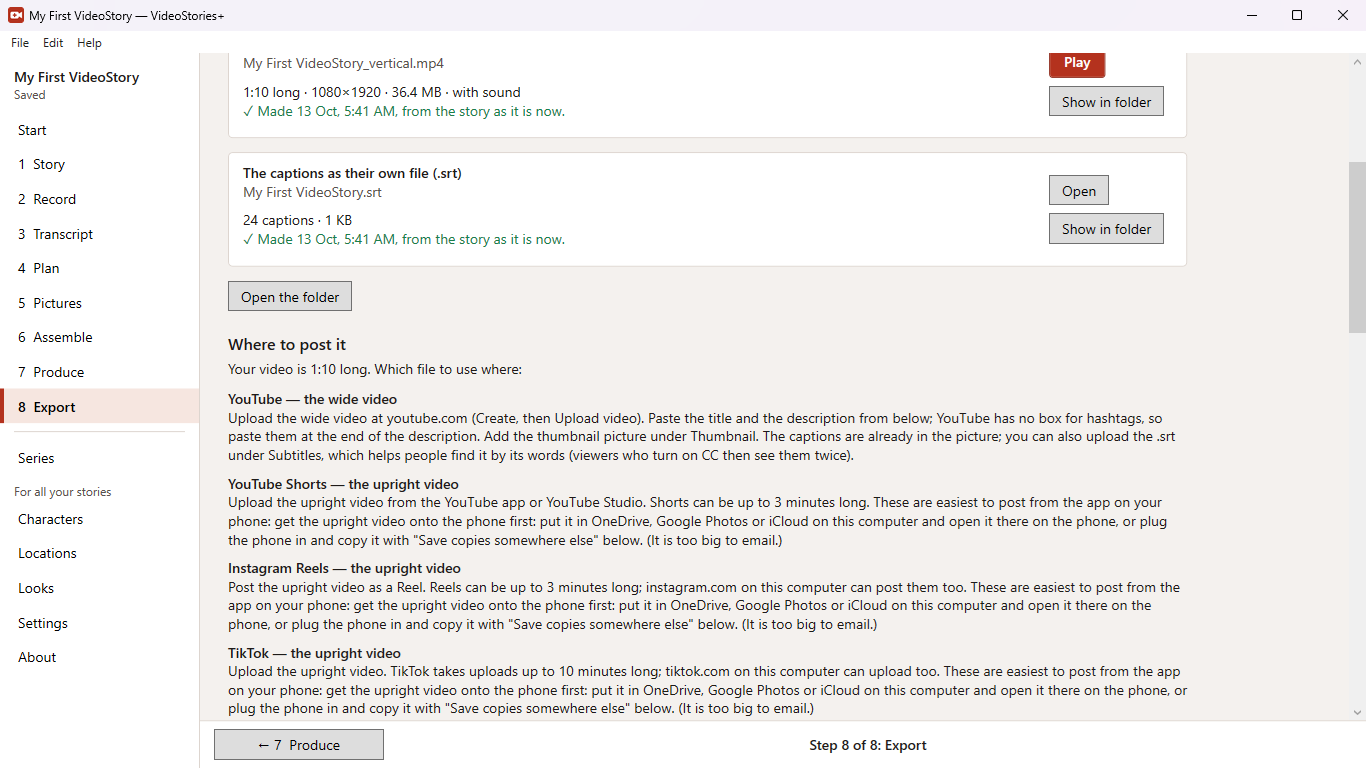
- Export. Which video to post where — the wide one for YouTube and Facebook, the upright one for Reels and Shorts — and the words to post with it, without giving the ending away.
The series gave every story the same look: the yellow colour, the Adventure Racing Stories opening, and a clay alligator who winks at the end.
The sample story that comes with it
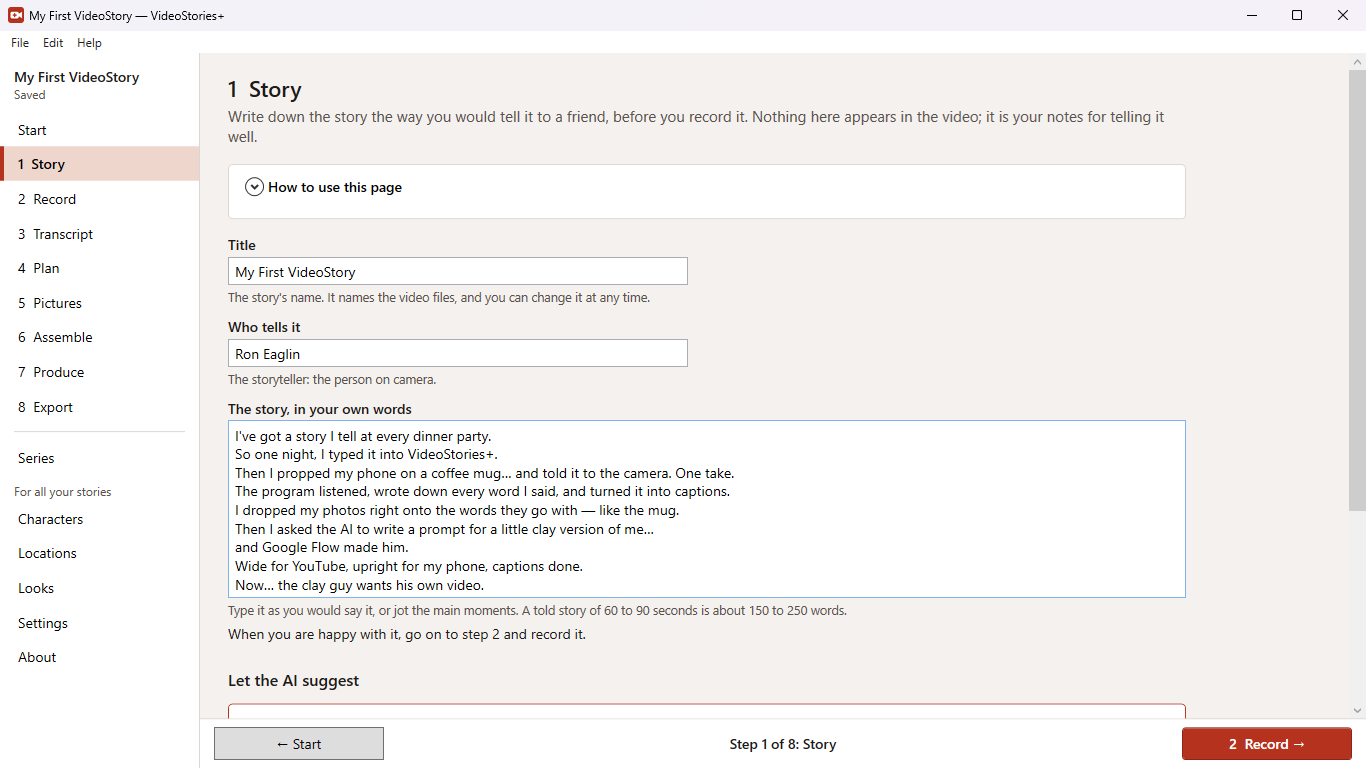
VideoStories+ comes with a sample, My First VideoStory: a one-minute story about making a story with VideoStories+, with every step already done. Press Open the sample story on the program's start screen, look through the steps to see how it was made, and make the video yourself. This is what it makes:
What you can do
- Turn a true story, recorded on your phone, into a captioned video of a minute or two. Upright or sideways, any phone.
- Every word written down with its time, on your own computer (Whisper), and turned into captions. Correct a word, split or join lines.
- Eight guided steps — Story, Record, Transcript, Plan, Pictures, Assemble, Produce, Export — each saying what to do. No video editing to learn.
- Each line becomes a beat: you alone, you beside a picture, a picture full screen while your voice goes on, or a clip with its own sound. Every kind is drawn so you can see what it will look like.
- Drag a photo or clip onto the word it illustrates and it comes in exactly then.
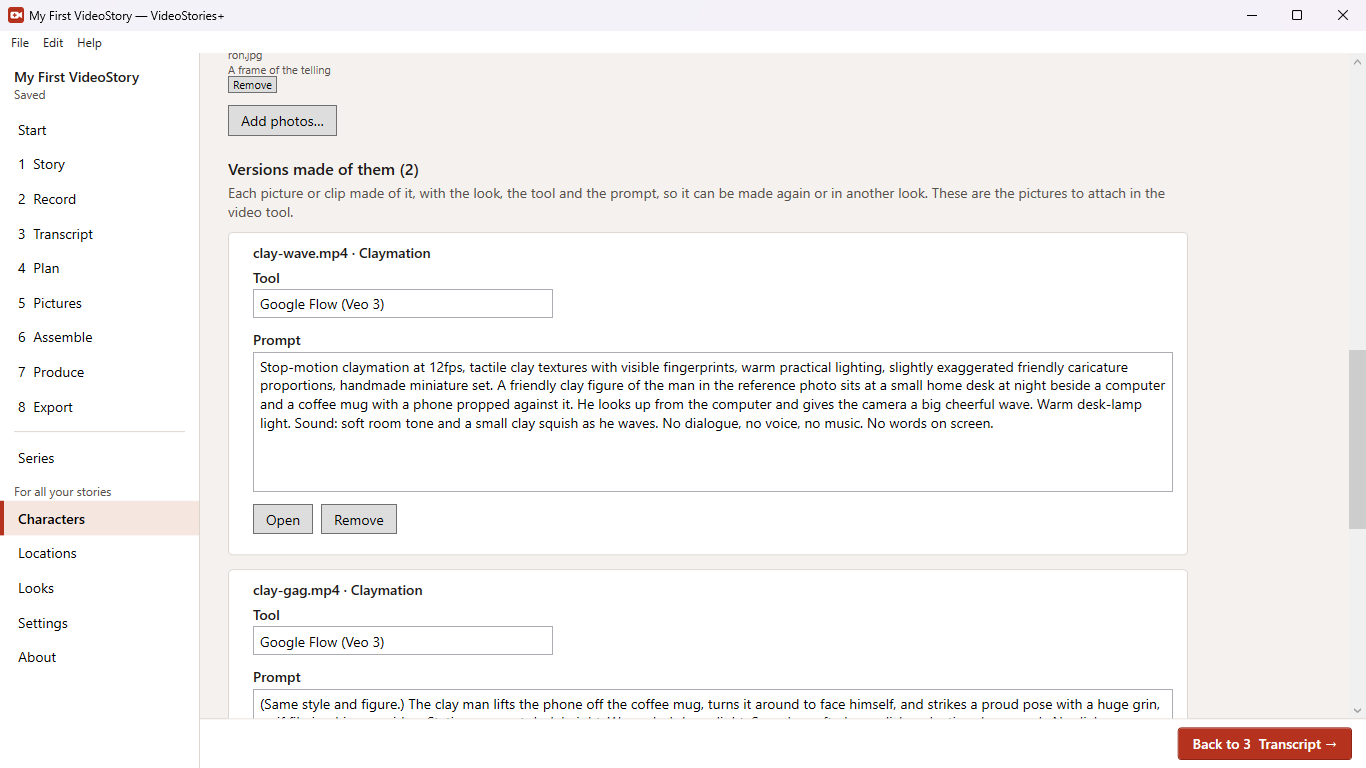
- Prompts written for short animated clips — claymation, cartoon, any look you choose — that you make in a free tool such as Google Flow.
- Characters, places and looks kept once and used in every story, with permission recorded for real people and every version with the prompt that made it.
- Series: a colour, title words, opening clip, closing gag and end card shared by every story in it, so a run of stories looks like one show.
- A quick rough cut to watch while you work, then wide (16:9) and upright (9:16) videos with the captions in, a small copy to send by email, and the captions as an .srt file. Only what changed is made again.
- Which video to post where, the words to post with it, and a thumbnail.
- Export a story as one zip to keep, move to another computer or share.
- Optional AI (Claude, OpenAI, Gemini, Mistral or xAI) with your own key: help with the telling, name checks, the plan, photos on their words, clip prompts and the words to post. It only proposes — you choose what to use.
- No account, no ads, no tracking. Your stories stay on your computer.
What it looks like
Help
Every page in the program opens with How to use this page. These help pages say more about the parts that happen away from the computer, or that are new to most people:
Who it is for
Anyone with a story worth keeping: a family story for the grandchildren, a club's or a team's stories, a teacher's or a student's project, or a series for YouTube. If you can tell it to your phone, VideoStories+ can make it a video.
What it needs
Windows 10 (version 2004 or later) or Windows 11, 64-bit. Making the finished videos takes a few minutes and several gigabytes of free space. Writing down the words on your computer downloads a speech model once (about 500 MB). The AI and cloud transcription are optional and need your own key from an AI company. FFmpeg, which makes the videos, comes with the program.
Versions
1.0 (on the Microsoft Store October 14, 2026) — the first release: the eight steps, transcription on the computer or in the cloud, a beat per line, pictures placed on their words, characters, locations and looks, series, the rough cut and the finished videos, export with the post text and a thumbnail, the optional AI, and the sample story.
Privacy
Your stories, recordings and videos stay on your computer and nothing is sent to us. VideoStories+ goes online only for what you ask: downloading the speech model once, your AI company if you use the AI, and your cloud transcription service if you choose it instead of the computer. Read the VideoStories+ privacy policy.