Accessibility+
Check a course for accessibility and fix what it finds — every change shown to you first, and your course never changed.
FreeOn the Microsoft StoreVersion 1.0.2For Windows PCs
What it is
Accessibility+ helps teachers and course designers make a course every student can use. Export your course from Brightspace (D2L), Canvas, Moodle or Blackboard as a Common Cartridge file (.imscc) and open it: Accessibility+ checks every page, assignment, discussion and quiz, and the Word, PowerPoint and PDF files in it, against WCAG 2.1 AA — the standard most colleges and schools follow.
Then it helps you fix what it found. Each problem says what is wrong, why it matters to a student and what to do, and each fix shows you exactly what will change before anything is changed. Your course export is never changed: the fixes go into a copy beside it, and you put them into your course yourself.
Accessibility+ is written for people who are not accessibility experts. It assumes nothing and explains everything.

After it installs, open it from the Start menu, choose your course export, and Accessibility+ checks it. The help pages show how to export a course and what to do next.
Help
How to use Accessibility+: export your course, check it, fix it in the editor, each kind of fix, and putting the fixes into your course.
What you can do
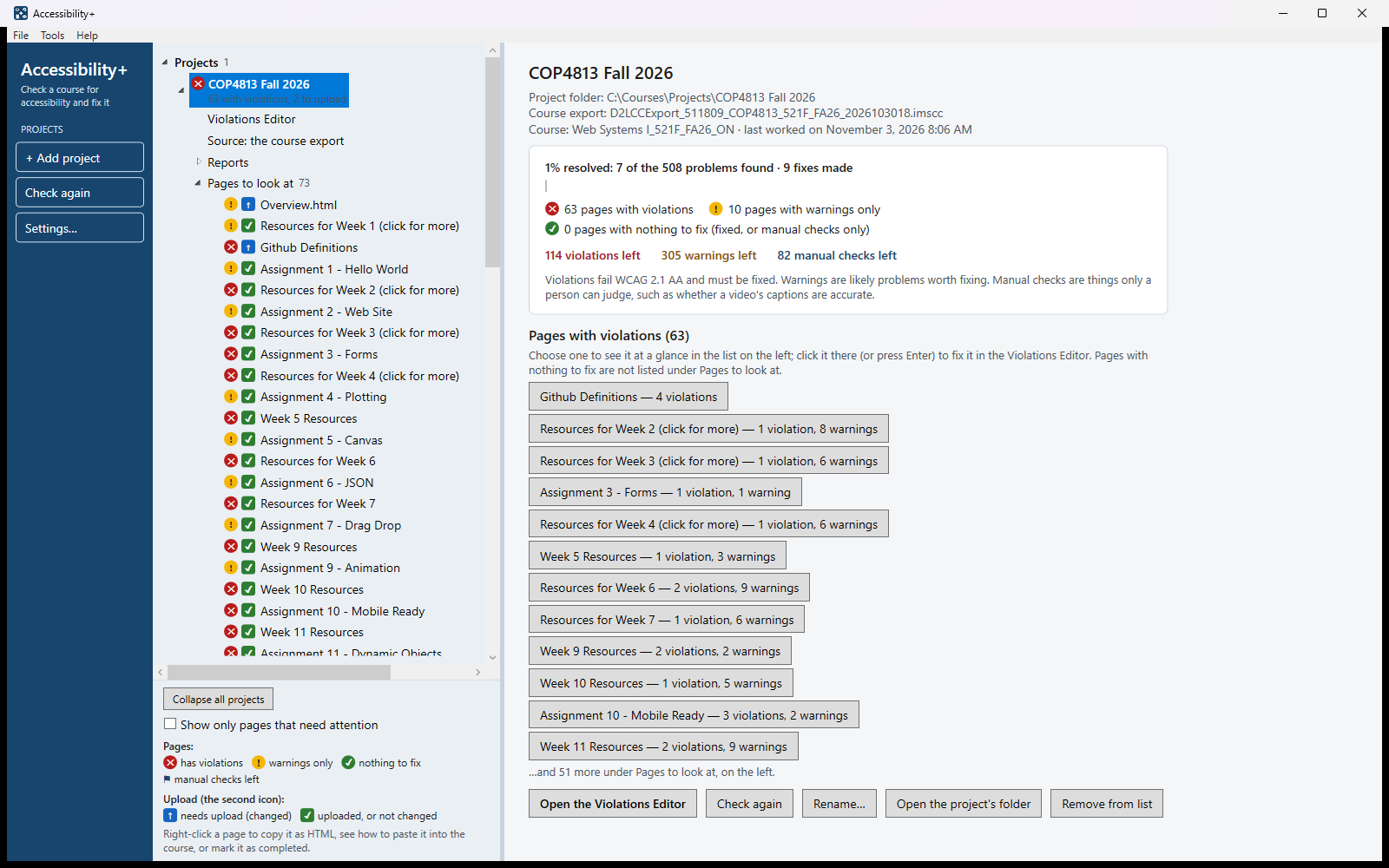
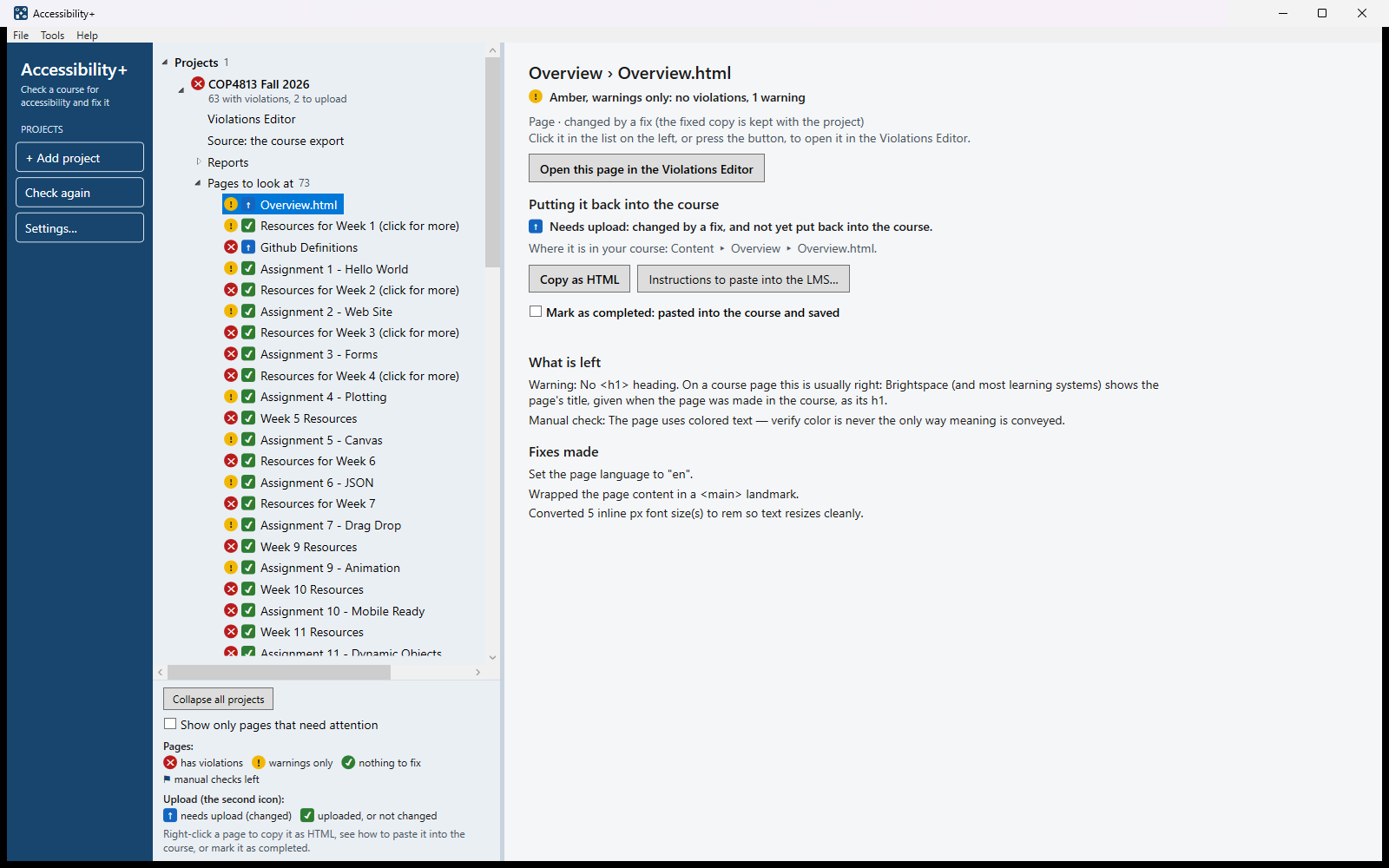
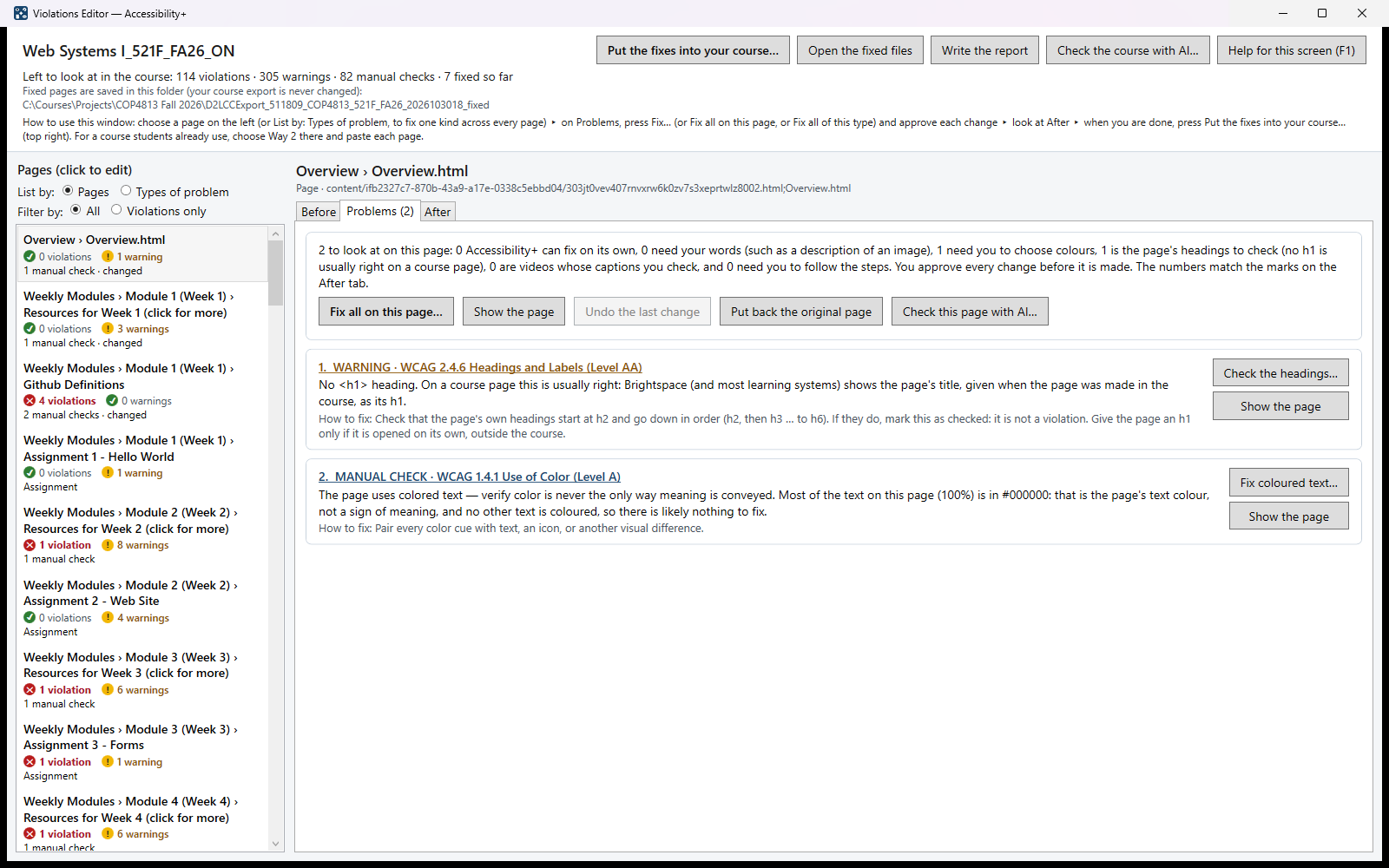
- See every course as a project, with its pages listed red (violations), amber (warnings only) or green, and a second icon for the pages you changed and still need to put back into your course.
- Check a whole course export from Brightspace, Canvas, Moodle or Blackboard, and write a full report (HTML and CSV), and a Progress report of every fix made.
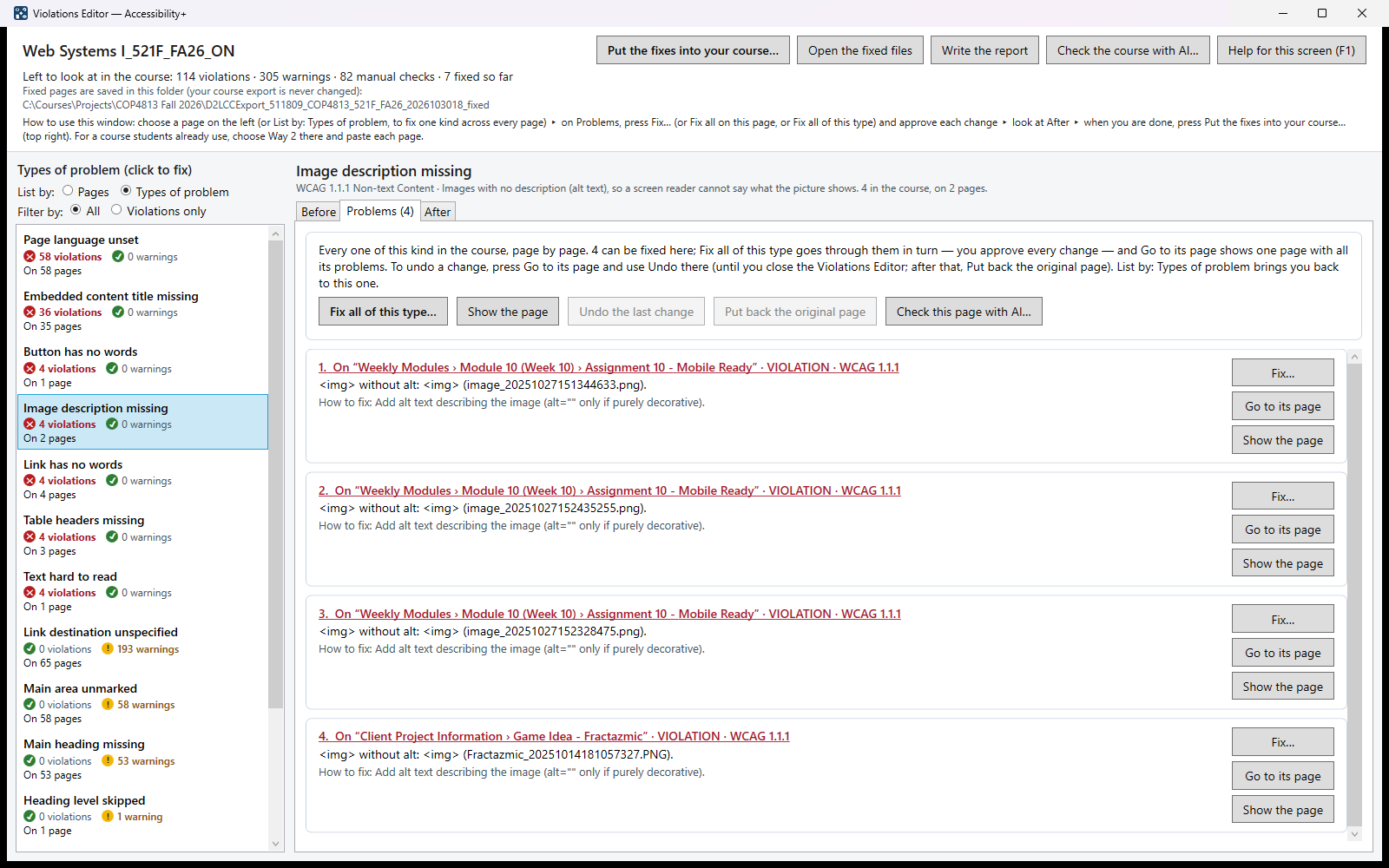
- See every page with something to fix, as exported and as fixed, with each remaining problem outlined and numbered — or as its HTML code with each problem's line marked.
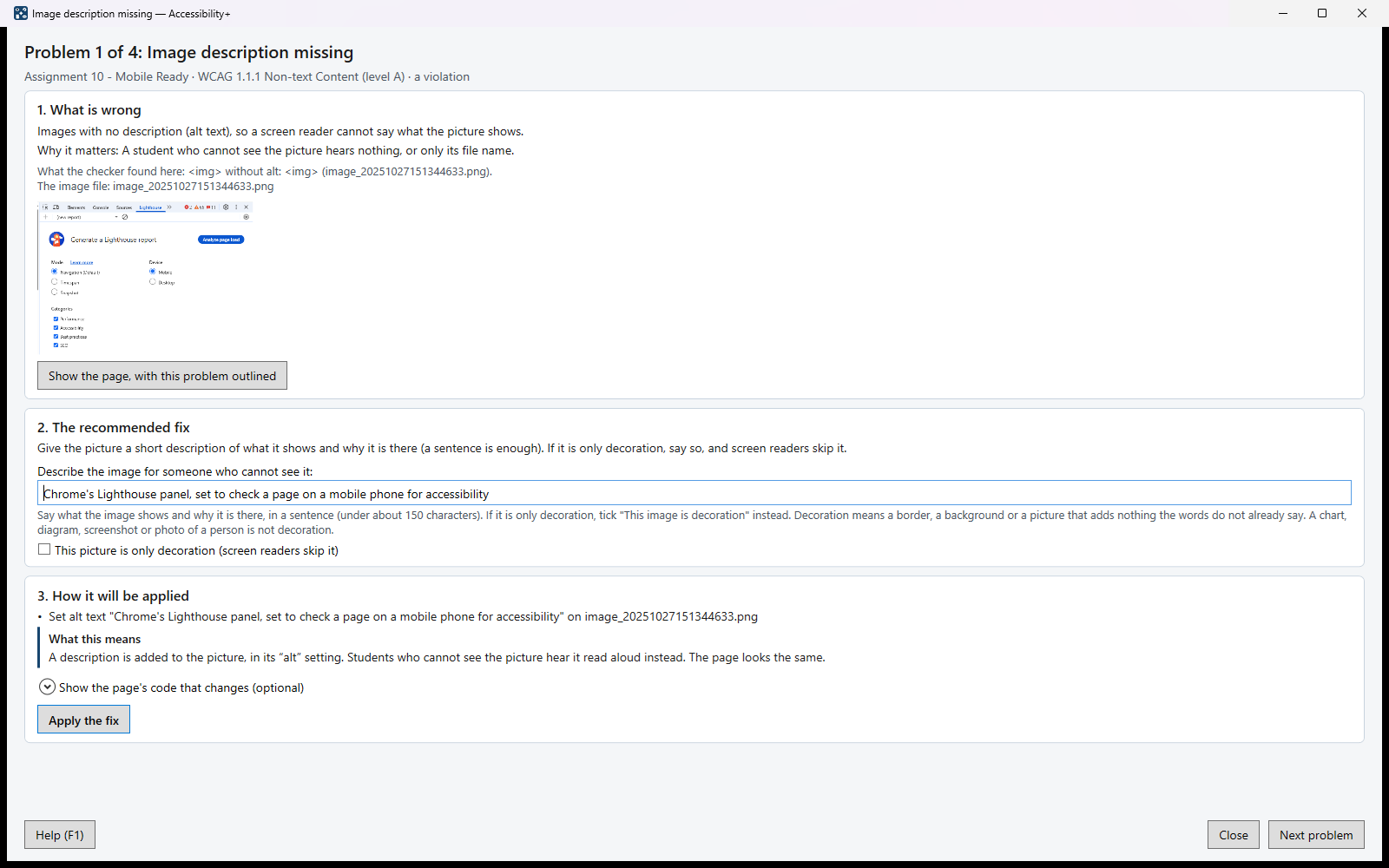
- Open one form for every problem: what is wrong and why it matters to a student, the recommended fix ready to apply, what the change means in everyday words, and a check that it worked — then fix the others of the same kind the same way.
- Approve the fixes Accessibility+ can make on its own (a page's language, its headings, its main area, a part that works only with the mouse), on one page or every page at once.
- Fix Word, PowerPoint and PDF files in the file: titles, slide titles, table headers, picture descriptions, and a PDF's title and language.
- Give the words a fix needs — an image description, the words of a link, a title — with suggestions from the page itself, including a video's title from YouTube or Vimeo.
- See a page's colours and choose a colour scheme that is easy to read — for one page, or one theme for every page with faint text — and add words such as "Important:" to coloured text that carries a meaning.
- Check a video's captions — even a video that is not yours — and add a transcript for students.
- Give a button with no words its words, with clues to what it does, or remove it when it does nothing.
- List the course by type of problem and fix every one of a kind together.
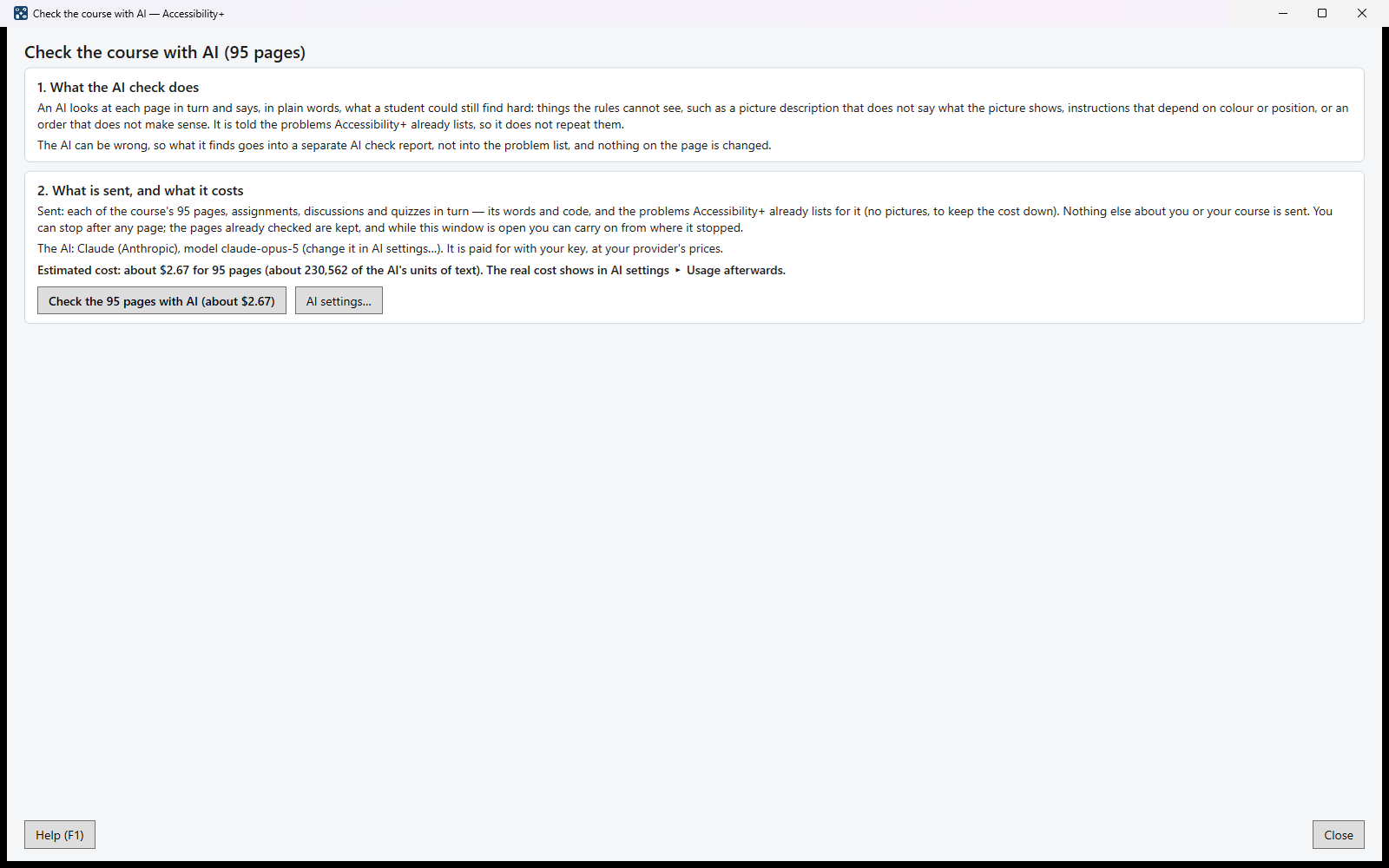
- Only when you ask, have an AI check a page or the whole course for what a student could still find hard — with the cost shown first, your own AI key, and a separate report. Nothing is changed.
- Undo a change, or put back the original page, at any time. A course is a project: stop and carry on another day.
- Put the fixes into your course: make a fixed course export to import, or put each changed page back one at a time — right-click it to Copy as HTML, see where it is in your course and how to paste it in, and Mark as completed.
What it looks like
Who it is for
Teachers, instructional designers and accessibility coordinators who need a course to meet WCAG 2.1 AA — in a college, a school or a training department — and want to fix it themselves, page by page, without learning HTML first.
What it needs
Windows 10 (version 2004 or later) or Windows 11, and a course export (.imscc) from your learning system. In Brightspace: Course Admin ▸ Import / Export / Copy Components ▸ Export as Common Cartridge (the steps, one by one). No account and no internet connection are needed to check and fix a course.
Versions
1.0.2 — one form for every problem, with what the fix means and whether it worked; Word, PowerPoint and PDF files fixed in the file; colour schemes and one colour theme for every page; parts that worked only with the mouse made to work with the keyboard; quiz questions, coloured text and recordings; the AI check of a page or the course, cost first; Help ▸ Check for a new version; F1 help on every screen.
1.0.1 — a new main window with every project and page at a glance; right-click a page to Copy as HTML, see how to paste it into your course and Mark as completed, with an icon for what is still to upload; the Progress report; tables shown before their headings are chosen; course pages with no h1 marked as checked at once; a folder for each project; Help ▸ About.
1.0 — on the Microsoft Store October 30, 2026; the first release: the course check, the editor with Before and After views, automatic fixes, fixes with suggested words, the colour window, the captions page, fixing by type of problem, projects, and putting the fixes into your course.
Privacy
Your course stays on your computer and nothing is sent to us. Accessibility+ goes online only to show what a course page itself embeds, to look up an embedded video's title on YouTube or Vimeo, when you choose Check for a new version, and — only when you start an AI check — to send the page, or every page of the course, to the AI provider you chose, with your own key. Read the Accessibility+ privacy policy.