Accessibility+ help
This help describes Accessibility+ 1.0.2. In 1.0.1 (on the Microsoft Store until 1.0.2 is out) the editor's tab is called Violations, and its buttons Fix violation… and Fix all violations on this page…
Accessibility+ checks a course export from your learning system against WCAG 2.1 AA and helps you fix what it finds. Nothing changes until you approve it, and your course export is never changed. The help follows the work, in order:
- Export your course — get the course as one .imscc file from Brightspace, Canvas or another system, and what that file is.
- Check the course — open the file, read the results and the report, and come back to a project later.
- Fix problems in the editor — the pages, the Before, Problems and After tabs, Fix all, fixing one kind of problem everywhere, Undo.
- Each kind of fix — automatic fixes, fixes that need your words, colours, coloured text, videos and captions, tables, a page with no h1, buttons with no words.
- Put the fixes into your course — a fixed course export to import, or copy and paste item by item.
Words used here
- Violation — fails WCAG 2.1 AA, the line most colleges and schools hold courses to.
- Warning — a likely problem; worth fixing.
- Manual check — something only a person can judge (for example, whether a video's captions are right).
- Project — a course export you are working through. Your fixes are kept, so you can stop and carry on later.
- Problem — any of the three: a violation, a warning or a manual check. The editor's Problems tab lists them all.
In Accessibility+, press F1 (or Help ▸ Help for this screen, or the Help for this screen (F1) button) to open the help for the window you are in.
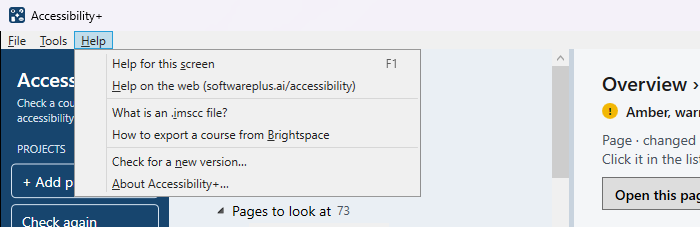
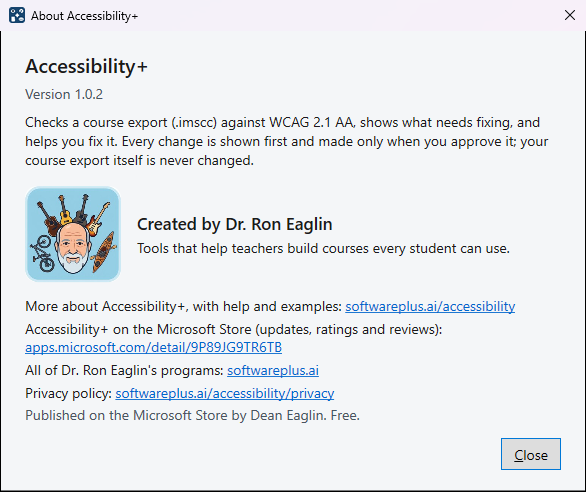
Help ▸ Check for a new version… asks the Microsoft Store whether a newer Accessibility+ is out. Help ▸ About Accessibility+… shows the version you have, with links to this site, the Microsoft Store page and the privacy policy.