Check the course
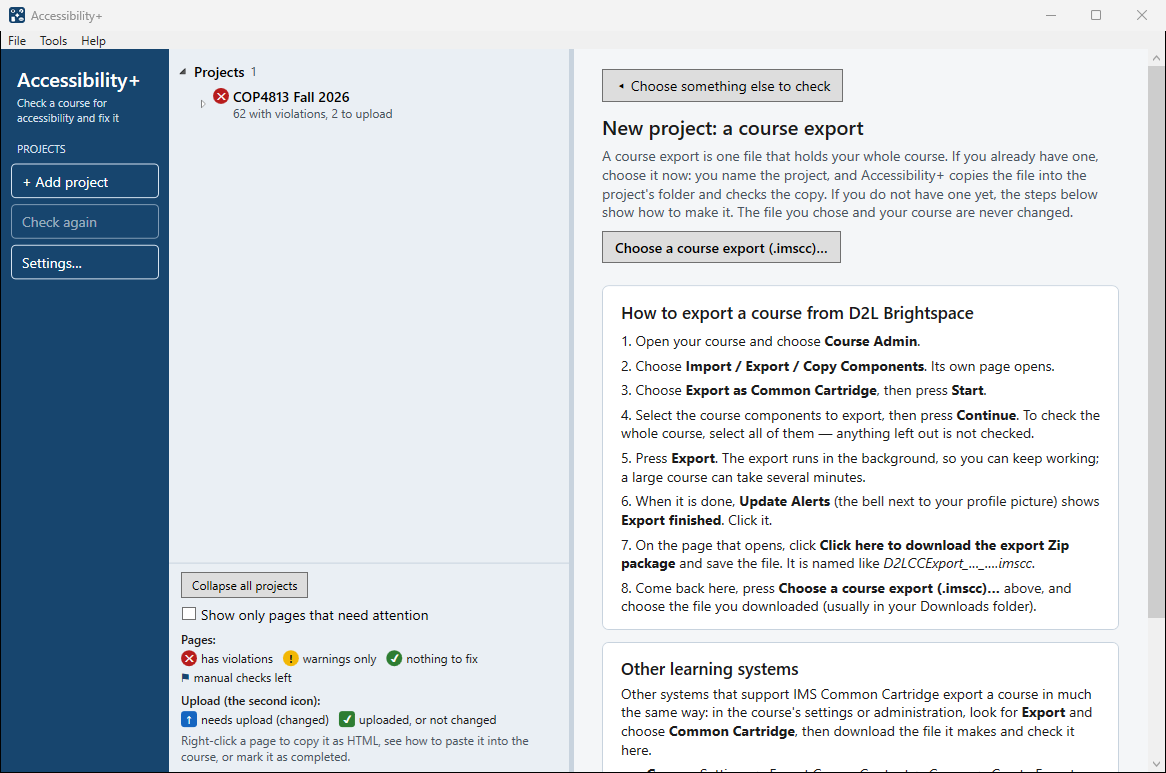
- Start Accessibility+ and press + Add project on the left. Choose A course from your learning system.
- Press Choose a course export (.imscc)… and choose the file you downloaded (usually in your Downloads folder). Give the project a name (the course's title is filled in).
- The check reads every page, assignment, discussion and quiz, and the Word, PowerPoint and PDF files. A large course takes a minute or two.
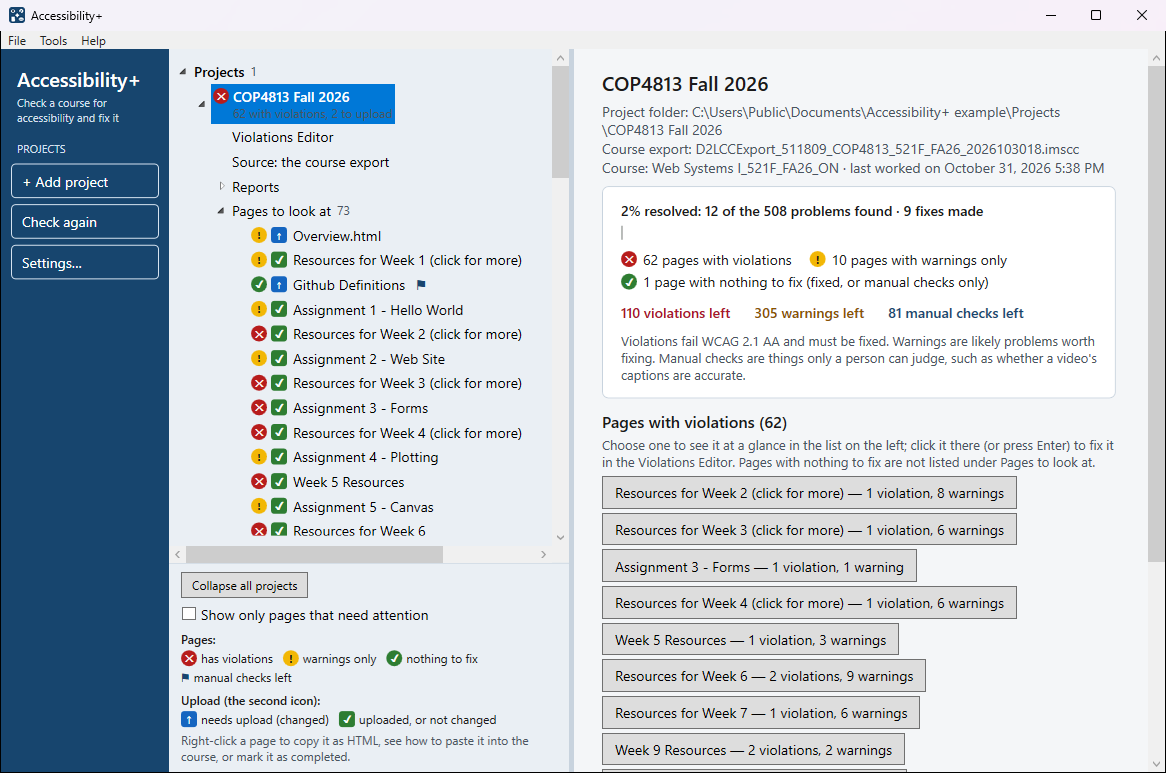
- The project appears on the left. Choose it to see it at a glance: how many violations, warnings and manual checks were found. Open the Violations Editor opens the editor; the full report is under Reports ▸ Accessibility Audit.
What it checks
Images with no description, link words that do not say where the link goes, missing or skipped headings, a page that does not say its language, text too faint to read, colour used as the only sign of meaning, videos whose captions need checking, embedded content with no title, buttons and form fields with no words, tables with no header cells, and more — each against WCAG 2.1 AA, with WCAG 2.2 reported beside it as "also recommended".
Projects: carry on later
Every course export you check becomes a project, with its own folder in your projects folder (Documents\AccessibilityPlus unless you choose another under Tools ▸ Settings): a copy of the export, your fixes and a report for each check. The main window lists your projects on the left. Open one to see its Violations Editor, its Source, its Reports (the Accessibility Audit and a Progress report) and its Pages to look at:
- The first icon is the page's status: red ✕ violations, amber ! warnings only, green ✓ nothing to fix (⚑ manual checks left).
- The second, square icon says whether the page still needs putting back into your course: blue ↑ changed by a fix and not yet marked as completed; green ✓ not changed, or marked as completed.
- Click a page to open it in the editor. Right-click it for Copy as HTML, Instructions to paste into the LMS and Mark as completed (see Put the fixes into your course).
- Collapse all projects, under the list, closes every project down to its title; Show only pages that need attention hides the green pages with nothing to upload.
Remove from list takes a project off the list only; its folder and your fixes stay where they are.
Your course export itself is never changed.