Fix problems in the editor
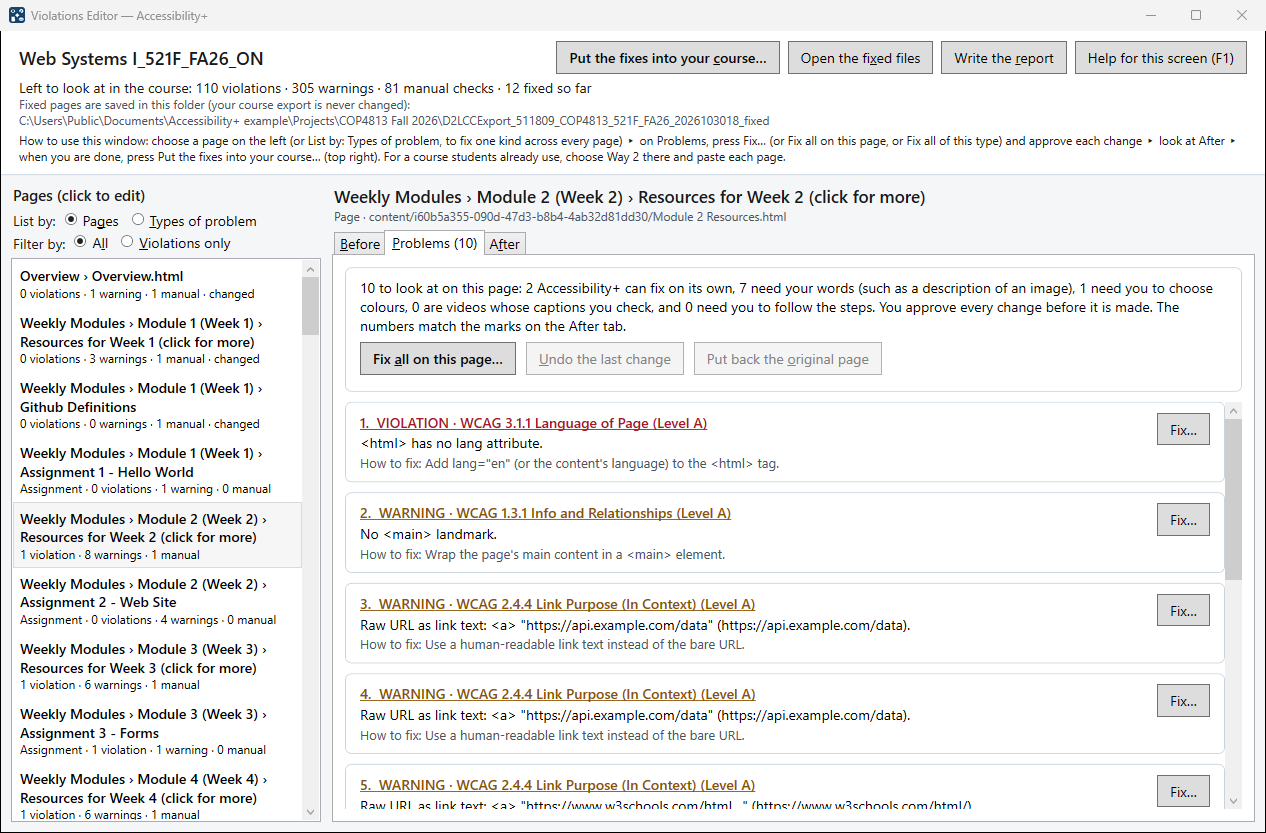
The list on the left
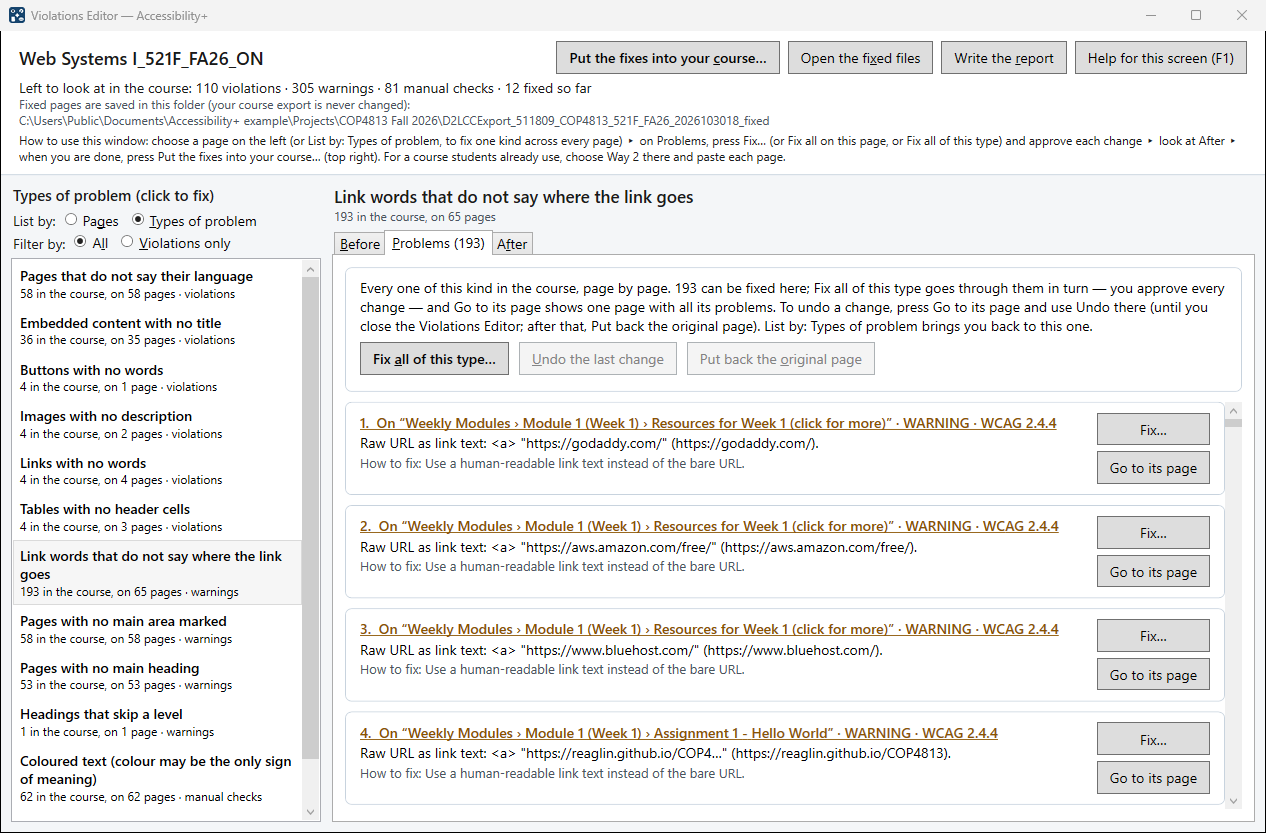
List by: Pages shows every page and file with something to fix, in the order students see them. List by: Types of problem shows each kind of problem in the course — for example "Link words that do not say where the link goes: 190 on 64 pages" — violations first, then the most common.
The three tabs
- Before — the page as it was exported.
- Problems — every problem on the page (violations, warnings and manual checks), numbered, each with a button: Fix…, Choose a colour…, Fix coloured text…, Check the captions…, or How to fix… for the ones you fix by following steps.
- After — the page as fixed so far, each problem left outlined and numbered, and problems about the whole page in a box at the top.
On Before and After, Show: The HTML code, problems marked shows the page's code, one element per line, with each problem's line highlighted and numbered.
Show the page
Show the page, on the Problems tab and on each problem, opens the page in a window of its own, as students see it, with every change made so far — useful to see colours (WCAG 1.4.3) in place. Press Close and go back (or Esc) to return. The colour windows have Show the page with this change: the page with the colour you are choosing, before you approve it.
Approving a fix
Every fix opens a box that says what will change, with the page's code before and after if you want to see it. Nothing changes until you press Approve.
Fix all
Fix all on this page… goes through a page in steps: the fixes Accessibility+ can make on its own (one approval), then tables, the page's headings, each one that needs your words, colours, then videos — with Skip this one and Stop (changes so far are kept). Stop ends Fix all there; what you approved before it stays.
With Types of problem, Fix all of this type… does one kind across the whole course: the automatic ones on every page at once or page by page, then each one that needs you. Tick Use the suggestion for the rest of this type to let the suggestions fill in the rest; ones with no suggestion are still asked.
Changing your mind
Undo the last change takes back the last change on a page. Undo works until you close the Violations Editor; after that, use Put back the original page, which takes back every change on the page and every mark (Mark as checked, Nothing to fix, Save what I found). When listing by type, press Go to its page to reach that page's Undo.
When you are done, press Put the fixes into your course… (top right of the editor). For a course students already use, choose Way 2 there and paste each page.