Each kind of fix
The form for each problem
Press Fix… on any problem and one form opens, read from top to bottom:
- What is wrong: the problem in plain words, why it matters to students, and what the checker found. Show the page, with this problem outlined shows it as students see it.
- The recommended fix, ready to apply: suggested words are already in the box; change them if they are not right.
- How it will be applied: what will change, and What this means in everyday words. Press Apply the fix.
- What happened: what was changed, with Show the page now and Undo this fix.
- Did it work? Accessibility+ checks the page again: ✓ Solved, or ✗ Not solved yet with what it still finds. When it is solved and there are more of the same kind, Fix the other N the same way fixes and checks each of them.
Next problem goes on through the list. Colours, tables, headings, scripts and captions open their own box from part 2; what it changed is shown in parts 4 and 5.
Word and PowerPoint files
Word documents and PowerPoint presentations are fixed in the file itself, in the same form:
- A slide with no title: the slide's first words are suggested (a slide with no words takes the title of the slide before it, with "(continued)"). If the slide has an empty title box, the title goes there and students see it; if not, it is put just above the slide, where it is not shown, so the slide looks the same and screen readers still read it.
- A presentation or document with no title: its first slide or first heading is suggested.
- A picture with no description: the form shows the picture with the slide's words (or the text around it in Word). Type what it shows, or tick This picture is only decoration.
- A Word table with no header row: its first row becomes the header row.
- A Word document with no headings: the short bold or larger lines that start its sections become Heading 1, 2 or 3; the form lists them first.
Open the file in PowerPoint (or Word) opens a copy to look at. After one slide title works, Fix the other N the same way gives every untitled slide in the course its own first words. Pictures are always described one at a time. The fixed file replaces the old one when you put the fixes into your course.
Fixes Accessibility+ makes on its own
A page's language, its main heading when one can be promoted, headings that skip a level, and the main area of the page. You see the change and approve it.
PDF files
A PDF's language and title are fixed in the file itself, in the same form:
- Language: Accessibility+ sets English, so screen readers read it with English pronunciation. If the PDF is in another language, press Undo this fix and set its language in Acrobat (File ▸ Properties ▸ Advanced ▸ Language).
- Title: the name the course gives the file is suggested; change it if it is not right. PDF readers then show the title in place of the file name.
The pages stay exactly as they were. A PDF whose author locked it against changes, or that is digitally signed, is not changed: its form says why and gives the steps.
A PDF that is not tagged for screen readers cannot be fixed here: its headings, reading order and picture descriptions have to be made where the PDF came from. Make the PDF again from the original (in Word: Save as PDF with "Document structure tags for accessibility" ticked). For a published article, link to the publisher's web version instead, or ask your library for an accessible copy.
Parts that work only with the mouse
A part of a page that does something when clicked (for example a card that opens), but that the keyboard cannot reach. Accessibility+ marks it as a button: Tab reaches it, and Enter or the space bar do what a click does. When the part holds a heading, the heading's words become the button, so it stays a heading for screen readers. The page looks the same. Every such part on the page is changed at once. To try it, press Show the page now, press Tab until the part has an outline, then press Enter.
A clickable part that already holds its own button or link (for example a card header with a ▲ button) is not listed: keyboard users use that button.
Fixes that need your words
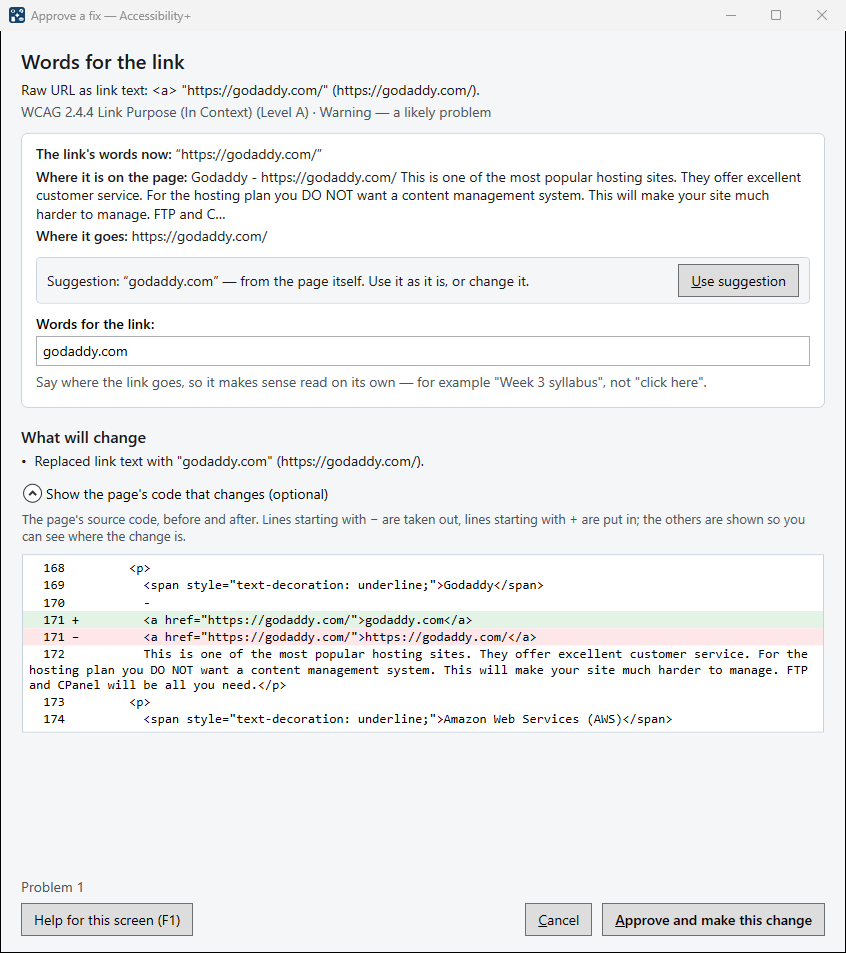
An image description, the words of a link, a title for embedded content, a label for a form field, a heading for a page with none. The box shows the element as it appears on the page — for a link, its words, the sentence it is in and where it goes — and suggests words where it can:
- a link to another page in the course: that page's title; a link to a website: the site's name; an email link: "Email …";
- an embedded YouTube or Vimeo video: its title, looked up on YouTube or Vimeo;
- a page with no headings: the page's own title.
Use suggestion fills the box; you can change it before approving. An image can be marked as decoration instead (screen readers then skip it).
Text that is hard to read
For text too faint against its background (WCAG 1.4.3), press Fix the colours… on the problem (or, in Types of problem, Fix all of this type…). One window shows:
- What you have: the page's colours now, and its faint text on its own background.
- Choose a colour scheme: Your colours, made easy to read (the page keeps its look; only the faint colours change), or a ready-made scheme — Light, Dark, High contrast, Warm, Soft blue. Every one meets the rule. Under it, Use it on this page, or all the pages with text that is hard to read.
- What it does to each page, with Show the page to see it first.
Press Use this scheme. Undo takes it back on a page; after using it on several pages you are asked Keep the scheme? — No takes it off all of them. Text on a see-through background, or on one the page does not set, cannot be measured: look at it with Show the page, and if it reads well press It reads well: mark as checked.
Text on a see-through background (a faint tint) has its own first choice, Make this background solid: the tint becomes the solid colour it already shows, then any text still too faint gets an easier colour.
Changes screen readers are not told about
A script is a small program in the page. When it changes words a student reads (a score, a message), a screen reader must be told. Check the scripts… says in plain words what the page's scripts do. If one changes the words in a part of the page, that part is marked so screen readers read the new words (approve the change). If they only change how things look or move, there is nothing to fix: press Mark as checked.
What this means
Every fix box ends with What this means: the change to the page's code in everyday words — what is added or changed, what it does for students, and whether the page looks different. The code itself is under Show the page's code that changes, for anyone who wants it.
Coloured text
Some students cannot see colours, and screen readers do not say them. Fix coloured text… lists the coloured passages, one colour at a time, and lets you add words in front that carry the meaning (suggested from the colour: red or orange "Important:", green "Correct:"), make it bold, or change or remove the colour. When one colour is the page's own text colour, it is shown separately, with the option to take it off (or, on a page with its own background, to make the text black or white). Nothing to fix: the colour is only decoration marks it checked without a change; when the page's own text colour is the only colour on the page, that button reads Nothing to fix: keep the colour.
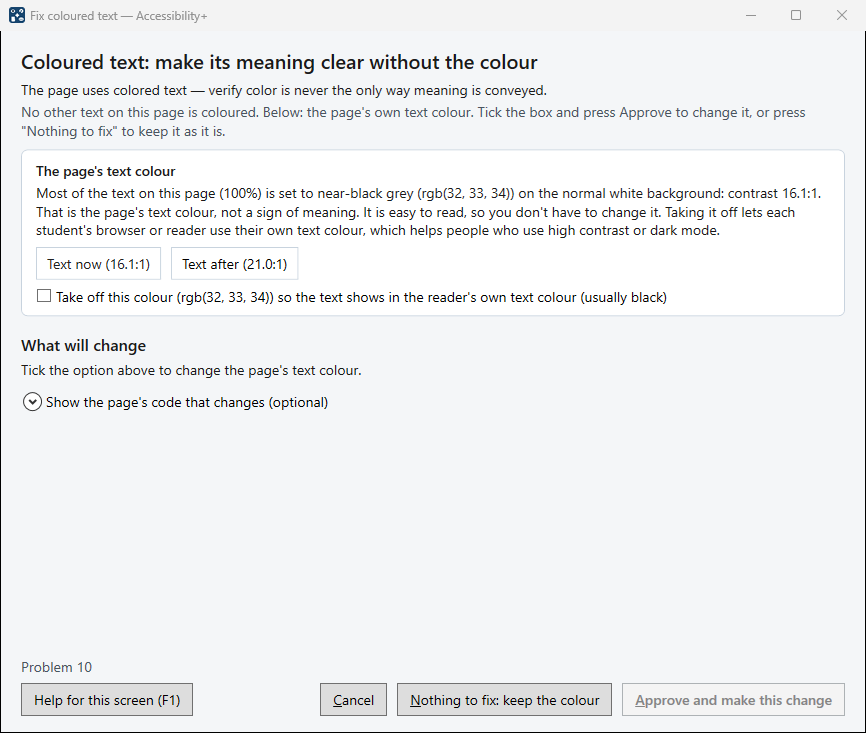
When a page's colours all come from its style (coloured headings, banners, labels), there is nothing to pick out and change. Look at the colours… lists each colour the style gives to text, with an example of the words and how many places, and puts first the ones whose names suggest a meaning (such as "warn", or "pros" and "cons"). Look at them on the page; where a colour alone means something, add a word or a symbol beside it; then Mark as checked.
Videos and captions
Check the captions… opens the video in your browser and shows how to check its captions — including for a video that is not yours. Say what you found; if the captions are missing or only automatic, give students a transcript (a link, or pasted text — YouTube's times are taken out), put on the page just after the video.
A recording kept in the course (a sound file or a video file) opens with Check the recording…: listen to it or watch it, then give students a transcript (for sound: Word's Home ▸ Dictate ▸ Transcribe can make a first draft to correct) or captions, and Mark as checked.
Quizzes
A quiz's questions are fixed in the form like a page: a picture's description, or a link's words. The quiz is shown as its questions. When you put the fixes into your course, each changed part has its own copy button, named with the question's first words ("the text of question 50 (“You are given an E-R diagram…”)", "the feedback of question 31"): find that question in your quiz by its first words (the course may number its questions differently) and paste it into that place in its Source code view.
Tables with no headings
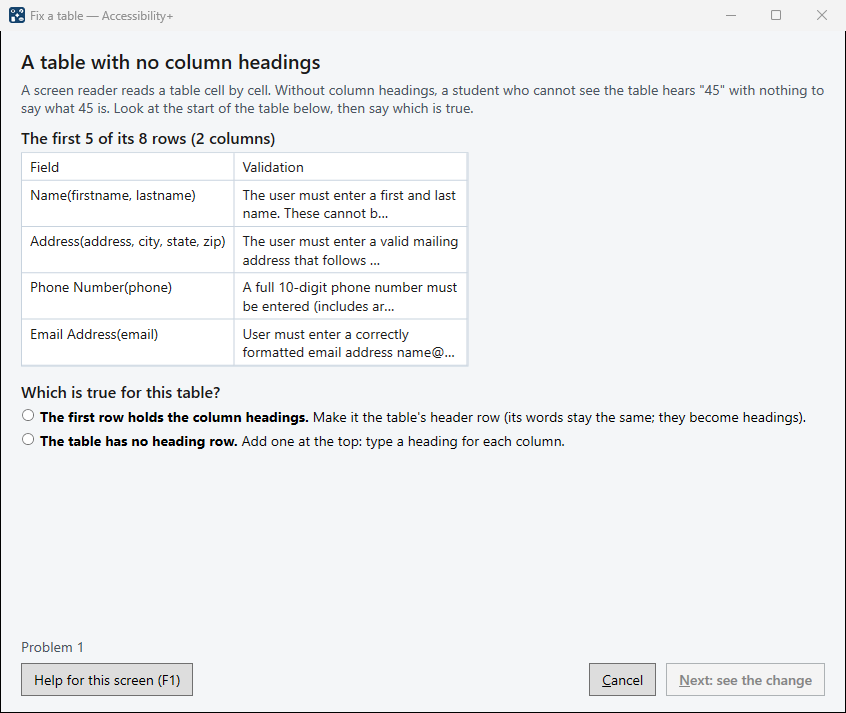
A table whose columns have no header row. The box shows the table's first rows: choose The first row holds the column headings (it becomes the header row) or The table has no heading row (a heading row is added at the top, and you type a heading for each column), then Next: see the change and Approve.
A page with no h1
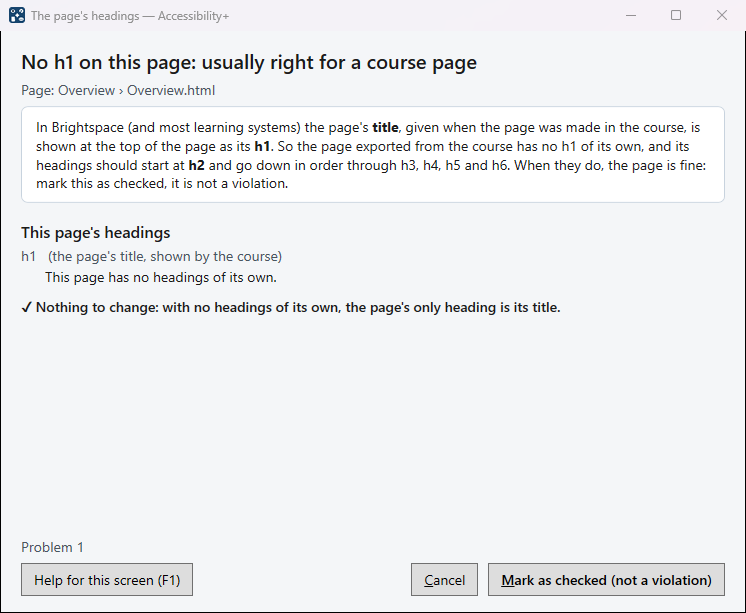
Brightspace and most learning systems show a page's title as its h1, so a course page needs no h1 of its own when its headings start at h2 and go in order. The box shows the page's headings: Mark as checked records that they are right; Fix the headings and mark as checked changes levels that skip. Put back the original page takes the mark off.
Buttons with no words
The box lists what the button might do — a script on it, the form it sends, the section it opens and closes, its symbol — and suggests words. Remove this button from the page is ticked already when nothing gives it a job.
The AI check
The rules Accessibility+ checks cannot see everything: whether a picture's description says what the picture shows, whether an instruction depends on colour or position, whether the order makes sense. Check this page with AI… (on a page in the Violations Editor) and Check the course with AI… (in its top bar) ask an AI to look, using the AI you set up in AI settings (shared by all of Dr. Ron Eaglin's programs).
- The cost first: the window says what is sent, which AI, and the estimated cost, and checks only when you press Check … with AI. It is paid for with your own key.
- A report, not changes: what the AI finds goes into an AI check report in the project's Reports ▸ AI checks folder, with where, why it matters and what to do. The AI can be wrong, so its findings are not added to the problem list, and nothing is changed.
- The course: each page in turn, with a Stop button; the pages already checked are kept in the report.
How to fix…
A few problems are fixed by you in another program (for example a PDF's tags). Their button shows the steps.
← Fix problems in the editor Put the fixes into your course →