AppliedDatabase+ Help The SQL tool
The SQL tool
The SQL tool is your own database to try anything on. In an exercise, each Run starts again from a fresh copy of the database. In the SQL tool, what your SQL does stays: a table you make, or a row you add or change, is there for your next statement. Use it to practise, to build a small database of your own, or to load a spreadsheet and ask questions of it.
It is a window of its own, beside the book. You don't need to sign in to use it.
On this page
- Opening the SQL tool
- 1. Choose a database
- 2. Type SQL and run it
- 3. The tables and the history
- Undo the last run
- 4. Saving to a file
- Importing and exporting CSV
- What the SQL tool does not do
- Closing, Switch learner and the auto-lock
- Keys
Opening the SQL tool
- On the start screen (Who is learning?): under Tools, without signing in, press SQL tool.
- Signed in: choose ⚒ Tools in the path (under Glossary) and press Open the SQL tool on its card, or use the Tools menu (Ctrl+Shift+T shows the Tools page).
There is one SQL tool at a time; opening it again brings the open one to the front. F1 shows or hides the short help at the top of its window.
1. Choose a database
The SQL tool opens on an empty database. From the File menu you can also choose:
- Open a book database: a copy of one of the book's databases, such as the shop, the clinic, the bank or Heron Bay Animal Rescue. It is a copy, so the book's own database never changes. You may delete, drop or change anything in it.
- New database (Ctrl+N): an empty one, to build from CREATE TABLE.
- Open a database file (Ctrl+O): a SQLite file of yours (
.sqlite,.db). The file is read into the window and is not changed until you press Save.
If the database open now has changes that are not saved, the SQL tool asks first: Yes saves them, No lets them go, Cancel goes back to it.
2. Type SQL and run it
- Type in the Your SQL box: one statement or many, each ending with a semicolon.
- Press ▶ Run (or Ctrl+Enter or F5 while the cursor is in the box). With some text selected, only that part runs.
- Read the line under the buttons: what happened, or what was wrong in plain words. A statement that is refused changes nothing, and the statements before it are kept.
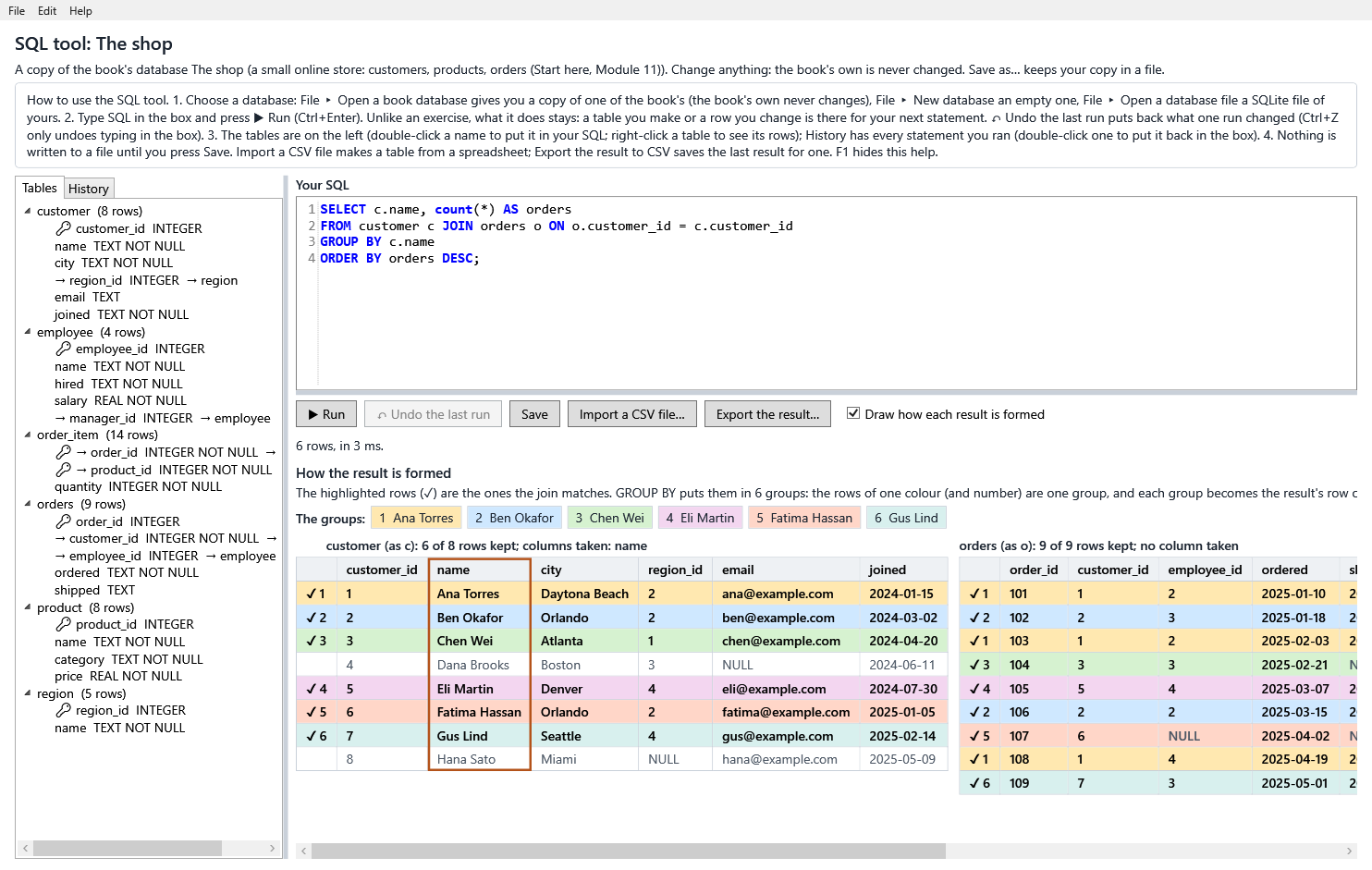
With Draw how each result is formed ticked, a query's result is drawn as in the book's SQL lab: the rows it keeps highlighted in their tables, the columns it takes boxed, groups in colour. A table your SQL made or changed is drawn as a card. Untick it for big tables; then only the results are shown, which is quicker.
The text in the box is kept when the SQL tool closes and is back the next time you open it on this computer.
3. The tables and the history
- Tables (left) lists every table and view with its columns. 🔑 marks the primary key, → a foreign key. Double-click a name (or select it and press Enter) to put it in your SQL. Right-click a table to show its rows, put its CREATE TABLE in the box, or put its name in your SQL.
- History has every statement you ran in this window, newest first (✗ marks one that was refused). Double-click one, or press Enter, to put it back in the box.
Undo the last run
↶ Undo the last run (also in the Edit menu) puts the database back as it was before the last run that changed it (a SELECT changes nothing, so it is skipped), or before the last CSV import: for example after a DELETE without a WHERE. It goes back one step. Ctrl+Z is different: it only undoes typing in the box.
4. Saving to a file
Nothing you do reaches a file until you press Save (Ctrl+S). The title bar shows when there are changes not saved.
- Save writes to the file the database came from. For a new database or a copy of a book database, it asks where to save, as Save as does.
- Save as saves to a new file you choose; from then on Save writes there.
- The file is an ordinary SQLite database. Other programs that read SQLite (DB Browser for SQLite, Python's
sqlite3, …) can open it. - To keep your SQL itself, use File ▸ Save my SQL as (a
.sqltext file); Open a SQL file puts one back in the box without running it.
Importing and exporting CSV
A CSV file is what a spreadsheet saves with Save as ▸ CSV in Excel or Download ▸ CSV in Google Sheets.
Import a CSV file (File menu, or the button):
- Choose the file. Its first line must name the columns.
- The Table box suggests a name made from the file's name. Keep it, or type another, to make a new table; or pick a table you already have from its list to add the rows to it. For a table you have, the window names any column in the file that the table does not have, and Import stays off until they match.
- Press Import. A new table's columns are typed from their values: whole numbers INTEGER, decimals REAL, everything else TEXT. A code with a leading zero, such as a ZIP code
02134, stays text so it keeps its zero. - Query it:
SELECT * FROM sales;(with your table's name) and press ▶ Run. A column name with a space, such as a spreadsheet headingUnit price, needs double quotes in SQL:SELECT "Unit price" FROM sales;. Double-click a column under Tables and it is put in your SQL with its quotes. - To keep it, press Save and choose where the database file goes.
It is all or nothing: if any row is refused (a NOT NULL or CHECK rule, a duplicate key), nothing is imported, and the message says which row and why. Commas, semicolons and tabs between the values are all understood, and so are accented letters from Excel's usual CSV.
Export the result… (the button; File ▸ Export the result to CSV… in the menu) saves the last result shown as a CSV file that Excel opens with its accents intact.
What the SQL tool does not do
- A result shows at most its first 2,000 rows; add WHERE or LIMIT to see others. A statement that runs longer than 20 seconds is stopped.
- It works on one database at a time: ATTACH of another file, and VACUUM INTO a file, are refused. Use Save as to write a copy.
- It is SQLite. The book's Reference tabs say where SQL Server, MySQL, PostgreSQL and Oracle differ.
Closing, Switch learner and the auto-lock
- Closing the SQL tool, or AppliedDatabase+ itself, asks about changes not saved first; Cancel keeps it open.
- Switch learner closes the tools for the next person, asking first in the same way. The text in the box is not kept for them.
- When AppliedDatabase+ locks itself after a time without use, the tools are put away, not closed. Type your PIN and they are back as you left them. If someone else signs in, or opens a tool from the start screen, they close: changes not saved in a file are lost, and so is the SQL in the box. Save before you walk away.
Keys
| Key | Does |
|---|---|
| Ctrl+Enter or F5 | Run the SQL (or the part selected), with the cursor in the box |
| Ctrl+S | Save the database |
| Ctrl+N | New database |
| Ctrl+O | Open a database file |
| Ctrl+Z | Undo typing in the box (not a run) |
| F1 | Show or hide the help at the top of the window |
The other tool, the ERD tool, draws an entity-relationship diagram from a typed model and can make its tables here.