← The review guideReference pages
Module 7 · Data and math
First draft, for your review · about 3.3 hours
Recommended first
Module 5, Basic ladder programming (recommended, not enforced)
What the learner will be able to do
- Compare numbers with EQ, NE, GT, GE, LT and LE (EQU, NEQ, GRT, GEQ, LES, LEQ on Allen-Bradley) to make decisions in a program. (plc.m7.o1)
- Choose a data type (BOOL, INT, DINT, REAL, TIME) for a value, and use an array with an index, checking the index before it is used. (plc.m7.o2)
- Calculate with ADD, SUB, MUL, DIV and MOD, and explain whole-number division, overflow and dividing by zero. (plc.m7.o3)
- Copy values with MOVE (MOV) to set presets, displays and recipes. (plc.m7.o4)
Topics
Compare (EQ, NE, GT, GE, LT, LE) · Math (ADD, SUB, MUL, DIV, MOD) · Move (MOVE) · Data types · Arrays
About this module
Until now every tag in your programs was on or off. Real machines also work with numbers: how many parts are in the box, how long a drum fills, which recipe the operator chose. This module is about the instructions that handle numbers.
- Compare boxes ask a question about two numbers (is the count at least the batch size?) and pass power when the answer is yes.
- Math boxes add, subtract, multiply and divide, and put the answer in a tag.
- MOVE copies a number from one place to another: a recipe's value into a preset, a count onto a display.
- Data types say what kind of number a tag holds, and arrays keep a whole table of numbers under one name.
The machines have two new parts: a thumbwheel, where the operator dials a number, and a numeric display, which shows a number the program sends it. Each item has an Example on one machine and an exercise on another, as in module 5. The counters from module 6 come back here, so do that module first if you can.
The items
Each item has four tabs in PLC+: Learn (the lesson below), Example (a machine running a working program), Exercise (the learner writes the program; PLC+ checks it) and Reference. Every item has a comment box under it.
- 7.1 Compare numbers
- 7.2 Math: add, subtract, multiply, divide
- 7.3 MOVE and data types
- 7.4 Arrays: a table of values
- 7.5 Module check
7.1 Compare numbers
about 40 minutes · builds on 6.4
- Example
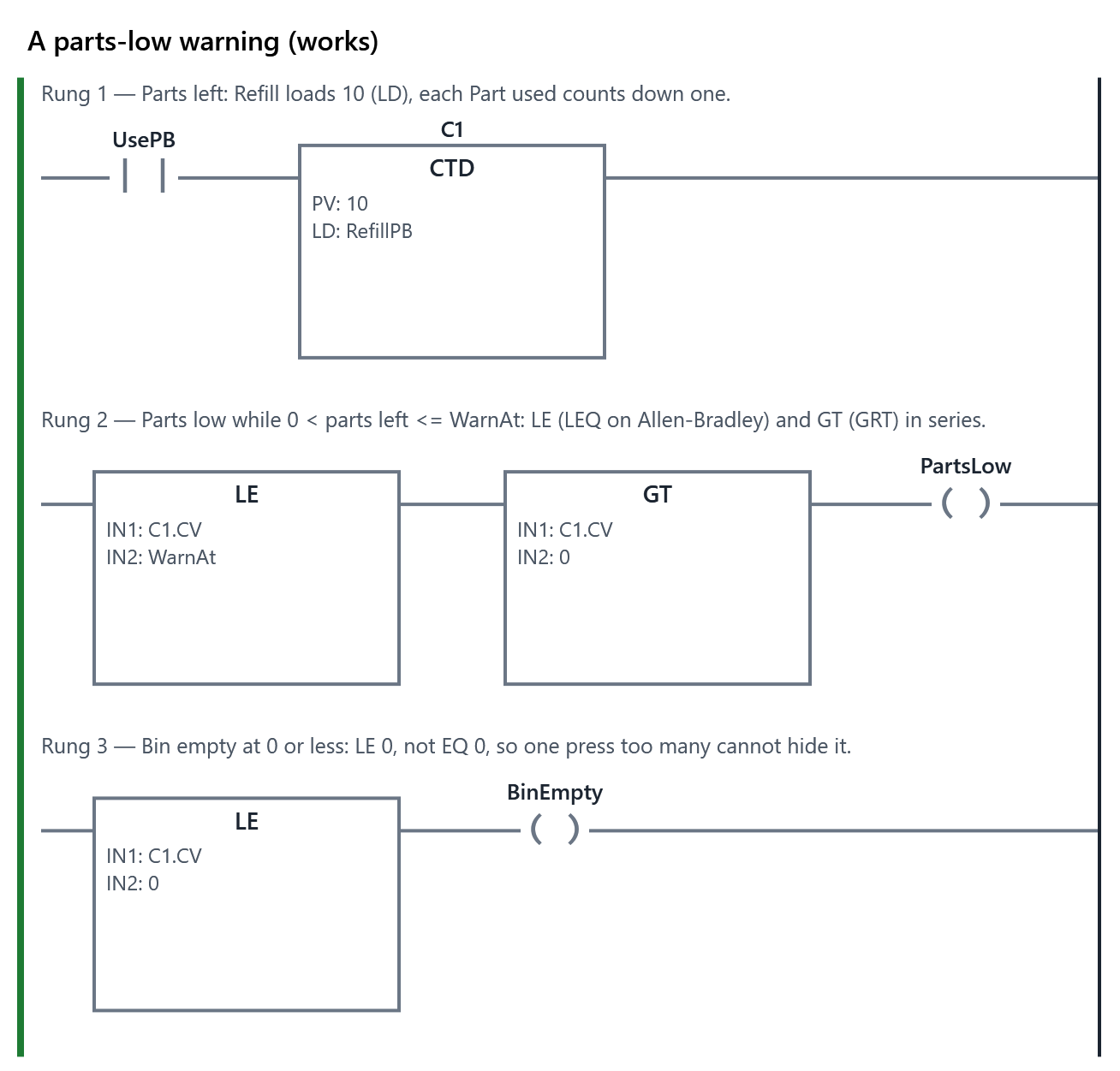
- The machine for “A parts-low warning”, running the working program (also: A common mistake). The working program.
- Exercise
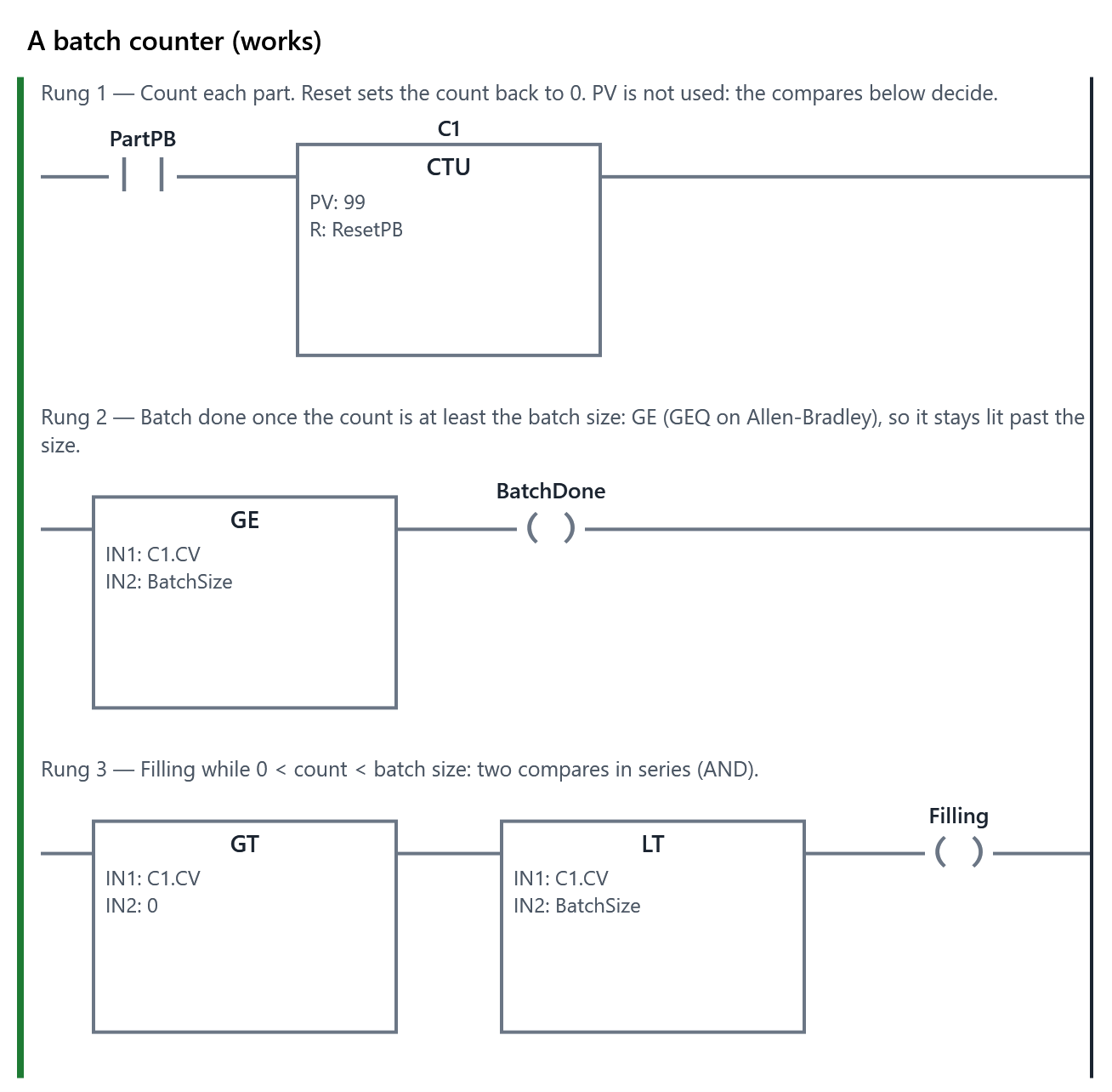
- The learner writes the program for: Each press of Part is one part into the box: count them with an up counter (CTU), and let Reset set the count back to 0. Batch done is lit once the count reaches the batch size dialled on the thumbwheel (BatchSize), and stays lit if more parts come, until Reset. Filling batch is lit while there is at least one part in the box and the batch is not done yet. PLC+ checks it with 4 tests (1 hidden). Passing every test completes the item.
- Reference
- Compare, Data types
The Learn tab
Compare numbers
A contact asks a question about one BOOL: is it on? A compare box asks a question about two numbers, and passes power to the rest of the rung when the answer is yes. It works like a contact that looks at numbers.
The six compares
Each box has two inputs, IN1 and IN2: a tag or a number you type. The box tests IN1 against IN2.
| IEC box | Allen-Bradley | Passes power when |
|---|---|---|
| EQ | EQU | IN1 = IN2 (equal) |
| NE | NEQ | IN1 ≠ IN2 (not equal) |
| GT | GRT | IN1 > IN2 (greater than) |
| GE | GEQ | IN1 ≥ IN2 (greater than or equal) |
| LT | LES | IN1 < IN2 (less than) |
| LE | LEQ | IN1 ≤ IN2 (less than or equal) |
Like contacts, compares can be put in series (both must be true: AND) or in parallel (either one: OR). Two compares in series test a range: GT Count 0 then LT Count 10 passes power while the count is 1 to 9.
Where the numbers come from
- A thumbwheel on the machine: the operator dials a number, and the PLC reads it as an INT tag (a whole number).
- A counter's count. A counter called C1 keeps its count in C1.CV (the current value; .ACC on Allen-Bradley). You can use C1.CV in a compare like any tag.
- A number you type, such as 0 or 10.
A worked example: the parts bin
A bin beside a bench holds 10 parts. A down counter (CTD) keeps the number left: Refill loads 10, and each Part used counts down one. The operator dials Warn at on a thumbwheel. The rungs:
- Parts low: LE C1.CV WarnAt in series with GT C1.CV 0. Lit while there are some parts left, but no more than WarnAt.
- Bin empty: LE C1.CV 0.
Why LE 0 and not EQ 0? If someone presses Part used once too often, a down counter goes on to −1. EQ 0 would turn the light off just when the bin is most empty. LE 0 keeps it on.
Choose < or ≤ with care
The most common compare mistake is to pick "less than" where you meant "less than or equal". With Warn at 3, LT C1.CV 3 waits until only 2 parts are left: the warning comes one part late. Say the rule in words first ("lit when 3 or fewer are left"), and the words choose the box: "or fewer" is LE.
The same goes for equal. EQ is true at exactly one value, so a count that jumps past it, or keeps going, is missed. When a count reaches a target, use GE, not EQ.
How to do it
First, the Example tab: the parts bin. Press Refill, then press Part used a few times and watch C1.CV go down on the rungs. Turn the Warn at thumbwheel with its − and + and see Parts low follow. Then choose A common mistake in Program, above the machine: it uses LT, and the warning comes one part late.
Then the Exercise tab: a batch counter. Each press of Part is one part into a box; Batch done lights when the count reaches the batch size on the thumbwheel, and stays lit if one more part comes; Filling batch is lit while the box has parts but is not full yet.
- Rung 1 counts the parts. Type PartPB on the contact. With the contact selected, choose Box ▾ ▸ Counters ▸ CTU: the box goes in after the contact, and is called C1. Its values are shown above the rungs: type ResetPB in R and press Enter. This rung needs no coil: click the coil and press Delete.
- New rung for Batch done. Click its contact and choose Box ▾ ▸ Compare: the compare goes in after the contact, in front of the coil. Then click the contact and press Delete, so the compare alone decides. Which compare, and which IN1 and IN2? The section above tells you.
- One more rung for Filling batch. What two things must both be true while a batch is filling? Each is a compare; how do you make a rung need both?
- Press Part, Reset and the thumbwheel's − and +, and watch. Then press Check my program.
Your comments on this item
7.2 Math: add, subtract, multiply, divide
about 45 minutes · builds on 7.1
- Example
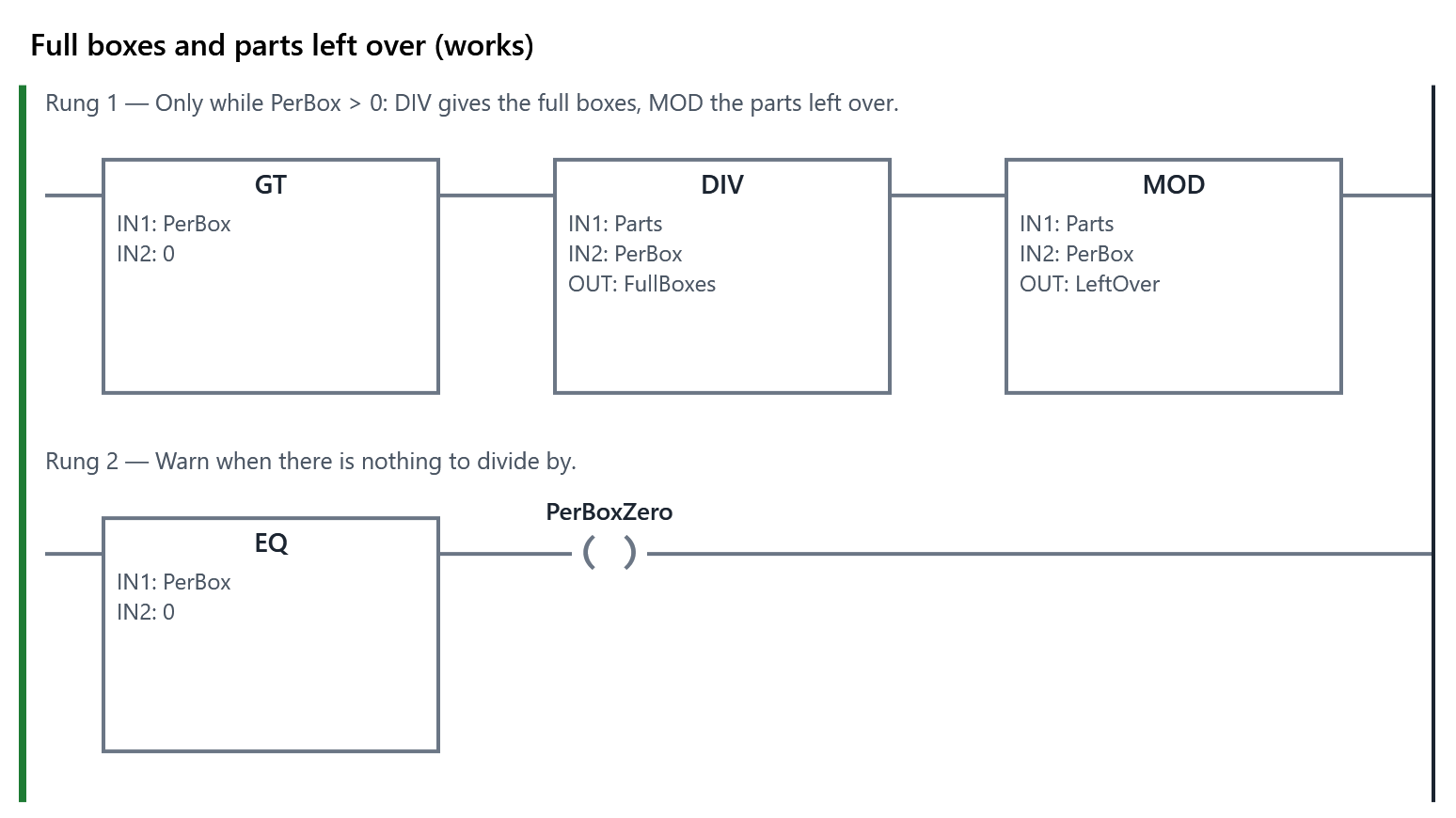
- The machine for “Full boxes and parts left over”, running the working program (also: A common mistake). The working program.
- Exercise
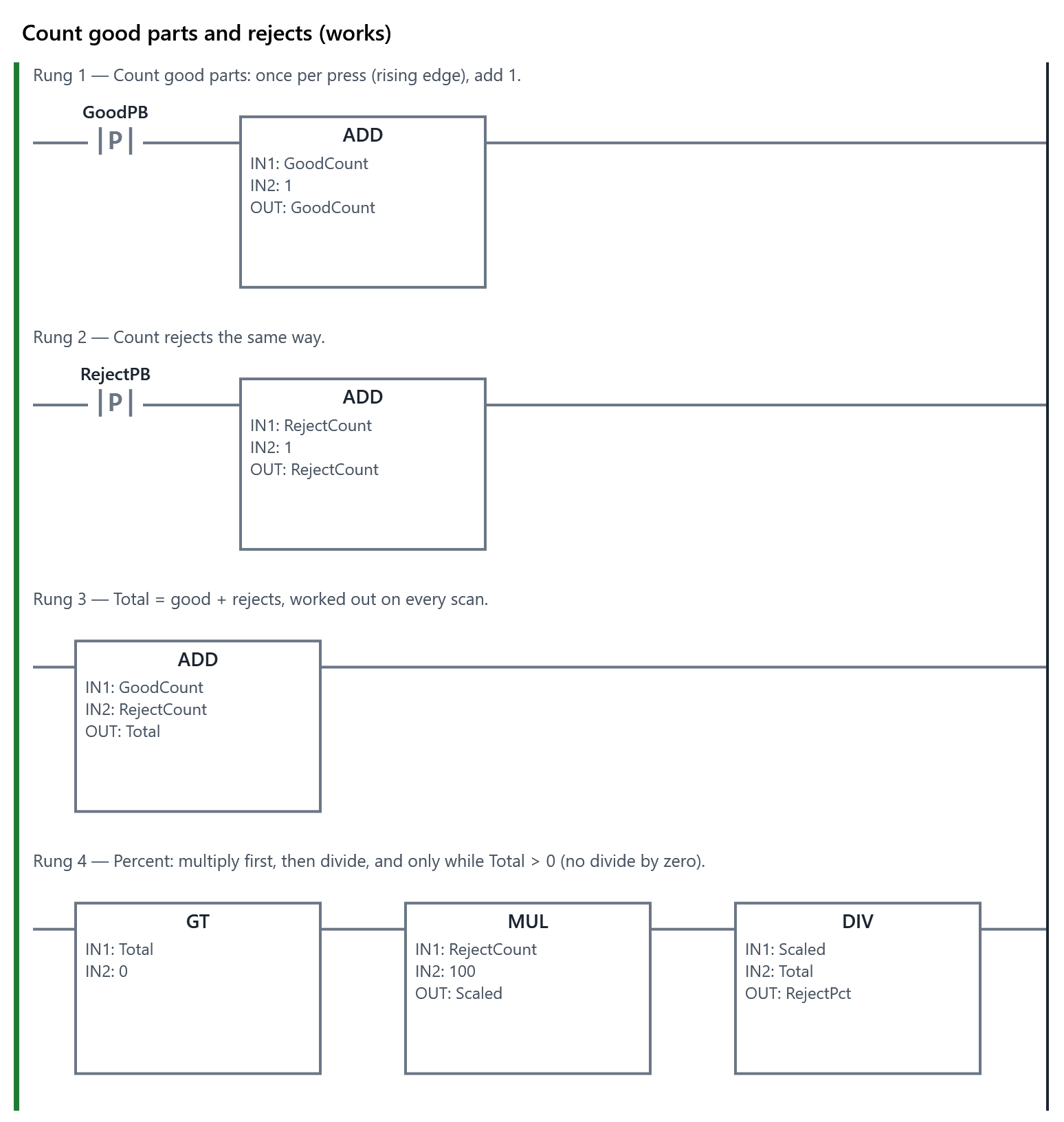
- The learner writes the program for: Each press of Good part adds 1 to GoodCount, and each press of Reject adds 1 to RejectCount: once per press, however long the button is held. Total shows GoodCount + RejectCount. RejectPct shows the rejects as a whole-number percentage of the total (1 reject in 3 parts is 33). Before the first part there is nothing to divide by, and the PLC must keep running. PLC+ checks it with 4 tests (1 hidden). Passing every test completes the item.
- Reference
- Math, Data types
The Learn tab
Math: add, subtract, multiply, divide
A math box works out a sum and writes the answer into a tag. While power flows into it, it runs on every scan; with no power, it does nothing, and its output tag keeps its last value.
| IEC box | Allen-Bradley | Puts in OUT |
|---|---|---|
| ADD | ADD | IN1 + IN2 |
| SUB | SUB | IN1 − IN2 |
| MUL | MUL | IN1 × IN2 |
| DIV | DIV | IN1 ÷ IN2 |
| MOD | MOD | the remainder of IN1 ÷ IN2 |
IN1 and IN2 are tags or typed numbers; OUT must be a tag. A math box passes power on to whatever follows it, so several can sit in series and run one after another, left to right.
Whole numbers drop the remainder
An INT holds only whole numbers. When DIV divides two of them, the part after the point is dropped, not rounded: 50 ÷ 12 is 4 (not 4.17), and 2 ÷ 3 is 0. MOD gives what was dropped: 50 MOD 12 is 2, because 4 boxes of 12 are 48 and 2 are left over. Allen-Bradley does the same when both numbers are whole.
This changes how you write a percentage. Rejects as a percentage of the total is rejects × 100 ÷ total. With 1 reject in 3 parts:
- divide first: 1 ÷ 3 = 0, and 0 × 100 = 0. Wrong.
- multiply first: 1 × 100 = 100, and 100 ÷ 3 = 33. Right (33.3, with the .3 dropped).
With whole numbers, multiply first, then divide.
Dividing by zero
Nothing can be divided by 0. In PLC+, a DIV or MOD by 0 stops the PLC with a math fault: the program stops, every output goes off, and only Reset starts it again. PLCs differ here: some stop, and others set an overflow flag and go on with a wrong answer. Either way it is a bug, so check before you divide: put a compare in front, such as GT PerBox 0, so DIV runs only when there is something to divide by.
Too big for an INT
An INT holds −32,768 to 32,767. A result bigger than that does not fit, and PLC+ does what a 16-bit INT does: it wraps round, so 32,767 + 1 gives −32,768. A count that suddenly goes negative is the sign. Use a DINT (up to about 2.1 billion) for numbers that can grow large; item 7.3 says more. My program declares new number tags as INT; in these exercises every number fits.
Counting with ADD
ADD can count: ADD GoodCount 1 into GoodCount adds one. But it adds one on every scan that power reaches it, and a press lasts many scans (one scan is 10 ms). Put a rising-edge contact in front (item 5.5), and it adds one per press.
A worked example: packing
Parts are packed in boxes. One rung: GT PerBox 0, then DIV Parts PerBox into FullBoxes, then MOD Parts PerBox into LeftOver. 50 parts at 12 a box: 4 full boxes, 2 left over. A second rung, EQ PerBox 0, lights a warning when there is nothing to divide by.
How to do it
First, the Example tab: the packing station. Turn the two thumbwheels with their − and + and watch the displays. Set Parts per box to 0: the warning lights and the PLC keeps running. Then choose A common mistake in Program, above the machine, and do the same: it has no check, so the PLC stops with a math fault. Read the message, then press Reset.
Then the Exercise tab: an inspection station. Count good parts and rejects, show the total, and show the rejects as a percentage.
- Count the good parts. Click the rung's contact, type GoodPB in its Tag box, and choose Rising edge -|P|- in its kind box above the rungs. Then, with the contact selected, choose Box ▾ ▸ Math ▸ ADD and type IN1 GoodCount, IN2 1, OUT GoodCount. Click the coil and press Delete. Do the same on a new rung for rejects.
- Total: one ADD with no contact in front: click a new rung's contact, add the box, then delete the contact and the coil.
- The percentage needs a MUL and a DIV in series. Which goes first? The section on whole numbers says. And what must be true before the DIV may run? The section on dividing by zero says. A new box goes in after the selected element: click the rung's contact and add the first box, select that box and add the next, and so on; then delete the contact and the coil. MUL needs a tag to hold its answer: type a new name, such as Scaled, in its OUT, and PLC+ declares it as an INT.
- Press Check my program.
Your comments on this item
7.3 MOVE and data types
about 40 minutes · builds on 7.2
- Example
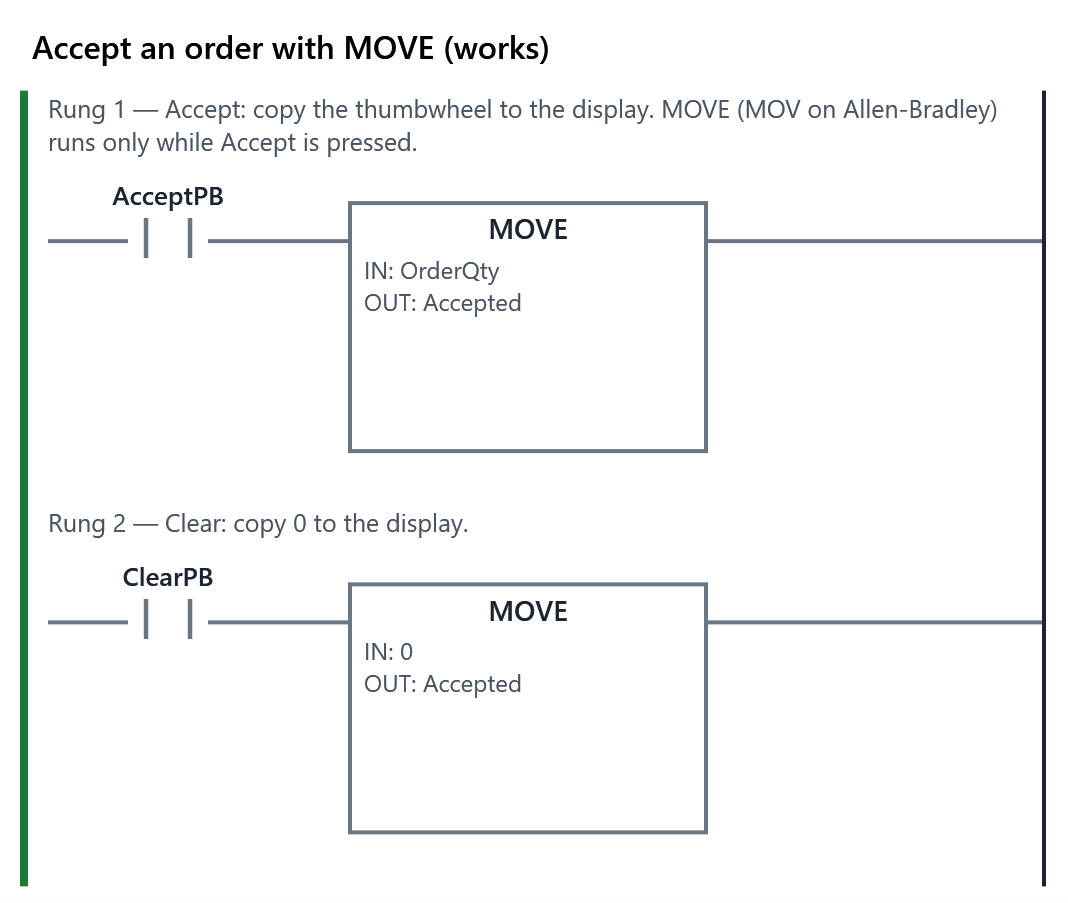
- The machine for “Accept an order with MOVE”, running the working program (also: A common mistake). The working program.
- Exercise
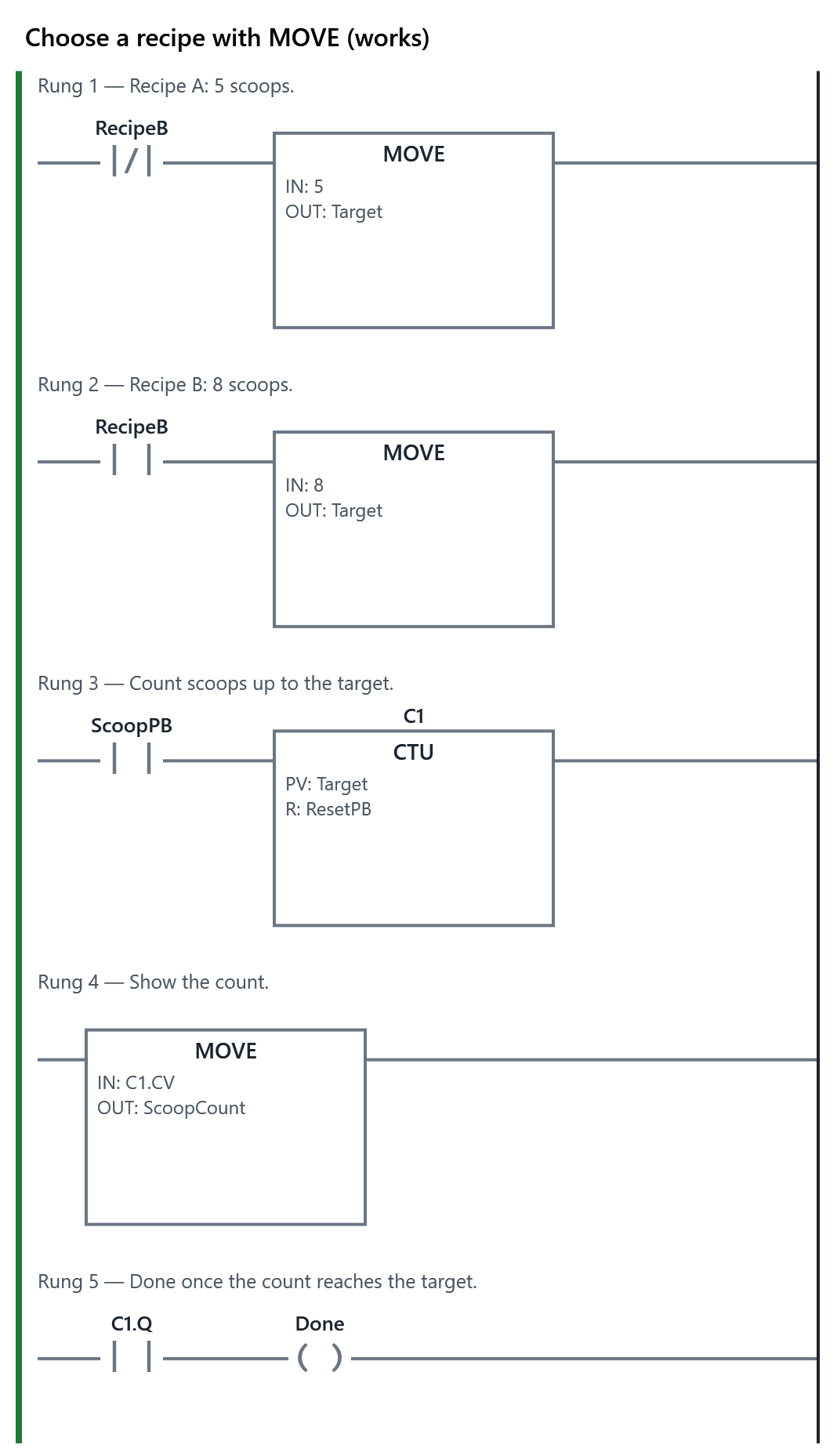
- The learner writes the program for: Target (the Scoops needed display) shows 5 when the Recipe switch is on A and 8 when it is on B. Count the scoops with an up counter whose preset (PV) is Target, reset by Reset. ScoopCount (the Scoops added display) shows the count so far. Recipe done is lit once the scoops added reach the target. PLC+ checks it with 3 tests (1 hidden). Passing every test completes the item.
- Reference
- MOVE, Data types, BCD
The Learn tab
MOVE and data types
MOVE copies a value from one place to another. While power flows into it, it copies its IN (a tag or a typed number) into its OUT (a tag), on every scan. With no power it does nothing, and OUT keeps the last value copied. On Allen-Bradley it is MOV (Source and Dest).
That one idea does a lot of work:
- Set a value: MOVE 8 into a counter's preset tag.
- Show a value: a numeric display shows only what the program sends it, so MOVE C1.CV into the display's tag shows the count.
- Take a snapshot: with a push button in front, MOVE copies only while the button is pressed, and the copy then stays put.
- Choose between values: two MOVEs into the same tag, each with its own contact, so only one runs.
Two MOVEs into one tag
Rungs run top to bottom, and a tag holds whatever was written to it last. If two MOVEs with no contacts write to the same tag, both run on every scan and the lower one always wins. To choose, give each a condition that cannot be true at the same time as the other's: a normally closed contact of a switch on one rung, and a normally open contact of the same switch on the other.
Data types
A tag's data type says what it can hold (module 4 introduced them):
| Type | Holds | Use it for |
|---|---|---|
| BOOL | TRUE or FALSE | buttons, lights, valves |
| INT | whole numbers, −32,768 to 32,767 | counts, thumbwheels, displays |
| DINT | whole numbers, about ±2.1 billion | large counts, totals that keep growing |
| REAL | numbers with a decimal point, such as 72.5 | temperatures, flows, averages |
| TIME | a length of time, such as T#5s | timer presets |
Choose the smallest type that always fits. A day's production of 50,000 parts does not fit an INT: use a DINT. A temperature of 72.5 needs a REAL. My program declares new number tags as INT; in these exercises every number fits. Allen-Bradley Logix controllers have no TIME type: a timer's preset (.PRE) is a DINT number of milliseconds.
When the types differ
When MOVE (or a math box) writes into a tag of another type, PLC+ converts the value to that tag's type:
- a REAL into an INT is rounded to the nearest whole number (2.7 becomes 3; exactly .5 goes to the even number, so 2.5 becomes 2);
- a number too big for an INT wraps round, as in item 7.2, without any warning.
IEC 61131-3 PLCs ask you to write the conversion yourself, such as REAL_TO_INT; Allen-Bradley's MOV converts by itself, as PLC+ does. Either way, check that the number fits where it goes.
BCD needs converting too. A thumbwheel or display wired for BCD (item 2.2) sends each digit in its own four bits, so the bits mean something else as a plain number: BCD 25 is 0010 0101, which a plain INT reads as 37. A BCD display that is sent a code that is not a digit (1010 to 1111) cannot show it: PLC+ shows Err. Allen-Bradley converts with FRD (from BCD) and TOD (to BCD). PLC+ has no BCD instruction yet, so its exercises use plain thumbwheels and displays.
How to do it
First, the Example tab: an order panel. Dial a quantity, press Accept, then turn the thumbwheel again: the display keeps the accepted number. Clear sets it to 0. Then choose A common mistake in Program, above the machine: its MOVE has no contact, so the display just follows the thumbwheel.
Then the Exercise tab: a dosing station with two recipes. Recipe A needs 5 scoops, recipe B needs 8. The Recipe switch chooses; the Scoops needed display shows the target; a counter counts scoops, with the target as its preset; Scoops added shows the count.
- Rung 1: a -|/|- contact of RecipeB, then Box ▾ ▸ Move and bit logic ▸ MOVE with IN 5 and OUT Target. Delete the coil.
- Rung 2: the same with a -| |- contact and 8.
- A CTU for the scoops (Box ▾ ▸ Counters ▸ CTU). How many scoops should it count to, and which button clears it? Then make the Scoops added display show the count, and add a rung that lights Done.
- Turn the switch, press Scoop and Reset, then press Check my program.
Your comments on this item
7.4 Arrays: a table of values
about 45 minutes · builds on 7.3
- Example
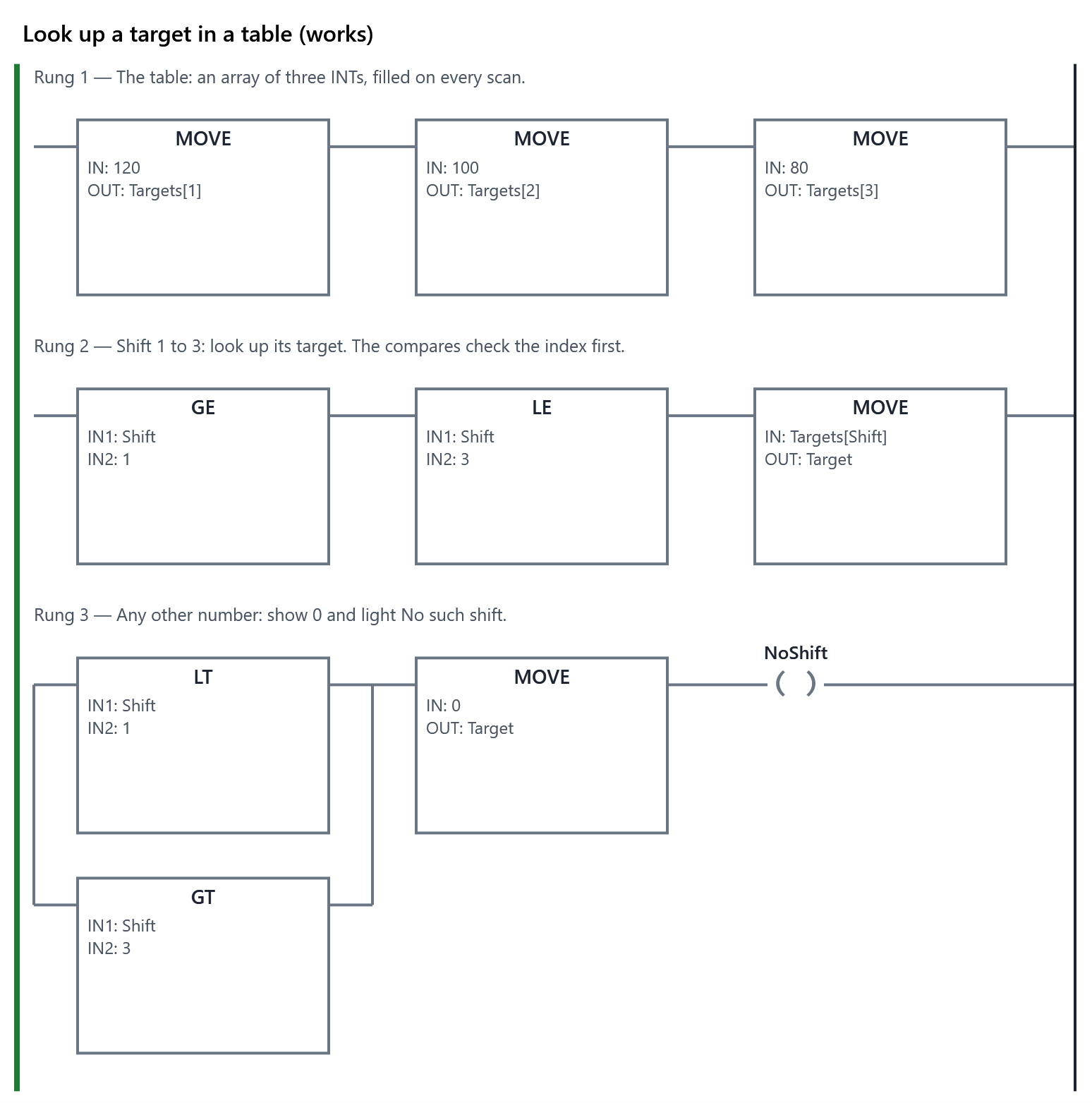
- The machine for “Look up a target in a table”, running the working program (also: A common mistake). The working program.
- Exercise
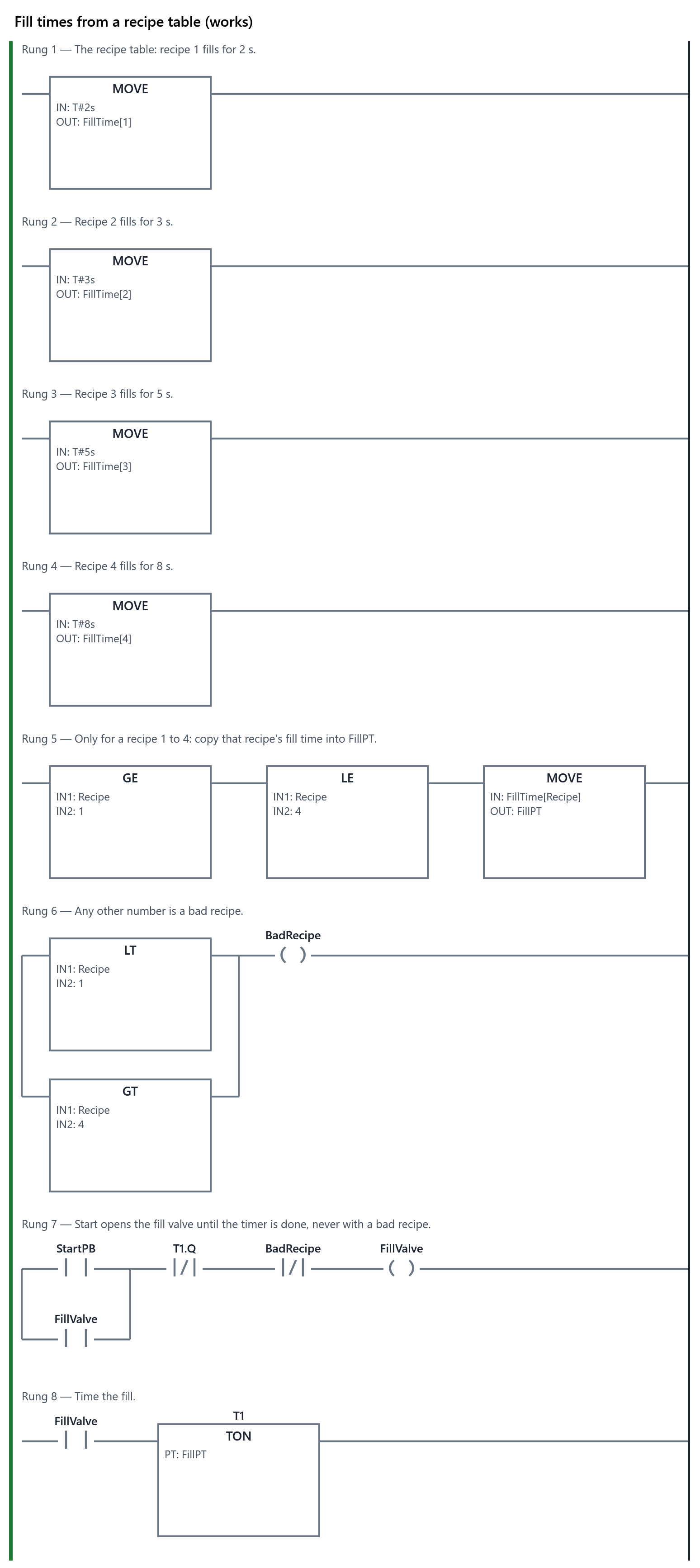
- The learner writes the program for: This exercise starts with a program that is nearly done. FillTime is an array that holds the fill time of recipes 1 to 4. Start opens the fill valve for the fill time of the recipe dialled on the Recipe thumbwheel. Today it always uses recipe 1's time, and nothing checks the number: fix it. With a recipe number that is not 1 to 4, the Bad recipe light is lit and Start does nothing (and the PLC must not stop). PLC+ checks it with 4 tests (1 hidden). Passing every test completes the item.
- Reference
- Arrays, Compare, MOVE
The Learn tab
Arrays: a table of values
A drum filler has four recipes, each with its own fill time. You could make four tags, FillTime1 to FillTime4, and four rungs to choose between them. An array does it better: one tag that holds a whole numbered list of values, all of the same type.
Declaring an array
An array's type says how its elements are numbered and what each one holds:
FillTime : ARRAY[1..4] OF TIME
FillTime has four elements, numbered 1 to 4, and each is a TIME. You use one element by writing its number in square brackets: FillTime[3] is recipe 3's fill time, and works anywhere a TIME tag works. In PLC+, every element of an array starts at 0, so the program fills the table with MOVEs: MOVE T#5s into FillTime[3].
On Allen-Bradley, an array is declared with its size, such as a DINT[4], and its elements are always numbered from 0: FillTime[0] to FillTime[3]. IEC lets you choose the first number, as [1..4] does here. Keep the difference in mind in the lab.
The index can be a tag
The number in the brackets is the index, and it can be a tag: FillTime[Recipe] means "the element whose number is in Recipe". Dial 3 on the Recipe thumbwheel, and FillTime[Recipe] is FillTime[3]. One rung now does the work of four:
MOVE FillTime[Recipe] into FillPT, and the fill timer uses FillPT as its preset.
An index outside the array
What is FillTime[7]? It does not exist. Using it is a serious error: on a real PLC it could read or change some other value in memory. So PLC+, like an Allen-Bradley Logix controller, stops with a fault (index out of range) the moment the program uses an index outside the array. Every output goes off, and only Reset starts it again.
A thumbwheel can be turned to any digit, so check the index before you use it:
- two compares in series in front of the MOVE: GE Recipe 1 and LE Recipe 4;
- in parallel, LT Recipe 1 or GT Recipe 4, to light a Bad recipe lamp and keep the valve shut.
Allen-Bradley also has a LIM (limit test) box that checks a range in one instruction.
Give a timer a copy, not the element. A timer reads its PT on every scan, even while its rung is off. So the checked MOVE copies FillTime[Recipe] into FillPT, and the timer's PT is FillPT, which is always safe to read.
A worked example: production targets
A board shows the target for the shift dialled on a thumbwheel: shift 1 makes 120 parts, shift 2 makes 100, shift 3 makes 80. Targets : ARRAY[1..3] OF INT; a rung of three MOVEs fills it; GE Shift 1 and LE Shift 3, then MOVE Targets[Shift] into the display; any other number shows 0 and lights No such shift.
How to do it
First, the Example tab: the target board. Turn the Shift thumbwheel with its − and +: 1, 2 and 3 show their targets, and 0 or 4 lights No such shift. Then choose A common mistake in Program, above the machine: it does not check the shift. Dial 4 and the PLC stops with an index fault. Read the message, then press Reset.
Then the Exercise tab: the drum filler. This exercise starts with a program that is nearly done: the table FillTime is declared and filled (2, 3, 5 and 8 s), and Start fills the drum. But it always uses recipe 1's time, and nothing checks the recipe number. Run it with recipe 3 and see. Then fix it:
- Click the MOVE that sets FillPT, and change its IN to FillTime[Recipe].
- Put the two compares in front of that MOVE, so it runs only for recipes 1 to 4. A new box goes in after the selected element, so: with the MOVE selected, press -| |- Contact (a contact goes in front of it); click that contact and add Box ▾ ▸ Compare ▸ GE; with GE selected, add LE; then click the contact and press Delete.
- Add a rung that lights BadRecipe for any other number: below 1 or above 4. Press New rung, type BadRecipe on its coil, then click its contact, choose Box ▾ ▸ Compare ▸ LT, and delete the contact. Now the second compare, side by side with the first: select the LT compare and press Branch: a second path appears with a contact on it, already selected. With that contact selected, choose Box ▾ ▸ Compare ▸ GT, then select the contact again and press Delete. Fill in each compare's IN1 and IN2. Then make sure Start does nothing with a bad recipe: what must the fill valve's rung check?
- Try recipes 3, 7 and 0, then press Check my program. If you get lost, Start again ▾ gives you the starting program back.
Your comments on this item
7.5 Module check
about 25 minutes
- Module check
- Complete when every item it covers is: 7.1, 7.2, 7.3, 7.4. Its questions, on the Exercise tab, are below; it is complete when those items are and the questions are passed. Once it is complete, the learner makes the PDF progress report to hand in (Hand in a report).
The Learn tab
Module check: data and math
This check covers the four exercises of module 7: the batch counter, the inspection station, the dosing station and the drum filler. Each is complete when its program passes every test on its Exercise tab.
The check itself is ten questions, on the Exercise tab. Some ask what a rung works out: do the sum the way the PLC does, with whole numbers. Two are find the fault: a machine from this module's Examples runs its working program, but one of its parts is faulty. Work the machine, turn its thumbwheels, watch the numbers on the rungs, and say what is wrong. You need 80 % to pass, and you can try again: press Check my answers each time.
When all four exercises pass and you have passed the questions, the module is complete and ready to hand in: Hand in a report (the second row of the path) makes the PDF progress report for your instructor, with your score on each exercise and a picture of each program.
The questions (on the Exercise tab)
10 questions; the learner needs 80 % to pass and can try again. A wrong answer says “not quite, look again”; the reason is shown once the answer is right. The right answers are marked ✓ here only.
Choose one. A lamp must light once the count C1.CV reaches the number in Target, and stay lit if the count goes past it. Which box goes in front of the lamp's coil?
- EQ IN1 C1.CV, IN2 Target
- ✓ GE IN1 C1.CV, IN2 Target
- GT IN1 C1.CV, IN2 Target
- LE IN1 C1.CV, IN2 Target
Why: GE (GEQ on Allen-Bradley) passes power when C1.CV is greater than or equal to Target, so it lights at the target and stays lit past it. EQ is true only at exactly the target; GT lights one count late; LE is true below the target.
Match each one. Match each IEC compare box to its Allen-Bradley name.
EQ (equal)→ EQUNE (not equal)→ NEQGT (greater than)→ GRTGE (greater than or equal)→ GEQLT (less than)→ LESLE (less than or equal)→ LEQ
Why: EQ is EQU, NE is NEQ, GT is GRT, GE is GEQ, LT is LES and LE is LEQ. They do the same job: pass power when the comparison is true.
A number. Total is 7 and RejectCount is 2 (both INT). The rung is: GT Total 0, then MUL RejectCount 100 into Scaled, then DIV Scaled Total into RejectPct (an INT). What number does RejectPct hold?
✓ 28 % (within 0)
Why: 2 × 100 = 200, and 200 ÷ 7 = 28.57. Whole-number division drops the remainder (it does not round), so RejectPct is 28.
A number. Count is an INT holding 32767. The rung ADD Count 1 into Count runs once. What does Count hold now?
✓ -32768 (within 0)
Why: 32,767 is the largest number an INT can hold. One more does not fit, so the 16-bit value wraps round to the most negative INT, −32,768. Use a DINT for counts that can grow that large.
Find the fault: a machine with a faulty wire, running the working program. This packing station runs the working program, but one of its parts is faulty. Turn both thumbwheels with their − and +, and watch the displays, the light and the numbers on the rungs. Which fault does it have?
Machine: Full boxes and parts left over; the fault:
PerBox:open- ✓ The wire from the Parts per box thumbwheel is broken: the PLC reads 0, whatever is dialled
- The wire from the Parts made thumbwheel is broken: the PLC reads 0, whatever is dialled
- The Full boxes display has failed: the PLC sends it the right number, but it shows 0
- The program divides by zero: the PLC has stopped with a math fault, so nothing changes
Why: Per box is 0 is lit whatever Parts per box shows, and on the rungs PerBox reads 0. So the compare GT PerBox 0 never passes power, DIV and MOD never run, and the displays stay at 0. The PLC is still running (the light is on), and its check stops it from dividing by 0.
Find the fault: a machine with a faulty wire, running the working program. This order panel runs the working program, but one of its inputs is faulty. Turn the thumbwheel, press Accept and Clear, and watch the display and the rungs. Which fault does it have?
Machine: Accept an order with MOVE; the fault:
AcceptPB:shorted- ✓ The Accept button is shorted: the PLC reads it as pressed all the time
- The wire to the Accept button is broken: the PLC never sees it pressed
- The Clear button is shorted: the PLC reads it as pressed all the time
- The Accepted order display has failed: it shows the thumbwheel, not the PLC's number
Why: The display follows the thumbwheel without anyone pressing Accept: on the rungs AcceptPB is TRUE all the time, so its MOVE copies on every scan. Clear sets 0 only while it is held; on the next scan without Clear, the Accept rung copies the thumbwheel again.
Choose one. Rung 1 is MOVE 5 into Target, and rung 2 is MOVE 8 into Target. Neither rung has a contact. What does the Target display show?
- 5: the first MOVE to write a tag keeps it
- ✓ 8: the lower rung writes last in every scan
- 5 and 8 in turn: the display flickers between them
- 0: the two MOVEs clash and neither one is written
Why: Both MOVEs run on every scan, top to bottom, so Target is 5 for a moment and then 8. The outputs are written only at the end of the scan, by which time Target is 8, so the display shows 8 steadily. To choose between them, give each MOVE its own contact.
Type the answer. A tag must hold the parts made in a year: up to 2,000,000, always a whole number. Type the data type it should have.
✓ DINT (case, spaces and underscores do not matter)
Why: An INT holds only up to 32,767. A DINT holds whole numbers up to about 2.1 billion. A REAL could hold the number, but a count is always whole, and a DINT keeps it exact.
Choose one. Times is ARRAY[1..4] OF TIME. Step is 5 when the rung MOVE Times[Step] into FillPT runs. What happens in PLC+?
- ✓ The PLC stops with an index fault, and every output goes off
- MOVE copies Times[4], the last element, and the PLC runs on
- MOVE copies T#0s, as the element does not exist, and the PLC runs on
- The index wraps round to 1, so MOVE copies Times[1], and the PLC runs on
Why: Times has no element 5. Using an index outside the array stops the PLC with a fault (an Allen-Bradley Logix controller does the same). Check the index with compares, such as GE Step 1 and LE Step 4, before the MOVE.
Choose one. A numeric display is wired for BCD (four bits for each digit). The program moves the plain number 12 into its tag, with no conversion. What does the display show in PLC+?
- 12
- ✓ Err
- 18
- 6
Why: 12 is 0000 1100 in binary. A BCD display reads each group of four bits as one digit, and 1100 (twelve) is not a digit from 0 to 9, so PLC+ shows Err. The program must convert the number to BCD first: TOD on Allen-Bradley (FRD converts the other way).