PLC+ — review for PLC instructors
Thank you for reviewing PLC+. Read the modules on this site, and comment under each item. To try the program itself (Windows 10 or 11), install it from the Microsoft Store link in your invitation; the testing guide takes you through it. You can also email notes to Ron Eaglin at ron.eaglin@gmail.com.
The modules
| Module | Title | State | Items |
|---|---|---|---|
| Module 1 | Electrical foundations | First draft, for your review | 5 |
| Module 2 | Logic and number systems | First draft, for your review | 5 |
| Module 3 | Relay control | First draft, for your review | 5 |
| Module 4 | PLC fundamentals | First draft, for your review | 6 |
| Module 5 | Basic ladder programming | First draft, for your review | 6 |
| Module 6 | Timers and counters | First draft, for your review | 6 |
| Module 7 | Data and math | First draft, for your review | 5 |
| Module 8 | Sequencing and state machines | First draft, for your review | 5 |
| Module 9 | Analog and process control | Coming later: outcomes and topics only | 0 |
| Module 10 | Structured programming | Coming later: outcomes and topics only | 0 |
| Module 11 | Troubleshooting | First draft, for your review | 7 |
| Module 12 | Industrial systems | Coming later: outcomes and topics only | 0 |
What it looks like
The guide
Thank you for looking at PLC+. PLC+ 1.0 is the instructors' release: on the Microsoft Store for the PLC instructors reviewing the course, before students use it. We are asking you to judge the flow of the software and whether its lessons and exercises teach the right things. The modules are first drafts; nothing is final, and your notes shape what comes next. The step-by-step testing guide is at https://softwareplus.ai/plcplus/testing/.
What PLC+ is for
PLC+ is a free Windows program for the home, self-paced half of a PLC course; the lab, with real PLCs, is the other half. A learner moves from electrical and logic basics to ladder programming. They practise on simulated machines instead of hardware, and each exercise is checked automatically by what the program does, not by how it looks. At set points the learner saves a PDF progress report and hands it in through the instructor's LMS. Everything works offline. Several students can share one computer, each with a PIN-protected progress file they can carry to another machine.
What this release shows, and what it does not
It shows:
- the learning path: twelve modules, from electrical foundations to industrial systems. Modules 1 to 8 and 11 (electrical foundations to sequencing, and troubleshooting) are first drafts for you to judge; 9, 10 and 12 (analog and process control, structured programming, industrial systems) show only their outcomes and topics;
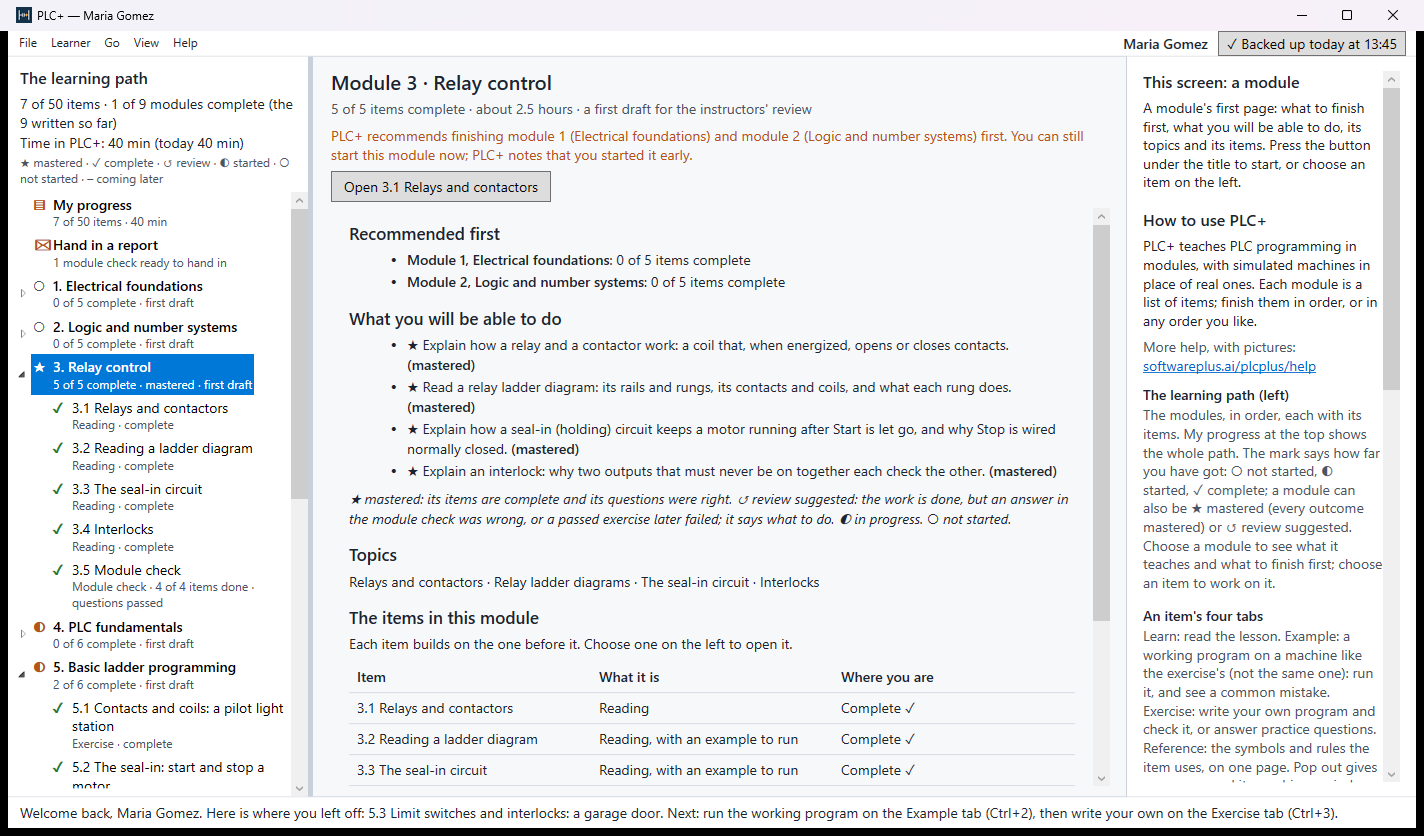
- each module's first page: what to finish first (recommended, never enforced), what the learner will be able to do, its topics and its items;
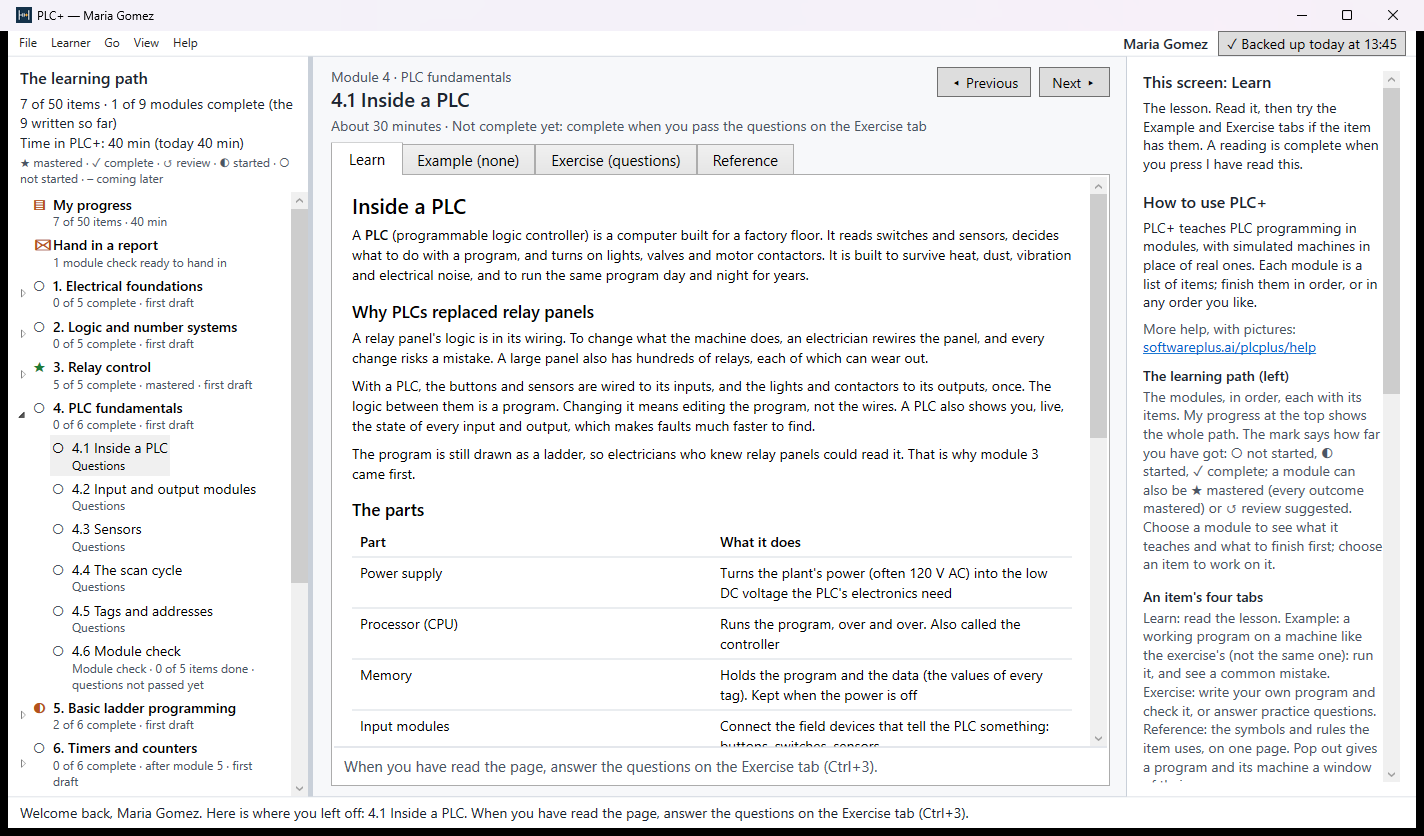
- each item in four tabs: Learn (the lesson), Example (a simulated machine running a working program, and a common mistake), Exercise (the learner writes the program and the software checks it) and Reference (the symbols and rules, to look up);
- the learner's progress: ✓ complete, ◐ started, ○ not started, on every module and item, and on each module's outcomes;
- practice questions on the items of modules 1, 2 and 4, and the module checks of every written module: questions of six kinds (a typed answer, such as a number in binary or hex, is the sixth), including machines with a faulty wire to diagnose (the review site lists every question with its answer);
-
the PLC engine running ladder programs with power flow drawn live, six simulated machines for the exercises and five more for the examples, the ladder editor, and automatic checking with hints and a plain-words replay of what went wrong.
-
several learners on one computer, each with a PIN-locked progress file, and My progress (outcomes, what to review, time);
- Hand in a report: a signed PDF progress report at each module check, and File ▸ Check a report for the instructor.
It does not have yet: modules 9, 10 and 12 (analog and PID, Structured Text, industrial systems), the Allen-Bradley instruction set as its own dialect (lessons give the Allen-Bradley names beside the IEC ones), and some editor features: renaming a tag, starting values, and declaring DINT or arrays.
Running it
You can review the modules without the program: the review site (https://softwareplus.ai/plcplus/review/) shows every module, every item's lesson, the machines' programs and the Reference pages, with a comment box under each item.
To try the program itself, install it from the Microsoft Store link in your invitation (Windows 10 or 11; free). The listing is hidden, so searching the Store does not find it; the link does. The testing guide (https://softwareplus.ai/plcplus/testing/) takes you through it step by step. PLC+ works offline and sends nothing.
Press F1 at any time for help on the screen.
The screen
- Left: the learning path. Choose a module to see its first page, or an item to work on it. Next ▸ and ◂ Previous move through the path; Go ▸ Continue where I left off opens the first item not complete.
- An item's tabs: Learn, Example, Exercise, Reference (Ctrl+1 to Ctrl+4).
On the Example and Exercise tabs:
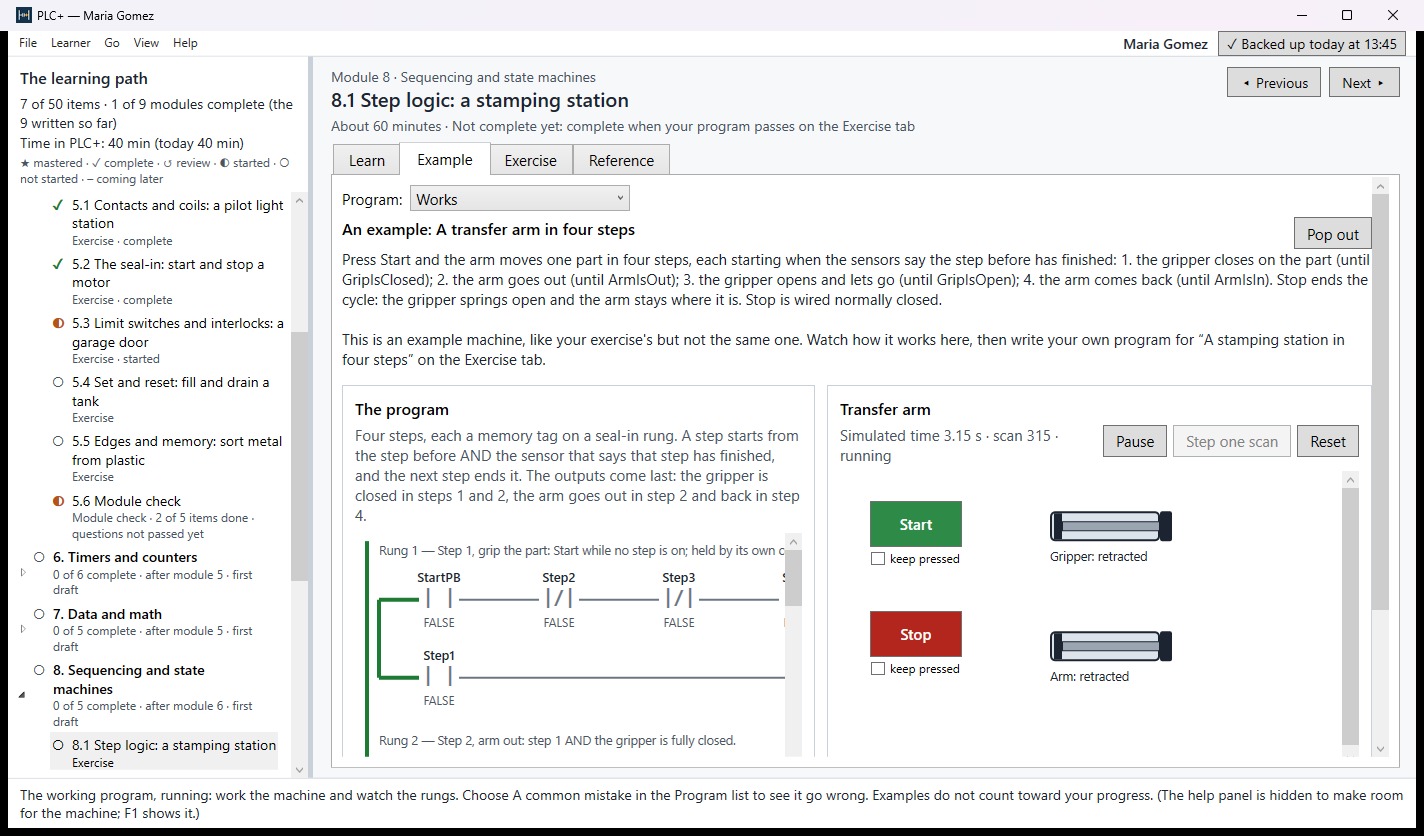
- Program (Example only) picks the program the PLC runs: Works, or A common mistake.
- Left: the program as ladder rungs, running live. A contact or wire that passes power is green, thick and shows TRUE; one that does not is grey, thin and shows FALSE.
- Right: the machine. Hold a push button down to press it, or tick its keep pressed box. Switches stay where you turn them. Every part says what it is doing in words.
- What every part is doing lists the state of every part.
- The wiring lists every input and output tag and what it means.
- Pause / Step one scan / Reset: the PLC runs on a simulated clock, 10 ms per scan, so a program and a test always give the same result. Step through one scan at a time to watch the order rungs run in.
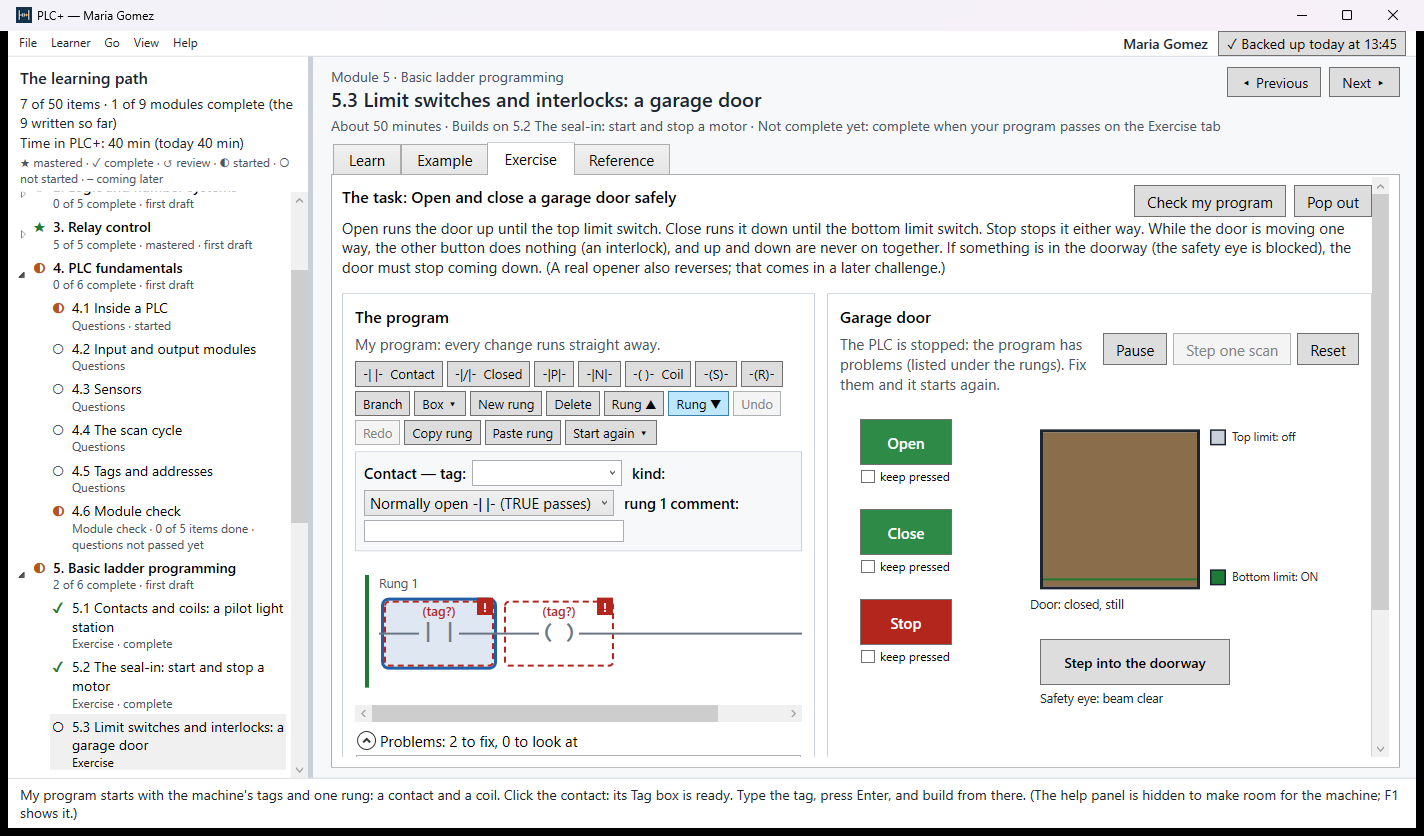
- Bottom: Check this program. This runs the challenge's tests much faster than real time. Each test presses buttons at set times and watches the machine. A failed test:
- says what should have happened, and when;
- gives a hint for that test;
- replays what actually happened, moment by moment.
Some tests are hidden, so a program cannot be fitted to the visible ones.
The six machines — what to try
They are the Exercise tabs of items 5.1 to 5.5 (basic ladder) and the Example tab of 6.1 (timers). Start again ▾ on an Exercise tab loads the common mistake to try; the working programs are drawn on the review site (PLC+ itself never hands a student the answer).
| # | Challenge | Try this | The common mistake |
|---|---|---|---|
| 1 | Light the pilot lights | Press Button 1, then both buttons; turn Mode to Auto | Red uses a normally open contact, so it lights in Auto instead of Manual |
| 2 | Start and stop a motor | Press Start and let go; press Stop. Note Stop is wired normally closed | No seal-in: the motor runs only while Start is held |
| 3 | Run a traffic light | Turn Run on and watch a full cycle (green 5 s, yellow 2 s, red 5 s); step through the change from red to green | Yellow is never turned off, so yellow and red are on together |
| 4 | Open and close a garage door safely | Open, Close, Stop; while it closes, choose Step into the doorway | The down rung does not check the safety eye: the door comes down on whatever is in the doorway |
| 5 | Fill and drain a tank | Turn Mode to Auto and watch two fill/drain cycles; turn it Off mid-way | No memory of which way it is going: the valves chatter around the high float and the tank never drains |
| 6 | Sort metal from plastic | Start the belt; watch metal go to Bin A and plastic to Bin B | The diverter pushes every part, metal or plastic |
For each, choose A common mistake and press Check this program to see what a student sees when they get it wrong.
The five example machines
Each module 5 item's Example tab runs a machine like its exercise's, not the same one (Ron, 2026-11-04), so the student sees the idea worked out and then applies it. Module 3's examples use the same machines.
| Item | Example | The idea it shows | Its common mistake |
|---|---|---|---|
| 5.1 contacts and coils | A two-hand press guard | Three contacts in series (AND); a normally closed contact (NOT) | The hand buttons in parallel: one hand closes the press |
| 5.2 the seal-in | Start and stop a pump | The seal-in, with Stop and an overload relay wired normally closed | Stop checked with a normally closed contact: the pump never starts |
| 5.3 interlocks | A reversing conveyor motor | Two seal-ins, each locked out by the other direction | No interlocks: both contactors told to pull in at once |
| 5.4 set and reset | An overheat alarm | Set by the alarm, reset by Reset only once it is cool | No memory: the alarm clears itself when the oven cools |
| 5.5 edges | Push on, push off | A rising edge makes a one-scan pulse that flips a light | A plain contact: the light flickers while the button is held |
To try the editor: open an item's Exercise tab. You start with the machine's tags and one rung (a contact and a coil). Click an element and type its tag; the tools above the rungs add contacts, coils, branches and boxes (timers, counters, compare, math); the letters O, C, Q, B and I do the same from the keyboard. Start again ▾ can give you a copy of the common mistake to fix. Right-click a contact or coil to force its tag on or off.
Simplifications we know about
- The garage door only stops when something is in the doorway. A real opener must also reverse (UL 325); that is planned as a later challenge. Say if you would rather have it from the start.
- Analog signals (levels, temperatures) are not wired to the PLC yet; they come with the analog unit (module 9). The tank uses two float switches. Numbers do reach the PLC through a thumbwheel and a numeric display (module 7).
- Time runs on a simulated clock of exactly 10 ms per scan, so results never vary. A real PLC's scan varies a little.
What we would most like to know
Please answer whichever you can. Short notes are fine.
- The flow. Is it clear what to do on this screen? What would a student new to PLCs be stuck on?
- The challenges. Are these six the right first exercises? Right difficulty, right order? What would you add or drop?
- Correct practice. Does anything teach a habit you would correct in the lab? For example: the normally closed Stop wiring, the door's interlock and safety eye, latching in the tank.
- The checking. Are the tests fair? Are the failure messages and hints helpful, or do they give too much away?
- Modules and tabs. Does Learn / Example / Exercise / Reference suit how you teach a topic? Is the order of the modules, and of the items in modules 3 and 5, the order you teach them? What should a module's first page show?
- Allen-Bradley. The lab uses Allen-Bradley PLCs; PLC+ starts with the generic IEC 61131-3 names (TON with PT/ET/Q, contacts and coils). Should lessons show the Allen-Bradley names beside them from the start (XIC/XIO/OTE, .PRE/.ACC/.DN)?
- Your course. Which topics and machines from your course would you most want to see?
- Reports. Make a report (Hand in a report) and check it (File ▸ Check a report). Does it show what you need to see?
- The editor. Is it quick enough to build a rung? What do your students reach for that is missing?
- The drafts. Read the Learn pages of modules 1 to 8 and 11. Is the wording right for your students? Is anything wrong, or taught in a way you would not teach it? In particular: the lockout/tagout steps (1.4), the panel voltages (1.3), sinking and sourcing (4.2), and the Allen-Bradley names and addresses (2.2, 4.5). The review site lists the questions marked for you.
- The module checks. Every written module ends with questions (choices, a truth table, matching symbols, a number, and in module 5 two machines with a faulty wire to diagnose). Are they the right questions? Is 80 % the right pass mark? A learner can retry freely and a wrong answer does not show the right one; is that how you would want it?
Sending your notes
The easiest way is the comment box under each item on the review site. Or send your notes to Ron Eaglin (ron.eaglin@gmail.com) in any form: an email, a marked-up copy of this page, or screenshots. If something went wrong, say which challenge and program it was, and what you did just before.
| Your name | Date | Challenge or screen | What you noticed or suggest |
|---|---|---|---|