Importing a game made elsewhere
A game you made in the Claude app or ChatGPT, or one a colleague sent you, can join your game file if it is one web page ending in .html. Once imported it is a game like the others: in a group, playable on Play, and on your website.
Import a game, in three steps
Press Import a game… in the blue strip on the left of the window (or right-click a group: Import a game into this group…, or Game File ▸ Import a game… in the menu). In the version on the Microsoft Store today (1.1.0), the button is under the tree instead; the window it opens is the same. The Import a game window ("Gamify+ — Import a game") has three steps; press F1 in it for help with that window. Cancel closes it and imports nothing.
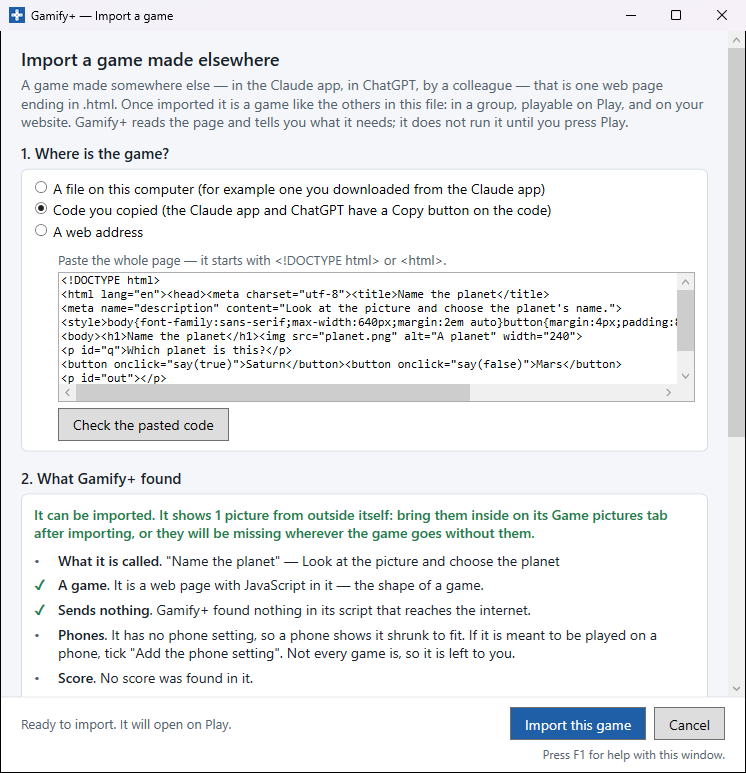
1. Where is the game?
- A file on this computer — press Choose the file…. It should end in .html. If the Claude app gave you a .jsx file instead, ask it to "make this a single HTML file", then download that.
- Code you copied — the Claude app and ChatGPT have a Copy button on the code. Paste the whole page (it starts with
<!DOCTYPE html>or<html>) and press Check the pasted code. - A web address — press Get the page. A game from a web address can only be imported when it is free to copy (no copyright notice), is an HTML and JavaScript game, and is complete in that one page, with nothing loaded from anywhere else. Fonts from the internet are the one exception: they are replaced with the player's own fonts. You tick a box to say the game is free to copy — Gamify+ looks for a copyright notice, but finding none does not prove a page is free to copy.
2. What Gamify+ found
Gamify+ reads the page without running it and says in words what it needs: fonts from the internet, anything else it loads, whether it sends anything, whether it suits a phone. Two fixes can be ticked (and changed later on the game's Properties tab):
- Use the fonts on the player's device instead of fonts from the internet — then it needs no internet at all.
- Add the phone setting — only if the game is meant to be played on a phone. Not every game is, so it is off unless you tick it.
The page you import is kept exactly as it came, as version 1. The fixes are applied each time the game is built, and can be undone.
3. Where it goes
Its Name, Description (filled in from the page where it says) and Group. Press Import this game; the game opens on Play so you can try it straight away.
An imported game in your game file
- Its questions are inside its page, so there is nothing to type on Content; the Content tab says so.
- How it plays shows what Gamify+ found when it checked the page, including whether it needs the internet.
- Properties has its name, description, group, learning outcome, where it was Imported from, and the two fixes.
- Versions: version 1 is always the page as you imported it, and is never changed.
- It has no result line, so it never asks a player's name.
Game pictures
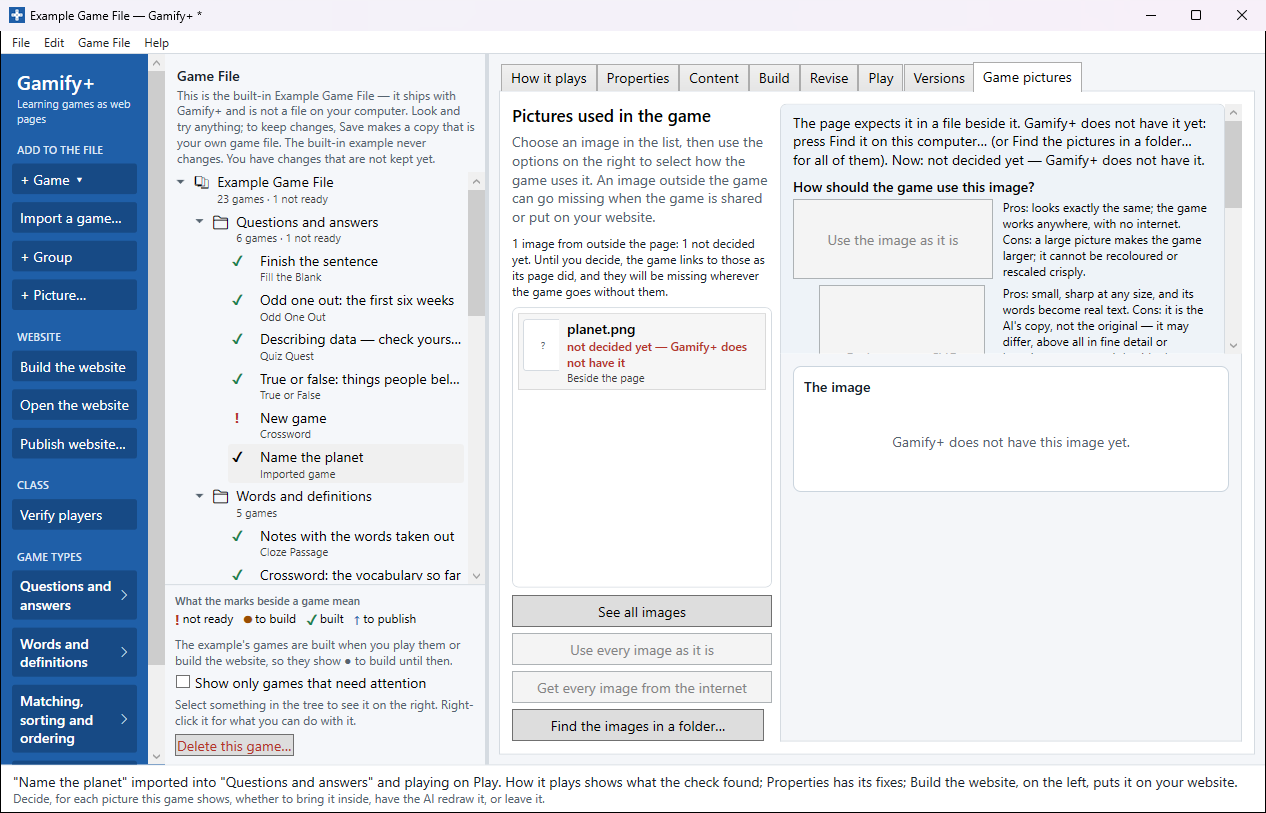
An imported game's pictures are listed on its Game pictures tab, because a picture that lives outside the page can go missing when the game is shared or put on your website. Choose a picture in the list, then choose how the game uses it. Each choice says its pros and cons:
- Use the image as it is — looks exactly the same and works anywhere with no internet; a large picture makes the game larger.
- Redraw as an SVG (AI) — small, sharp at any size; but it is the AI's copy, not the original, so you see it beside the original and decide (Use this, Ask for another drawing or Use the image as it is instead). The picture and the game's name are sent to your AI provider, at a few cents on your key.
- Leave it as a link — nothing to do, but a picture from beside the page will be missing on Play, on your website and in an e-mailed game unless you copy the file next to the game yourself.
- Do not use the image — for a picture the game does not need, such as a logo; the game shows an empty space.
Buttons above the list do it for every picture at once: See all images, Use every image as it is, Get every image from the internet and Find the images in a folder… (for a game you pasted, or one whose images were not beside it). For one picture: Find it on this computer… or Get it from the internet. When Play shows Open Game pictures, some of the game's pictures are still outside it.
Change an imported game by asking
On its Revise tab, under Change the game by asking, say what you want changed — "make all the cards the same size", "deal seven cards face up in a row" — and press Ask the AI to change the game. You play the AI's version before you keep it (Play the AI's version in your browser plays it full size), then press Keep this version or Throw it away. This works the same way as Make my own version: see AI help.