The Help menu
SEAGit's Help menu is at the top left of its window. (SEAGit 1.0.5 has no Help menu; the Microsoft Store brings the new version on its own, or open SEAGit's page on the Store and press Update.)
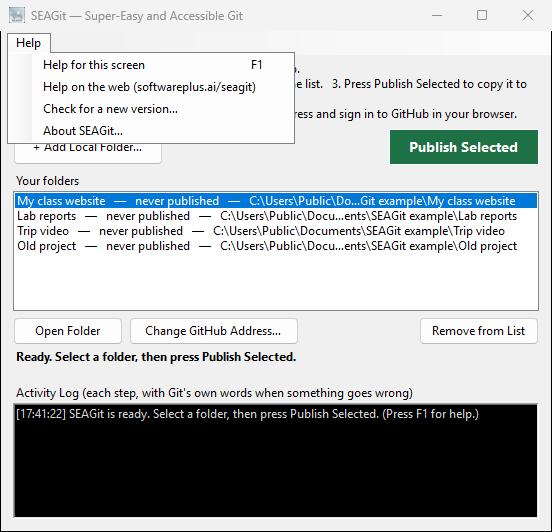
Help ▸ Help for this screen (F1)
Explains the window you are in: how to publish a folder, what the other buttons do, and what happens when something goes wrong. Press F1 anywhere in SEAGit to open it. In the Link to GitHub and Change GitHub Address windows, F1 or the Help (F1) button shows how to make an empty GitHub repository and find its address.
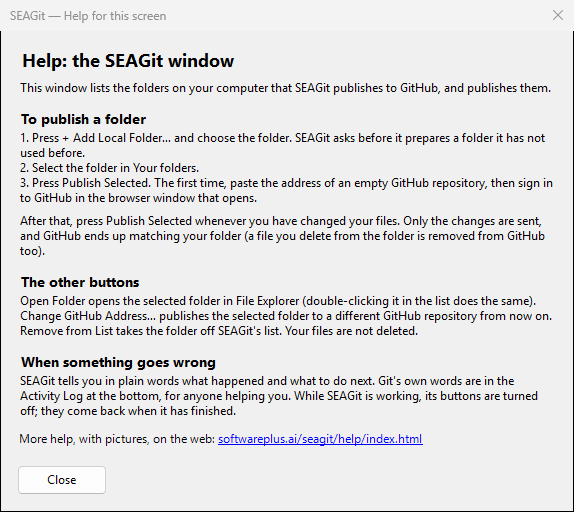
The link at the bottom opens the matching page of this help in your web browser. Press Close (or Enter or Esc) to go back.
Help ▸ Help on the web (softwareplus.ai/seagit)
Opens SEAGit's page on SoftwarePlus.ai in your web browser, with a link to this help.
Help ▸ Check for a new version…
Asks the Microsoft Store whether a newer SEAGit is out. You need to be connected to the internet. (While SEAGit is publishing, it asks you to check when it has finished.) The answer is one of these:
- "You have the latest version of SEAGit (…)." — nothing to do.
- "A new version of SEAGit is on the Microsoft Store (you have …)." — press Yes to download and install it now; the Store shows its progress. Your list of folders is kept. Windows closes SEAGit to install it: open it again from the Start menu. Press No and the Store installs it later on its own.
- "The Microsoft Store could not be asked about a new version. Check that this computer is connected to the internet." — check your connection and try again, or press Yes to open SEAGit's Store page instead.
- "This copy of SEAGit (…) was not installed from the Microsoft Store, so it cannot check for a new version itself." — you have a copy installed another way. Press Yes to open the Store page and see the latest version there.
After you press Yes to install, SEAGit says how it ended: "The new version is installed." (close SEAGit if it is still open, and open it again from the Start menu); "The update was cancelled."; or "The update did not finish." or "The update could not be started." — the Microsoft Store tries again later, or open SEAGit's page on the Store and press Update.
SEAGit goes online for this only when you choose it. Publishing goes online only to the GitHub repository you linked.
Help ▸ About SEAGit…
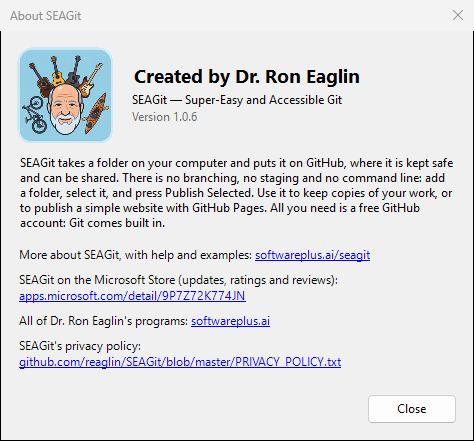
Shows who made SEAGit (Dr. Ron Eaglin), what it is for, and the version you have, for example Version 1.0.6. Give that number if you write for help. Its links open in your web browser:
- softwareplus.ai/seagit — SEAGit's page, with this help;
- apps.microsoft.com/detail/9P7Z72K774JN — SEAGit on the Microsoft Store, for updates, ratings and reviews;
- softwareplus.ai — all of Dr. Ron Eaglin's programs;
- SEAGit's privacy policy (softwareplus.ai/seagit/privacy).
Press Close (or Enter or Esc) to go back.