SEAGit help
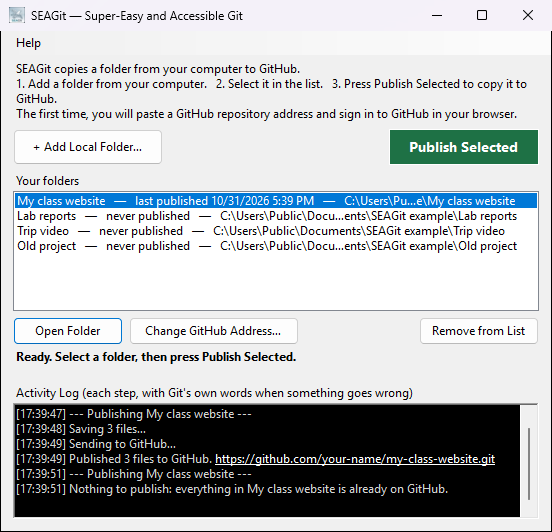
SEAGit (Super-Easy and Accessible Git) takes a folder on your computer and puts a copy of it on GitHub, a website that keeps people's files safe and lets them share them. After the first time, keeping GitHub up to date is one button: Publish Selected.
It is for students, teachers and anyone who has been told "put it on GitHub" and has never used Git. You do not need to know Git, type commands or install anything else: SEAGit brings its own copy of Git.
This help describes SEAGit 1.0.6. To see your version, open Help ▸ About SEAGit…. If your SEAGit has no Help menu, you have 1.0.5, which is on the Microsoft Store until 1.0.6 is published there. In 1.0.5:
- there are only two buttons, + Add Local Folder and Publish Selected; the list is called Saved Repositories;
- every result is a line in the Activity Log, mostly in Git's own words, rather than a message in plain words;
- a folder cannot be taken off the list, and its GitHub address cannot be changed;
- if a publish could not reach GitHub, pressing Publish Selected again says "No changes made" and does not send it;
- on a computer where Git was never set up, the first publish can fail with "Author identity unknown";
- a folder whose branch is called
mastercannot be published.
The Store brings 1.0.6 on its own once it is out. Everything else on these pages works the same way in both.
The pages
- Before you start — a free GitHub account, and an empty GitHub repository for your folder.
- Add a folder — the SEAGit window, + Add Local Folder…, Your folders, and the buttons under the list.
- Publish a folder — Publish Selected, the GitHub address window, signing in, what is sent, and changing the address.
- Make it a website — turn on GitHub Pages so your HTML files are a website anyone can visit.
- Messages and problems — every message SEAGit shows, and what to do.
- The Help menu — Help for this screen, Help on the web, Check for a new version and About.
Getting started, in five minutes
- Make a free account at github.com, if you do not have one.
- On GitHub, make a new, empty repository and copy its address. It looks like
https://github.com/your-name/your-project. (The steps, one by one.) - Open SEAGit from the Start menu. Press + Add Local Folder… and choose the folder on your computer that holds your work. When SEAGit asks "SEAGit has not used this folder before. Prepare it for publishing?", press Yes. The folder now shows under Your folders, selected.
- Press the green Publish Selected button.
- The first time, a window asks for the GitHub repository's address: paste the one you copied and press Link and Publish.
- SEAGit says how many files will be published and asks "Publish now?". Press Yes.
- If your web browser opens GitHub, sign in there and allow access. You usually do this only once on each computer.
- SEAGit says "Published … files to GitHub." Your files are on GitHub. Refresh your repository's page on github.com to see them.
From then on, work in your folder as usual. When you want GitHub to have your latest work, open SEAGit, click the folder and press Publish Selected. No address and no sign-in are asked for again.
In SEAGit, press F1 at any time for help about the window you are in.
Git and GitHub, in plain words
- Git is a program that keeps the history of a folder: every time you save a version, it remembers exactly what each file looked like, so nothing is ever lost. SEAGit runs Git for you, out of sight.
- When SEAGit prepares a folder, Git starts looking after it: Git keeps its records in a hidden folder
called
.gitinside it. Your own files are not changed. Do not delete or move that hidden folder. - GitHub is a website that keeps a copy of your folder online, in a GitHub repository: a backup, something you can share by its address, and, with GitHub Pages, a website.
- Publish is SEAGit's word for saving a new version of the folder and sending it to the GitHub repository. (Git calls the two steps a commit and a push.)
What SEAGit does not do
SEAGit is kept simple on purpose. It only sends your folder up to GitHub. It does not:
- bring changes down from GitHub (what Git calls a "pull"), so make your changes in the folder on your computer, not on github.com;
- make or switch branches: a folder SEAGit prepares uses the branch called
main; - ask for a description of each version: every version is saved as "Published with SEAGit";
- show the history of your versions (github.com does: open your repository and click the number of commits).
If you outgrow it, everything SEAGit made is ordinary Git, so any other Git program can open the same folder.
Your privacy
SEAGit keeps your files and its list of folders on your computer. It sends a folder only to the GitHub repository you link it to, signed in to your own GitHub account, and only when you press Publish Selected. It never stores your GitHub password itself: the sign-in is handled by Git's own sign-in helper and remembered by Windows. Nothing goes to us; Check for a new version asks the Microsoft Store, only when you choose it. Read the SEAGit privacy policy.