Publish a folder
Publish Selected sends your folder's latest work to GitHub. Use it whenever you want GitHub to have what is on your computer: at the end of a work session, before a deadline, or after changing a website.
Publish
- Click the folder under Your folders so it is highlighted. (With nothing selected, SEAGit says "Select a folder in the list first, then press Publish Selected.")
- Press the green Publish Selected button.
- The first time only, SEAGit asks for the GitHub repository's address and how many files will go (below), and you may sign in to GitHub. On a computer where Git has no name yet, SEAGit also asks once for the name to show on GitHub.
- While SEAGit works, the button reads Publishing…, the other buttons are turned off, and the bold line above the Activity Log says what it is doing. They come back when it has finished, and the line says "Ready. Select a folder, then press Publish Selected." again. A large folder takes longer the first time.
- A message says how it went:
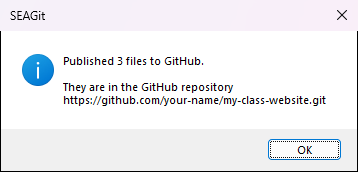
A publish that worked. The folder's last-published time in the list changes to now.
The first time: the GitHub address
A new folder does not yet know which GitHub repository it belongs to, so SEAGit opens the SEAGit — Link to GitHub window:
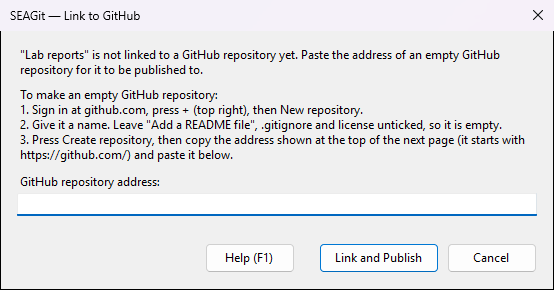
- If you have not made the GitHub repository yet, follow the steps in the window (or Before you start).
- Paste its address in the GitHub repository address box: click the box and press Ctrl+V, or right-click it and choose Paste.
For example
https://github.com/your-name/lab-reports; with or without.gitat the end is fine. - Press Link and Publish (or Enter). The publish carries on.
SEAGit checks the address first. If it is not a GitHub repository address, the window stays open and says why, in red under the box:
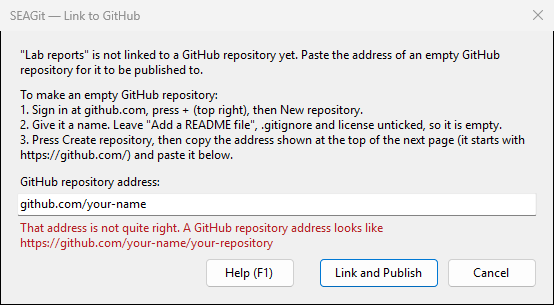
Cancel (or Esc) closes the window and nothing is published; the Activity Log says "Publish cancelled: no GitHub repository address was given." Help (F1) shows how to make an empty GitHub repository and find its address.
The first time: your name on GitHub
GitHub shows a name beside every change you publish, so people can see who made it. On a computer where Git has no name yet (a new computer with only SEAGit on it, for example), SEAGit asks for that name once, in the SEAGit — Your name on GitHub window:
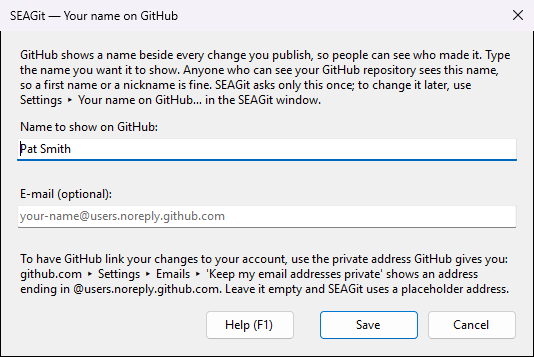
- Name to show on GitHub — required. SEAGit fills in your Windows name if it can; change it to the name you want people to see, for example Pat Smith. Anyone who can see your GitHub repository sees it, so a first name or a nickname is fine.
- E-mail (optional) — leave it empty and SEAGit uses a placeholder address; GitHub then shows the name without your picture.
To have GitHub link your changes to your account, use the private address GitHub gives you: sign in at github.com, open
Settings (your picture, top right) ▸ Emails, and tick Keep my email addresses private.
GitHub shows an address ending in
@users.noreply.github.com; copy it into the box. - Press Save (or Enter). SEAGit keeps the name and the publish carries on: next, for a folder's first publish, it says what will be published. It does not ask for the name again.
A name left empty (or with no letters in it, or with < or >), or an e-mail without an @ and a dot after it, is not saved: the window stays open and says why, in red under the box. Cancel (or Esc) stops the publish and no files are sent; the Activity Log says "Publish cancelled: no name to show on GitHub was given. No files were sent; press Publish Selected when you are ready." Help (F1) explains the name and the e-mail.
SEAGit keeps the name in its own settings and never changes Git's settings on your computer. If Git already has a name of its own (someone set Git up on this computer), SEAGit uses that one and does not ask.
Change the name later
Use Settings ▸ Your name on GitHub… at the top of the SEAGit window. The same window opens with the name and e-mail you saved; change them and press Save. Your next publishes carry the new name; changes already on GitHub keep the name they had. If Git on this computer has a name of its own, the window says so: that name is used instead.
The first time: what will be published
Before a folder's first publish, SEAGit says how many files will go, and how big they are together:
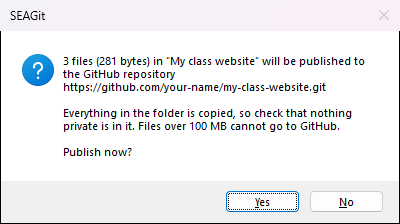
Press Yes to publish. Press No and nothing is sent; take out what should not go, then press Publish Selected again.
If any file in the folder is over 100 MB, SEAGit stops before anything is saved and names the file (files over 100 MB).
The first time: sign in to GitHub
The first time you publish on a computer, Git's sign-in helper asks you to sign in to GitHub. The bold line in SEAGit says "If a GitHub sign-in window opens in your browser, sign in there".
- If a small window asks how to sign in, choose Sign in with your browser.
- Your web browser opens GitHub. Sign in if you are asked, and allow access when GitHub asks.
- Go back to SEAGit. The publish finishes on its own.
Windows remembers the sign-in, so you are usually not asked again, for this folder or any other. SEAGit never sees or keeps your password. If you close the sign-in without finishing, SEAGit says so, and your changes are sent the next time you press Publish Selected.
After that
Every later publish is just: click the folder, press Publish Selected. No address, no question about files, no sign-in.
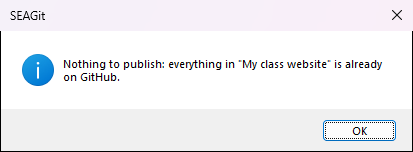
If nothing in the folder has changed since the last publish, SEAGit says so. That is not a problem: GitHub already has your latest work.
If an earlier publish was saved on your computer but did not reach GitHub (the internet dropped, or the sign-in was not finished), the next Publish Selected sends it: "Published the changes saved earlier that had not reached GitHub yet."
What a publish does
One press of Publish Selected does what would take several Git commands:
- It looks for every file in the folder that is new, changed or deleted since the last publish.
- It saves them all as one new version (a commit) described as "Published with SEAGit". The version carries your name: the name Git has on this computer, if someone set one, or else the name you gave SEAGit.
- It sends that version to the GitHub repository (a push), to the folder's branch —
mainfor a folder SEAGit prepared.
So GitHub ends up matching your folder exactly — including deletions: a file you delete from the folder is removed from
GitHub at the next publish (earlier versions stay in the repository's history on github.com). Files listed in a
.gitignore file in the folder, if it has one, are left out, as Git always does.
SEAGit only sends work up. Make your changes in the folder on your computer, not by editing files on github.com: SEAGit cannot bring a change made on GitHub down to your computer, and the next publish would be refused (why, and what to do).
If you close SEAGit while it is publishing, it asks first. Closing stops the publish; your files stay as they are, and the next Publish Selected finishes the job.
Change the GitHub address
To publish a folder to a different GitHub repository from now on — the address was wrong, or you want a fresh, empty repository — select it and press Change GitHub Address….
- The SEAGit — Change GitHub Address window shows the address the folder publishes to now.
- Replace it with the address of a new, empty GitHub repository and press Save Address. (Cancel or Esc changes nothing.)
- SEAGit says "From now on, "folder" publishes to … Press Publish Selected to copy the folder there."
- Press Publish Selected: the whole folder is sent to the new GitHub repository.
Nothing on GitHub is changed or deleted: the old GitHub repository keeps what was published to it. A folder that has not been prepared yet has no address to change; press Publish Selected and SEAGit asks for one.