Messages and problems
SEAGit tells you how each thing you ask for went in a message, in plain words, with what to do next. Each step it takes is also written in the Activity Log, the black box at the bottom of its window; when something goes wrong, Git's own words are there, for anyone helping you. This page lists every message and what to do.
Whatever went wrong, your files on your computer are not changed or deleted by SEAGit.
Messages that mean all is well
| Message | What it means |
|---|---|
| Published 3 files to GitHub. They are in the GitHub repository … | The publish worked: GitHub has your latest work. |
| Published the changes saved earlier that had not reached GitHub yet. | An earlier publish did not reach GitHub (no internet, or the sign-in was not finished). It has now. |
| Nothing to publish: everything in "…" is already on GitHub. | Nothing changed since the last publish, so there was nothing to send. |
| From now on, "…" publishes to … | The GitHub address was changed. Press Publish Selected to copy the folder there. |
| "…" is already in your list. It is selected now. | That folder was added before; nothing was added again. |
Messages that need you
| Message | What to do |
|---|---|
| Select a folder in the list first, then press … | Click a folder under Your folders, then press the button again. |
| There is nothing in "…" to publish yet. | The folder is empty. Put your files in it (Open Folder shows it), then press Publish Selected. |
| The folder "…" is no longer at … | It was moved, renamed or deleted. Press Remove from List, then add it again from where it is now with + Add Local Folder…. |
| … is a whole drive, not a folder. / … is your own user folder / … is one of Windows' own folders and cannot be published. | Publishing it would copy far too much to GitHub. Make a folder for the files you want to publish (for example in Documents) and add that folder instead. |
| "…" has not been prepared for publishing yet. (after Change GitHub Address…) | Press Publish Selected: SEAGit asks for the folder's GitHub address then. |
| In red, in the GitHub address window: Paste the address of your GitHub repository in the box first. / That is not a GitHub repository address. It must start with https://github.com/ … / That address is not quite right. … | Copy the whole address from the top of the repository's page on GitHub and paste it in the box. It looks like https://github.com/your-name/your-repository. |
| In red, in the Your name on GitHub window: Type the name GitHub should show beside your changes, for example Pat Smith. / Use letters in the name (and no < or >), for example Pat Smith. | The name is required: type the name you want people to see beside your changes, then press Save. (About this window.) |
| In red, under E-mail (optional): That does not look like an e-mail address: it needs an @ and a dot after it … | Fix the address, or empty the box: the e-mail is optional, and SEAGit then uses a placeholder address. Your private GitHub address ends in @users.noreply.github.com (github.com ▸ Settings ▸ Emails). |
| Publish cancelled: no name to show on GitHub was given. (in the Activity Log) | Cancel was pressed in the Your name on GitHub window, so no files were sent. Press Publish Selected again and type a name. |
| SEAGit is still publishing. If you close it now, the publish stops … | Press No to let it finish. If it is waiting for a GitHub sign-in in your browser, finish signing in there. Closing does no harm: the next Publish Selected finishes the job. |
When a publish does not work
The message starts "The folder was not published.", then says what happened. Your changes are kept on your computer and are sent the next time a publish works.
"GitHub sign-in did not finish, so nothing was sent to GitHub."
The sign-in window was closed, or the sign-in in the browser was not finished. Press Publish Selected again and finish signing in to GitHub in the browser window that opens.
"SEAGit could not reach GitHub."
Check that this computer is connected to the internet (open any website), then press Publish Selected again.
"That GitHub repository already has files that are not in this folder …"
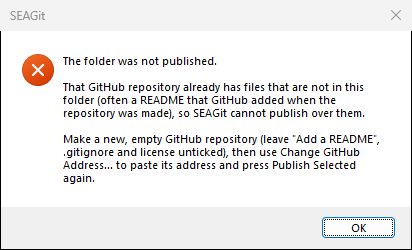
The GitHub repository was not empty: usually GitHub added a README, .gitignore or license when it was made. SEAGit cannot publish over files that are not in your folder.
- On GitHub, make a new, empty repository (the steps), leaving "Add a README file", .gitignore and license unticked.
- In SEAGit, select the folder, press Change GitHub Address…, paste the new address and press Save Address.
- Press Publish Selected.
The repository you made first can be deleted on GitHub (its Settings, at the bottom: Delete this repository), or left as it is.
"The GitHub repository has changes that are not in this folder."
The folder was published before, but since then something changed on GitHub: usually a file was edited on github.com, or the folder was published from another computer. SEAGit only sends work up, so it cannot publish over those changes; your files here are not changed.
- If the change on GitHub does not matter (say, a README edited on github.com), undo it on github.com, then press Publish Selected again.
- If you need it, ask someone who uses Git to bring it into your folder once ("pull"), then keep making your changes in the folder from then on.
- Or start afresh: make a new, empty GitHub repository and point the folder at it with Change GitHub Address….
"GitHub could not find that GitHub repository, or your GitHub account is not allowed to publish to it."
Either the address is wrong, or you signed in to GitHub as a different account from the one that owns the repository.
- Check the address: open it in your browser. If GitHub says the page is not found, press Change GitHub Address… and paste the right one.
- If the address is right, Windows may have remembered another GitHub account. Open Windows' Credential Manager (type it in the Start menu),
choose Windows Credentials, remove the entry for
git:https://github.com, and publish again: you are asked to sign in afresh.
"Nothing was published. GitHub does not accept files over 100 MB …"
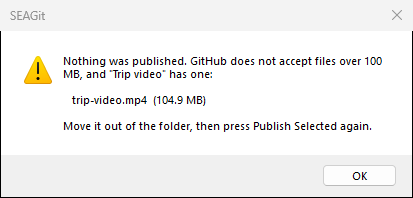
Move the named file (or files) out of the folder — to another folder on your computer, or to a service made for large files, such as OneDrive — then press Publish Selected again. If GitHub itself refuses a file as too large, the message says "GitHub refused a file because it is over 100 MB"; do the same.
"Git will not work in this folder because Windows says it belongs to a different user account …"
This happens with some USB drives and shared folders. Copy the folder to your own Documents folder, add that copy with + Add Local Folder…, and publish it.
"Git reported a problem that SEAGit cannot explain in plain words."
Git's own words are in the Activity Log. See Still stuck? below.
Problems with SEAGit itself
| Message | What to do |
|---|---|
| SEAGit's built-in Git appears to be missing from the install. or SEAGit's built-in Git could not be started. | SEAGit's own copy of Git is damaged. Uninstall SEAGit and install it again from the Microsoft Store. Your folders, their files and SEAGit's list are not touched. |
| SEAGit's saved list of your folders could not be read (the file is damaged), so the list starts empty. | Your folders and what you published are not affected. Add your folders again with + Add Local Folder…; each one keeps its GitHub address. The message says where a copy of the damaged list was kept, in case someone helping you wants to look at it. |
| SEAGit started, but could not load its saved list of your folders. | The same: add your folders again with + Add Local Folder…. |
| SEAGit could not prepare the folder for publishing. / … could not save the GitHub address. / … could not change the GitHub address. | The message says why, in the words above. Often the folder cannot be written to (on a read-only drive or one that belongs to another account): copy it to your Documents folder and add the copy. |
| Something unexpected went wrong while publishing. | Press Publish Selected again. If it happens again, see Still stuck?. |
| SEAGit could not save your name on GitHub, so nothing was published. | SEAGit's settings folder could not be written to. Close SEAGit, open it again and press Publish Selected. If it happens again, see Still stuck?. |
The wrong name, or no picture, beside my changes on GitHub
GitHub shows the name SEAGit was given the first time it published on this computer. To change it, use Settings ▸ Your name on GitHub… in the SEAGit window (how); changes already on GitHub keep the name they had. If the window says "Git on this computer already has a name of its own", that name is used instead: someone set Git up on this computer, and whoever did can change it there.
No picture beside the name means GitHub cannot link the change to an account: the e-mail was left empty (SEAGit then uses a placeholder
address). Put your private GitHub address, ending in @users.noreply.github.com, in E-mail (optional); your next publishes show your picture.
Folders that were already Git repositories
A folder that another Git program prepared, or one copied ("cloned") from GitHub, is added without the prepare question. It publishes to the address it
already had, without asking, and to its own branch, whatever it is called (often master on older folders).
Still stuck?
Copy the lines from the Activity Log (select them with the mouse, then press Ctrl+C) and email them to ron.eaglin@gmail.com, with what you were doing and your SEAGit version (Help ▸ About SEAGit…).