Add a folder
SEAGit works on the folders in its list, Your folders. Each folder is added once; after that it stays in the list every time you open SEAGit.
The SEAGit window
SEAGit has one window, titled SEAGit — Super-Easy and Accessible Git. The first time you open it, the list is empty:
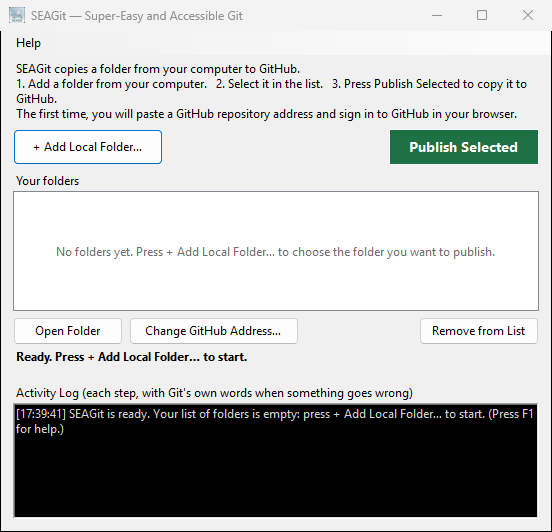
From top to bottom:
- the Help menu (the Help menu);
- what SEAGit does, in three steps: "1. Add a folder from your computer. 2. Select it in the list. 3. Press Publish Selected to copy it to GitHub.";
- + Add Local Folder… on the left and the green Publish Selected on the right;
- Your folders: the folders SEAGit publishes. While it is empty it says "No folders yet. Press + Add Local Folder… to choose the folder you want to publish." (clicking there does the same as the button);
- Open Folder, Change GitHub Address… and Remove from List, which work on the folder selected in the list;
- a line in bold that says what SEAGit is doing. When it is not working, it says what to do next: "Ready. Select a folder, then press Publish Selected.", or, while the list is empty, "Ready. Press + Add Local Folder… to start.";
- the Activity Log: the black box at the bottom, where SEAGit writes each step it takes, each line with the time. When something goes wrong, Git's own words are here, for anyone helping you.
Rest the mouse on any button for a moment and a tip says what it does.
Add a folder
- Press + Add Local Folder…. A window opens, titled "Choose the folder you want to publish to GitHub".
- Find your folder, click it once and press Select Folder.
- If SEAGit has not used the folder before — most folders — it asks first:
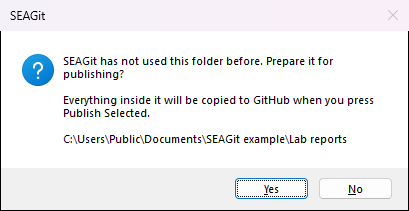
The prepare question names the folder, so you can check it is the right one. - Press Yes. SEAGit prepares the folder (Git adds its hidden
.gitfolder; your own files are not changed) and adds it to the list. The Activity Log says "Added to your folders: folder. Press Publish Selected to copy it to GitHub." - Press No and nothing changes: the folder is not added, and the log says so.
- Press Yes. SEAGit prepares the folder (Git adds its hidden
- The folder appears under Your folders, already selected, ready for Publish Selected.
A folder SEAGit (or another Git program) prepared before is added straight away, without the question; if it was published before, the list shows when. Adding a folder that is already in the list just selects it: "… is already in your list. It is selected now."
SEAGit refuses a whole drive, your own user folder and Windows' own folders, and says why: make a folder for the files you want to publish and add that instead.
Reading the list
Each line of Your folders reads like this:
My class website — last published 10/31/2026 5:39 PM — C:\Users\you\Documents\My class website
- first, the folder's name;
- then when SEAGit last published it, or never published;
- then where the folder is on your computer. A long place is shortened in the middle, with …, so the row fits the list (for example
C:\Users\Public\Docu…ents\SEAGit example\Lab reports). Rest the mouse on a row to see the whole place, or make the window wider.
SEAGit keeps this list on your computer, in your own Windows account, so it is there the next time you open SEAGit.
The buttons under the list
Click a folder in the list first; each button works on the selected folder.
- Open Folder opens the folder in File Explorer, so you can add or change its files. Double-clicking the folder in the list does the same.
- Change GitHub Address… publishes the folder to a different GitHub repository from now on (Change the GitHub address). Nothing already on GitHub is changed or deleted.
- Remove from List takes the folder off SEAGit's list, after asking. Your files are not deleted: the folder stays on your computer and what you published stays on GitHub. Add it again at any time with + Add Local Folder…; it keeps its GitHub address.
Good to know
- If you move or rename a folder, SEAGit cannot find it any more and says so when you use it. Press Remove from List, then add it again
from its new place with + Add Local Folder…; because the hidden
.gitfolder moved with it, it is still linked to GitHub. - Do not put one added folder inside another added folder; publish each project from its own folder.