
All programs › BMPFast › Sample problems
Media mix: a filter with and without media
Surface discharge filter, no media against B&G CTS12.
Help: Media Mix (help page 817) · Download the .bmpt · Link to Solution in BMPFast Version 2
1The problem
A 5-acre subdivision is treated by a surface discharge filter with a 0.5-inch treatment depth. Compare the filter with no media chosen and with B&G CTS12.
| Input | Value | Source |
|---|---|---|
| Project (General Site Information) | ||
| Meteorological zone | Florida Zone 2 | Zone map (help page 815) |
| Mean annual rainfall | 50 in | Mean annual rainfall map (help page 815) |
| Performance standard (analysis type) | BMP Analysis | Site (illustrative) |
| Catchment 1: Subdivision (Watershed Characteristics) | ||
| Land use, pre / post | Agricultural - Pasture / Single-Family | Site (illustrative) |
| Area, pre / post | 5 / 5 ac | Site (illustrative) |
| Non-DCIA curve number, pre / post | 61 / 75 | Site (illustrative) |
| DCIA, pre / post | 0 / 25 % | Site (illustrative) |
| EMC TN, pre / post | 3.030 / 1.770 mg/L | BMPFast land use table (AH Vol I Table 9.2) |
| EMC TP, pre / post | 0.593 / 0.327 mg/L | BMPFast land use table (AH Vol I Table 9.2) |
| Filter treatment depth | 0.5 in | Design (illustrative) |
Find: the filter’s TN and TP removal with no media and with B&G CTS12.
2Steps in BMPFast
Open Surface Discharge Filter, type the treatment depth 0.5 in and press Calculate with no media chosen.
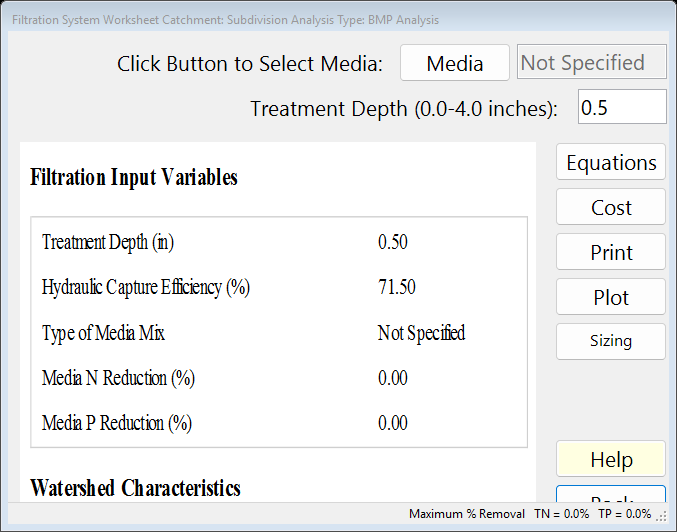
The worksheet with no media chosen. The media mixes BMPFast has built in (the list behind the Media window; choosing “User Defined” opens it to add your own).
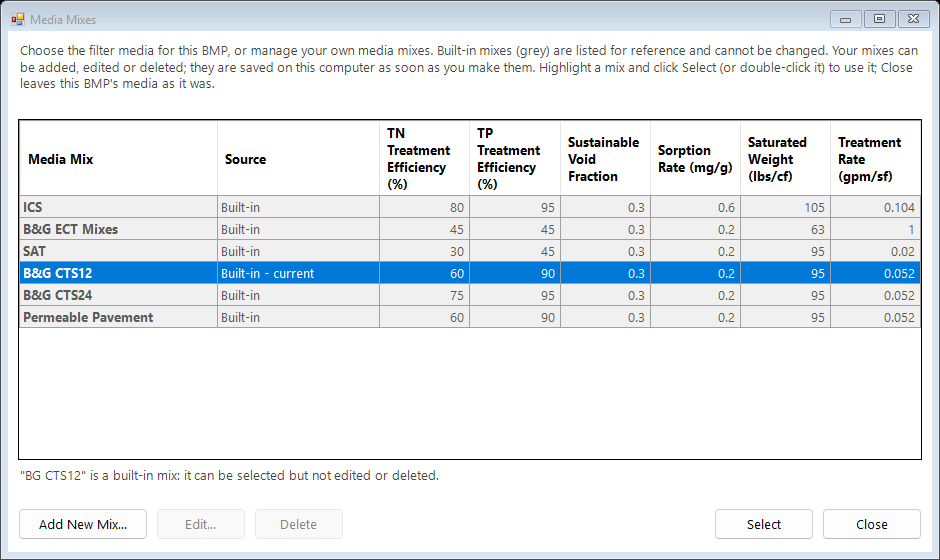
The Media Mixes window: the built-in mixes. Press Media, choose B&G CTS12, residence time more than 2 hours: Yes. Press Back.
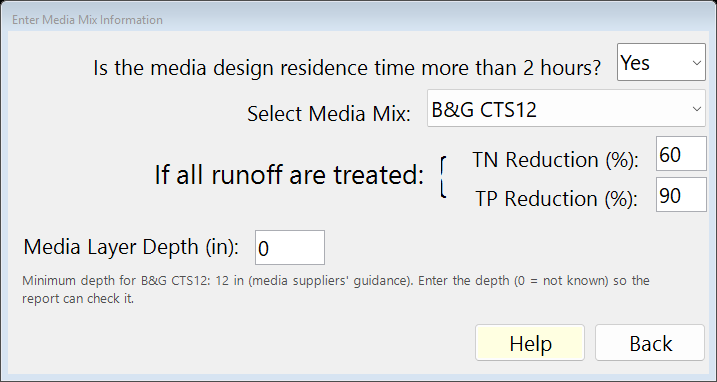
Enter Media Mix Information (the Media button). Press Calculate again: the removal now includes the media.
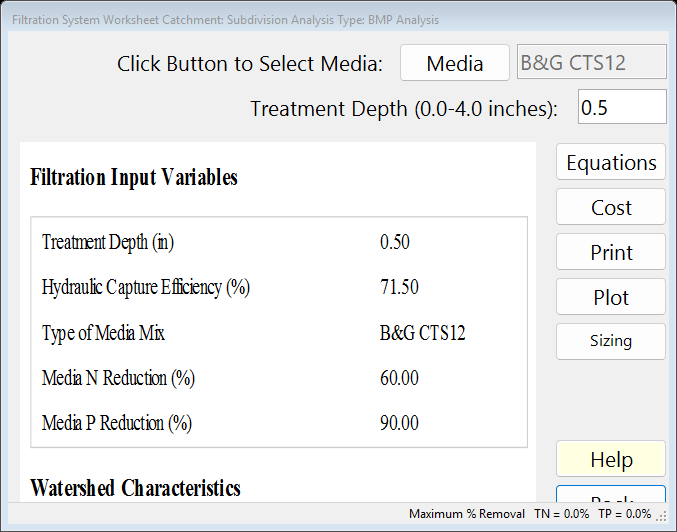
The BMP worksheet after Calculate: the report on the left. On the main window press 3. Configure Catchments and double-click Catchment 1. Choose Filtration as the BMP used in routing and the Outlet as where it goes. Press Back twice. (A catchment’s BMP is only used once it is chosen here.) Press Save Project to keep your copy; compare it with the .bmpt under Files.
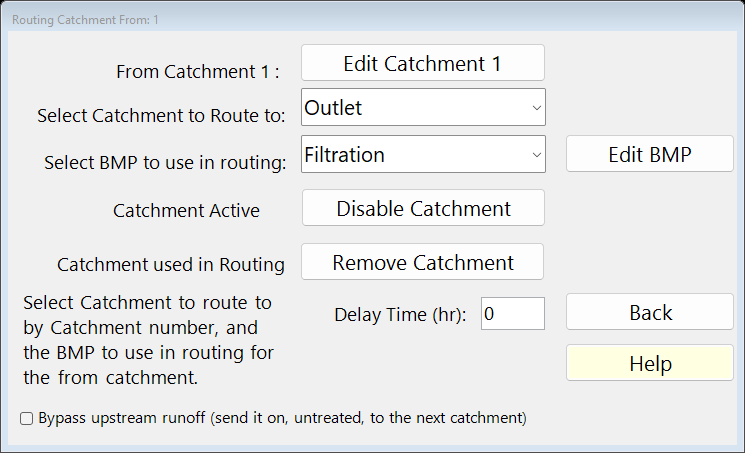
Routing for Catchment 1 (3. Configure Catchments): the BMP used and where the catchment goes.
3Results
| Result | Value |
|---|---|
| No media: TN / TP removal | 0.00 % / 0.00 % |
| B&G CTS12: media reduction TN / TP | 60 % / 90 % |
| B&G CTS12: TN / TP removal | 42.90 % / 64.35 % |
4Check
Capture. The retention efficiency tables for Florida Zone 2 at a treatment depth of 0.500 in, non-DCIA CN 75.00 and DCIA 25.0 % give a hydraulic capture of 71.50 % (AH Vol I Appendix O; read the same tables with Tools › Retention Efficiency Lookup Tables, help page 4325).
Removal.
The water captured passes through the media and leaves as surface discharge, so removal = capture × media reduction:
| TN | = 71.50 × 60 / 100 |
| = 42.90 % (program 42.90) |
| TP | = 71.50 × 90 / 100 |
| = 64.35 % (program 64.35). |
The media reductions are those of B&G CTS12 (Media and Filtration Methodology).
5Files
- media-mix-filter.bmpt: the project, saved by BMPFast. Save it (your browser puts it in Downloads). In BMPFast press Open Project, then Open Project again in the Open BMPFast Project dialog (below its Recent Projects list), and choose the file.
- Summary Report (as BMPFast shows it)
- BMP report (worksheet) (as BMPFast shows it)
6Help and methodology
Calculated with BMPFast 1.1.9 (build 6.0.0, 2026-10-16). Older versions may not have the Equations button or may give slightly different results; download the latest at bmpfast.com. Screen captures are for demonstration only.