Settings, About and new versions
This page describes Gamify+ 1.2, coming soon. In the version on the Microsoft Store today (1.1.0), Settings and About are the last two of five sections along the top of the window rather than a menu and windows; there is no menu bar, so no Help menu; and 1.1.0 has no F1 help, no Check for a new version… and none of the links in About. To see which version you have: Help ▸ About Gamify+… in 1.2, the About section in 1.1.0.
Settings
Choose Edit ▸ Settings… in the menu. A small window opens with the settings for Gamify+ itself. (Settings for one game file — its name, its website folder — are on that file's Properties tab: select the game file at the top of the tree.)
- The AI — AI settings… to choose a provider and enter your key, and What the AI has cost… to see what each request cost, by month. See AI help.
- Where your files are — where game files are saved and where the game types are kept, with Open the Gamify+ folder and Open my game types folder.
- Close — settings are kept as you change them; there is nothing to save. Help for this screen (F1) explains the window.
The Help menu
- Help for this screen (F1) — a short page about the screen you are on: what it is for, what to do first, and what its buttons do (see Help inside Gamify+).
- Help on the web (softwareplus.ai/gamify) — opens these pages in your web browser.
- Check for a new version… — asks the Microsoft Store whether a newer Gamify+ is out (see below).
- About Gamify+… — the About window (next).
About Gamify+
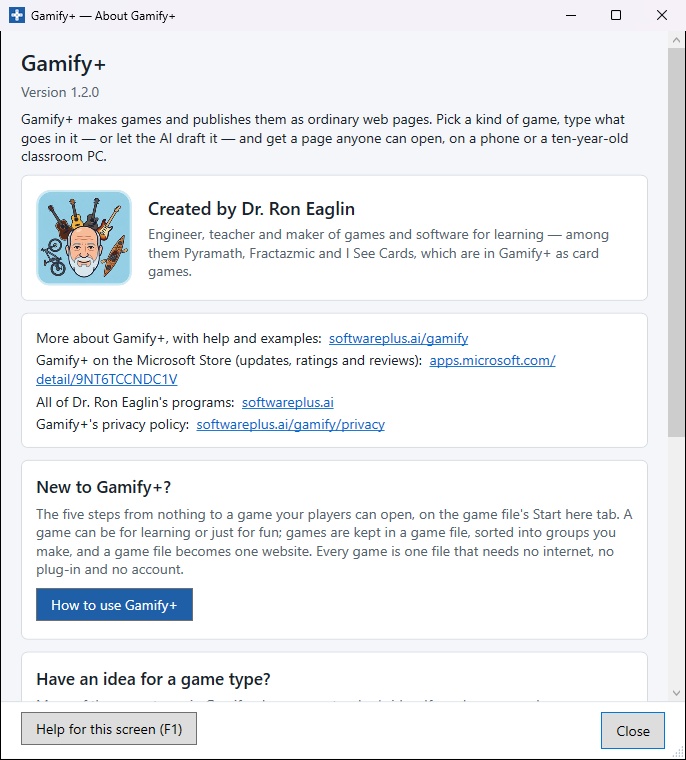
Choose Help ▸ About Gamify+…. A window opens; from the top, it shows:
- Gamify+ and the version you have (for example "Version 1.2.0"), with a line on what Gamify+ does.
- Created by Dr. Ron Eaglin, with his picture — engineer, teacher and maker of games and software for learning, among them Pyramath, Fractazmic and I See Cards.
- Links, which open in your web browser: "More about Gamify+, with help and examples: softwareplus.ai/gamify"; "Gamify+ on the Microsoft Store (updates, ratings and reviews)" — apps.microsoft.com/detail/9NT6TCCNDC1V; "All of Dr. Ron Eaglin's programs: softwareplus.ai"; and "Gamify+'s privacy policy".
- New to Gamify+? — How to use Gamify+ closes About and opens the game file's Start here tab: the five steps and the three ways in (see Getting started).
- Have an idea for a game type? — Send a game type idea and Copy the address (see Sharing game types).
- About the result line — what a result line proves and does not prove (see Playing and results).
Help for this screen (F1) and Close are at the bottom of the window.
Check for a new version
In Gamify+ 1.2, choose Help ▸ Check for a new version…. It asks the Microsoft Store whether a newer Gamify+ is out. While it asks, the command is greyed out and the line at the bottom of the window says "Asking the Microsoft Store whether a new version is out…". Then one of these:
- "You have the latest version of Gamify+ (1.2.0)." — nothing to do.
- "A new version of Gamify+ is on the Microsoft Store (you have …)." — it asks whether to download and install it now. Installing makes Windows close Gamify+, so if your game file has changes that are not saved, Gamify+ asks about them first, with the usual question: Save, Install the new version without saving (the changes since you last saved are lost), or Go back (nothing is installed and nothing is lost). Then the Store downloads and installs it, showing its own progress. When it says "The new version is installed", close Gamify+ if it is still open and open it again from the Start menu. Answer No to the first question and nothing happens: the Store installs it later if automatic updates are on, or choose Help ▸ Check for a new version… again any time.
- "This copy of Gamify+ … was not installed from the Microsoft Store, so it cannot check for a new version itself." — it offers to open Gamify+'s page on the Store instead, where you can see the latest version.
- "The Microsoft Store could not be asked about a new version." — check that the computer is connected to the internet and try again; it offers the Store page instead.
- "The update was cancelled" or "The update did not finish" — the Store will try again later, or open Gamify+'s page on the Store and press Update.
These messages are titled "Gamify+ — Check for a new version". The check goes online only when you press the button. With Gamify+ 1.1.0, which has no such command, or at any time, you can also open the Gamify+ page on the Microsoft Store, or the Store app's Library, and press Update if one is offered.
Privacy
Gamify+ keeps your work on your own computer. It has no account and no tracking, and the games it makes collect nothing. Read the Gamify+ privacy policy.