Playing, handing out and results
This page describes Gamify+ 1.2, coming soon. In the version on the Microsoft Store today (1.1.0), Verify players is only in the tree, and the website is built in the Export section; Play, Versions and the result lines work the same in both.
Play a game in Gamify+
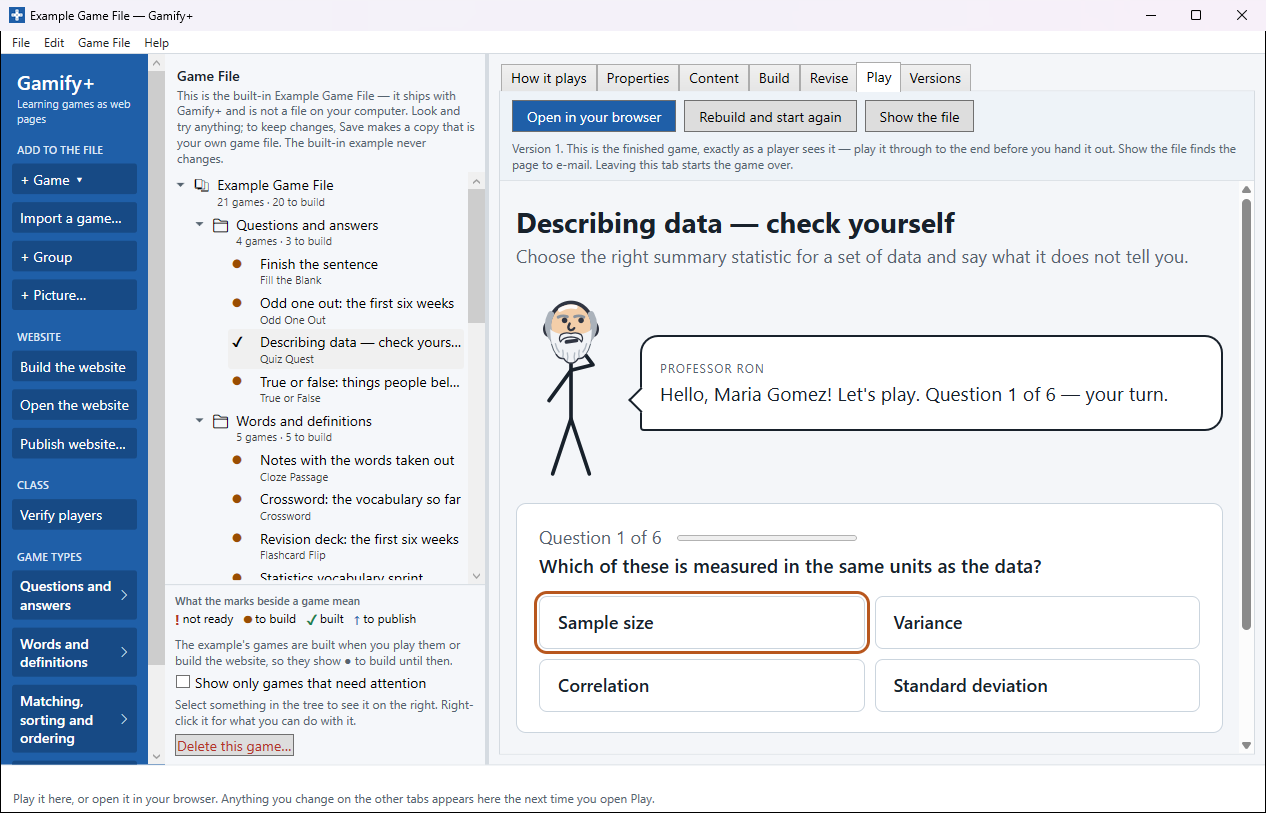
Select a game in the tree and open its Play tab (or press Play on its card on a group's All games tab). The game is built and plays right there in the window, exactly as a player sees it. The buttons above it:
- Open in your browser — the game full size in your web browser, exactly as a player would open it.
- Rebuild and start again — builds the game again with any changes you have made, and starts it from the beginning.
- Show the file — opens the folder with this game's page selected, to e-mail it or copy it to a memory stick.
If the game asks for a name, type any name and press Start to try it.
Hand out one game
Every game made from a game type is one web page that needs no internet, no plug-in and no account. Press Show the file on Play and you can:
- e-mail it to your players,
- put it in your LMS (Brightspace, Canvas, Moodle…),
- copy it to a memory stick or a school network drive.
The player opens it in any web browser, on a phone, tablet or computer. (A game you imported says on its How it plays tab if it needs the internet.) To hand out all your games at once, press Build the website on the left of the window — see Websites and GitHub Pages.
What a player sees
- The game's name, its learning outcome or description, and how to play.
- If Ask for the student's name is on (on a game's Properties tab): a box, "Type your name — the way the person who gave you this game knows you", and Start. The page tells them their name goes on the result line and that nothing is sent anywhere.
- The game, with Professor Ron if you chose him.
- At the end, the score and what they got right and wrong — and, when the game asked for a name, a panel headed Hand this in with the result line, Copy the line and Print or save as PDF. A screenshot of that panel works too.
If a player presses Play again before copying their line, the game asks first, because playing again throws the line away.
Tell your players where to hand the line in — a discussion post, an assignment box, an e-mail. Gamify+ never receives it; it goes from the player to you, and nowhere else.
Older versions of a game
Every built change of a game is kept on its Versions tab, and each one plays there. How to put an older one back, or save it as a game of its own: Making a game — Versions. Players always get the current version.
Check what players handed in: Verify players
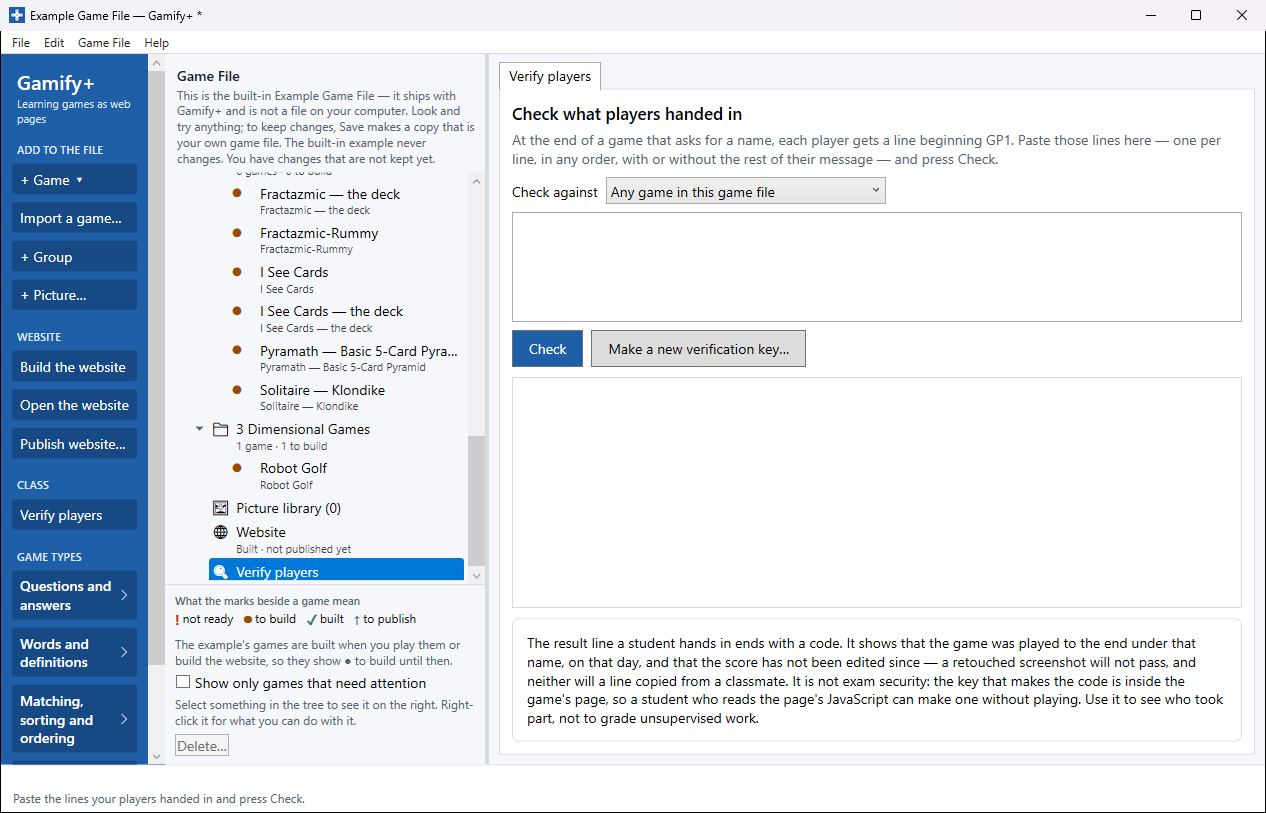
- Open the game file the games came from (File ▸ Open… or File ▸ Recent), and press Verify players under CLASS in the blue strip on the left — or select Verify players at the foot of the tree.
- Paste the lines your players handed in — one per line, in any order, with or without the rest of their message. Each line begins
GP1. - Under Check against, leave Any game in this game file, or choose the one game you are checking.
- Press Check.
Each line is listed with the player's name, a mark and a sentence saying what Gamify+ found:
- ✓ — genuine: the sentence says who finished which game, on what day, with what score.
- ! — genuine, but for a different game from the one you are checking.
- ✗ — either the code does not match the rest of the line (something in it was changed after the game finished, or the line came from a different game file), or it is not a Gamify+ result line at all. For that, ask the player for the whole line starting with GP1 — the Copy button at the end of the game copies it for them.
The key that checks the lines is kept inside the game file, so keep the game file the games were built from.
What a result line proves — and what it does not
The result line a student hands in ends with a code. It shows that the game was played to the end under that name, on that day, and that the score has not been edited since — a retouched screenshot will not pass, and neither will a line copied from a classmate. It is not exam security: the key that makes the code is inside the game's page, so a student who reads the page's JavaScript can make one without playing. Use it to see who took part, not to grade unsupervised work.
That is the same wording Gamify+ shows on Verify players and in About. Two more things to know:
- Flashcard Flip lets the player mark themselves, so its line shows they went through the deck, not that they knew it.
- I See Cards and imported games have no result line.
Make a new verification key…
The button on Verify players replaces the key. Every line handed in before it will no longer verify, so only do it if the key may have been seen. The new key only counts once you save the game file, and games already built or published keep the old key until you build the website (and publish it) again.