Making a game
A game is made with the tabs on the right of the window, once the game is selected in the tree. They run in the order the work happens: How it plays, Properties, Content, Build, Revise, Play, Versions. (The window itself — the blue strip, the tree and its marks — is explained on The window, game files and groups.)
The version on the Microsoft Store today (1.1.0) adds a game with the Add a game button under the tree and then asks for its type on Properties; in Gamify+ 1.2, coming soon, you choose the kind of game as you add it, with + Game. The tabs of a game are the same in both.
1. Add the game
Select a group in the tree, then press + Game ▾ in the blue strip on the left — or right-click the group and choose + Game in this group, or use Game File ▸ + Game in the menu. A list of every kind of game opens, under five headings; choose one. The new game goes into the selected group, shows the mark ! (not ready) in the tree until it has its questions, and opens on its Properties tab, to give it a name. No group suits it? Press + Group first (see Groups).
Not sure which kind? Open a heading under GAME TYPES, at the bottom of the blue strip, and choose a type: its page shows on the right. Try this game type plays its example; Make a game of this type adds one to the group selected in the tree (see The game types).
2. Properties: the kind of game, and what it is for
The Game type row on the Properties tab shows the kind you chose; choose another there to change it. That is the kind of game — a quiz, a matching game, a crossword, a race against the computer — and it decides what the Content tab asks you for. The How it plays tab then describes the type you picked and what makes good content for it. The game types lists them all.
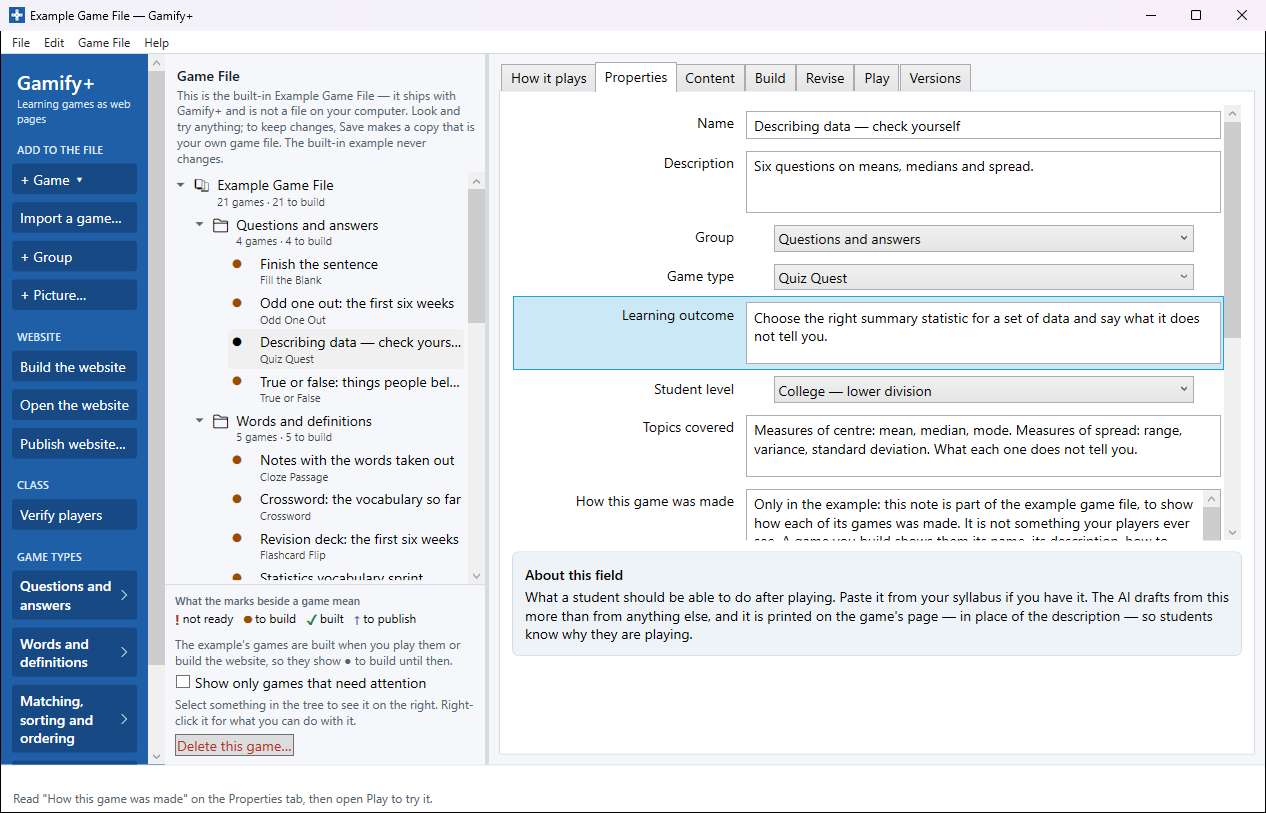
Select any row — click it, or click into its box — and About this field, under the list, explains it. Rest the mouse pointer on a box for a shorter tip. The How it plays tab, the first of the game's tabs, describes the game type you chose; nothing on it changes your game. The rows are:
| Row | What it is for |
|---|---|
| Name | Shown in the tree and on the website's front page. It becomes the file name of the game's page, so two games cannot share one. |
| Description | A sentence or two for you and your players, shown under the name on the website. On a game, a learning outcome takes its place on the page. |
| Group | Which of your groups the game is in. Choose another to move it. |
| Game type | How the game plays. |
| Learning outcome | What a player should be able to do after playing — paste it from your syllabus. It is printed on the game's page, and the AI drafts from it more than from anything else. |
| Student level | Who is going to play: Elementary (K–5), Middle school (6–8), High school (9–12), College — lower division, College — upper division, Graduate, or Not said. |
| Topics covered | What the game is about, in your words. One per line is fine. |
| How this game was made | A note to yourself about where the game came from. Players never see it. |
| Ask for the student's name | On: the game asks for a name first and ends with a result line to hand in. Off: anyone can play straight away and nothing is recorded — right for practice games. See Playing and results. |
| Character on the page | Professor Ron — a stick figure with the face of Dr. Ron Eaglin, who made Gamify+ — stands above the game with a speech bubble, says hello, reacts to answers and cheers at the end. He only repeats what the page already says in words, and keeps still on a device that asks for less motion. None gives a plainer page. |
For a game just for fun, the learning outcome, student level and topics can stay empty. For a learning game they are worth two minutes: the outcome tells players why they are playing, and they are what the AI reads if you ask it to draft the questions.
3. Content: type the questions
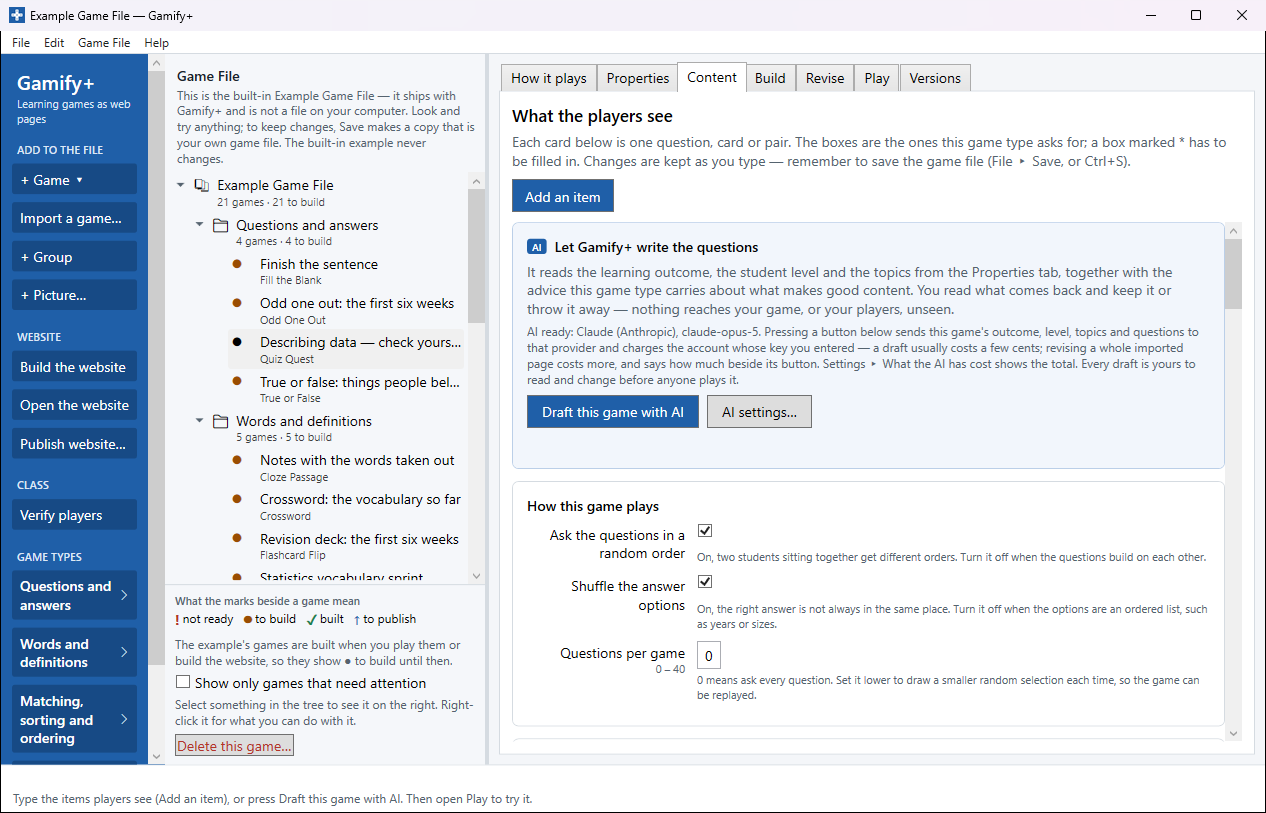
The Content tab is what the players see. Each card on it is one question, card or pair, and its boxes are the ones this game type asks for. A box marked * has to be filled in. Press Add an item for another; each item has Move up, Move down and Delete. Changes are kept as you type — but remember to Save the game file.
The card headed How this game plays holds the game type's own settings — for example a random order, how many questions per game, or a timer — each with a line saying what it does.
Rather not type it all? Draft this game with AI, on the same tab, writes the questions for you to check (see AI help). A few game types — Solitaire, Robot Golf and the Fractazmic deck — need nothing typed in at all.
A draft is never used by itself: you read it and press Keep this draft (it goes into the game as a new version), or Throw it away (the game stays as it was).
4. Build and Play
The Play tab builds the game and plays it right there in the window, exactly as a player will see it. Opening Play always builds it first, so it is the game as it stands now. If something is missing, Play says Not ready to play yet, lists what to fix, and offers Go to Content or Go to Properties.
The Build tab does the same building on its own: Build the game writes the game as a single web page — one file, with the questions, the pictures and everything else it needs inside it — and lists any problems. After a build, the Play tab opens with the game; Open in your browser is there. Playing and handing a game out are on Playing and results.
Play before you change it. You only know what to change once you have played it. Change a question and open Play again; it takes a second.
5. Versions: nothing is lost
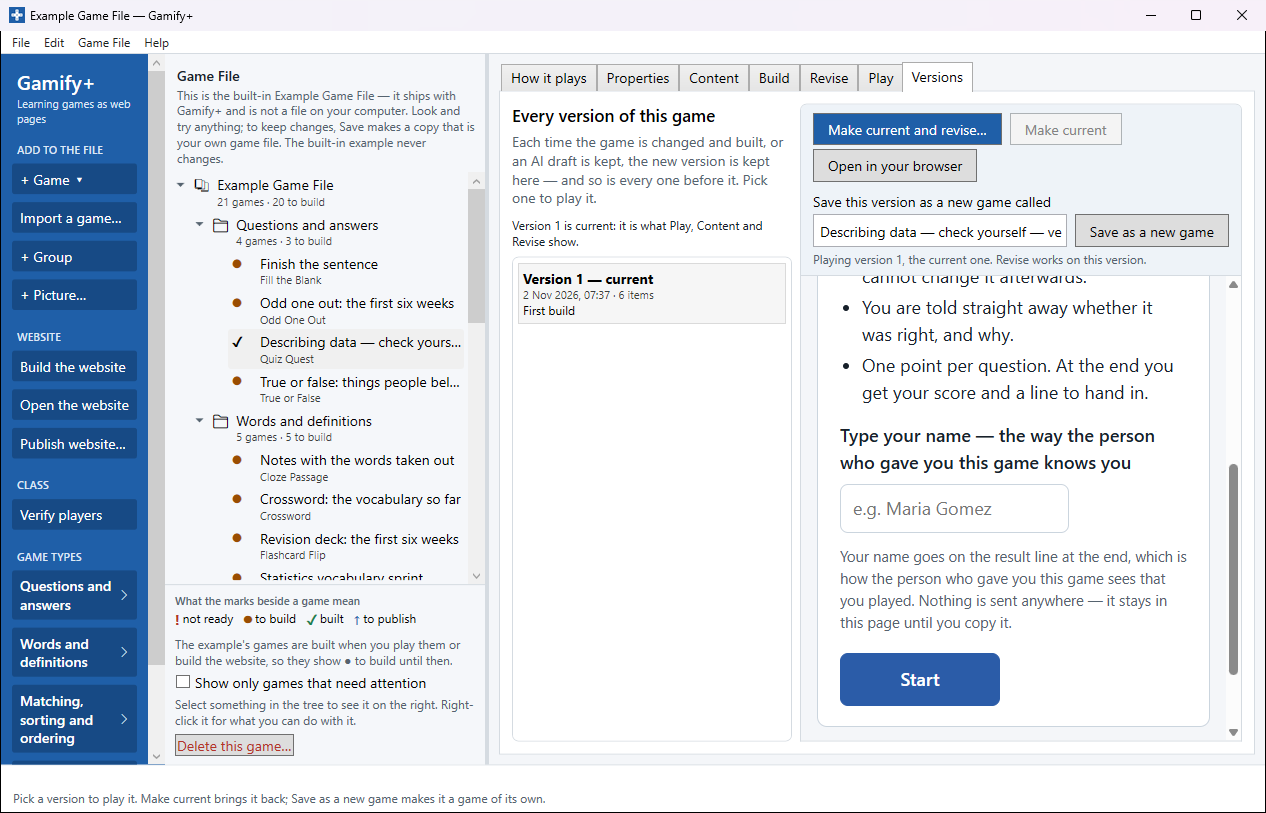
Each time a game's type or content is changed and built, or an AI draft is kept, the new version is kept on the Versions tab — and so is every one before it. (The name, the character and the other properties are not versioned: they apply to every version.) Pick a version in the list to play it. Then:
- Make current puts that version back into the game. Content, Play and Revise then show it. A change you had not built yet is kept as a version first, so going back never loses anything.
- Make current and revise… does the same and takes you to Revise, to ask the AI for a new version made from it.
- Open in your browser plays that version full size.
- Save as a new game — type a name in Save this version as a new game called and press the button: that version becomes a game of its own, starting at version 1. Leave the name empty and the new game is called "name of this game — version n". This game is not changed.
The website and the game's page always use the current version. To hand out an older one, make it current first.
Worth knowing
- The Example Game File has one game of every type, and each one's How this game was made says what was asked for to produce it. It is the quickest way to see what a type can do.
- Choose a type under GAME TYPES, on the left of the window, and press Try this game type: it builds and opens the type's own example straight away, with nothing typed in and nothing added to your game file.
- The mark beside the game in the tree says how it stands: ! something is missing (Build says what), ● changed since it was last built, ✓ built, ↑ not yet on the published website. See The tree.