Projects, files and reports
A project is one file
Everything you do in Statistle — your data tables and the settings of every analysis you opened — is kept in one project file ending in .statistle. Statistle's folder is Documents\Statistle; the Open and Save windows start there.
- File ▸ New project (Ctrl+N) — starts an empty project.
- File ▸ Open… (Ctrl+O) — opens a .statistle file. Double-clicking a .statistle file in File Explorer also opens it in Statistle.
- File ▸ Open the sample project — opens the demonstration project (below).
- File ▸ Save (Ctrl+S) — saves; the first time it asks for a name and place. Save As… saves a copy under a new name or in another folder.
A * after the file name in the window title means there are changes not yet saved. Save also keeps a value you are still typing in a box. If what you typed there could not be used, the status line says so after saving: the value in use was saved, not the one you typed.
"Save changes?" — Statistle asks before your work could be lost
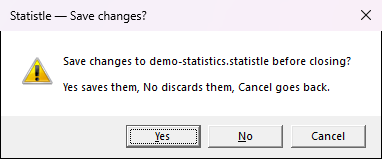
When there are unsaved changes, Statistle asks before anything that would close the project: a new project, opening another project or the sample project, closing Statistle (File ▸ Exit or the window's ×), and installing a new version. The question reads "Save changes to {file} before closing?" — or "before starting a new project", "before opening another project", "before opening the sample project", "before installing the new version".
- Yes saves the changes, then carries on. An untitled project asks where to save it first; if you cancel that, or the save fails, nothing else happens and your project stays open.
- No throws the changes away and carries on.
- Cancel goes back to your project with nothing changed.
Getting unsaved work back
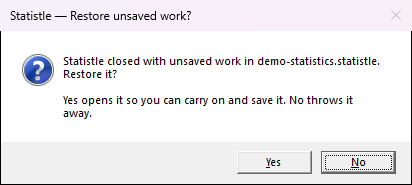
After every change Statistle quietly keeps a recovery copy of the open project. It is not your project file — saving is still up to you — but if Statistle closes without the chance to ask (a crash, a power cut, Windows restarting), the next start asks:
"Statistle closed with unsaved work in {file}. Restore it? Yes opens it so you can carry on and save it. No throws it away." ("an untitled project" if it was never saved.)
- Yes opens the work as it was, marked unsaved (a * in the title). Press Ctrl+S to keep it — under its own name if it had one.
- No deletes the recovery copy. Your project file is not touched; it stays as you last saved it.
The recovery copy is deleted as soon as you save or answer No to "Save changes?". If it is damaged and cannot be read, Statistle says so and asks whether to delete it (No keeps it, and Statistle asks again next time). If you double-clicked a project file to start Statistle and chose to restore, that file is not opened; open it with File ▸ Open… when you are ready.
Undo
Edit ▸ Undo (Ctrl+Z) puts back what the last add, delete, import or Use result changed — a deleted table, a paste that replaced your data. It goes back up to 50 steps. A value you typed in a box is changed back by typing it again. Undo belongs to the project that is open: New project and Open clear it, so Edit ▸ Undo is grey in a project you have just opened.
The sample project
File ▸ Open the sample project (or the button of that name in a new project's start panel) opens demo-statistics.statistle from Documents\Statistle: four tables (Tensile strength, Solar panel, Housing, Battery life) and five analyses set up on them. If there is unsaved work, you are asked to save it first.
It is your copy: changes you save to it stay, and Statistle never overwrites it. If you delete it (or rename it), the next Open the sample project puts a fresh copy back — the easy way to start again from the original.
Reports
Every data table and analysis has a report: its values grouped by role, its plots, and the sources of the methods. See it on the Report tab, then:
- Open in browser (or File ▸ Open report in browser) — opens it as a web page, to print or copy from.
- Save report as PDF… (the same name on the Report tab and in the File menu) — a PDF file with the plots, for your assignment.
- Export data as CSV… — the values as a .csv file for Excel.
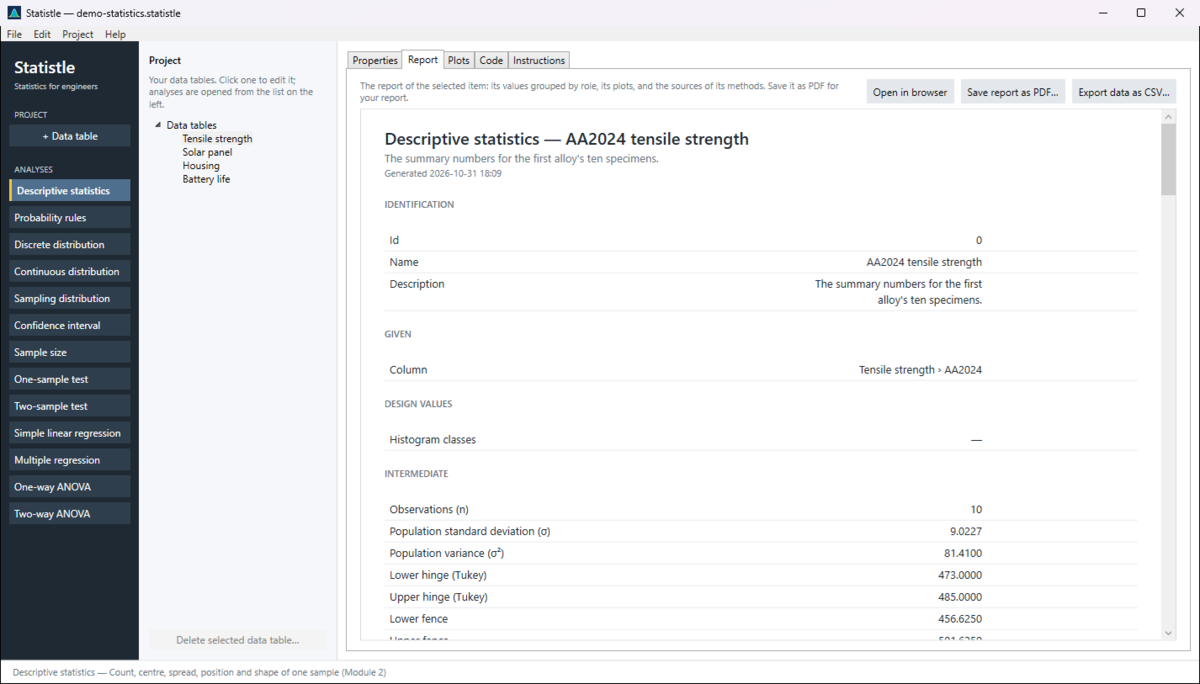
The report covers the item you selected, one item at a time; with nothing selected the buttons are grey. The Report and Code tabs are written to be the methods and appendix sections of a course report.
Other files
- Plots ▸ Save image… — one plot as a PNG picture.
- Code ▸ Save code as… — the Python (.py) or R (.R) script. See The Code tab.
- Instructions ▸ Save instructions as… — the selected item's instructions as a web page (.html) or text file (.txt).
- File ▸ Export selected item as XML (advanced)… — the selected data table or analysis alone, as an XML file (the format inside the project file), for sharing one item or for checking. Most students never need this.
Statistle keeps everything on your computer and makes no connection to the internet while you work. Help ▸ Check for a new version… asks the Microsoft Store, and the help links open your web browser, only when you choose them.