The Help menu
The Help menu is new in Statistle 1.1.0. In version 1.0.0 the menu bar has File, Edit and Project only; to update it, open Statistle's page in the Microsoft Store app and press Update, or wait for the Store to update it on its own.
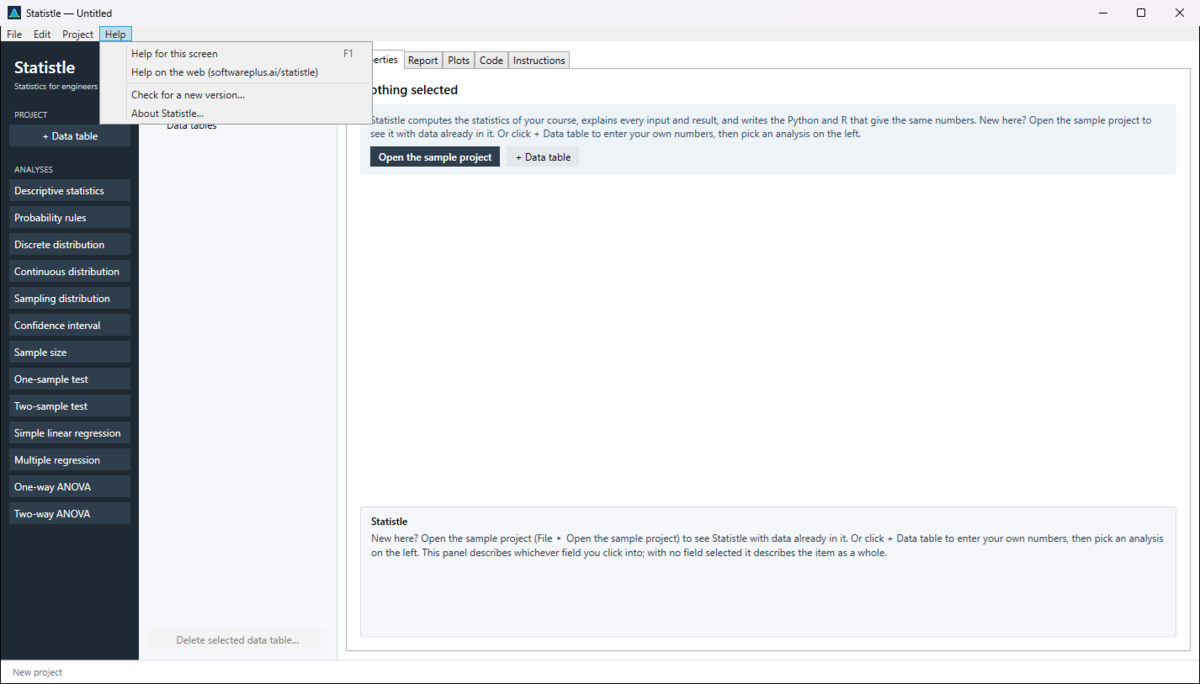
- Help for this screen (F1) — opens the Instructions tab for whatever is selected: what it is for, the steps, and every entry and result explained. At the top of that tab, More on the web opens the matching page of this help. F1 in the Import window opens the page on importing.
- Help on the web (softwareplus.ai/statistle) — opens Statistle's pages on SoftwarePlus.ai in your web browser.
- Check for a new version… — below.
- About Statistle… — below.
Help ▸ About Statistle
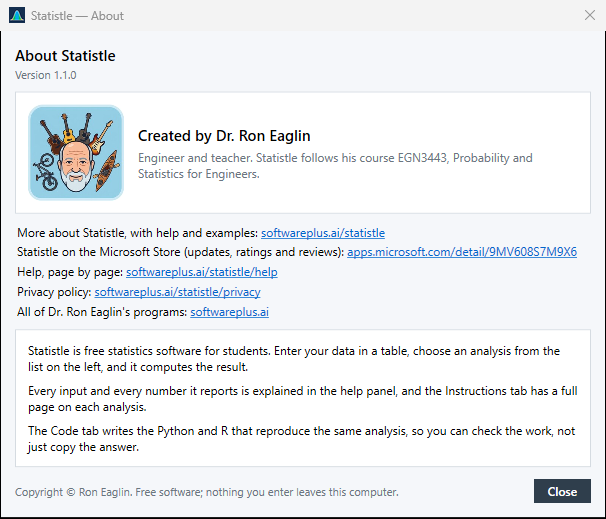
Shows the version you have (for example "Version 1.1.0"), what Statistle is for, and "Created by Dr. Ron Eaglin". Its links:
- More about Statistle, with help and examples — softwareplus.ai/statistle.
- Statistle on the Microsoft Store (updates, ratings and reviews) — apps.microsoft.com/detail/9MV608S7M9X6.
- Help, page by page — these pages, softwareplus.ai/statistle/help.
- Privacy policy — softwareplus.ai/statistle/privacy.
- All of Dr. Ron Eaglin's programs — softwareplus.ai.
Close (or Enter, or Esc) closes it. When you ask a question about Statistle, give the version from this window.
Help ▸ Check for a new version…
Asks the Microsoft Store whether a newer Statistle is out. The status line says "Asking the Microsoft Store…" while it waits. This is the only time Statistle itself goes online, and only when you choose it.
- "You have the latest version of Statistle (…)." — nothing to do.
- "A new version of Statistle is on the Microsoft Store (you have …). Download and install it now? Windows closes Statistle to install it; open it again from the Start menu." — choose Yes to install it now. If you have unsaved changes, Statistle first asks "Save changes to … before installing the new version?" (Cancel stops the install). The Store shows its progress; when it has finished, open Statistle again from the Start menu. Choose No and the Store installs it later on its own.
- "The new version is installed. Close Statistle and open it again to use it." — as it says.
- "This copy of Statistle (…) was not installed from the Microsoft Store, so it cannot check for a new version itself." — a copy from a zip file or a test installer cannot check itself. Choose Yes to open Statistle's page on the Store and compare the version there.
- "The Microsoft Store could not be asked about a new version (are you connected to the internet?)." — check your connection, or choose Yes to open the Store page instead.
- "The update was cancelled …", "The update did not finish …" or "The update could not be started …" — check again later, or open Statistle's page in the Store and press Update.
These windows are titled "Statistle — Check for a new version". When one ends with Details for support:, that text is for us — copy it into your e-mail if you write.