Settings, Help and About
Settings
Settings, on the left under the steps, holds:
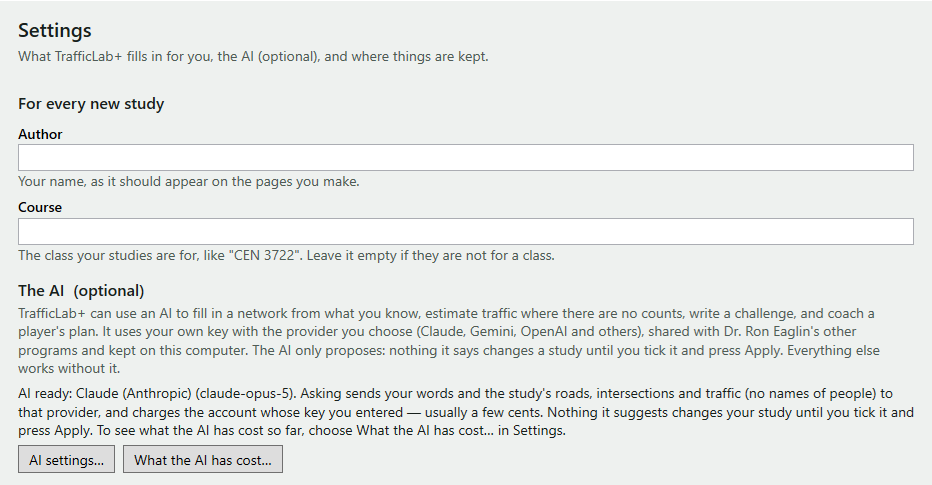
- For every new study: Author (your name, as it should appear on the pages you make) and Course (the class, like "CEN 3722"; leave it empty if not for a class). These fill in the New study window. What you type is kept as you type it; there is no Save button.
- The AI (optional): AI settings… and What the AI has cost… — see The AI.
- Where things are kept: your studies (
Documents\TrafficLabPlus\Studiesunless you choose another place) and the page shown in the window, written each time it is rebuilt (Documents\TrafficLabPlus\Preview). Open this folder opens each.
The Help menu
- Help for this screen (F1) — opens, in your web browser, the page of this help about the step you are on.
- Help on the web (softwareplus.ai/trafficlab) — opens this help.
- Check for a new version… — see below.
- About TrafficLab+… — the About page.
The start screen is Start, at the top of the steps on the left. Each step also has its own help: the box at its top, Help for this step: every option explained, and under it the line More help for this step, with examples (F1) with a link to its page here. Every button and box has a tooltip: rest the mouse on it to read what it does, and on a greyed-out one to read why.
About TrafficLab+
About (on the left, or Help ▸ About TrafficLab+) shows the version, "Created by Dr. Ron Eaglin" with his picture — TrafficLab+ grew out of his LPGA Traffic Lab — and the credits: the traffic model (the Intelligent Driver Model for car-following, fixed-time signals, roundabouts by the Highway Capacity Manual's entry capacity, v/c and level of service by HCM thresholds — a teaching model, planning-level, not an engineering analysis), OpenStreetMap, Leaflet, FDOT's traffic counts and the Overpass typeface. Its links open in your browser:
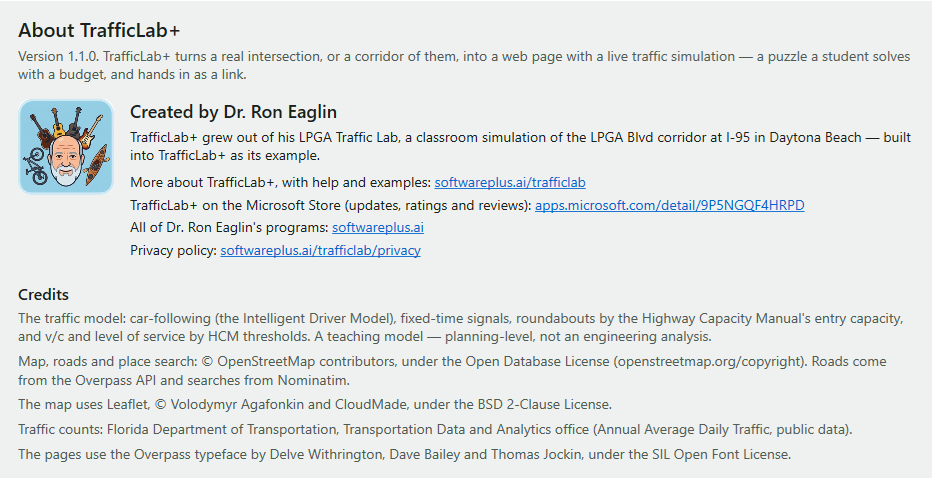
- More about TrafficLab+, with help and examples: softwareplus.ai/trafficlab (this site)
- TrafficLab+ on the Microsoft Store (updates, ratings and reviews): apps.microsoft.com/detail/9P5NGQF4HRPD
- All of Dr. Ron Eaglin's programs: softwareplus.ai
- Privacy policy: softwareplus.ai/trafficlab/privacy
Check for a new version
Help ▸ Check for a new version… asks the Microsoft Store whether a newer TrafficLab+ is out. It needs the internet. While it asks, the line under the study's name on the left reads Asking the Microsoft Store….
- You have the latest version of TrafficLab+ (1.1.0). — nothing to do.
- A new version of TrafficLab+ is on the Microsoft Store… — Windows closes TrafficLab+ to install it. Yes first asks to save a study with unsaved changes (Cancel stops the update), then lets the Store download and install it (Windows shows its progress). Open TrafficLab+ again from the Start menu to use the new version. No: the Store will install it later if automatic updates are on.
- This copy of TrafficLab+ (1.1.0) was not installed from the Microsoft Store, so it cannot check for a new version itself. Open
TrafficLab+'s page on the Microsoft Store to see the latest version? — a copy not installed from the Store (a test copy) cannot ask;
Yes opens TrafficLab+'s Store page instead, No closes the message.
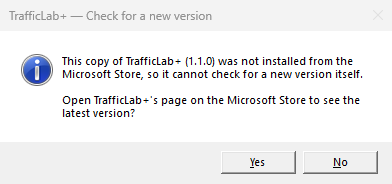
The answer in a copy not installed from the Store. - The Microsoft Store could not be asked about a new version. Check that this computer is connected to the internet and try again. — check the connection, or open the Store page.
Without checking, the Microsoft Store updates TrafficLab+ on its own when automatic updates are on; you can also open its Store page and press Update.