TrafficLab+ help
TrafficLab+ turns a real intersection, or a row of up to ten along a corridor, into one web page with a live traffic simulation. Cars drive the roads, the signals change, and every road is coloured by how well it is coping. Whoever opens the page gets a puzzle: today's traffic, a budget, and fixes to buy — turn lanes, extra lanes, signal timing, roundabouts. They build a plan, test it, and submit it for a score out of 100.
In TrafficLab+ you make that page (it is called a study), and then put it on the web, where students hand it in as a link. These pages explain every step in plain words. You do not need to know traffic engineering, GitHub, or the program to follow them.
Which version this help describes. This help describes TrafficLab+ 1.1. To see which version you have, choose About on the left of the window: the first line says Version 1.1.0 (or 1.0.0).
Version 1.0 does not yet have: the Help menu's Help for this screen (F1), Help on the web and Check for a new version…; the link to these pages under each step's guide; tooltips on every button and box; the Microsoft Store, all-programs and privacy links in About; and the Created with TrafficLab+ · SoftwarePlus.ai line at the foot of the pages it makes. The Microsoft Store updates TrafficLab+ on its own when automatic updates are on, or open its Store page and press Update.
Who it is for
- Instructors in transportation and civil engineering: write a challenge (the budget, what each fix costs, the traffic to test against), and hand it to the class as a study file or as a link.
- Students: build a study of a real intersection, publish it, and hand in the link — or play a study the instructor made and hand in the printout of their plan.
- Anyone who opens a link: the page works in any web browser, on a computer, a tablet or a phone, with nothing to install. See The page players see.
Start here: open a built-in example (five minutes)
The quickest way to understand TrafficLab+ is to open a finished study and change it.
- Install TrafficLab+ from the Microsoft Store (it is free) and open it from the Start menu. It opens on the start screen.
- Press Open the LPGA Traffic Lab example. This is Dr. Ron Eaglin's LPGA Traffic Lab: the LPGA Boulevard corridor at I-95 in Daytona Beach — five signals, freeway ramps, a $5M budget.
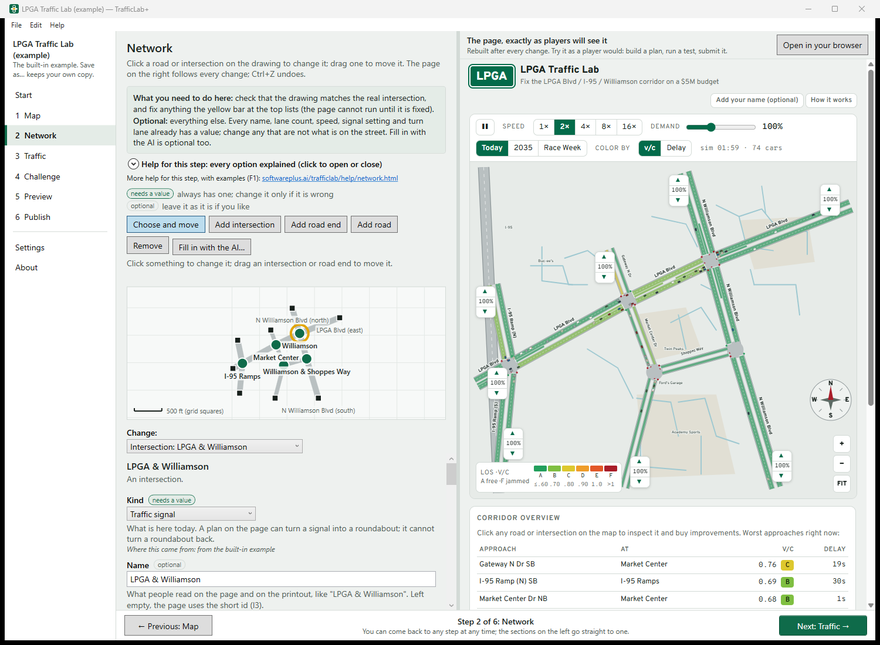
- The window now shows 2 Network: a drawing of the roads on the left, and on the right the page, exactly as players will see it. Play it right there: press Start, click a red road, buy a fix, press Run traffic test.
- Now change something. Click the Williamson signal on the drawing and set Cycle length to 60. Within a second the page on the right is rebuilt with your change. Ctrl+Z puts it back.
- To keep your own copy, use File ▸ Save as…. The example itself never changes.
Want to see a finished page without installing anything? Play the two examples on this site: LPGA Traffic Lab and Four-Way Intersection (the simplest place to start: one signal and a $2M budget).
The six steps
Down the left of the window are the steps, in the order the work happens. A bar at the bottom says which step you are on (for example Step 2 of 6: Network) with ← Previous and Next → buttons. You can also click any step on the left to go straight to it, and come back to any step at any time.
- Map — find the intersection, bring in its roads from OpenStreetMap, choose up to ten intersections. Optional if you start from an example or a simple layout.
- Network — the roads and intersections: names, lanes, speeds, signal timing, turn lanes.
- Traffic — how many vehicles come in at each edge: typed, from Florida's FDOT counts, or estimated by the AI.
- Challenge — the words on the page, the budget, and what each fix costs.
- Preview — the page full size, to try it as a player would.
- Publish — put your studies on a free GitHub Pages website and copy the link to hand in.
At the top of every step is a box: What you need to do here and Optional. Under it, Help for this step: every option explained (click to open or close) describes every setting on that step, and the line More help for this step, with examples (F1) links to that step's page of this help. F1, or Help ▸ Help for this screen, opens the same page in your web browser.
Not sure what a button or box does? Rest the mouse pointer on it for a moment: a tooltip says what it does. On a greyed-out (unavailable) one, the tooltip also says why it is greyed out and what to do first.
All the help pages
- Studies: start, save and open — the start screen, the examples, New study and its budget, the .trafficlab file, undo, the yellow problems bar.
- The Map — find a place, load the roads from OpenStreetMap, choose up to ten intersections, make the study.
- The network editor — the drawing, adding and removing, every setting of an intersection and a road.
- Traffic volumes — typed volumes, FDOT counts (AADT × K × D), the AI's estimate, demand buttons.
- The challenge and the preview — the page's words, the budget, the price of each fix, trying the page.
- The page players see — the puzzle, building a plan, the traffic test, the score, Submit plan and the printout.
- Publishing to GitHub Pages — one website for all your studies, leaving a study out, the summary page, the token, handing in the link.
- The AI (optional) — what it does, why it only proposes, keys and who pays.
- Settings, Help and About — Settings, the Help menu, About, Check for a new version.
- Messages and what to do — the messages you may see, in TrafficLab+'s own words, and what each means.
Words used here
- Study — everything one page needs: the roads, the traffic, the challenge. Saved as a
.trafficlabfile. - Intersection — a traffic signal or a roundabout, with 3 or 4 roads meeting.
- Road end — an edge of the study, where cars come in and go out. Drawn as a black square.
- Level of Service (LOS) — a grade from A (traffic flows freely) to F (jammed). The page colours each road by it.
- v/c — volume ÷ capacity: how much traffic a road carries compared with what it can carry. Above 1.0 it cannot keep up.
- veh/h — vehicles per hour, in the busiest hour.
- Plan — the fixes a player buys within the budget. Printout — the plan and its score, made when the player presses Submit plan.
- OpenStreetMap — a free map of the world made by volunteers; TrafficLab+ takes real roads from it. GitHub Pages — a free service that turns files on GitHub into a website.