Publishing to GitHub Pages
6 Publish puts your studies on the web as one website on GitHub Pages: a summary page with a card for each study, linking to each study's own page. You then copy a link and hand it in. Your study files, notes and AI settings stay on this computer.
GitHub (github.com) is a free service where people keep files online. A repository is a folder of files on GitHub.
GitHub Pages turns a repository into a website at https://<account>.github.io/<repository>/.
Everything on the website is public: anyone with the address can open it.
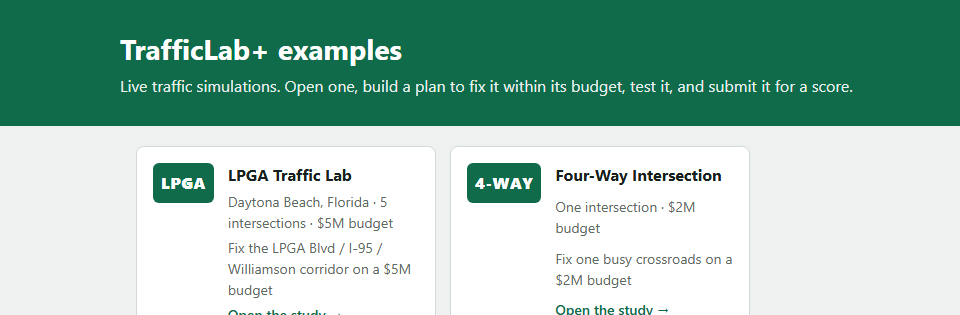
See what a summary page looks like: the examples' summary page.
New to GitHub? Do this once
- Make a free account at github.com/signup. Your user name becomes part of the address:
https://<user name>.github.io/TrafficLab/. - Make a token — a password just for TrafficLab+: press GitHub token… and follow its steps (below).
- Press Publish. The first time, TrafficLab+ creates the TrafficLab repository and switches its website on.
- Copy the link to hand in.
The same steps are in the program, under New to GitHub? How to set it up (click to open).
The GitHub token
A token is a long password that lets TrafficLab+ do three things on your GitHub account: create the repository your website lives in, upload the website, and switch GitHub Pages on. You make it once, on github.com. GitHub token… (under 2 Where it goes) opens a window with the steps:
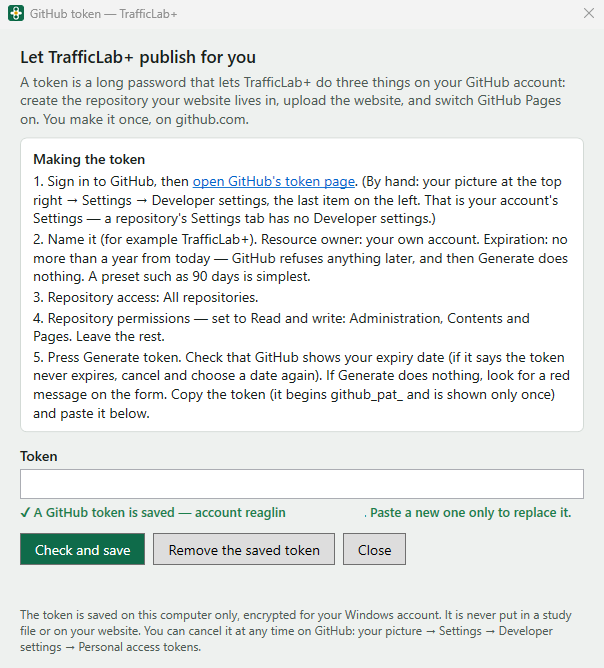
- Sign in to GitHub, then open GitHub's token page. (By hand: your picture at the top right → Settings → Developer settings, the last item on the left. That is your account's Settings — a repository's Settings tab has no Developer settings.)
- Name it (for example TrafficLab+). Resource owner: your own account. Expiration: no more than a year from today — GitHub refuses anything later, and then Generate does nothing. A preset such as 90 days is simplest.
- Repository access: All repositories.
- Repository permissions — set to Read and write: Administration, Contents and Pages. Leave the rest.
- Press Generate token. Check that GitHub shows your expiry date (if it says the token never expires, cancel and choose a date again). Copy the
token (it begins
github_pat_and is shown only once) and paste it into the Token box.
Press Check and save. TrafficLab+ checks the token with GitHub and says whose account it belongs to. The token is saved on this computer only, encrypted for your Windows account, and never put in a study file or on your website. Remove the saved token takes it off this computer; you can cancel it at any time on GitHub (your picture → Settings → Developer settings → Personal access tokens).
Without a token, TrafficLab+ publishes with Git (if it is installed) to a repository you made on github.com, and then tells you how to switch the website on yourself.
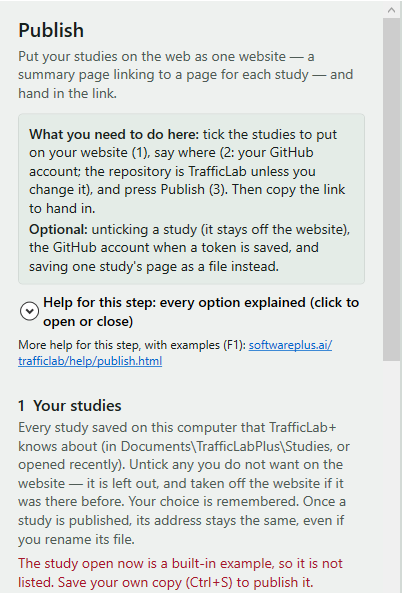
1 Your studies
Every study saved on this computer that TrafficLab+ knows about — in Documents\TrafficLabPlus\Studies, or opened recently — is listed
with a tick. The tick says whether it goes on the website. Untick a study you do not want published (a draft, say): it is left out,
and taken off the website if it was there before. Your choice is remembered.
- Only saved studies are listed. A built-in example or a study not yet saved is not: save your own copy (Ctrl+S) first.
- A study open in the window is published as it is now.
- A study with problems (the yellow bar) can still be published, but its page shows the problems instead of the simulation — you are asked first.
- Once a study is published, its address stays the same, even if you rename its file.
2 Where it goes
- GitHub account — your GitHub user name. With a saved token it can be left empty: the token says whose it is.
- Repository — TrafficLab unless you have a reason to change it. Every study goes into this one repository; TrafficLab+ creates it the first time.
- Website title — the heading of the summary page.
3 Publish
- Press Publish 2 studies to GitHub Pages (the number is how many are ticked). Each publish builds the whole website again.
- If a study that is on the website now will come off (because you unticked it, or it is no longer on this computer), you are told which, by name, before anything is sent.
- When it is done: the summary page's link, and each study's link, each with Copy the link and Open.
- The first time, GitHub takes a minute or two to put the site up — the address shows a "404" page until it has finished. After that, each publish shows within a minute. Open a link first to check it is up, then hand it in.
Come back another day: the links are still listed, ready to copy. A study's own page is at
https://<account>.github.io/TrafficLab/<study>/; the summary page is https://<account>.github.io/TrafficLab/.
Your own work is safe. TrafficLab+ marks the repository it makes. If the repository you name already holds something TrafficLab+ did not put there, it asks before replacing it — Yes deletes everything in it; No leaves it alone, and you type another name under Repository.
Or: save one study's page as a file
Save the open study's page as a web page file… saves one .html file for the open study. It needs nothing else: it opens in
any browser with no internet, can be emailed or put on any web site, and is exactly the page shown in Preview.