The AI (optional)
TrafficLab+ can use an AI to help, but it is optional: everything else works without it. The published pages have no AI in them.
What it does
| Where | Button | What it does |
|---|---|---|
| 2 Network | Fill in with the AI… | Tell it what you know about the real intersections — lanes, turn lanes, speed limits, signal timing. It proposes changes to the study. OpenStreetMap often lacks turn lanes and signal timing, and this is the quick way to fill them in. |
| 3 Traffic | Estimate traffic with the AI… | Estimates the vehicles an hour coming in at each road end with no count, from the kind of road, the place and what you tell it. Road ends with FDOT counts in use are kept. |
| 4 Challenge | Write the challenge with the AI… | From the challenge you describe, proposes the title, introduction, budget, prices of the fixes and demand buttons. |
| 5 Preview | Ask the coach about my last test… | Reads your last traffic test and explains what failed and why, and what to try next. |
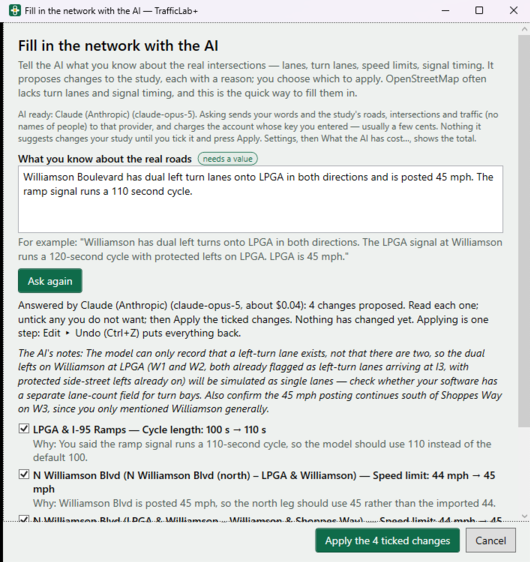
It only proposes
- Type what you know or want, and press Ask the AI. It usually takes 10 to 40 seconds.
- Each proposed change is listed: what it changes, before → after, and why — all ticked. The AI's notes come after, and anything TrafficLab+ could not use is listed with the reason.
- Untick any you do not want, then press Apply the ticked changes. Nothing changes before that.
- Applied values are marked suggested by the AI. Applying is one step: Ctrl+Z takes them all back.
The coach only explains; it changes nothing. Its answer is a suggestion, not a verdict: test any idea on the page.
Setting it up: a key
The AI needs a key — a password-like code from an AI company: Anthropic (Claude), Google (Gemini), OpenAI, Mistral or xAI. You sign up with the company, add a way to pay, copy the key and paste it into TrafficLab+:
- Choose Settings on the left, then AI settings….
- Choose the provider and paste your key. The line under The AI (optional) then says which provider and model will answer.
Your instructor may give the class a key. It is kept on this computer only, and it is shared with Dr. Ron Eaglin's other programs, so a key set up in one works in all of them. Pressing an AI button with no key says so and offers Set up an AI now….
Who pays, and what is sent
- Asking charges the account whose key you entered — usually a few cents a question. TrafficLab+ itself is free and takes nothing. A refusal by the AI costs nothing.
- Settings ▸ What the AI has cost… shows the total, and each answer says which provider and model answered and about what it cost.
- Asking sends your words and the study's roads, intersections and traffic (no names of people) to the provider you chose — nothing else, and nothing to us. See the TrafficLab+ privacy policy.