The Help menu, About and new versions
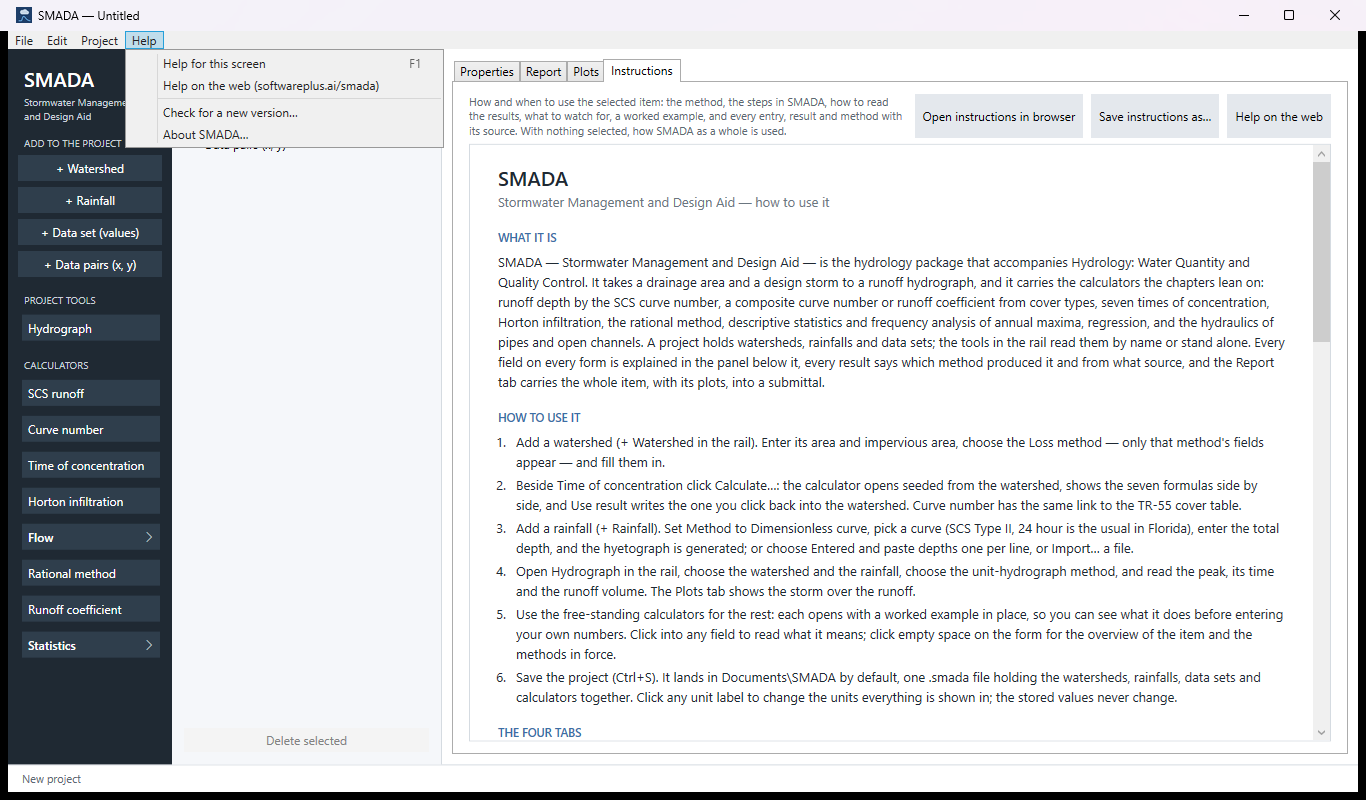
SMADA's Help menu has four commands. Every one of them has a tip: rest the mouse on it to read what it does.
| Command | What it does |
|---|---|
| Help for this screen (F1) | Opens the Instructions tab for whatever is selected: what it is, the steps in SMADA, how to read the results, a worked example, and every entry and result with its source. With nothing selected, it explains SMADA as a whole. |
| Help on the web (softwareplus.ai/smada) | Opens the selected item's own page on this site in your browser — for example Time of concentration, with a picture of each tab and every equation — or these help pages when a data set or nothing is selected. The Help on the web button above the Instructions tab does the same. If Windows cannot open your browser, SMADA shows the address to type. |
| Check for a new version… | Asks the Microsoft Store whether a newer SMADA is out (below). |
| About SMADA… | The About window (below). |
About SMADA
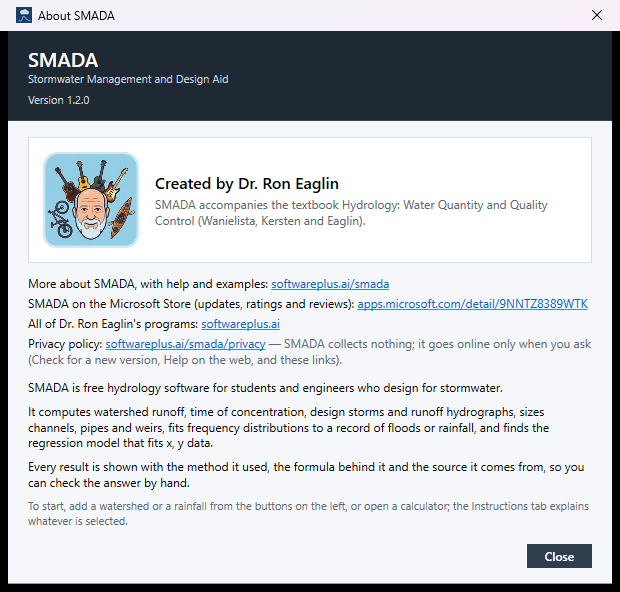
Help ▸ About SMADA… opens a small window with:
- the program's name and its version (Version 1.2.0) — give this if you write with a question;
- "Created by Dr. Ron Eaglin", and the textbook SMADA goes with: Hydrology: Water Quantity and Quality Control (Wanielista, Kersten and Eaglin);
- links, which open in your browser:
- More about SMADA, with help and examples — SMADA's page on this site, where these help pages are;
- SMADA on the Microsoft Store (updates, ratings and reviews) — its Store page;
- All of Dr. Ron Eaglin's programs — the list on SoftwarePlus.ai;
- Privacy policy — SMADA's privacy policy, with the line SMADA collects nothing; it goes online only when you ask (Check for a new version, Help on the web, and these links).
- a short description of what SMADA does and how to start.
Close (or Enter, or Esc) closes it.
Check for a new version
Help ▸ Check for a new version… asks the Microsoft Store whether a newer SMADA is out. SMADA goes online only when you ask. While it asks, the status line says Asking the Microsoft Store for a new version…, then Checked the Microsoft Store for a new version. What you may see (in a window titled SMADA — check for a new version):
- You have the latest version of SMADA (version). — nothing to do.
- A new version of SMADA is on the Microsoft Store (you have …). Download and install it now? If you have unsaved changes, SMADA asks to save them first; then Windows closes SMADA to install it — open it again from the Start menu. (No: the Store usually installs it later on its own, or check again here.) — Yes: if your project has unsaved changes, SMADA first asks Save the changes to … first? (Cancel there stops the install and keeps your project open). Then the Store downloads and installs the update, showing its progress, and Windows closes SMADA; open it again from the Start menu. No leaves it for now.
- The new version is installed. If SMADA is still open, close it and open it again from the Start menu to use the new version. — done.
- The update was cancelled. You can check again at any time, or the Store will install it later.
- The Microsoft Store could not be asked about a new version (are you connected to the internet?). Open SMADA's page on the Microsoft Store instead? — check your connection and try again, or choose Yes to open SMADA's Store page and press Update there.
- The update did not finish … or The update could not be started … — open SMADA's page on the Microsoft Store and press Update.
- This copy of SMADA (version) was not installed from the Microsoft Store, so it cannot check for a new version itself. Open the program's page on the Microsoft Store to see the latest version? — you have a copy from somewhere else (a test copy or a setup file). Yes opens the Store page, where you can install the Store version.
Some of these end with Details for support: and a technical reason; include it if you write for help.
Whether or not you check, Windows and the Microsoft Store keep Store programs up to date on their own. To update by hand, open the Microsoft Store app, choose Library (or Downloads and updates) and Get updates.
In version 1.1: the Help menu has only About SMADA: there is no F1, Help on the web or Check for a new version…. Its About window links to SMADA's page on this site and to the privacy policy (no Store or all-programs links). If its Close button does nothing when clicked, press Esc. To update 1.1, use the Microsoft Store app as above, or open SMADA's Store page.