| SMADA says | What to do |
|---|
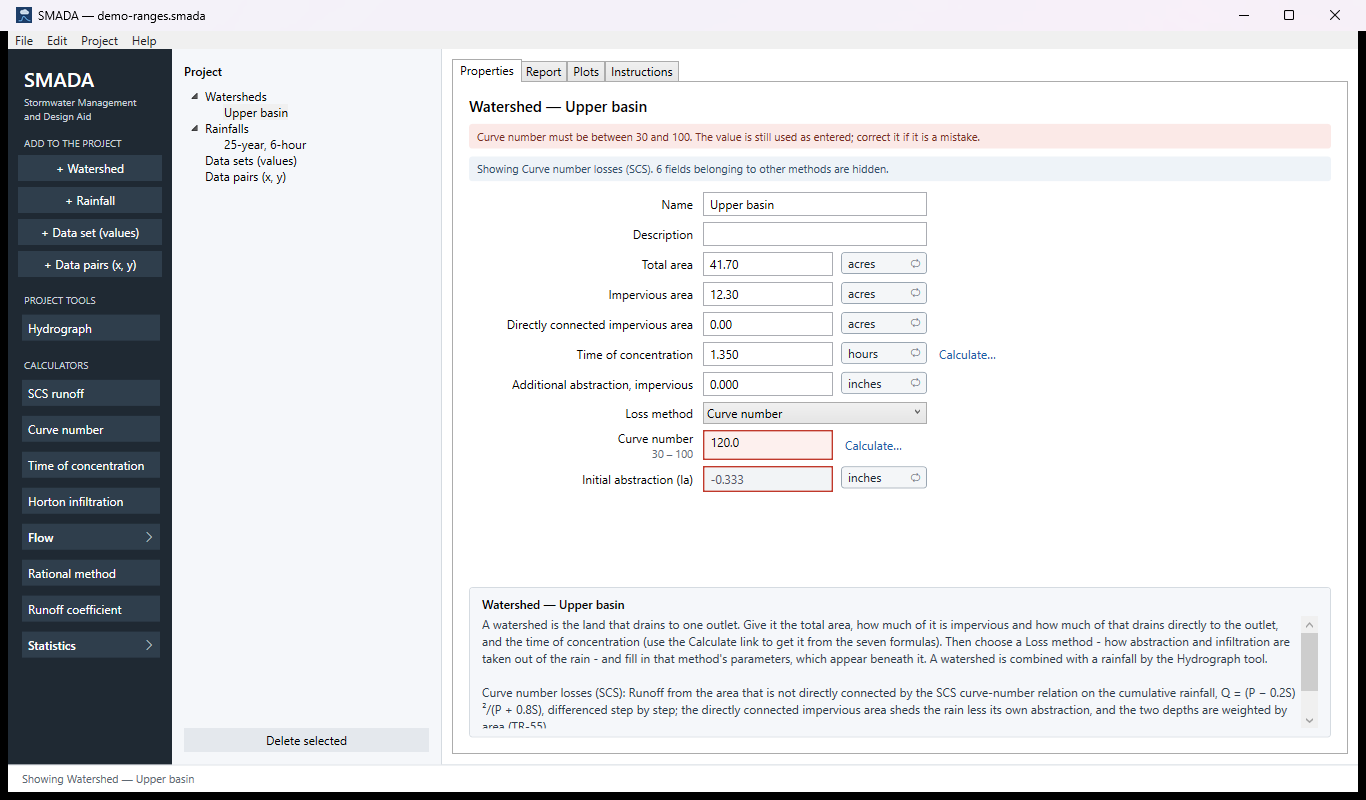
| Curve number must be between 30 and 100. The value is still used as entered; correct it if it is a mistake. (and the box is red) | The value is outside what the method expects, in the units shown. SMADA still uses it, in case you meant it. Check it; the range is also shown under the label, and in the tip when you rest the mouse on the box. |
| … came out outside its range: it should be … It is a result, worked out from the entries, so one of them is out of range or unusual — look for the entry flagged red (for example a curve number above 100) and correct that. | A result is odd because an entry is. Find the red entry and correct it. |
| '…' is not a number, so … is still …. Type a number, or clear the box to leave it blank. | What you typed (for example 0..9) could not be read, so the old value is kept. Type the number again. |
| …: a line could not be read as a number, so the previous values are still used. Enter one number per line, with no headings or units. | In a list of numbers, one line has a word, a unit or two numbers on it. Fix that line; blank lines are fine. |
| …: a line could not be read as two numbers, so the previous pairs are still used. Enter x and y on each line, separated by a tab, a comma or a semicolon. | In a list of pairs, one line does not have two numbers. |
| SMADA says | What to do |
|---|
| This project has no watershed and no rainfall yet. Add one of each with + Watershed and + Rainfall in the rail, fill them in, then come back here and choose them. (or the same for just a watershed, or just a rainfall) | The Hydrograph tool needs both. Add what is missing with the buttons in the rail. |
| Choose a watershed and a rainfall from the drop-downs below. | On the Hydrograph form, pick one in Watershed and one in Rainfall. |
| Choose a dimensionless curve. / Enter the total depth of the storm. | A rainfall made from a curve needs a Dimensionless curve and a Total depth. |
| '…' is not in the curve library (…); the depths shown are as last generated. | The project names a storm curve your library does not have (for example, a project from another computer). Choose another curve, or add the curve to Documents\SMADA\dimensionless-curves.xml. |
| Row 2: choose a cover. / Row 2: enter an area. … The composite stays blank until every row has a cover and an area greater than zero. | In Curve number or Runoff coefficient, fix the row named. Add a row for each cover in the watershed. means the table is empty: click + Add row. |
| Enter three of flow, depth, slope and Manning's n. Blank now: …. / All four are entered. Leave the one to find (flow, depth, slope or Manning's n) blank. | Open channel finds exactly one of the four. Clear the one you want found, and fill in the others. Weir and Energy equation say the same kind of thing. |
| Initial rate (fo) must be at least Final rate (fc), and Decay constant (k) greater than 0. | Horton's rate falls from fo to fc, so fo cannot be smaller than fc, and k must be above zero. |
| Data set … is no longer in the project; the values shown are as last copied. | A Statistics calculator was using a data set you deleted. Choose another in Data set, or Edit ▸ Undo the delete. |
| SMADA says (rest the mouse on Use result) | What to do |
|---|
| Curve number has no result yet — give every row a cover and an area greater than zero, then click Use result. (the same for Runoff coefficient) | Complete the rows; the red note above the form names the first one to fix. |
| Time of concentration has no result yet — fill in the entries the chosen formula needs (they are ticked), or click another formula's result, then click Use result. | Fill in the ticked entries, or choose a formula whose result is there. A result of 0 (a zero length or slope) is not handed over either. |
| … has no result yet — fill in its entries, then click Use result. | Any other calculator: fill in what it needs until the result appears. |
| Writes this result to … → …, replacing the value there (Edit ▸ Undo puts it back), and goes back to it. | Not a problem: this is what Use result will do when you click it. |
These come in a message window as well as on the status line.
| SMADA says | What to do |
|---|
| Could not open …. This project was written by a newer version of SMADA. Update SMADA (Help ▸ Check for a new version…) to open it. (window SMADA — could not open the project) | Update SMADA (see new versions), then open the file again. |
| Could not open …: the file is damaged or could not be read. Your other projects are not affected, and SMADA has not changed anything. (window SMADA — could not open the project) | The file is not a SMADA project, it is damaged, or Windows would not let SMADA read it (for example a file still downloading, or in a folder you cannot open). Check you chose the right file; try a copy saved earlier. SMADA stays open with the project you had. |
| … is open, but SMADA had to skip or change something while reading it: (a list) Everything else in the project was read as saved. Check the items named above before relying on them. (window SMADA — opened with … warnings) | The project opened, but the items listed (up to 15, then … and N more) could not be read exactly as saved. Check them. |
| SMADA could not save …. The folder or the file may be read-only, the disk may be full, or the file may be open in another program. Your work is still open — try File ▸ Save As… to save it somewhere else, or, if you were closing SMADA, close again and choose No to close without saving. (window SMADA — could not save) | Use File ▸ Save As… to save somewhere else (Documents\SMADA is a good place). Nothing is lost while the window is open. |
| SMADA could not write …. Your project is not affected. If the file is open in another program (a PDF reader), close it there and try again, or choose another name or folder. (window SMADA — could not write the PDF; for a CSV, (Excel) and … the CSV) | Close the PDF or spreadsheet in the other program, then save again, or choose another name. |
| SMADA could not open the report in your web browser. It is still on the Report tab, and Save report as PDF… keeps a copy. / the same for the instructions | Read it on the tab, or save it as a file instead. |
| SMADA could not save the instructions there. If the file is open in another program, close it there and try again, or choose another name or folder. | As it says. |
| SMADA could not read …: The old binary Excel format (.xls) is not read. Save the sheet as .xlsx or .csv and import that. Nothing was imported. (window SMADA — could not read the file) | Open the file in Excel, Save As .xlsx or .csv, and import that. Other reasons a file cannot be read are given in the same words. |
| SMADA could not open the example project. The project you had open is still open; the examples are also in Documents\SMADA\Samples (File ▸ Open…). | Open demo-hydrograph.smada from that folder, or download it. |
| The project is empty: add a watershed or a rainfall, or open a calculator, then save the project report. | There is nothing to put in a project report yet. |
| Could not read …: … Using the built-in curves. | The storm-curve library in Documents\SMADA could not be read (perhaps after editing it by hand). SMADA uses its own curves meanwhile. Fix or remove the file; a curve that fails its check is skipped and named. |
| Windows could not open your web browser. The help is at: … (window SMADA — help on softwareplus.ai) | Type the address shown into your browser. |
| SMADA asks | Your choices |
|---|
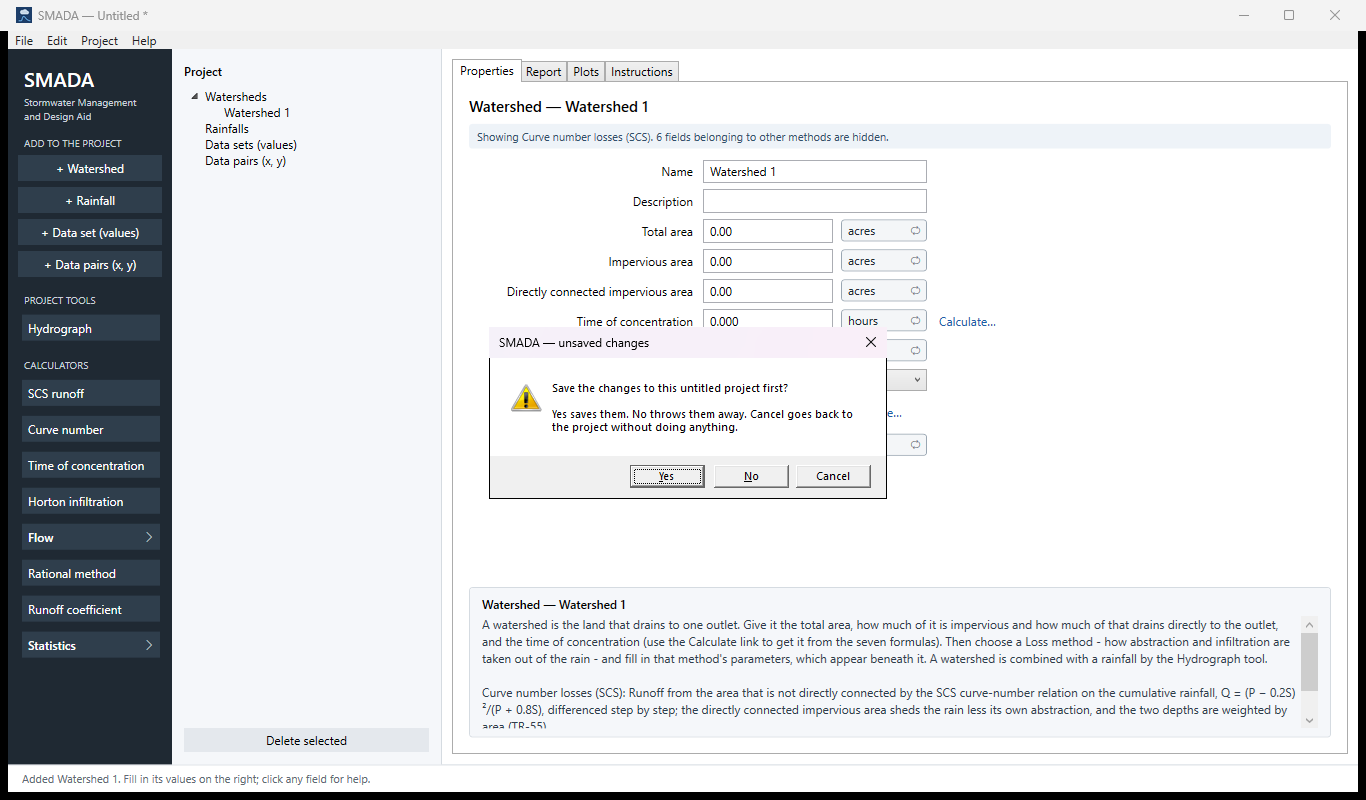
| Save the changes to … first? Yes saves them. No throws them away. Cancel goes back to the project without doing anything. (window SMADA — unsaved changes; "…" is the file's name, this untitled project or your copy of the example) | Asked before a new project, another project, closing SMADA, or installing a new version. Yes saves them. No throws them away. Cancel goes back to the project without doing anything. |
| SMADA closed without saving the changes to … (last change …). Recover them? Yes opens them so you can look and save them (File ▸ Save). No throws them away. | Yes opens them so you can look and save them (File ▸ Save). No throws them away. If you opened SMADA by double-clicking a file, it adds that the file opens in a second step. See projects and files. |
| SMADA could not read back the changes left unsaved last time; the recovery copy was damaged. SMADA starts with a new project. | Nothing to choose: the damaged copy is set aside, and your saved projects are not affected. |
| SMADA ran into a problem it did not expect and has to close. Changes you had not saved are kept: the next time you start SMADA it offers them back (the recovery copy). If this happens again, please tell Dr. Ron Eaglin what you were doing (softwareplus.ai/smada). (window SMADA — unexpected problem) | Click OK; SMADA closes. Start it again and answer Yes to the recovery question. If it happens again, write to Ron with what you were doing and the Details for support line. |
| Questions from Help ▸ Check for a new version… | See The Help menu, About and new versions. |
Rest the mouse on a grey command to read why it is grey and what to do first.
In version 1.1: many of these messages are shorter or missing. A file that could not be saved, opened or written is reported only on the status line (Could not save: …, Could not write the PDF: …); a damaged project can close SMADA; there are no save or recovery questions, no Hydrograph empty-project bar, and no tips on the greyed-out report buttons; and Use result is never greyed out. The blue bar says field(s). If a message here does not appear in your copy, the fix it describes still applies.