Projects and files
All your work in SMADA lives in a project: one file, ending .smada, that holds your watersheds, rainfalls, data sets and the numbers in every calculator you have used. Open it again and everything comes back exactly as you left it.
Start, open and save
| To | Choose |
|---|---|
| Start a new, empty project | File ▸ New project (Ctrl+N) |
| Open a project you saved | File ▸ Open… (Ctrl+O), then choose the .smada file. You can also double-click a .smada file in File Explorer. |
| Open the worked example | File ▸ Open example project (see below) |
| Save | File ▸ Save (Ctrl+S). The first time, SMADA asks for a name and a folder. |
| Save a copy under a new name | File ▸ Save As… |
| Close SMADA | File ▸ Exit, or the window's ✕ |
The window's title shows the project's file name. A * after it means there are changes not yet saved.
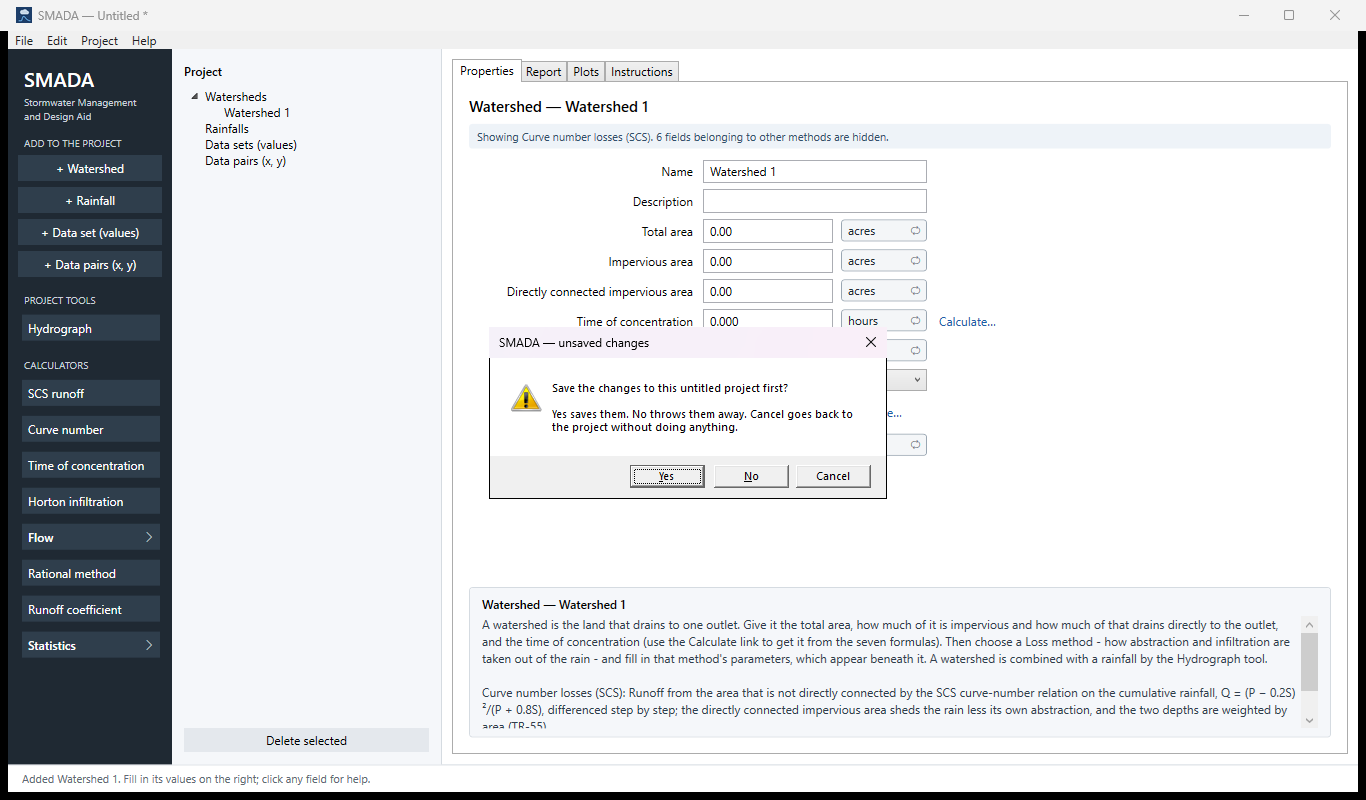
If you start a new project, open another, close SMADA, or install a new version (Help ▸ Check for a new version…) with changes not saved, SMADA asks: Save the changes to … first? — naming the file, or this untitled project, or your copy of the example. Yes saves them, No throws them away, Cancel goes back to the project without doing anything.
When a file cannot be saved or opened
SMADA tells you in a message window, says what may be wrong, and what to do next; your work is never closed because of it.
- Save fails (the folder or file is read-only, the disk is full, or the file is open in another program): your work stays open. Use File ▸ Save As… to save it somewhere else. If you were closing SMADA, close again and choose No to close without saving.
- A damaged file, or one Windows will not let SMADA read: Could not open … : the file is damaged or could not be read. Your other projects are not affected, and SMADA has not changed anything. SMADA stays open with the project you had.
- A project from a newer SMADA: update SMADA (Help ▸ Check for a new version…), then open it again.
- A project that opens with warnings (part of it could not be read as saved): it opens, and a message window lists every warning, so you can check those items before relying on them.
The exact words are on messages and what to do. A message window may end with Details for support: and some technical words; you need not understand them, but include them if you write for help.
Where your files are kept
- Documents\SMADA — SMADA's own folder. Open… and Save start here, and SMADA makes it the first time it needs it. You can save anywhere else you like.
- Documents\SMADA\Samples — the example projects and two sample data files, put there the first time SMADA runs. A file already there is never overwritten.
- Documents\SMADA\dimensionless-curves.xml — the library of storm shapes the rainfall form offers (the SCS types and the Florida DOT storms). SMADA puts it there on first run and never overwrites it, so a curve you add to it yourself stays.
The example projects
File ▸ Open example project opens a copy of demo-hydrograph.smada, so change anything: Save asks where to keep your copy, and the example itself stays as it is. It holds:
- Upper basin — a 120-acre watershed, 40 acres impervious (30 of them directly connected), curve number 82, time of concentration 1.4 hours.
- 25-year, 24-hour — an 8.6-inch SCS Type II storm.
- The Hydrograph tool set up on the two.
- A data set of annual maximum 24-hour rainfalls, and a set of rainfall–runoff pairs, for the Statistics calculators.
In Documents\SMADA\Samples (use File ▸ Open…) you will also find demo-basic.smada — one watershed and one rainfall with nothing set up — and two files to practise Import… on: annual-maxima.csv (year and value; import the second column into a data set) and storm-hyetograph.csv (time and depth; import the depth column into a rainfall whose Method is Entered, with Time step 0.25 hours).
You can also download the example project from this site and open it with File ▸ Open….
Undo and Redo
Edit ▸ Undo (Ctrl+Z) goes back one step: the last item added or deleted, the last result used, or the last box changed. All the typing in one box counts as one step. Edit ▸ Redo (Ctrl+Y) puts back what Undo took away. Undo starts afresh when you open or start another project.
If SMADA closed without saving
SMADA keeps a recovery copy of your work as you go (not in your project file — saving is still up to you). If it closes without saving, from a crash or a power cut, the next time it opens it says SMADA closed without saving the changes to … Recover them? Yes opens them so you can look and save them (File ▸ Save). No throws them away. If SMADA ever has to close because of a problem it did not expect, it says so first (SMADA ran into a problem it did not expect and has to close…) and keeps this recovery copy, so the question comes at the next start.
Units
Click the unit button beside any value to show every value of that kind in the project in the next unit (feet to metres, acres to hectares, inches to millimetres, and so on). Forms, plots and reports all follow. SMADA stores every value in feet, acres, inches, hours and cfs and only converts what it shows, so switching units never changes your numbers.
In version 1.1: a damaged project file can close SMADA instead of being reported, and a file that could not be saved is mentioned only on the status line. There is no Open example project, no example files in Documents\SMADA\Samples, and no Redo. SMADA 1.1 does not ask to save before a new project, another project or closing, and does not offer to recover unsaved work — save (Ctrl+S) before you do any of those. To try the example in 1.1, download it and use File ▸ Open….