
General Site Information is the main window of BMPFast. It opens when you press Continue on the Splash screen (after your license is activated), and it stays open for the whole session. Here you name the project, choose the meteorological zone and mean annual rainfall, choose the performance standard (the analysis type) that the site must meet, and decide whether to run a groundwater discharge analysis. The numbered buttons on the right then take you through the work in order: enter catchments, enter treatment (BMPs), configure how catchments route to each other, and view the reports. The title bar shows your license key.
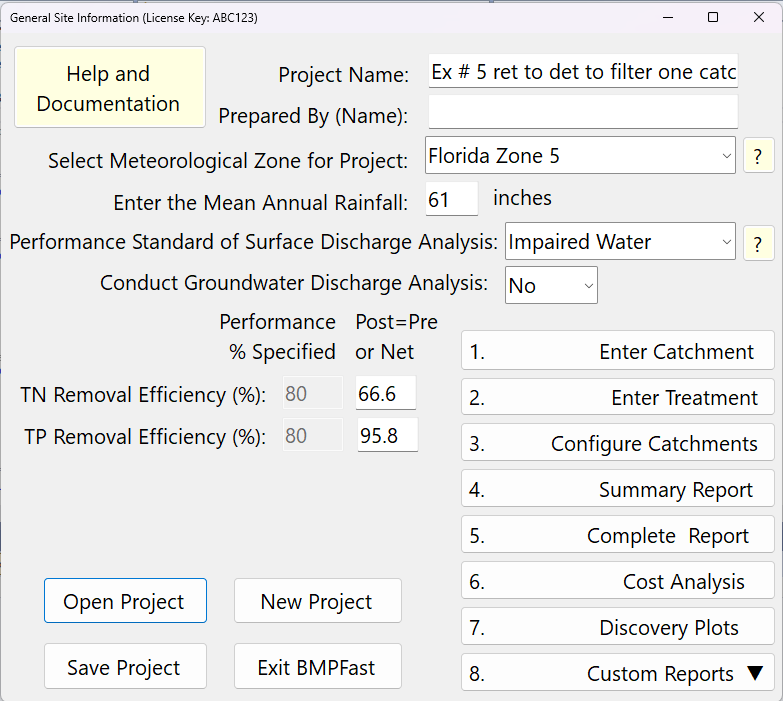
Getting started
- Start a new project (New Project) or open an existing one (Open Project).
- Type the Project Name and Prepared By (Name). Both are printed in the header of every report.
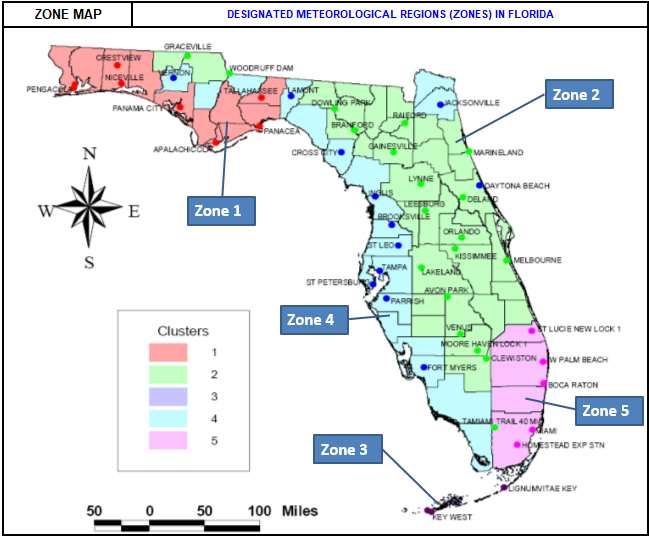
- Choose the Meteorological Zone and enter the Mean Annual Rainfall for the site. Use the “?” beside the zone to see the zone and rainfall maps; the zone map is below.
- Choose the Performance Standard of Surface Discharge Analysis (the analysis type). It must follow the Applicant’s Handbook, Vol. I, Section 8.3.
- Choose Yes or No for Conduct Groundwater Discharge Analysis.
- Press 1. Enter Catchment. The other numbered buttons stay greyed out until at least one catchment exists; Summary Report, Discovery Plots and Custom Reports also need at least one catchment with a BMP.
- Save the project with Save Project.
Inputs
| Input | Units | What it means / how it is used |
|---|---|---|
| Project Name: | text | Name of the project. Shown as “Project:” in the header of every report and used as the suggested file name when you save. |
| Prepared By (Name): | text | The person preparing the analysis. Shown as “Prepared By:” in the header of every report. |
| Select Meteorological Zone for Project: | — | Florida Zone 1, Florida Zone 2, Florida Zone 3, Florida Zone 4 or Florida Zone 5. A new project starts at Florida Zone 1. The zone selects the annual runoff coefficient (rational C) table used for every catchment, the retention efficiency lookup tables, and the harvesting efficiency curves. The “?” beside the box opens the zone and rainfall maps. |
| Enter the Mean Annual Rainfall: | inches (per year) | Average annual rainfall at the site, read from the rainfall maps. It is passed to every catchment and sets the annual runoff volumes: volume (ac-ft/yr) = C × area (ac) × rainfall (in) / 12. A new project starts at 52 inches; if the box is left blank, 52 is used. Enter the value for your site from the rainfall maps. |
| Performance Standard of Surface Discharge Analysis: | — | The analysis type, which sets the removal targets the site is checked against (see the table below). Changing it immediately changes which target boxes are shown. |
| TN Removal Efficiency (%): / TP Removal Efficiency (%): (column “Performance % Specified”) | % | The specified removal targets for total nitrogen and total phosphorus. For most analysis types they are filled in from the type and cannot be edited. Only for Specified Removal Efficiency can you type them: whole numbers from 0 to 99 (a larger number is stored as 99; a decimal or non-numeric entry is read as 0). A new project starts at 80 and 80. Hidden for Net Improvement and BMP Analysis. |
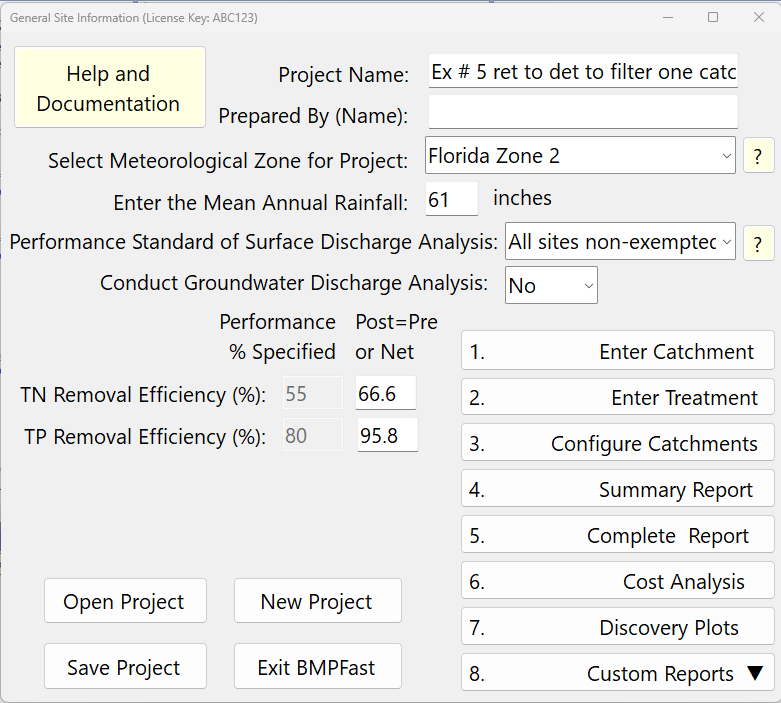
| Post=Pre or Net (two boxes, TN and TP) | % | Display only. The reduction needed for the post-development load to be no greater than the pre-development load, summed over all catchments: 100 × (post load − pre load) / post load, limited to 0–100 and shown to one decimal. It is 0 until catchments are entered. Shown only for analysis types that have a pre/post requirement (see below). Anything typed here is not used. |
| Conduct Groundwater Discharge Analysis: | Yes / No | When Yes, the reports also show the nitrogen and phosphorus carried to groundwater (recharge load and concentration) by BMPs that infiltrate. Defaults to No. |
Applicant’s Handbook reference
Section 9.4 Rainfall Data: the average annual rainfall comes from the Appendix M isopleths; BMPFast uses the Mean Annual Rainfall you read from those maps (it does not look it up for you).
Appendix M, Figure 1 (Designated Meteorological Regions (Zones) in Florida): sets Zones 1 to 5 (Appendix M, Table 1 lists the counties in each); BMPFast’s Meteorological Zone is one of these five.
Section 9.2.1 Calculating Predevelopment and Post-development Hydrology (Equation 9-1): annual runoff volume = area × average annual rainfall × ROC × 1/12, with the ROC from the Appendix N table for the zone; BMPFast uses the same equation, where C is the Appendix N ROC.
Source reference
Harper, H.H. and Baker, D.M. (2007). Evaluation of Current Stormwater Design Criteria within the State of Florida. Final report, FDEP Contract S0108, Section 4.2 and Figure 4-3 (Meteorological Zones Identified Using Cluster Analysis), with Appendices C and D (link): the five zones were found by cluster analysis of modelled annual runoff coefficients, and each zone has its own runoff coefficient and dry retention tables; the zone chosen here selects those tables and the zone’s REV curves.
BMPFast method (default rainfall; Ron, 2026-10-05): a new project, or a blank box, starts at 52 in/yr; this is a starting value, not a value from a source, and the site’s own rainfall must be read from the maps.
Analysis types (performance standards)
The choices, in the order they appear, and what each one sets. “Specified” is the TN/TP removal % shown in the Performance % Specified column. “Pre/post” means the Post=Pre or Net column is shown and the reports also check that post-development discharge does not exceed pre-development. A new project starts as BMP Analysis.
| Analysis type | Specified TN % | Specified TP % | Pre/post check |
|---|---|---|---|
| All sites non-exempted | 55 | 80 | Yes (post = the greater of pre-condition) |
| OFW | 80 | 90 | Yes (post = the greater of pre-condition) |
| Impaired Water | 80 | 80 | Yes (post = pre-condition) |
| Impaired Water + OFW | 95 | 95 | Yes (post = pre-condition) |
| Redevelopment | 45 | 80 | No |
| Redevelopment + OFW | 60 | 90 | No |
| Redevelopment + Impaired | 45 | 80 | Yes (water quality targets) |
| Specified Removal Efficiency | you enter it | you enter it | No |
| Net Improvement | — | — | Yes (the target is the pre-development load) |
| BMP Analysis | — | — | No targets; the reports show the BMP performance only |
Applicant’s Handbook reference
Section 8.3.2 Minimum Stormwater Treatment Performance Standards for All Sites: the greater of an 80 % TP and 55 % TN reduction, or post-development loading not exceeding predevelopment; this is All sites non-exempted.
Section 8.3.3 Minimum Performance Standards for Outstanding Florida Waters (OFWs): the greater of 90 % TP and 80 % TN, or post not exceeding pre; this is OFW.
Section 8.3.4 Minimum Performance Standards for Impaired Waters: under (a), 80 % TP and TN (95 % where the HUC 12 also contains an OFW), and post not exceeding pre, and the impairing pollutants’ post load less than pre; this is Impaired Water and Impaired Water + OFW (BMPFast checks post against pre for both TN and TP). Under (b), basin-specific TMDL or BMAP criteria apply instead, which is what Specified Removal Efficiency is for.
Section 8.3.5 Alternative Performance Standards for Redevelopment: (a) 80 % TP and 45 % TN, (b) 90 % TP and 60 % TN upstream of an OFW, (c) the impairing pollutants’ post load less than pre upstream of an impaired water; these are the three Redevelopment types.
Section 8.2.3 Activities Discharging into Waters That Do Not Meet Standards: net improvement means the post-development loads must be less than the predevelopment loads; this is Net Improvement.
Where a type has both a specified removal and a pre/post requirement, the Summary Report also checks the larger of the two (“Maximum Removals”). The “?” beside the Performance Standard opens the Performance Standards page.
Applicant’s Handbook reference
Section 9.3 Determination of Required Treatment Efficiency (Equations 9-3 and 9-4): the reduction for post to equal pre is (1 − pre load / post load) × 100, and the greater of that and the Section 8.3 percentage is the requirement (also step 4 of Section 9.1 Calculating Required Nutrient Load Reduction); the Post=Pre or Net boxes are Equation 9-3, and “Maximum Removals” is the greater of the two.
Buttons and features
| Button | What it does | Available when |
|---|---|---|
| New Project | Starts a new project. You choose how it starts: an empty project, the General Site Information from a project file, or the General Site Information and catchment pre-conditions from a project file (see “Starting a new project” below). If the current project has unsaved changes, you are asked whether to save them first. | Always |
| Open Project | Opens the Open BMPFast Project window: browse for a project or double-click a recent project. To start from another project’s site information or pre-conditions, use New Project. | Always |
| Save Project | Saves the project as a .bmpt file. The Save dialog opens in Documents\BMPFast with the project name as the file name; an “&” in the file name is changed to “_”. The file is added to the recent-projects list. | Always |
| Exit BMPFast | Closes BMPFast. If there are unsaved changes it first asks whether to save. | Always |
| Help and Documentation | Opens this page. | Always |
| ? (beside the Meteorological Zone) | Opens the Meteorological Zones and Mean Annual Rainfall Map window showing the zone map; from there you can view the rainfall maps. See Mean Annual Rainfall. | Always |
| ? (beside the Performance Standard) | Opens the Performance Standards page. | Always |
| 1. Enter Catchment | Opens Catchment Characteristics at catchment 1, where you create catchments and enter their pre- and post-development land use, area and loading. | Always |
| 2. Enter Treatment | Opens Treatment Options (BMPs), where you choose and design the BMP for each catchment. | At least one catchment |
| 3. Configure Catchments | Opens Configure Catchments, where you route catchments to other catchments or to the outlet. | At least one catchment |
| 4. Summary Report | Recalculates and opens the Summary Report in the Report Viewer. | At least one catchment with a BMP |
| 5. Complete Report | Recalculates and opens the Complete Report (routing table, all catchment data, per-catchment routing, then the summary) in the Report Viewer. | At least one catchment |
| 6. Cost Analysis | Opens the Cost Analysis hub (life-cycle cost of each BMP). | At least one catchment |
| 7. Discovery Plots | Opens Discovery Plots, which plots how removal changes as a BMP design variable changes. | At least one catchment with a BMP |
| 8. Custom Reports ▼ | Drop-down list of reports formatted for a reviewing agency. The one item today, AH Vol 1, Sec 9, App M-O, opens the AHVI Section 9 Compliance Report (nutrient load reduction per the ERP Applicant’s Handbook Vol. I, Tables 9.1/9.2, Eq. 9-1 to 9-5 and Appendices M, N, O). | Same as 7. Discovery Plots |
Buttons 1 to 7, Custom Reports and Save Project first store what is on this screen in the project and recalculate, so you do not need to press anything after changing a value here.
Starting a new project
New Project asks how the new project should start. The project you start from is only read, never changed.
| Choice | What the new project gets | Use it when |
|---|---|---|
| Empty project | No catchments. The Mean Annual Rainfall starts at 52 in, the meteorological zone at Florida Zone 1 and the analysis type at BMP Analysis; the other values are blank or at their defaults. Enter your site’s rainfall from the rainfall maps. | You are starting from scratch. |
| General Site Information from a project file | The General Site Information of the project you choose: project name, prepared by, meteorological zone, mean annual rainfall, type of analysis and its removal targets, and the groundwater-analysis choice. No catchments. | A new project for the same area or client, with different catchments. |
| General Site Information and catchment pre-conditions from a project file | The same General Site Information, plus each catchment’s name and pre-condition: land use, area, annual runoff coefficient (C), non-DCIA curve number, DCIA %, event mean concentrations, and any composite curve number or composite EMC entries. Not copied: the post-condition, BMPs, catchment configuration (routing) and costs. | The existing site is already entered and you want to design a new post-condition for it. |
With the pre-conditions, the pre-condition discharge is calculated at once, but post-condition results mean nothing until you enter each catchment’s post-condition on Catchment Characteristics and choose its BMPs. The new project is named after the file you chose with _Pre added (Site.bmpt becomes Site_Pre.bmpt), and Save Project suggests that name; if that name is already taken, a number is added (Site_Pre2.bmpt), so neither the original nor an earlier copy is overwritten. With the General Site Information only, the project has no file name, and you choose one when you save. In every case, including an empty project, BMPFast shows a message saying what it did and what to do next. The copied values can be edited like any others.
After catchments are entered
Once catchment data are entered, the Post=Pre or Net boxes show the reduction needed to bring the post-development load down to the pre-development load (for analysis types with a pre/post check). The following is an example of the worksheet after site and catchment data are entered.
Notes and messages
- “The current project has changes that have not been saved. Save them before starting a new project?” — shown by New Project when there are unsaved changes (and, with different wording, by Open Project and Exit). Yes saves first, No discards the changes, Cancel keeps you on the current project.
- “You are exiting without saving, do you want to save your work?” — shown by Exit BMPFast when there are unsaved changes.
- “You must create at least one Catchment before generating the AHVI Section 9 report.” — shown by Custom Reports when catchment 1 does not exist.
- Large projects take a moment to open and calculate; the wait cursor shows while BMPFast works.
- Project files are saved and opened in Documents\BMPFast by default. Double-clicking a .bmpt file in Windows starts BMPFast with that project.
Sample problems
Worked problems solved in BMPFast, each with every input, the steps with screen captures, the program’s results, a hand check and the project file to download. Captures are for demonstration only. Every BMP and method has at least two: see the BMPFast sample problems (58 problems, grouped by BMP and method).