
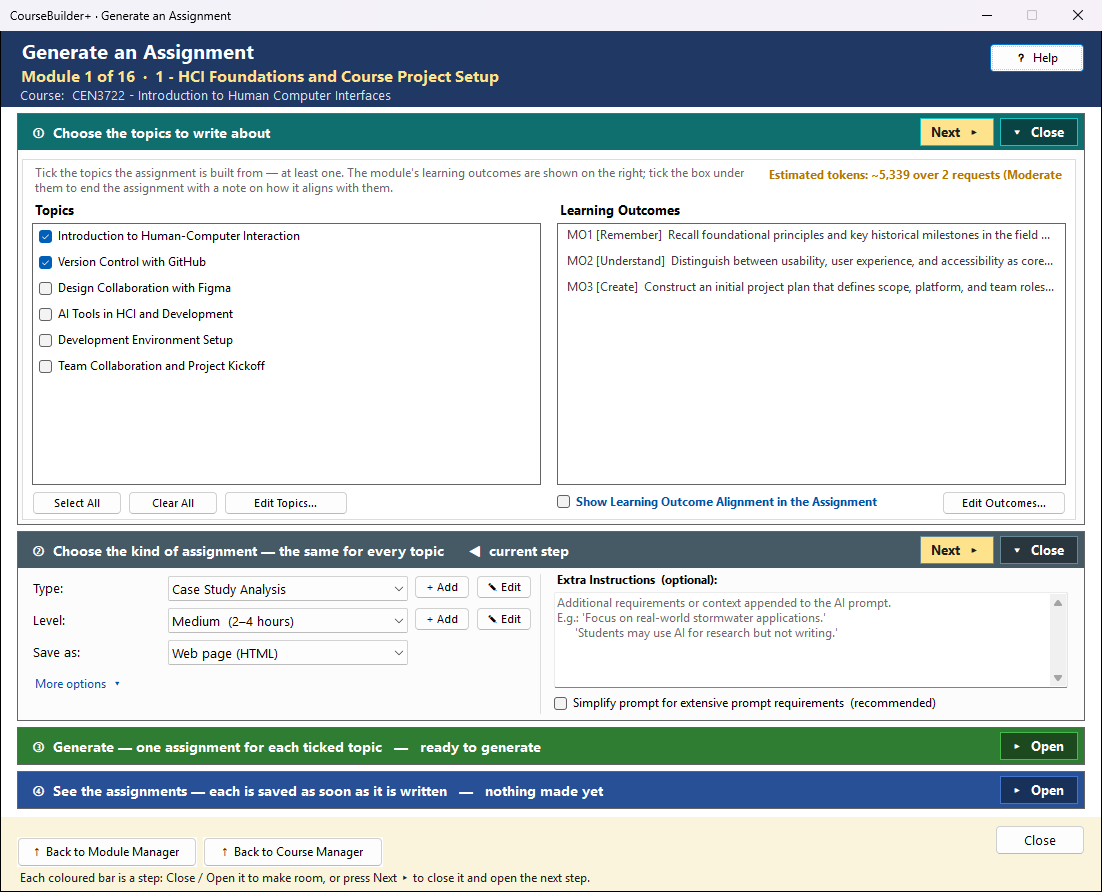
This window writes assignments for the module — a case study, a project, a problem set, a reflection and more — from the module's topics, with instructions for the students and a grading rubric. Each ticked topic gets its own assignment, and each is saved as soon as it is written. It works in four steps, top to bottom; the step you are on is marked ◀ current step, and its button is the coloured one.
The coloured bars are steps that open and close — see How the Generate windows work.
① Choose the topics to write about
Tick the topics (left) — at least one. Each ticked topic becomes its own assignment, written from that topic's material (its subtopics and notes). Three topics ticked → three assignments.
The module's learning outcomes are listed on the right so you can see them; they are not written about and are not ticked one by one. Tick Show Learning Outcome Alignment in the Assignment (under the list) and it ends with a short "Alignment with Learning Outcomes" section that names each outcome by its code and says how the assignment supports it — or that it does not address it. The saved assignment is tagged with the outcomes that section says it supports (shown as "Aligns with:" in the review); an outcome it does not address is not tagged.
Estimated tokens (at the bottom right of step ①, beside Edit Topics…) is an estimate before anything is sent — the chosen content, the instructions sent with each request and the answer — green = focused, amber = moderate, red = extensive (one request per topic: the colour judges the largest one). After Generate it changes to Tokens used: the input and output tokens the run really used, as your AI provider counted them — usually a little higher than the estimate (it returns to the estimate when you change the selection). Edit Outcomes… / Edit Topics… open the editors if something is missing.
② Choose the kind of assignment — the same for every topic
- Type — the kind of assignment. + Add makes a type of your own (its own instructions to the AI); ✎ Edit changes one of yours, or copies a built-in type into a new "User:" type — the built-in is never changed. Your types and levels are kept for all your courses.
- Level — how much work it is (for example a short exercise or a two-week project); + Add and ✎ Edit work the same way.
- Save as — the file the assignment is saved as:
- Web page (HTML) — opens in any browser; the usual choice.
- Markdown (.md) — plain text with simple formatting, for editors and websites that use it.
- WordPress page (Gutenberg) — a web page in WordPress's block format, to paste into WordPress.
- Open Course Exchange (OCX) — a data file for course-sharing systems that read OCX (saved as
.xml). - PDF — a fixed page for printing or handing out.
- Extra Instructions — anything else the AI should know ("Focus on local examples"). Some of your own types require them; the box then says what to write, in red.
- Simplify prompt — sends only each topic's title and summary. Tick it when the request is Extensive (it then says recommended).
- More options → Student submit as — the format students hand their work in; Not specified leaves it to you or your LMS.
③ Generate — one assignment for each ticked topic
The green line says exactly what will happen before you click — for example "It writes 3 assignments — one for each of the 3 topics …, each saved at once". Each topic is its own request to the AI (so one large request cannot fail part-way), sent with your own AI key and charged by your AI provider (Settings → AI Usage and Cost shows it). With the alignment box ticked, the outcomes go with each request, for the alignment section.
You see the prompt first: with one topic you can edit it; with several, the shared instructions and one read-only tab per topic.
A topic that already has an assignment of this type and file type (Save as) is named before anything is sent, and you choose:
| Choice | What happens |
|---|---|
| Skip it | no new assignment for that topic; the existing one stays as it is |
| Generate a new assignment and keep the old one | the new one is saved beside it as a copy, "… (2)" |
| Replace the old assignment | the new one is written over the old one's file — the old text, including your edits to it, cannot be recovered |
| Cancel | nothing is sent or changed |
Tick Do the same for the other … topics to answer once for all of them. (Assignments are not merged — each stays its own file, to hand out on its own.)
■ Stop stops after the assignment being written; the ones already written stay saved. If a topic fails, it is named (in a message and in the result line) and the others are kept — tick only that topic and Generate again (or Generate again and choose Skip for the others).
🔍 View Prompt (beside Generate) shows exactly what Generate would send to the AI for your current choices (one tab per topic) — read-only, and nothing is sent. It works whether or not Show the prompt before each AI call is on in Settings.
④ See the assignments
Every assignment is already saved when ④ shows it — nothing waits to be saved, and closing the window never loses one. Closing while the AI is still working asks whether to stop it.
Each is a file in the module's assignments folder named after its topic, type and place in Module
Topics — for example A2 Probability Basics (Case Study Analysis).html — so a second run knows it is
there. It is listed in the Module Index under Assignment, tagged with its topic.
✏ Review / Edit… opens an assignment made here (with several, choose one from the list).
- A web page (HTML) opens on Rendered — the page as students will see it. To change it, click ✎ Edit in HTML Editor…: the page opens in the HTML Editor chosen in ⚙ Settings (if none is chosen, in the program Windows uses for .html files). Save it there and come back — the window shows the new version. Source (HTML — for advanced edits) shows the page's HTML for small changes typed in this window. If you have changes under Source that are not saved when the HTML Editor saves the file, you are asked which version to keep.
- Markdown, PDF, WordPress page or OCX opens on Source, the text the file is built from; change it there (for a PDF, WordPress page or OCX file, Save Changes rebuilds the file). Rendered shows how it will look.
Change the title and the heading at the top of the assignment changes with it. Save Changes writes the same file again, and a second Review / Edit starts from your edits (including those saved in the HTML Editor). Closing with changes not saved asks first. Older assignments are opened from the Module Index.
| Button | What it does |
|---|---|
| View in Module Index | every assignment in this module (the highlighted next step after a run) |
| Open File (Open Last File when several were made) | the last assignment saved, in its usual program (browser, text editor, PDF viewer) |
| Show in Folder | File Explorer, with the last assignment saved selected (before that, the assignments folder) |
| ✏ Review / Edit… | an assignment made here, to change its title or text and save it again |