
Generate Presentations
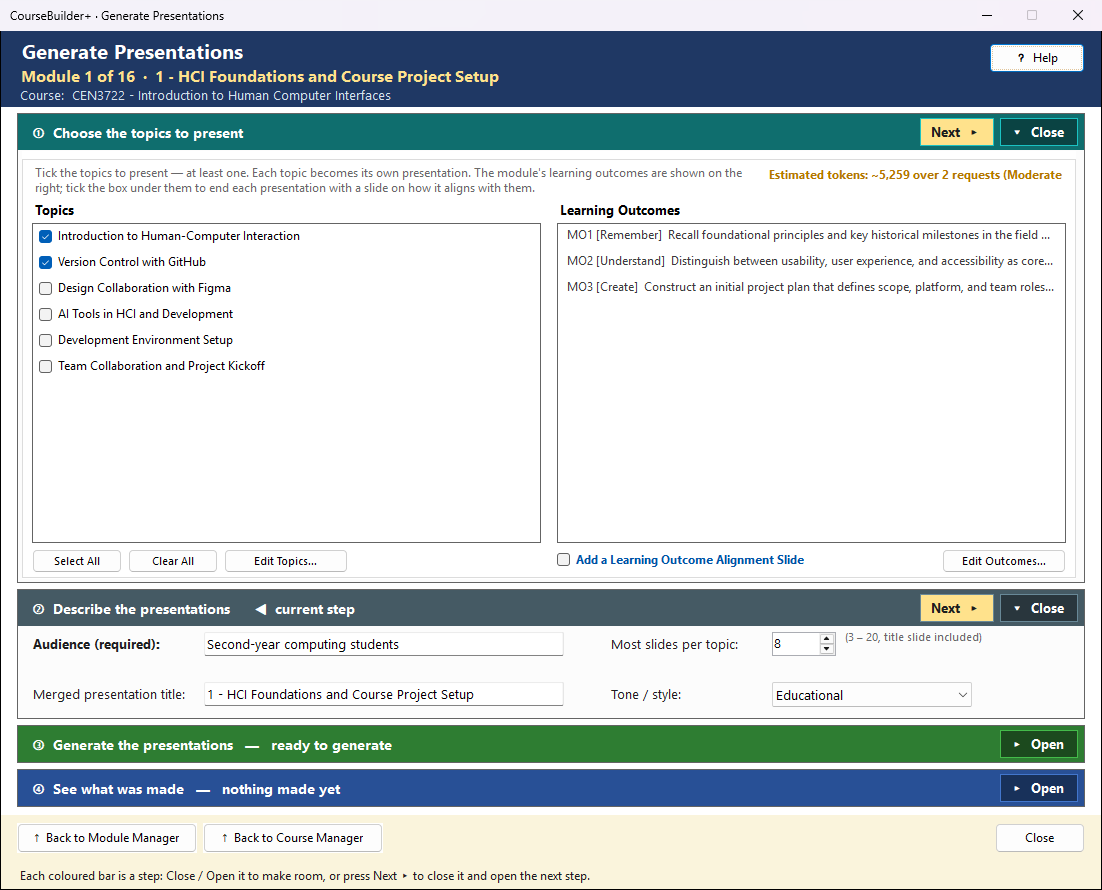
This window makes PowerPoint presentations for the module from its topics — one presentation for each topic you tick, built straight away and saved in the module. With several topics it can also merge them into one presentation for the whole module. It is where presentations start (Generate Content for Module → Presentations); 🎬 Presentation Tools… in ④ then narrates and edits them.
The coloured bars are steps that open and close — see How the Generate windows work.
Already have PowerPoint files? 📥 Import Presentations… (in ③, beside Generate) copies them into the module — several at once, no topics and no AI needed, and nothing is ever replaced (a name already used gets " (2)"). ④ then says what came in, and Presentation Tools adds narration.
If the module has no topics yet, Generate says so: create them first (Edit Topics… in ①, or Create Module Topics in the Module Manager) — or import presentations you already have; Import is then the coloured button.
① Choose the topics to present
Tick the topics (left) — at least one. Each topic becomes its own presentation: the AI does far better one topic at a time.
The module's learning outcomes are listed on the right so you can see them; the slides are not written about them and they are not ticked one by one. Tick Add a Learning Outcome Alignment Slide (under the list) and each presentation ends with a slide that names each outcome by its code and says how the presentation supports it — or that it does not address it.
Estimated tokens (at the bottom right of step ①, beside Edit Topics…) is an estimate before anything is sent — the chosen content, the instructions sent with each request and the answer — green = focused, amber = moderate, red = extensive (with one request per topic it judges the largest one). After Generate it changes to Tokens used: the input and output tokens the run really used, as your AI provider counted them — usually a little higher than the estimate.
② Describe the presentations
| Setting | What it means |
|---|---|
| Audience (required) | who the slides are for, e.g. "first-year college students" — Generate waits until it is filled in |
| Most slides per topic | the most slides the AI may write for each topic, the title slide included (and the alignment slide, so the least is 4 when that box is ticked) |
| Tone / style | how the slides are written |
| Merged presentation title | the title of the merged presentation (only used when the topics are merged); it starts as the module's name |
③ Generate the presentations
The green line says exactly what will happen before you click. Each topic is one request to the AI with your own AI key, charged by your AI provider (Settings → AI Usage and Cost shows it). You see the prompts first (one tab per topic) and can cancel; with one topic you can also edit the prompt.
Several topics ticked — a box appears beside Generate: Merge the topic presentations into a single presentation (ticked by default; each topic's presentation is kept). After every topic's presentation is made, one more is built from them — no AI, nothing more to pay:
- a title slide with the merged title and the module;
- for each topic, a divider slide (that topic presentation's own title slide), then its slides;
- at the end, when the alignment box was ticked, the alignment section — each topic's "Alignment with Learning Outcomes" slide, one after another.
The topic presentations are kept. The merge is built from each presentation's slide outline, not from the PowerPoint file: changes you make to a topic presentation in PowerPoint are not carried into the merged one. (Change a topic's outline with Edit Slides… in Presentation Tools, then generate again with Skip it and merge it to rebuild the merged presentation — or edit the merged presentation itself in PowerPoint.)
Stop ends the run; the presentations already made are kept.
🔍 View Prompt (beside Generate) shows exactly what Generate would send to the AI for your current choices (one tab per topic) — read-only, and nothing is sent. It works whether or not Show the prompt before each AI call is on in Settings.
Names, and when a presentation is already there
Each topic's presentation has a fixed name — "T2 Probability Basics.pptx" (T and the topic's position in the module, then its title); the merged one is "{title} (merged).pptx". So when you generate the same topic again, the program sees it is already there and — before anything is sent to the AI — asks what to do:
| Choice | What happens |
|---|---|
| Skip it and merge it | no new presentation; the existing one goes into the merged presentation (only when merging, and only if it has a slide outline). It goes in from its outline, so changes made to it in PowerPoint are not carried in — the choice says so when it was changed there |
| Skip it and do not merge it (Skip it when not merging) | no new presentation, and the existing one is left out of the merge |
| Generate a new presentation and keep the old one | the new one is saved beside it as "… (2).pptx" |
| Replace the old presentation | the new slides are written over it. Its narration and audio are kept, but may no longer match the new slides — Presentation Tools marks them ⚠ slides changed; check them in Narration & Audio. It must not be open in PowerPoint: if it is, you are told before anything is sent to the AI |
| Cancel | nothing is sent or changed |
Tick Do the same for the other … to answer once for all of them. Skipping every topic and only merging needs no AI key.
The merged presentation holds only the topics ticked this time. If it is already there, you are asked about it at the same time, and told which topics the new one will hold (and how many the existing one holds). To keep every topic in it, tick all the topics in ① and choose Skip it and merge it for the ones you keep.
Names follow the topic's position and title. Moving a topic in the module, or renaming it, gives its next presentation a new name — the old one is not found, so it is not asked about and stays as it is. Skip it and merge it merges the original "T1 …" presentation, never a "… (2)" copy made with Generate a new presentation and keep the old one.
If saving a presentation fails after the AI has written it (for example the file is locked), the slides are not lost: they are kept as a draft, and Resume Draft… in Presentation Tools builds them.
④ See what was made
When the run is over the heading reads Presentation Generation Complete — See What Was Made (after an import: Import Complete — See What Was Imported). The result line says how many presentations were made, which were kept, any that failed, and the merged one. Every presentation is saved in the module's presentations folder and listed in the Module Index under Presentations.
- View in Module Index — every presentation of the module.
- Open in PowerPoint — the presentation just made (the merged one, when there is one); it is the coloured button after Generate.
- Show in Folder — File Explorer with it selected.
- Presentation Tools (narrate · edit)… — always available, even before you generate: the module's presentations (generated and imported), where narration and audio, the narrated PowerPoint, Edit Slides, Rename, Delete and Import Presentations… work. Close it to come back here.
Pictures: slides the AI writes contain no pictures — add them in PowerPoint. (Finding or generating suitable pictures for the slides is planned for a later version.)
Presentation Tools
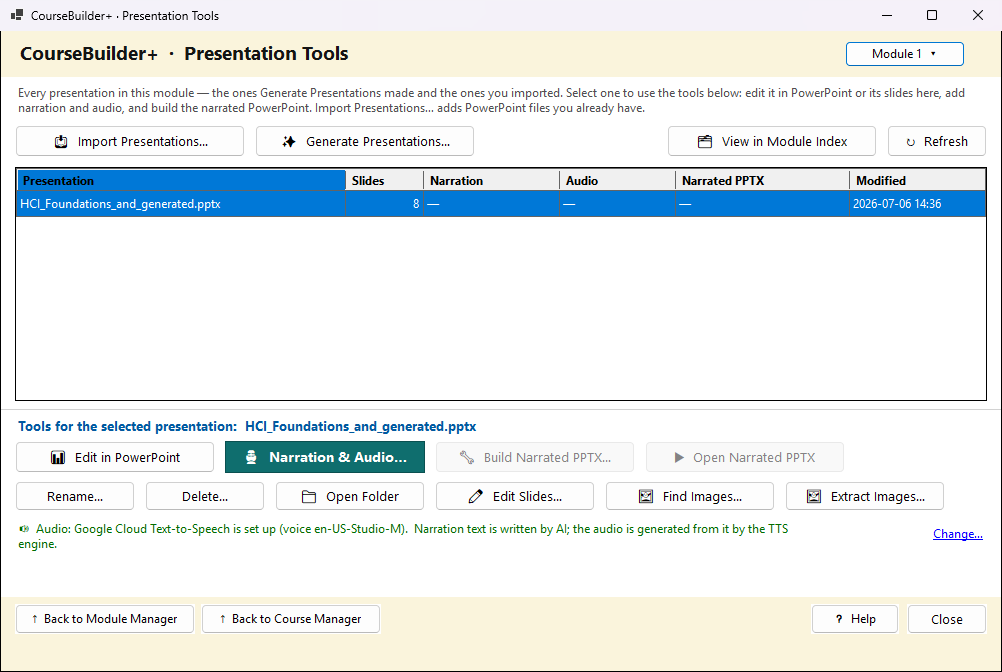
This window lists every presentation in the module — the ones Generate Presentations made and the PowerPoint files you imported — and holds everything you do with them: narrate one, build a narrated copy, edit it, rename or delete it. The buttons under the list work on the presentation selected in the list.
You reach it with 🎬 Presentation Tools (narrate · edit)… in Generate Presentations (Generate Content for Module → Presentations), or with the 👁 View button beside the Presentations tile. Opened from Generate Presentations, it has no Generate button — Close takes you back there.
The button for the next step is the coloured one:
- no presentations yet, but slides the AI wrote are waiting as a draft → Resume Draft… (no second AI request needed)
- no presentations yet → Generate Presentations… (or Import Presentations… when this window was opened from Generate Presentations)
- the selected presentation has no narration, narration or audio for only some slides, or slides that changed after the narration was made (the Narration column says ⚠ slides changed) → Narration & Audio…
- its audio is newer than its narrated copy (or none is built yet) → Build Narrated PPTX…
Add presentations
| Button | What it does |
|---|---|
| Import Presentations… | copies PowerPoint files (.pptx) you already have into the module — choose several at once with Ctrl+click. A name already used gets " (2)"; nothing is replaced |
| Generate Presentations… | (not shown when you came from Generate Presentations) opens Generate Presentations: one presentation per topic you tick (your own AI key, one request each), built into PowerPoint straight away, and — with several topics — merged into one if you like. See its Help |
| Resume Draft… | appears when slides the AI wrote earlier (before Generate Presentations) were never built — opens them again in the Slide Editor |
| Refresh | reads the presentations folder again (after you change a file in PowerPoint) |
Find them: 🗂 View in Module Index lists every presentation and narrated presentation of the module in the Module Index; Open Folder shows the presentations folder in File Explorer.
Pictures on slides: slides the AI writes contain no pictures. Find Images… (below) suggests free-to-use pictures for every slide at once; copy one and paste it on its slide in PowerPoint (Edit in PowerPoint). Generate Images in Generate Content for Module finds pictures for the module's topics and outcomes. Both keep the pictures in the module's image library.
The list
Presentation · Slides · Narration · Audio · Narrated PPTX · Modified. Narration and Audio say how many slides have them ("✓ 8 of 10"). A narrated PPTX marked ⚠ outdated was built before the latest narration or audio — build it again. Double-click a row to open it in PowerPoint.
Presentation Tools — work on the selected presentation
| Button | What it does |
|---|---|
| Edit in PowerPoint | opens it in PowerPoint — presentations are viewed and changed there |
| Edit Slides… | for a presentation the AI made: its slide outline in the Slide Editor. Building there replaces the same file (it asks first); its narration and audio stay, but may no longer match. The outline does not hold changes made in PowerPoint (pictures, formatting): if the presentation was changed there, rebuilding drops those changes — it warns you first. Presentations you imported have no outline — edit them in PowerPoint. After Edit Slides, a merged presentation still has the old slides: generate again with Skip it and merge it to rebuild it |
| Narration & Audio… | write or generate what is said on each slide, make the audio, fix how words are pronounced, and listen |
| Build Narrated PPTX… | puts the audio into a copy of the presentation, with each slide timed to its audio |
| Open Narrated PPTX | opens that copy in PowerPoint (export it to video from there) |
| Rename… / Delete… | its narration, audio and narrated copy move or go with it (Delete lists them first and asks) |
| Open Folder | the module's presentations folder in File Explorer |
| Extract Images… | copies every picture embedded in the presentation into the module's image library. Slides the AI wrote have none |
| Find Images… | free-to-use pictures (no copyright, no royalty) for each slide, and a record of which picture goes on which slide — see Find Images |
Audio needs a text-to-speech engine
Narration text is written by the AI (or by you). Turning it into audio needs Google Cloud Text-to-Speech: the line at the bottom says whether its credentials file is set, and Application Settings… is where to set it. Narration can be written before that; audio waits.