
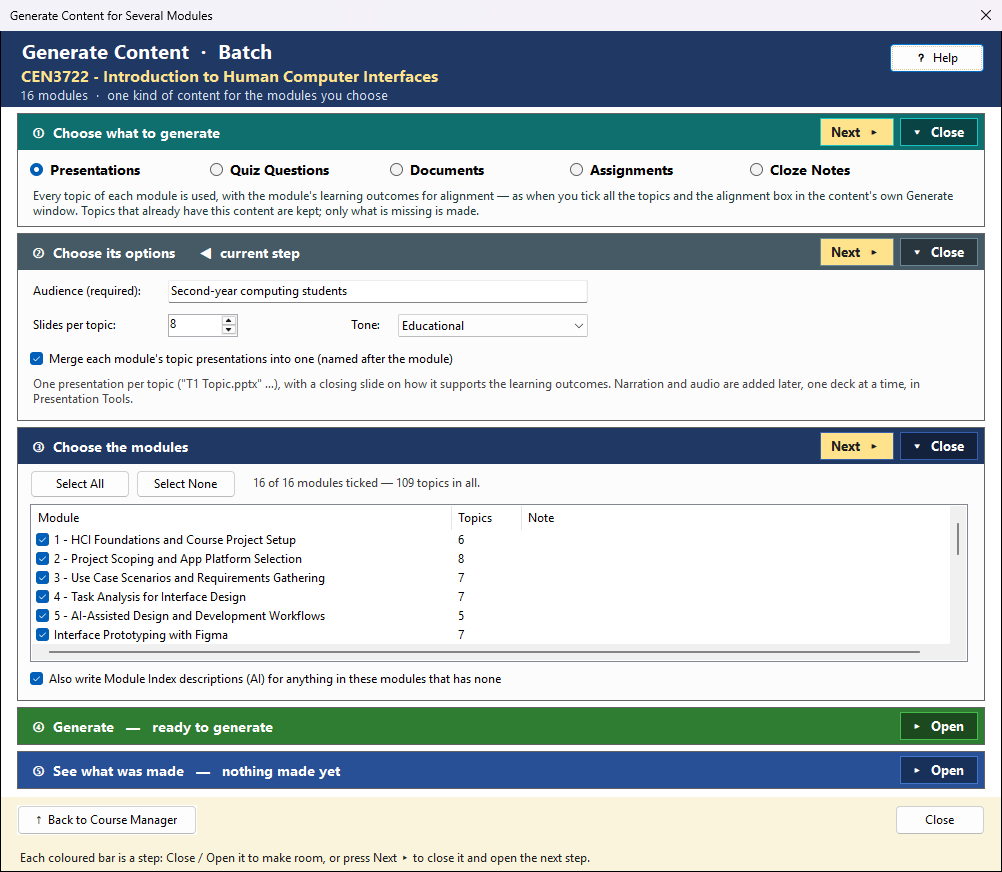
Batch Actions ▾ → Generate Content… in the Course Manager makes one kind of content for many modules at once: presentations, quiz questions, documents, assignments or cloze notes. It does what the content's own Generate window does for one module, with every topic ticked and the learning outcomes used for alignment, then moves on to the next module. The window works in five steps, top to bottom; the step you are on is marked ◀ current step.
① Choose what to generate
One kind of content per run. Run the batch again for another kind.
Topics that already have this content are kept. Only what is missing is made, so running the batch again fills the gaps and costs nothing for topics already done. A module's merged document is rebuilt only when something new was made for it.
② Choose its options
The same options as the content's own Generate window, with the same starting values:
| Content | Options |
|---|---|
| Presentations | Audience (required), slides per topic, tone, merge each module's presentations into one |
| Quiz Questions | how many questions of each type per topic, hints, overall feedback |
| Documents | content type, output format, CSS theme, merge (web pages and Markdown) or one file per topic (Word, PDF, WordPress) |
| Assignments | type (yours too), level, save as, students submit as, extra instructions |
| Cloze Notes | difficulty, format, extra instructions, merge into one student version and one key |
Topics and Embedded Video (under Documents) works differently in batch: each topic gets the AI's suggested videos (up to 3), with no review. For every topic that has no page, YouTube is searched, using the three filters in ② (captions, 3–20 minutes, last 5 years; all ticked at first). The AI ranks what is found, its picks are used as they are, and the AI writes the page. That is two AI requests per module, plus one per topic. A topic where nothing is found, or where the AI judges none of the videos suitable, is listed as Failed with the reason. To choose the videos yourself, make the page in Generate Documents.
Topic Detail with Video (under Documents; Interactive or Printable HTML) gives every topic one page that holds its Topic Detail and its videos together, the same page Generate Documents makes. For each topic without that page:
- Parts already in the module are used as they are: a Topic Detail in the chosen format, and the topic's Topics and Embedded Video page. A topic that has both is just combined, with no AI.
- A missing Topic Detail is written by the AI (one request per topic).
- Missing videos are found as described above: the AI's picks, with no review.
- The two parts are then combined, and kept as their own documents too. Merge (ticked at first) also puts each module's combined pages into one document.
The report lists each part it made ("topic — Topic Detail", "topic — videos") and then the combined page. If a part could not be made, the topic is listed as Skipped with the reason. To remake a part, or to choose the videos yourself, use Generate Documents.
③ Choose the modules
Tick the modules to generate for (Select All / Select None). A module with no Module Topics can't be ticked; make its topics first with Batch Actions → Generate Module Topics and Outcomes.
Also write Module Index descriptions (ticked at first) has the AI write the short description of each item in the module that has none. The Module Index and the course website show these. It is one more AI request per module.
④ Generate
The line above the button says what will happen. There is one AI request per topic that still needs content, made one after another, so a whole course can take several minutes. Each request is charged by your AI provider. ■ Stop stops after the request in progress, and what was made is kept.
🔍 View Prompt (beside Generate) shows exactly what Generate would send to the AI for your current choices — the requests for the first ticked module; the others send the same kind of request for their own topics — read-only, and nothing is sent. It works whether or not Show the prompt before each AI call is on in Settings.
⑤ See what was made
The list fills in as the run goes, one row per item. Each row shows Made, Kept (it was already there), Failed (the Note says why) or Skipped (a module with no topics). The line above it adds up the run and the tokens used.
Where to find it: everything is saved in its module and listed in that module's Module Index, under the content's type (Presentation, Quiz, Text Content, Assignment, Cloze Notes).
- 🗂 View in Module Index (or a double-click on a row) opens the selected row's module, filtered to that type, where you can view, rename or open each item.
- 📄 Open File opens the selected item.
- 📂 Show in Folder shows the selected item in File Explorer.
A topic that failed can be made again: run the batch once more (only what is missing is made), or open the module and use the content's own Generate window.