
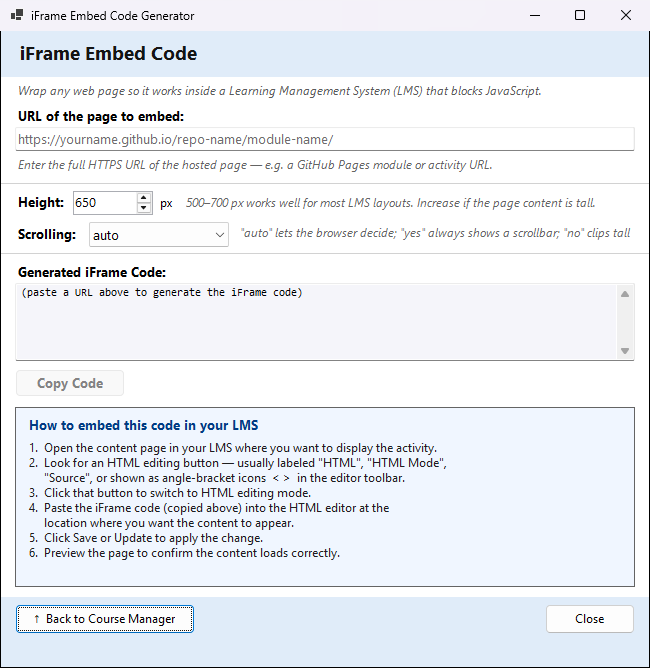
Many LMSs (Canvas, Blackboard, Moodle, D2L and others) switch off JavaScript in their own content editors, so an interactive activity or a quiz page pasted straight into an LMS page stops working. This window wraps the web address of a page that is already online in an iFrame, a small piece of HTML code. Pasted into an LMS page, the iFrame shows your page inside the LMS page, where its JavaScript runs normally.
The page must already be online, for example a module or activity of your course website on GitHub Pages. This window does not put anything online.
To open it: in the Course Manager, Export ▾ → Generate iFrame Embed Code…. It works without a course being chosen, because it needs only a web address. No AI is used.
Make the code
- URL of the page to embed: paste the full
https://address of the page, for examplehttps://yourname.github.io/repo-name/module-name/. - Height: how tall the frame is in the LMS page, in pixels (200 to 2000; 650 at first). 500–700 px works well for most LMS layouts. Make it taller if the bottom of your page is cut off.
- Scrolling: auto lets the browser decide; yes always shows a scroll bar; no cuts off content that is taller than the frame.
The Generated iFrame Code box fills in as you type. The frame is always the full width of the LMS page. Until you paste an address, the box asks for one and Copy Code is off.
| Button | What it does |
|---|---|
| Copy Code | puts the code on the clipboard; the button reads Copied! for a moment |
| ↑ Back to Course Manager | returns to the Course Manager |
| Close | closes the window |
You can also click in the code box and press Ctrl+A to select all of it.
Put the code in your LMS
The window gives these steps:
- Open the content page in your LMS where you want to display the activity.
- Look for an HTML editing button, usually labelled "HTML", "HTML Mode" or "Source", or shown as angle brackets < > in the editor's toolbar.
- Click it to switch to HTML editing.
- Paste the iFrame code where you want the content to appear.
- Click Save or Update.
- Preview the page to check the content loads.