
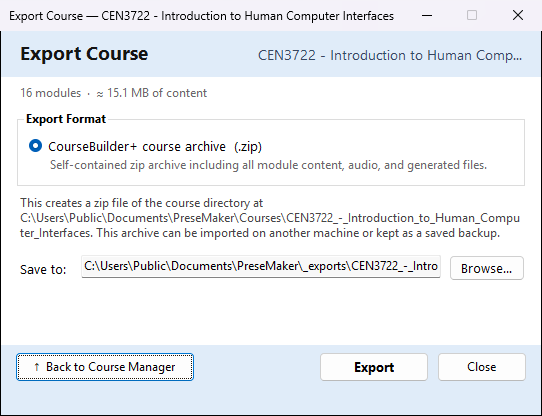
This window saves the whole course as one course archive: a single .zip file. Use it to
keep a backup of a course, or to move a course to another computer that has CourseBuilder+,
where it is brought back in with the Course Manager's Import ▾ → Import CourseBuilder+ course
archive (.zip)…. The archive is for
CourseBuilder+ only; to put the course into an LMS, use
Export to IMS Common Cartridge or SCORM instead.
To open it: in the Course Manager, choose the course, then Export ▾ → Export as CourseBuilder+ course archive (.zip)…. (The item is greyed out until a course is chosen.)
No AI is used, and nothing is sent over the internet.
What the window shows
Under the course name, a line tells you how many modules the course has and about how much content it holds (for example 6 modules · ≈ 85.2 MB of content).
Export Format has one choice, CourseBuilder+ course archive (.zip): a self-contained zip
archive of all module content, audio and generated files. A short note below it names the course
folder on your computer that will be zipped (your courses are kept in
Documents\PreseMaker\Courses).
What goes into the archive
- the course's details (
course.json), - every module folder, with everything in it: topics, outcomes, presentations, documents, quiz bank, assignments, audio, images and other generated files,
- the course-level files that hold the course outcomes, the standards alignment, remembered settings and the alignment map.
The course's Course Files folder (course_files) is not part of the archive. Keep your own copy
of those files if you need them on the other computer.
Saving the archive
Save to: shows where the archive will be saved. It is filled in for you: the _exports folder in
Documents\PreseMaker, with a file name made from the course name, the date and the time (for example
My_Course_20261021_143005.zip), so a new export never replaces an older one. To save it somewhere
else, or under another name, use Browse… or type the path.
| Button | What it does |
|---|---|
| Browse… | opens a Save dialog to choose a file name and folder |
| Export | builds the archive. A progress bar shows how far it has got |
| ↑ Back to Course Manager | returns to the Course Manager |
| Close | closes the window. After a successful export it reads Done |
If a file with that name is already there, CourseBuilder+ asks Replace it with the new archive? Answer No to stop and choose another name. The old file is replaced only once the new archive is complete, so if the export fails the old file is still there.
When the export finishes, a green line under the progress bar says ✓ Exported to: with where the file was saved, and Export is turned off (close the window and open it again to make another archive). If something goes wrong, a red line says Export failed: and why.