
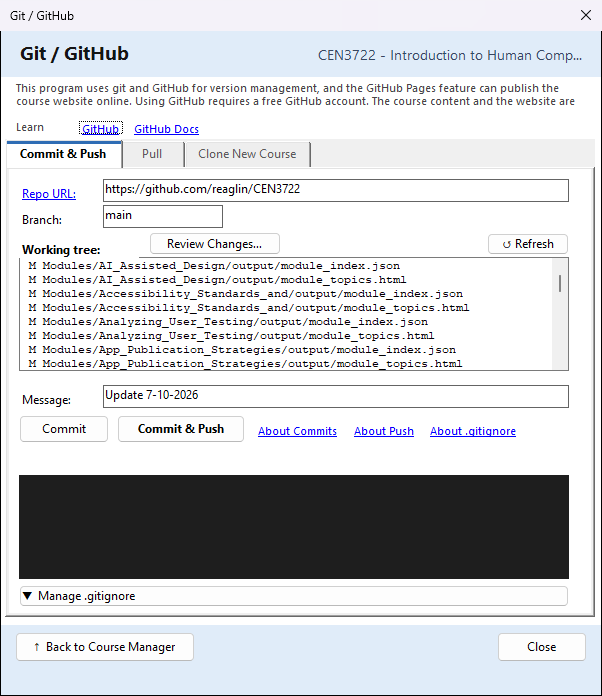
This window keeps a copy of your course's own files (its folder in Documents\PreseMaker\Courses)
on GitHub, with a history of every version.
Use it to back up a course online, to keep track of what changed, or to share the course with a
colleague, who can then clone it (see Import ▾ → Clone or Pull Course from GitHub…).
It uses Git, a free program that records versions of files, and a GitHub repository (an online folder) that you make on github.com with a free GitHub account. The course content goes on the repository's main branch. The course website can go on a different branch (gh-pages) of the same repository; that is done in Publish the Website, not here.
To open it: in the Course Manager, choose the course, then Export ▾ → Commit/Push to Git/GitHub…. The window opens on the Commit & Push tab. (The Pull and Clone New Course tabs bring a course from GitHub; they are described on their own page.)
No AI is used. Learn more: at the top links to GitHub and GitHub Docs.
If Git is not installed
The window says Git is required for this feature. Use ▶ Download Git for Windows (or ▶ Git installation guide), install Git, then click Check Again.
Where the course goes
- Repo URL: the address of your GitHub repository, for example
https://github.com/yourname/my-course.git. Click the words Repo URL: to open GitHub's guide to making a new repository. Addresses you have used before are suggested as you type. - Branch: the branch on GitHub to send the course to. It starts as main; keep it.
Both are saved for this course as you type, so they are filled in next time.
What has changed
Working tree: lists every file in the course folder that has changed since the last commit, one
per line, as Git reports it: a short code, then the file. ?? means a new file, M changed, D
deleted. When nothing has changed it says Working tree clean — nothing to commit.
- Review Changes… opens the same list in plain words (New file, Modified, Deleted, Renamed), colour-coded, with a count of each.
- ↺ Refresh reads the list again, for example after you have made new content.
Commit and push
Message: a short note saying what changed. It starts as Course update — {today's date}; a message you typed yourself last time is kept instead.
| Button | What it does |
|---|---|
| Commit | saves a version of the course on this computer (in Git's history). Nothing is sent to GitHub |
| Commit & Push | saves a version, then sends the course to the branch on GitHub |
What Commit does. All changed, new and deleted files in the course folder are included, except
those the .gitignore leaves out (below). If nothing has changed, it says so and carries on. The
first time, CourseBuilder+ makes the course folder a Git repository, adds a .gitignore, and
connects it to the Repo URL. Each time it also writes a README.md in the course folder (the course
name, its description and its list of modules), which GitHub shows on the repository's front page.
Both buttons need a Repo URL and a Message.
What Push does. It works the way Git is normally used, so no one's work is lost:
- It first asks GitHub for changes this computer does not have (someone else's push, or a file edited on GitHub) and merges them into your course. The black box says how many it found.
- Then it sends your course to the branch on GitHub.
If you and someone else changed the same part of the same file, CourseBuilder+ cannot choose between the two. It then pushes nothing, puts your course back exactly as it was, and lists those files. To keep GitHub's copy of everything, open the Pull tab, press Check for Incoming Changes, then Force Overwrite. That throws away all changes made on this computer since your last push, not only those files. To keep yours, or to combine the two, open the course folder in a Git program such as GitHub Desktop or Visual Studio Code.
The first push to a repository that was made on GitHub with its own README or licence joins the two;
where both have the same file (usually README.md), the course's copy is kept.
While it pushes, a moving bar and the line under the buttons show how long it has taken. Every 30 seconds the black box says it is still working; if your course is on OneDrive and its files are not kept on this computer, Git may need several minutes to fetch them first. The black box shows what Git did; red lines are errors. When it is done the line reads ✓ Committed and pushed, with the time. About Commits and About Push open GitHub's own explanations.
Signing in. GitHub may ask you to sign in; Git Credential Manager (installed with Git for Windows) opens a browser window for it. If signing in fails, the black box lists what you can do: sign in through Git Credential Manager, use a GitHub personal access token as the password, or use an SSH key.
Manage .gitignore — leave big files off GitHub
▼ Manage .gitignore opens a panel that chooses which files Git leaves out. Big generated files can be made again from the course, so there is no need to send them.
| Tick | Leaves out |
|---|---|
| Audio (output/audio/) | the narration audio |
| Slide images (output/images/) | each module's output/images folder |
| Narrated PPTX | narrated PowerPoint files (*_narrated.pptx) |
| MP4 (*.mp4) | every MP4 video |
| Source PPTX | the presentations folder |
| Website export | the websites folder. (The course website is kept outside the course folder, in Documents\PreseMaker\websites, so it is not sent from here either way) |
| All output | each module's whole output folder |
The first four are ticked in a new course. The box under the ticks shows the .gitignore file
itself; ticking adds a line and unticking removes it, and you can type in the box too.
Save .gitignore saves it. Files that it now leaves out stop being sent to GitHub with the next
commit; they stay on your computer. About .gitignore opens GitHub's explanation.
Close
↑ Back to Course Manager returns to the Course Manager; Close closes the window.