
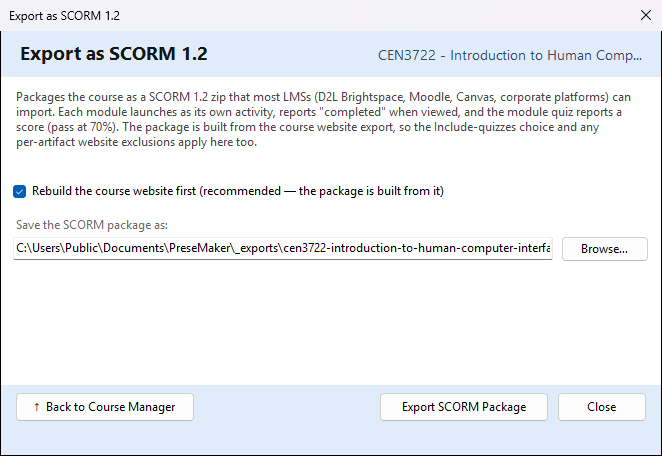
This window packages the course as a SCORM 1.2 zip file. SCORM is a standard that most learning management systems (LMSs) can import, such as D2L Brightspace, Moodle, Canvas and corporate training platforms. In the LMS:
- each module is its own activity,
- a module reports "completed" when a student views it,
- the module's quiz reports a score, and the student passes at 70%.
Outside an LMS the pages behave like the ordinary course website.
To open it: in the Course Manager, choose the course, then Export ▾ → Export as SCORM 1.2 (.zip)….
No AI is used. CourseBuilder+ writes the zip on your computer; it does not send it to your LMS.
The package is built from the course website
The SCORM package is made from the course website that
Publish the Website builds on your computer (in Documents\PreseMaker\websites).
So what you chose for the website applies here too:
- Include quizzes in the Publish the Website window decides whether the quiz pages go in.
- An artifact set to Exclude from Website Build in the Module Index is left out here too.
Rebuild the course website first (recommended — the package is built from it) — ticked at first. It rebuilds the website so the package has your latest content. This replaces the website folder on your computer with a fresh build (it does not ask the AI for new descriptions). Untick it to package the website as it was last built; if the course has no website yet, it is built anyway.
Saving the package
Save the SCORM package as: where the zip goes. It starts in the _exports folder in
Documents\PreseMaker, with a name made from the course name, scorm12, the date and the time. You
can type another path, or use Browse… to choose one. A file already at that path is replaced
without asking.
| Button | What it does |
|---|---|
| Export SCORM Package | builds the website (if ticked), then writes the SCORM zip. The line under the path shows the progress as a percentage |
| 📂 Show in Explorer | appears when the package is made; opens File Explorer with the zip selected |
| ↑ Back to Course Manager | returns to the Course Manager |
| Close | closes the window |
When it finishes, a green line says ✓ SCORM package created and how many content files are in it. If there were warnings (for example a module whose website folder was not found, which is then left out), the line gives their number; they are written to the activity log. If it fails, a red line starting with ✗ says why.
Putting it into your LMS
Upload the zip with your LMS's own import for SCORM packages. Each module appears as one activity, in course order.