
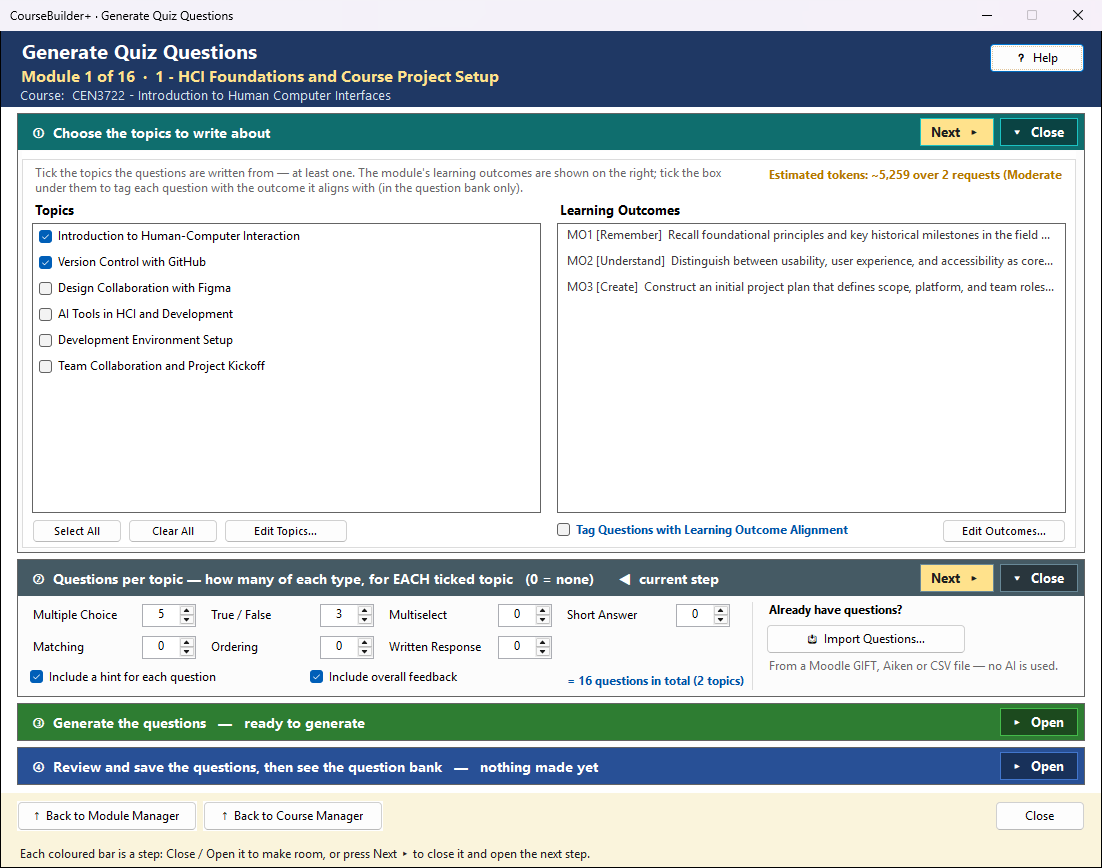
This window writes quiz questions for the module from its topics, and keeps them in the module's question bank — the one bank every quiz export (Common Cartridge, QTI, WordPress, SCORM) draws from. It works in four steps, top to bottom; the step you are on is marked ◀ current step, and its button is the coloured one.
The coloured bars are steps that open and close — see How the Generate windows work.
① Choose the topics to write about
Tick the topics (left) the questions are written from — at least one. Questions are written from the topics' material (their subtopics and notes).
The module's learning outcomes are listed on the right so you can see them; they are not written about and are not ticked one by one. Tick Tag Questions with Learning Outcome Alignment (under the list) and each question is tagged in the question bank with all the module's outcomes it aligns with (or none) — the Outcomes column of the review and of the question bank shows the codes, and alignment reports count them. The alignment is never written into the question, its answers, hint or feedback, so students do not see it. You can change a question's outcomes in the question bank.
Estimated tokens (at the bottom right of step ①, beside Edit Topics…) is an estimate before anything is sent — the chosen content, the instructions sent with each request and the answer — green = focused, amber = moderate, red = extensive (with one request per topic it judges the largest one). After Generate it changes to Tokens used: the input and output tokens the run really used, as your AI provider counted them — usually a little higher than the estimate (it returns to the estimate when you change the selection); smaller, focused requests (fewer questions per topic) give sharper questions. Edit Outcomes… / Edit Topics… open the editors if something is missing.
② Questions per topic — how many of each type
Set a number for each type you want — 0 means none of that type (up to 20 each): Multiple Choice, True / False, Multiselect, Short Answer, Matching, Ordering and Written Response.
The numbers are per topic. Every ticked topic gets that many questions of each type: with four topics ticked and 20 Multiple Choice, you get 80 multiple-choice questions (20 for each topic). The total shows at the end of ② ("= 80 questions in total (4 topics)"), and the green line in ③ says it too.
- Include a hint for each question — a short clue that does not give the answer away.
- Include overall feedback — an explanation shown after the student answers.
Already have questions? Import Questions… adds questions from a Moodle GIFT, Aiken or CSV file — no AI is used. If the bank already has questions you choose Append (add them after the ones there) or Replace (delete the ones there and keep only the imported ones; you are asked once more before anything is deleted). Items that cannot be read are skipped and listed in the activity log.
③ Generate the questions
The green line says exactly what will happen before you click — for example "It writes 80 questions — 20 multiple choice for each of the 4 topics". Each ticked topic is its own request to the AI (the AI writes better questions one topic at a time), sent with your own AI key and charged by your AI provider (Settings → AI Usage and Cost shows it). The outcomes, when the alignment box is ticked, go with every request for the alignment tags.
However many requests it takes, the result is one set of questions that you review together,
saved to the module's one question bank file (quiz_questions.json) — not one file per topic.
You see the exact prompt first and can cancel: with one topic you can edit it; with several topics there is one tab per topic, shown read-only.
If one topic's request fails, the other topics' questions are kept: you are told which topic failed before the review opens, and the result line names it. Save these, then tick only that topic and Generate again. ■ Stop ends the run; questions already made for earlier topics wait for the review — nothing is saved until you save it there.
🔍 View Prompt (beside Generate) shows exactly what Generate would send to the AI for your current choices (one tab per topic) — read-only, and nothing is sent. It works whether or not Show the prompt before each AI call is on in Settings.
④ Review and save the questions
The new questions open straight away in the Review window. Remove any you do not want, then click Save to Question Bank — only the questions you keep are saved. If you close the Review window without saving, the questions wait here: Review and Save Questions… (the coloured button) opens them again. Generating again first asks whether to discard them.
Saved questions are added to the bank; the questions already in it stay. The bank is the file
quiz_questions.json in the module folder, listed in the Module Index under Quiz.
| Button | What it does |
|---|---|
| View in Module Index | the module's question bank in the Module Index (the highlighted next step after saving) |
| Open Question Bank | every question in the bank — browse, edit, delete and export |
| Show in Folder | File Explorer, with quiz_questions.json selected |
| Review and Save Questions… | the questions just generated, to review and save (highlighted until they are saved) |