
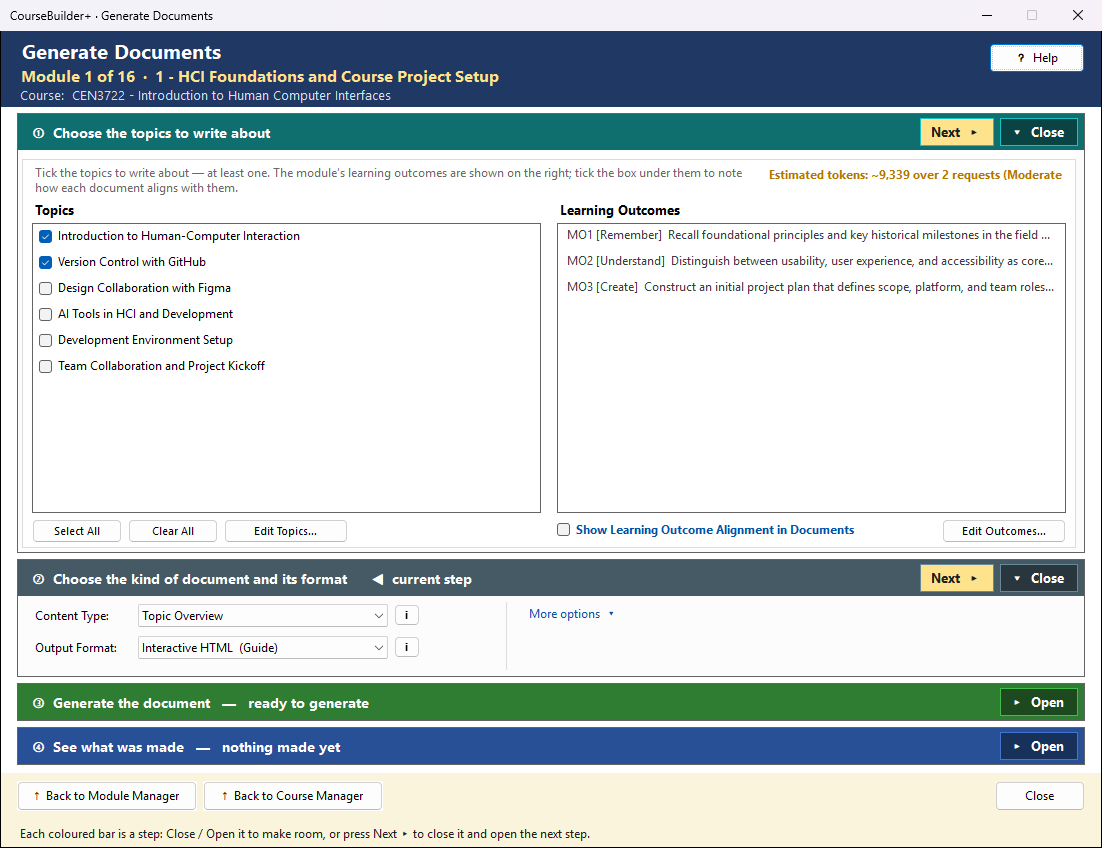
This window writes a document for the module — a lesson plan, a topic overview, example problems, a study guide and more — from the module's topics. It works in four steps, top to bottom; the step you are on is marked ◀ current step, and its button is the coloured one.
The coloured bars are steps that open and close — see How the Generate windows work.
① Choose the topics to write about
Tick the topics (left) the document is about — at least one. Documents are written from the topics' material (their subtopics and notes).
The module's learning outcomes are listed on the right so you can see them; they are not written about and are not ticked one by one. Tick Show Learning Outcome Alignment in Documents (under the list) and each topic's document ends with a short "Alignment with Learning Outcomes" note that names each outcome by its code and says how the topic supports it — or that it does not address it.
Estimated tokens (at the bottom right of step ①, beside Edit Topics…) is an estimate before anything is sent — the chosen content, the instructions sent with each request and the answer — green = focused, amber = moderate, red = extensive (with one request per topic it judges the largest one). After Generate it changes to Tokens used: the input and output tokens the run really used, as your AI provider counted them — usually a little higher than the estimate (it returns to the estimate when you change the selection); smaller, focused requests give better documents. Edit Outcomes… / Edit Topics… open the editors if something is missing.
② Choose the kind of document and its format
- Content Type — what to write. The i button describes each one.
- Output Format — where it will be used:
| Format | Use it for |
|---|---|
| Interactive HTML (Guide) | a web page with sections to open, for students online |
| Printable HTML | a web page that prints as it looks |
| Gutenberg | WordPress — paste into the WordPress code editor |
| Markdown | GitHub, Notion, Obsidian and other Markdown tools |
| Word | a document to open and edit in Microsoft Word |
| a document anyone can open and print |
More options — the look of HTML documents (CSS theme). (WordPress/Gutenberg always uses the AI;
a file named Gutenberg_output.txt in Documents\PreseMaker\prompts\ replaces its built-in
instructions.)
Topics and Embedded Video
A web page for each topic with up to 3 YouTube videos embedded in it: an introduction to the topic, then each video with what it covers and why it is good coverage of the topic. Choose it as the Content Type; its only format is a web page (videos play only in a web page).
In ② three boxes, all ticked at first, decide which videos the search keeps:
| Box | Keeps only | Untick it when |
|---|---|---|
| Only videos with captions | videos YouTube lists with captions or subtitles — ADA Title II expects captioned video | you will add captions yourself |
| Only videos 3 to 20 minutes long | no shorts, no full-length lectures | you want a long lecture |
| Only videos from the last 5 years | recent videos | the subject does not date (mathematics, physics) |
🔎 Find Videos then:
- Shows you the request that plans the searches, then the AI writes two YouTube searches for each topic (one request for all topics).
- Searches YouTube — no account or key is needed. Videos are scored by views, by how many videos the channel has on the topic (an established producer), by a verified channel, and by how well the title matches the topic.
- The AI ranks what was found and picks up to 3 per topic, with a one-line reason (one request for all topics).
- Choose the Videos — one tab per topic. The AI's picks are ticked; untick any, tick others (3 at most), select a row and ▶ Watch on YouTube to see it, or type your own words and 🔎 Search Again. Or add a video you know: paste its YouTube address (from the browser's address bar, or YouTube's Share → Copy link) and click ➕ Add This Video. It goes to the top of the list, ticked if fewer than 3 are ticked. The line under the list tells you if YouTube lists no captions for it. A topic with no video ticked is skipped. Prompt shows the ranking request.
- ✍ Write the Document — you see the writing requests (one per topic), then the AI writes each topic's introduction and the text for each video. CourseBuilder+ builds the page itself: each player has captions turned on, YouTube's privacy-enhanced mode, a title for screen readers, and a Watch on YouTube link.
Opening the page on your computer: YouTube players may not play in a page opened from a file on your computer — YouTube needs a web address. Use Watch on YouTube, or publish the course website, where the players work. Videos on YouTube can be removed later; the page says when they were chosen.
Topic Detail with Video
One web page per topic that holds both the topic's Topic Detail and its videos (the Topics and Embedded Video page): the Topic Detail comes first, unchanged, and then the videos follow in the same style — Videos on This Topic (the introduction), one section per video with its player, what it covers and why it was chosen, and the note about the videos. Choose Interactive HTML (sections to open) or Printable HTML; the Topic Detail of that format is the one used.
- A topic that already has both — they are simply combined. Nothing is sent to the AI.
- A topic missing one — that part is made first, exactly as its own Content Type makes it: a Topic Detail is written by the AI, or videos are found on YouTube, you choose them (the boxes in ② decide which videos the search keeps), and the AI writes about them.
- When some parts are already there, CourseBuilder+ asks first: Use them (recommended — only the missing parts are made), or Make new ones for every topic.
The green line under ③ says how many of the chosen topics already have each part. The Topic Detail and video pages are kept; the combined page is saved beside them and listed in the Module Index (Text Content) as "topic — Detail with Video".
Several topics: tick Merge the topics into one document beside Generate to also put all the combined pages into one document — the module is its top heading, each topic a section, and every heading inside moves down one level.
③ Generate the document
Several topics ticked — a box appears beside Generate, for every kind of document:
- Web pages and Markdown — each topic is always written as its own document (the AI does far better one topic at a time, and each topic is the document's top heading). Merge the topics into one document (ticked by default) then merges them into one more document, with the module as its top heading and each topic as a section. The topic documents are kept. (It is the same merge as Merge With Other Documents… in the Module Index.)
- Word, PDF and WordPress — Create a separate file for each topic, or one file for all.
The green line says exactly what will happen before you click — how many requests, and what comes back:
- With the AI (most types and formats): the chosen topics — and the outcomes, when the alignment box is ticked — are sent to the AI with your own AI key: one request, or one per topic when several topics are written as web pages or Markdown (or as separate files). Each request is charged by your AI provider (Settings → AI Usage and Cost shows it). You see the exact prompt first and can cancel. For Lesson Plan, Example Problems and the other single-document types you can also edit the prompt, and your edited version is what is sent (when one topic is ticked; with several topics the prompts are shown read-only, one tab per topic); for Topic Overview and Topic Detail it is shown read-only.
- Without the AI: Topic Overview or Topic Detail saved as Word or PDF is laid out straight from the chosen topics' titles, subtopics and notes — nothing is sent anywhere, and outcomes are not used. For a written document choose an HTML or Markdown format.
■ Stop ends a generation; with one file per topic, it stops the remaining topics too, and the result says how many were made. If something goes wrong, ④ says what — and Open File stays off, so an older document is never mistaken for the new one.
🔍 View Prompt (beside Generate) shows exactly what Generate would send to the AI for your current choices (one tab per topic when the topics are written one at a time; for the video kinds, the first step, which plans the searches) — read-only, and nothing is sent. It works whether or not Show the prompt before each AI call is on in Settings.
④ See what was made
The document is saved in the module's output folder and listed in the Module Index under Text Content. Documents of the same kind and file type can be merged later there too — right-click one → Merge With Other Documents…. If a document with the same name already exists you are asked first: Replace it or Save as a copy ("name (2)") — nothing is overwritten silently.
Several topics, and some of their documents are already there. Before anything is sent to the AI, each topic whose document of this kind and format already exists is named, and you choose:
| Choice | What happens |
|---|---|
| Skip it and merge it | no new document; the existing one goes into the merged document (only when merging) |
| Skip it and do not merge it (Skip it when not merging) | no new document, and the existing one is left out of the merge |
| Generate a new document and keep the old one | the new one is saved beside it as "… (2)" |
| Replace the old document | the new one is written over it |
| Cancel | nothing is sent or changed |
Tick Do the same for the other … topic documents to answer once for all of them. Skipped topics
cost nothing — only the topics that are made are sent to the AI. If the merged document is already
there too, you are asked about it at the same time. (A Topic Overview and a Topic Detail are
separate files — …_overview_t2 and …_topics_t2 — so one never counts as the other; merged
documents end in _merged.)
| Button | What it does |
|---|---|
| View in Module Index | every document in this module, in one list (the highlighted next step after generating) |
| Open File | the document just made, in its usual program (browser, Word, PDF viewer) |
| Show in Folder | File Explorer, with the document selected |
| Preview | a web page or Markdown document in CourseBuilder+'s own viewer |