
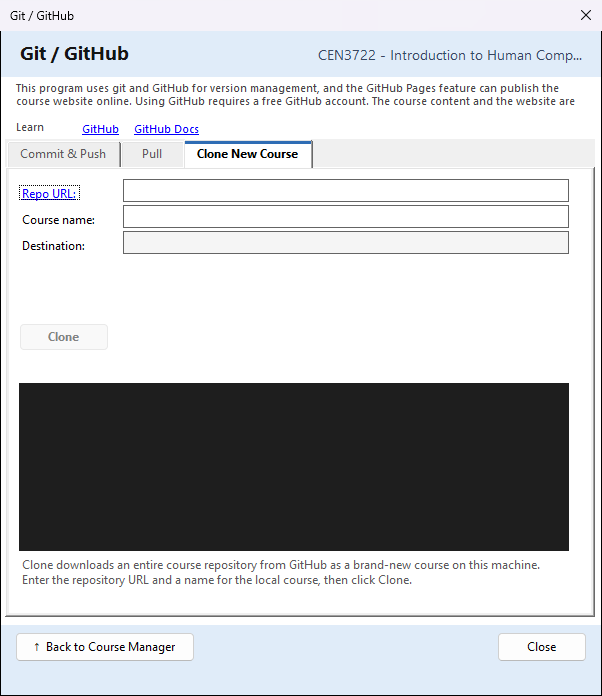
Import ▾ → Clone or Pull Course from GitHub… in the Course Manager opens the Git / GitHub window on its Clone New Course tab. Use it to:
- Clone — download a course that is kept on GitHub as a new course on this computer. This is how you get a colleague's course, or your own course on a second computer.
- Pull — bring a course you already have up to date with the copy on GitHub (the Pull tab).
GitHub is a website that keeps files and every earlier version of them. CourseBuilder+ uses git, a free program, to talk to it. A GitHub account is free. The note at the top of the window explains this and links to GitHub and GitHub Docs. The same window, opened from Export ▾ → Commit/Push to Git/GitHub…, sends your course to GitHub; see Push a course to GitHub.
No AI is used.
If git is not installed
If git is not on this computer, the window says Git is required for this feature instead of showing the tabs. Use ▶ Download Git for Windows (or ▶ Git installation guide) to install it, then press Check Again.
Clone New Course
- Repo URL: — paste the address of the course's repository on GitHub, for example
https://github.com/name/my-course. Addresses you have used before are suggested as you type. (The words Repo URL: are a link to GitHub's guide to making a repository.) - Course name: — filled in from the repository's name ("my-course" becomes "My Course"). Change it if you like; it is the name the course will have in CourseBuilder+.
- Destination: — shows the folder the course will be put in, under your Courses folder (Documents\PreseMaker\Courses). You cannot type here; it follows the course name.
- Press Clone.
If a course with that name is already on this computer, a red box says Course name conflict and Clone stays unavailable until you change the name. Clone is also unavailable until both the address and the name are filled in.
While it runs, the bar moves, the seconds are counted, and the black box shows what git is doing (a large course can take a while; every 30 seconds it says it is still working). When it is done: ✓ Clone completed. and ✓ Course registered in CourseBuilder+. The Course Manager then lists the new course and selects it.
If the repository is private, GitHub asks you to sign in. If git cannot sign in, the box explains the ways to do it: Git Credential Manager (installed with Git for Windows, it opens a GitHub sign-in in your browser), a personal access token from GitHub, or an SSH key.
Pull
The Pull tab works on the course open in the Course Manager, and only on a course that is already connected to GitHub — one you cloned, or one you have pushed with Commit & Push. Repo URL: and Branch: (usually main) are the same as on the Commit & Push tab and are saved with the course.
| Button | What it does |
|---|---|
| Check for Incoming Changes | asks GitHub whether it has changes your copy does not. It says ✓ Your course is up to date., or shows ⚠ Incoming changes detected with a list of them |
| Pull (Merge) | downloads the changes on GitHub and merges them into your course, keeping your own changes. Commit your changes first (Commit & Push tab, Commit); it will not pull over changes that are not committed. If you and GitHub changed the same part of the same file, it changes nothing and lists those files |
| Force Overwrite | available only after incoming changes are found. It throws away every change on this computer and makes the course exactly the copy on GitHub. It asks first, and it cannot be undone |
Use Force Overwrite only when you are sure you do not want the changes made on this computer. The result of each pull, with the date and time, is shown above the black log box.
| Button | What it does |
|---|---|
| ↑ Back to Course Manager / Close | close the window and return to the Course Manager |