
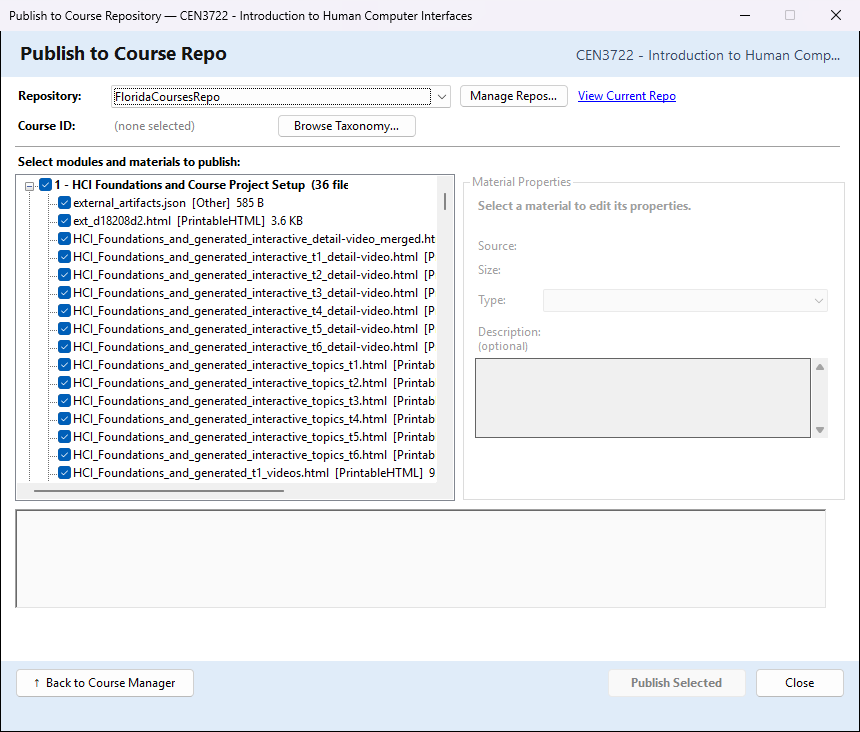
A course repository (course repo) is a website where teachers share course materials, sorted by subject and course. floridacourserepo.com is one live course repository. This window uploads modules of your course, with the materials you choose, to a course in a course repository, where other teachers can find them.
To open it: in the Course Manager, choose the course, then Export ▾ → Publish to Course Repo…. When you have set up a repository, its name appears in the menu item, for example Publish to Course Repo (Florida Course Repo)….
You need an account on the repository (an email address and a password). Publishing sends the files you tick to that repository over the internet.
Before the first publish: add the repository
Manage Repos… opens Manage Course Repositories, the list of repositories you can publish to and import from.
| Button or box | What it does |
|---|---|
| Add New | adds a repository, called New Repository until you name it |
| Remove | deletes the selected repository from the list (asked first). Nothing on the repository's website is changed |
| Display Name | a name you choose; it is what the repository list shows |
| Repository URL | the repository's web address, for example https://floridacourserepo.com |
| Email / Password | your account on that repository |
| Test Connection | signs in with these details and says Connection successful. or why it failed |
| Save | saves the details. Your password is kept encrypted on this computer, in CourseBuilder+'s settings |
| Close | returns to Publish to Course Repo |
Choose where it goes
- Repository: the repository to publish to. CourseBuilder+ remembers it for this course. View Current Repo opens the repository's website in your browser.
- Course ID: the course in the repository that your materials belong to. It reads (none selected) until you choose one. Browse Taxonomy… opens Browse Repository Taxonomy: open the repository's categories and click a course to fill in its Course ID, or type a Course ID and click Validate to check that the repository has it. Then click Select This Course (Cancel keeps what you had). The chosen Course ID is remembered for this course; when you picked the course in the categories, they are shown beside the button. Choose the repository first, or Browse Taxonomy… asks you to.
Publish Selected stays off until a repository and a Course ID are chosen and at least one material is ticked.
Choose what to publish
Select modules and materials to publish: lists each module with the number of files found in it, and under it each file with its type and size. Everything starts ticked. Ticking or unticking a module does the same to all of its files. A module with no files is grey.
The files listed for a module are:
- the files in its
outputfolder (web pages, PDFs, Word and Excel files, and JSON, XML and CSV files), - its presentations (shown in blue),
- its topics list (
hierarchy.json) and quiz bank (quiz_questions.json), - its assignments, one Markdown file each.
Untick anything you do not want other teachers to see (for example the quiz bank, which holds the answers).
Material Properties shows the selected file's name, where it comes from in the module, and its size. You can change:
- Type: what kind of material the repository should list it as: Presentation, NarratedPresentation, InteractiveHTML, PrintableHTML, GutenbergHTML, Document, Image, Audio, Assignment or Other. CourseBuilder+ fills in a likely type for you.
- Description (optional): a few words about the file, shown with it in the repository.
These changes are used for this publish; they are not kept for the next time you open the window.
Publish
Publish Selected signs in to the repository, then uploads each module that has ticked files: the module's name and description, and the ticked files. The box under the list shows each step; green lines went well, red lines are errors (for example ✗ Login failed. Check credentials in Manage Repos.). The line above the buttons ends with Done — and how many modules were published and updated.
Publishing a module again updates it. A module already published to this repository and course shows (published — will update) in the list, and the question before publishing names it. Publishing it again does not make a second copy: the module's name and description are replaced, each ticked file replaces the file of the same name on the repository, ticked files that are not there yet are added, and files on the repository that you did not tick are left as they are (nothing is deleted — remove a file on the repository's website if you no longer want it there). The box lists what was replaced, added and left. If the module has been removed from the repository, or it belongs to another contributor's account, CourseBuilder+ says so in the box and publishes it as a new module. Publishing to a different repository or a different course always makes a new module there.
A curriculum guide, written by the AI (optional). If the repository has no curriculum guide for the course yet, it makes an empty one, and CourseBuilder+ asks whether to generate one now using AI. If you say Yes, it gets the guide instructions from the repository and sends them to the AI with the course's ID, title and categories, asking it to find information about the course and write the guide. This uses your own AI key (Settings → AI Settings). The finished guide is uploaded to the repository, and the box shows its address. If you say No, the empty guide stays on the repository.
| Button | What it does |
|---|---|
| Publish Selected | uploads the ticked materials to the chosen course in the repository (a module published there before is updated) |
| ↑ Back to Course Manager | returns to the Course Manager |
| Close | closes the window (it is off while a publish is running) |