
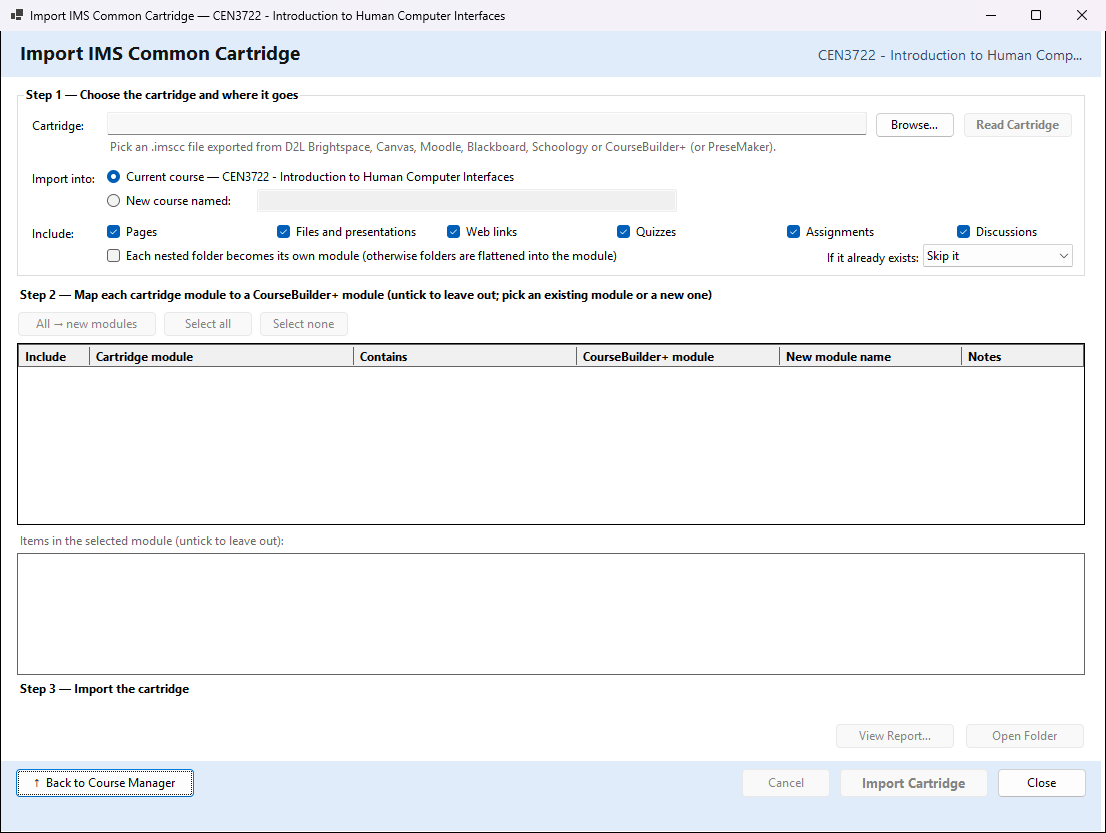
Import ▾ → Import IMS Common Cartridge (.imscc)… in the Course Manager brings a course you exported from your learning management system (LMS) into CourseBuilder+. Most LMSs can export a course as an IMS Common Cartridge: one file ending in .imscc (sometimes .zip). CourseBuilder+ reads cartridges from D2L Brightspace, Canvas, Moodle, Blackboard and Schoology, and cartridges made by CourseBuilder+ itself (or by PreseMaker, its old name).
The cartridge's modules become CourseBuilder+ modules, and each item in them becomes something you can work with: pages, presentations, files, web links, quiz questions and assignments. You check the plan before anything is written. No AI is used and nothing is sent anywhere; the cartridge is read on your computer, and the file you exported is not changed.
The window works in three steps, top to bottom.
Step 1 — Choose the cartridge and where it goes
Browse… picks the cartridge file, and CourseBuilder+ reads it straight away. The grey line under the file name then says which LMS made it, how many module folders it has and what kinds of items are in it. Read Cartridge reads it again (see the note below).
Import into:
- Current course — name adds the cartridge's modules to the course chosen in the Course Manager. It cannot be chosen when no course is open.
- New course named: makes a new course. The name is filled in from the cartridge; change it if you like. If a course with that name already exists, CourseBuilder+ says so when you press Import, and you choose another name (or open that course in the Course Manager and import into it).
Include: what kinds of items to bring in. All are ticked at first.
| Include | What it brings in |
|---|---|
| Pages | the LMS's web pages, as Text Content |
| Files and presentations | PowerPoint (.pptx) files as presentations, and any other file as a file kept in the module |
| Web links | links, including links to LTI tools, as External Materials |
| Quizzes | quiz questions, into each module's quiz bank |
| Assignments | assignments, into each module's assignments |
| Discussions | discussion topics, as assignments of type Discussion |
Each nested folder becomes its own module (otherwise folders are flattened into the module) (unticked at first). An LMS module can have folders inside it. Unticked, everything in those folders goes into the one module, and an item's name starts with its folder's name ("Week 1 › Readings › …"). Ticked, every folder that holds items becomes a module of its own, named "Module › Folder".
Choose Import into, Include and the nested-folder box before the cartridge is read, because they shape the plan in Step 2. If you change them afterwards, press Read Cartridge to read the cartridge again with the new choices.
If it already exists: what to do when an item is already in the module — for example when you import the same cartridge a second time. This is read when you press Import.
| Choice | What happens |
|---|---|
| Skip it (the starting choice) | the item is left out, and what is in the module is kept. It is skipped when this cartridge imported it into the module before, or when the module already has a page with the same name, a presentation or file with the same file name, the same web link, or an assignment with the same title |
| Add as a copy | the item is added again beside what is there: a page or presentation gets a new name (ending _2, _3 …), and quiz questions are added again |
| Replace previous import | what this cartridge imported into the module last time (the page and its pictures, the presentation, the file, the link, its quiz questions or its assignment) is removed and written again from the cartridge. Nothing else in the module is touched |
Step 2 — Map each cartridge module to a CourseBuilder+ module
The grid has one row for each module in the cartridge.
| Column | What it means |
|---|---|
| Include | ticked modules are imported; untick one to leave it out |
| Cartridge module | the module's name in the LMS. Items that sat at the top of the course, outside any module, are gathered in Course Materials (items at the top level) |
| Contains | how many pages, presentations, files, links, quizzes and assignments will be imported from it |
| CourseBuilder+ module | New module, one of the current course's modules (to add the items to it), or — skip —. A cartridge module with the same name as a module already in the course is set to that module at first |
| New module name | the name of the new module; click to change it. Only used when the row says New module |
| Notes | "adds to existing module", or "empty" for a module with nothing to import (an empty module is unticked) |
All → new modules sets every row to New module. Select all and Select none tick or untick every row. The line at the right adds it up: how many modules (how many of them new) and how many items.
Items in the selected module lists everything in the row you click on, and what each one will become (for example "Week 1 Overview → Text Content (page)"), with notes such as how many questions a quiz has. Untick an item to leave it out. Greyed items cannot be imported (an empty heading, or a file that is missing from the cartridge), and the note says why.
What each kind of item becomes
| In the cartridge | In CourseBuilder+ |
|---|---|
| Page | a web page in the module, listed as Text Content in the Module Index under the LMS's title. Pictures and files the page uses are copied into a folder beside it, and links between the imported pages still work. Links to things that only work inside the LMS become plain text, and LMS-only styles and scripts are removed; the report says so |
| PowerPoint (.pptx) | a presentation in the module's Presentation Manager |
| Any other file (PDF, Word …) | a file kept in the module and listed in its Module Index |
| Web link | an External Material page (a YouTube link becomes a video). A link to an LTI tool becomes a link to the tool's address; the tool itself still has to be set up in your LMS |
| Quiz or question bank | its questions are added to the module's quiz bank, with the quiz's name as their topic. Multiple choice, true/false, multiple answers, short answer, essay and matching questions are read. A question with no answer marked right is imported for you to check; a fill-in-several-blanks question becomes one short-answer question (the first blank); question types that cannot be represented (such as calculated or file-upload questions) are left out. The report lists each one |
| Assignment | an assignment in the module's assignments, with its instructions; its points and how students submit are noted with it |
| Discussion | an assignment of type Discussion |
Files in the cartridge that its table of contents does not list (usually files the LMS keeps for itself) are not imported; a note says how many.
Step 3 — Import the cartridge
Import Cartridge asks first: how many items go into which course, how many modules will be created, and how many existing modules receive new items. It also says Existing artifacts are never overwritten — or, with Replace previous import, that only items this cartridge imported before will be replaced.
While it runs, the progress bar shows each item. Cancel stops it; modules and items written so far are kept. Cancel also stops a cartridge that is still being read.
When it is done, the line in Step 3 adds it up: how many items were imported, converted (imported with a change, such as LMS-only links removed or a discussion made an assignment), skipped and failed, and how many modules were created or updated. Each module's Module Index is brought up to date.
- View Report… shows every item: what it became, and anything converted, skipped or failed, with the reason.
- Open Folder shows the saved report in File Explorer. It is a file named cc_import_report_date_time.md in the course's folder (under Documents\PreseMaker\Courses).
Import Cartridge can be pressed once per reading. To import again, press Read Cartridge first. When you close the window, the Course Manager opens the course that received the import.