
This page goes through the whole path once, in the order CourseBuilder+ is built for. Each step says what to click, shows the window, and links to that window's full help. The course in the pictures is a real one, CEN3722 Introduction to Human Computer Interfaces, and its website is the one step 5 makes.
- Create the course
- Open a module
- Give it topics and outcomes
- Make its content
- Publish the course website
Before you begin
- Install CourseBuilder+ from the Microsoft Store and open it from the Start menu. It opens on the Course Manager.
- Add an AI key if you want the AI to draft for you — a yellow bar at the top of the Course Manager asks for one. AI keys: what they are and how to get one. Without a key you can still type modules, topics, outcomes and content yourself.
- Nothing goes to the AI without you seeing it. Every request shows you its exact prompt first, and you can cancel.
1. Create the course
In the Course Manager: Develop Course ▾ → Create New Course…
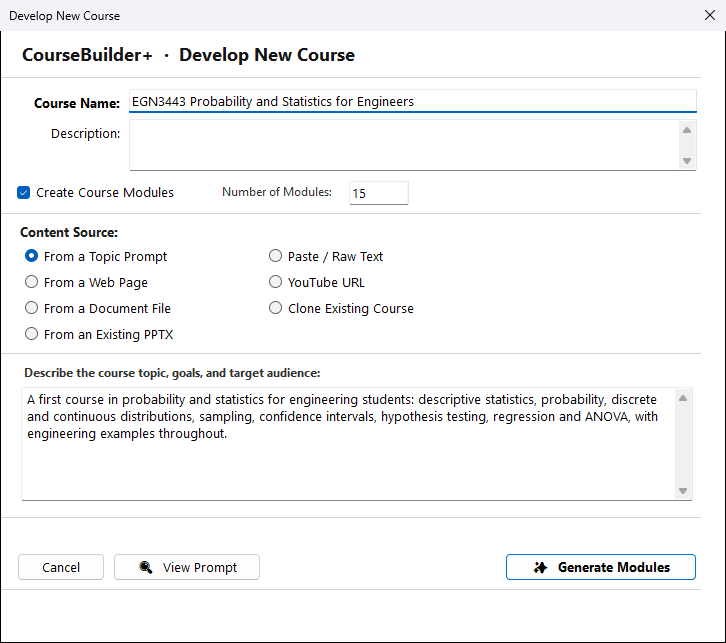
- Type a Course Name — it must differ from your other courses. Set the Number of Modules if you know it (15 for a 15-week course), or leave it empty and the AI decides.
- Choose where the AI should work from. From a Topic Prompt is the simplest: describe the subject, level, audience and goals in your own words. A syllabus (From a Document File), a catalogue page (From a Web Page) or a deck you teach from (From an Existing PPTX) works too.
- Click Generate Modules. You see the prompt, then the AI proposes the modules.
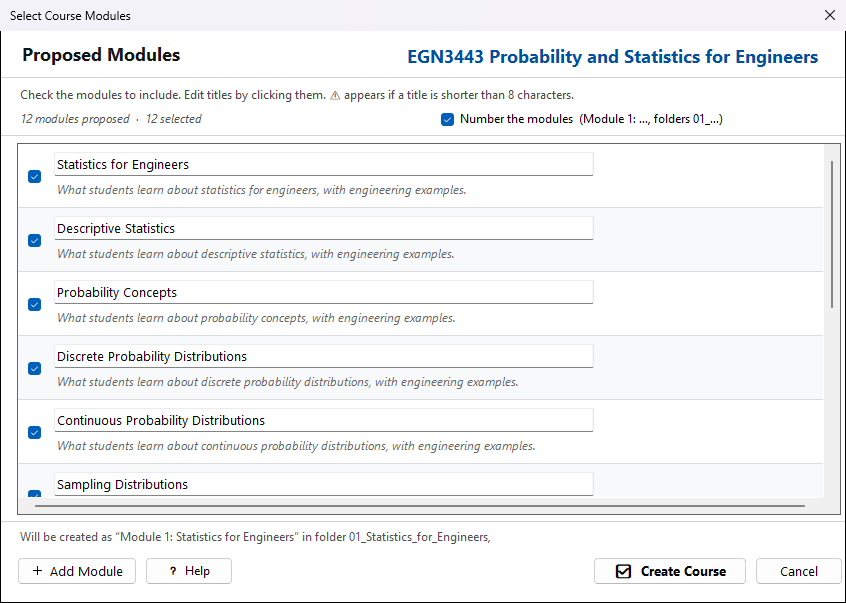
Nothing is made yet. In Select Course Modules, untick any module you do not want, click a title to change it, and add your own with + Add Module. Leave Number the modules ticked to get Module 1: … names. Then click Create Course.
Full help: Create a new course.
2. Open a module
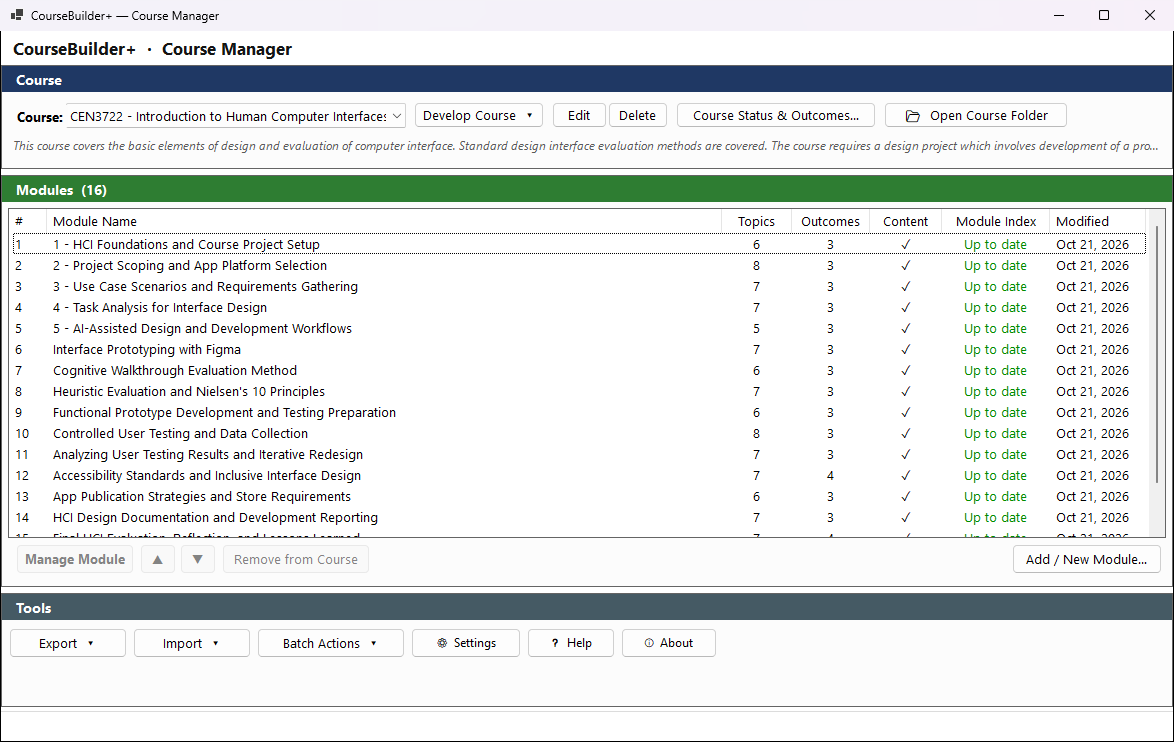
You are back in the Course Manager with the new course and its modules. A module is one unit of the course — a week, a chapter, a topic — and everything you make belongs to one. Double-click a module (or select it and click Manage Module).
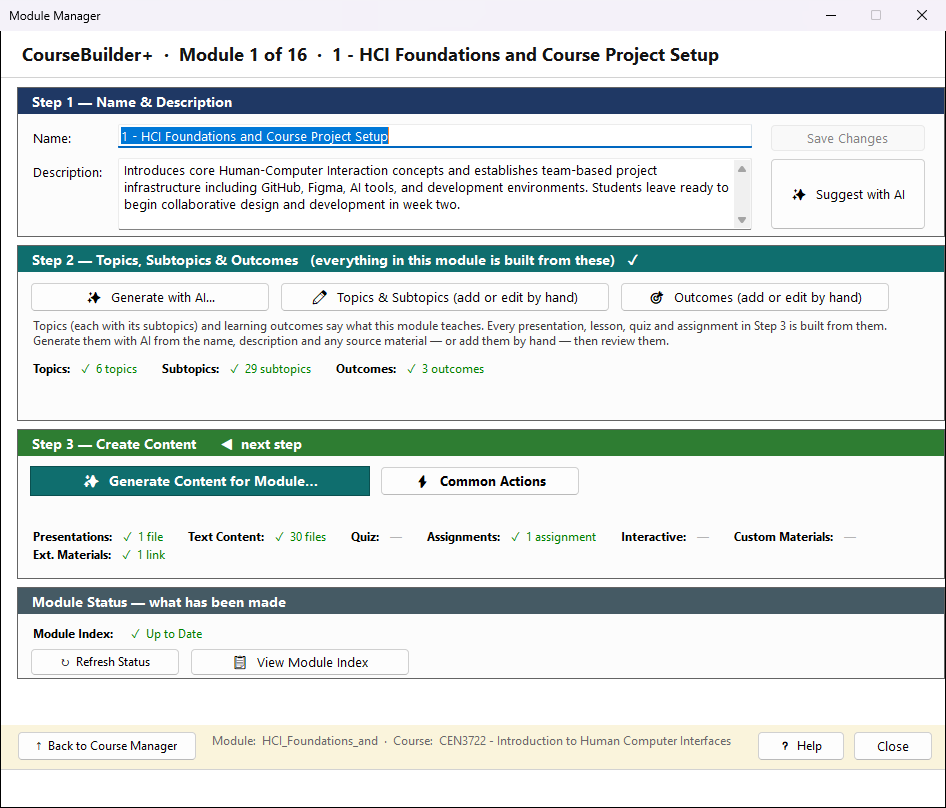
The Module Manager is laid out in the order a module is built: Step 1 its name and description, Step 2 its topics and outcomes, Step 3 its content. The step to do next is marked ◀ next step.
Full help: The Module Manager.
3. Give it topics and outcomes
Topics (each with subtopics) are what the module teaches; outcomes say what a student can do afterwards. Every presentation, document, quiz and assignment is made from them, so this step comes first.
- Make sure the module has a description of two or three sentences — the topics are built from it. Suggest with AI writes one from the name.
- In Step 2, click Generate with AI…. Optionally add source material — a syllabus, a chapter, a web page, a PowerPoint — so the topics follow your material.
- Click Generate Topics & Outcomes. After you see the prompt, the AI writes the topics, then each topic's subtopics, then the outcomes.
- Check them with Review Topics & Subtopics → and Review Outcomes →; change, add or delete anything.
- Click Done — Create Content →.
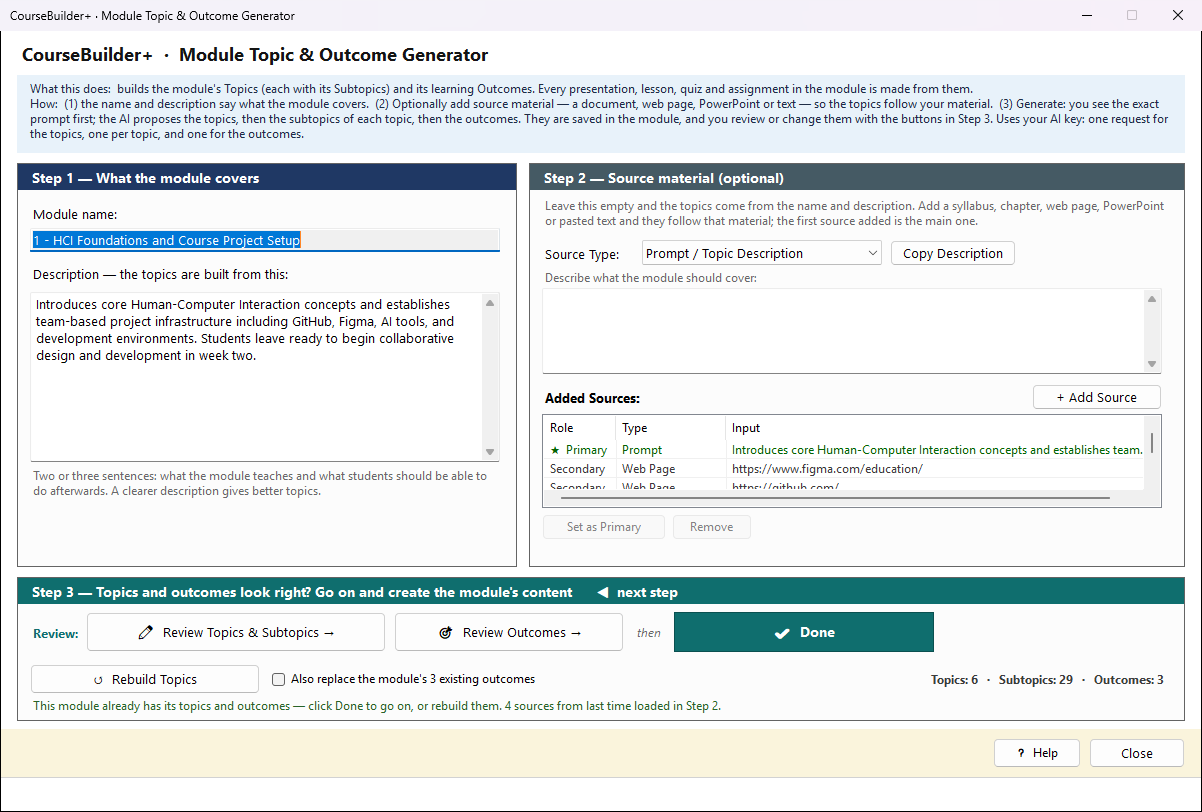
Every module at once: Course Manager → Batch Actions ▾ → Generate Module Topics and Outcomes — see Topics and outcomes for every module.
Full help: Topics and outcomes.
4. Make its content
Generate Content for Module (Step 3 of the Module Manager) has one button for each kind of content. The bar at the top turns green once the module has topics and outcomes.
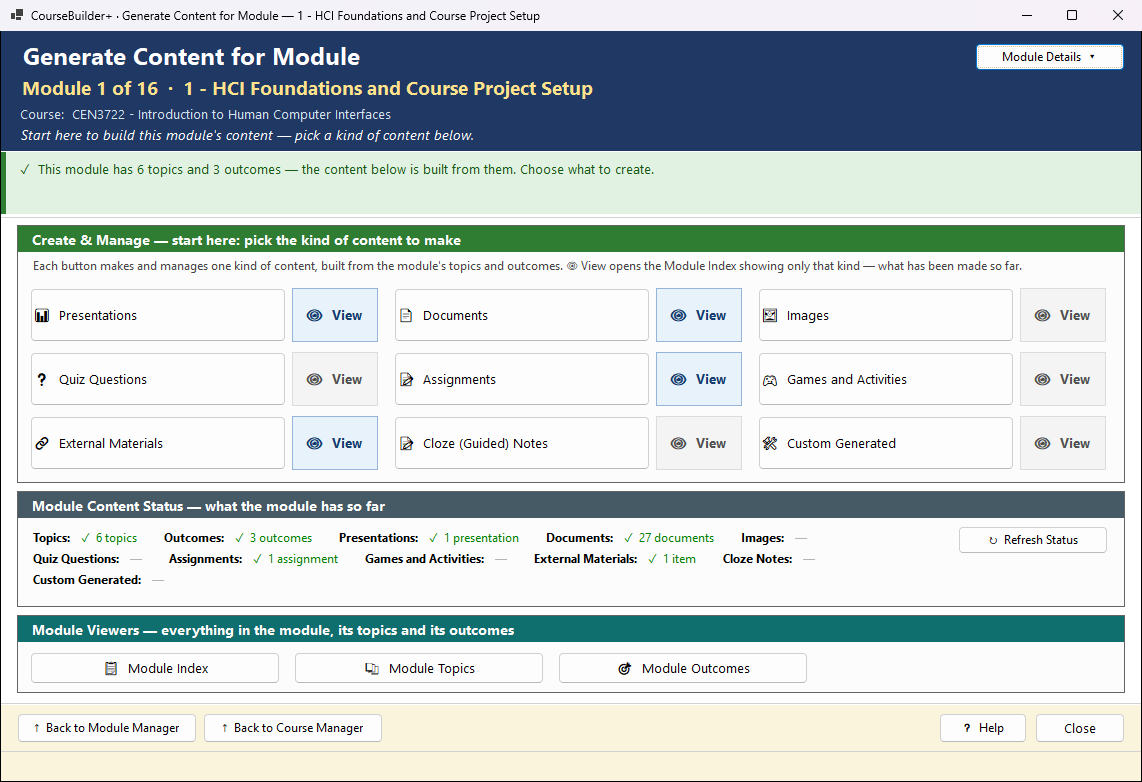
Every Generate window works the same way, in coloured steps from top to bottom. For a first presentation:
- Click Presentations.
- In ①, tick one or two topics — each becomes its own presentation.
- In ②, type the Audience, for example first-year college students.
- In ③, read the green line that says what will happen, and click Generate.
- In ④, Open in PowerPoint, or View in Module Index to see everything the module holds.
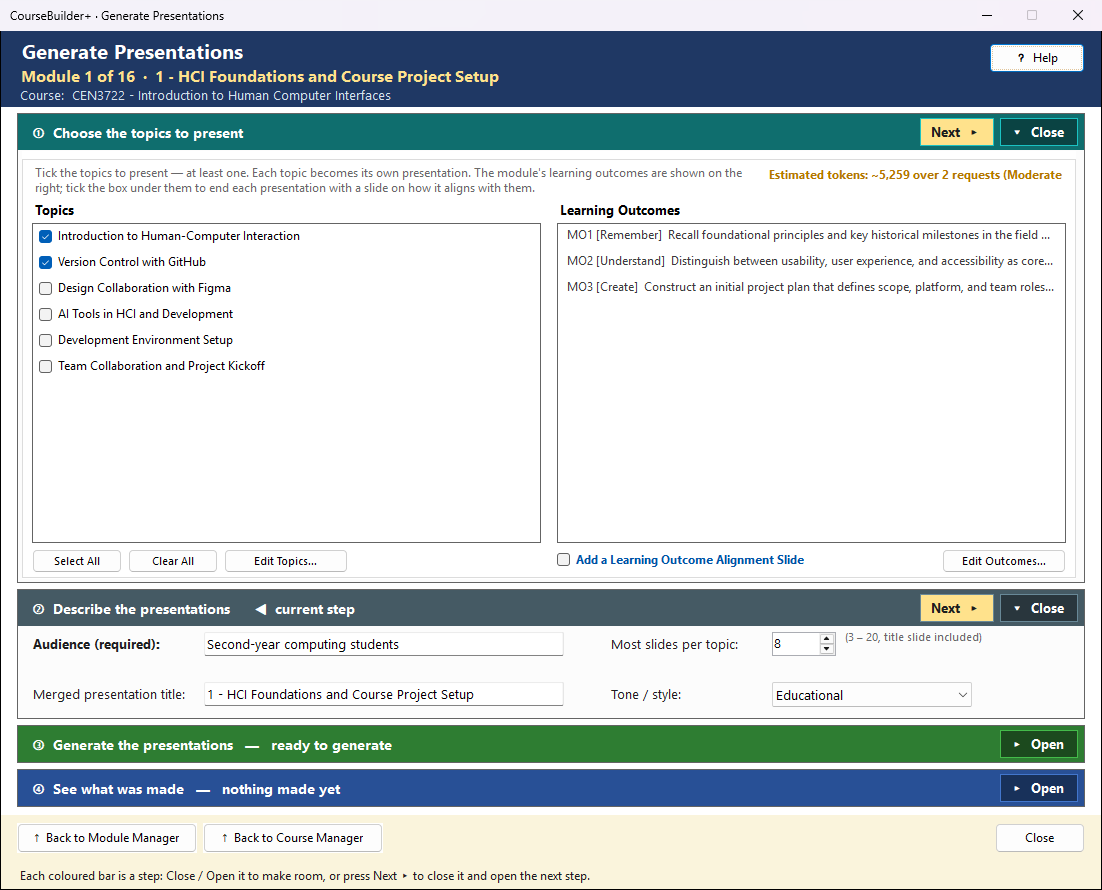
Documents, quiz questions, assignments, cloze notes, games, external materials and images follow the same pattern.
Many modules at once: Course Manager → Batch Actions ▾ → Generate Content… — see Content for several modules at once.
Full help: Generate Content for Module, and a page for each kind of content.
5. Publish the course website
In the Course Manager: Export ▾ → Publish Course Website… The website has a home page for the course and a page for each module, with its topics and a card for everything in it.
- ① Build the website on your computer — click Build / Update the Website. The list shows what it does for each module. Tick Skip AI steps to build without asking the AI to describe new items; untick Include quizzes to keep quiz answers off the website.
- ② View the website on your computer — Open in Browser to check it before anyone else sees it.
- ③ Put it online (optional) — CourseBuilder+ can push it to GitHub Pages, which is free (you need a GitHub account and Git for Windows; How to Set Up GitHub Pages walks you through the first time). Or copy the website folder to any web host.
- ④ See it online — the website's address, ready to Copy into your LMS, an email or the syllabus.
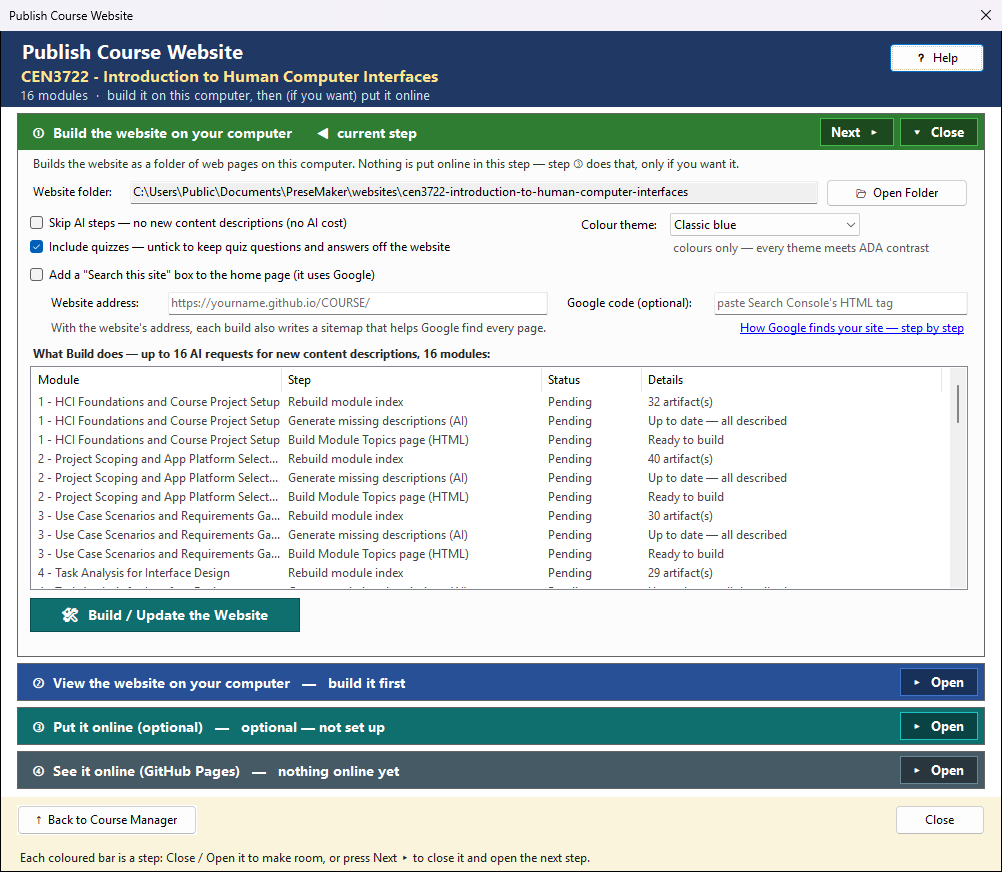
Full help: Publish the course website. To put the course into your LMS instead, see Export to your LMS (Common Cartridge).
Where to go next
- Already have a course in your LMS? Import it from a Common Cartridge, or bring in your old files with Import and Classify Content.
- See everything a module holds in the Module Index.
- Keep a backup with a course archive.