
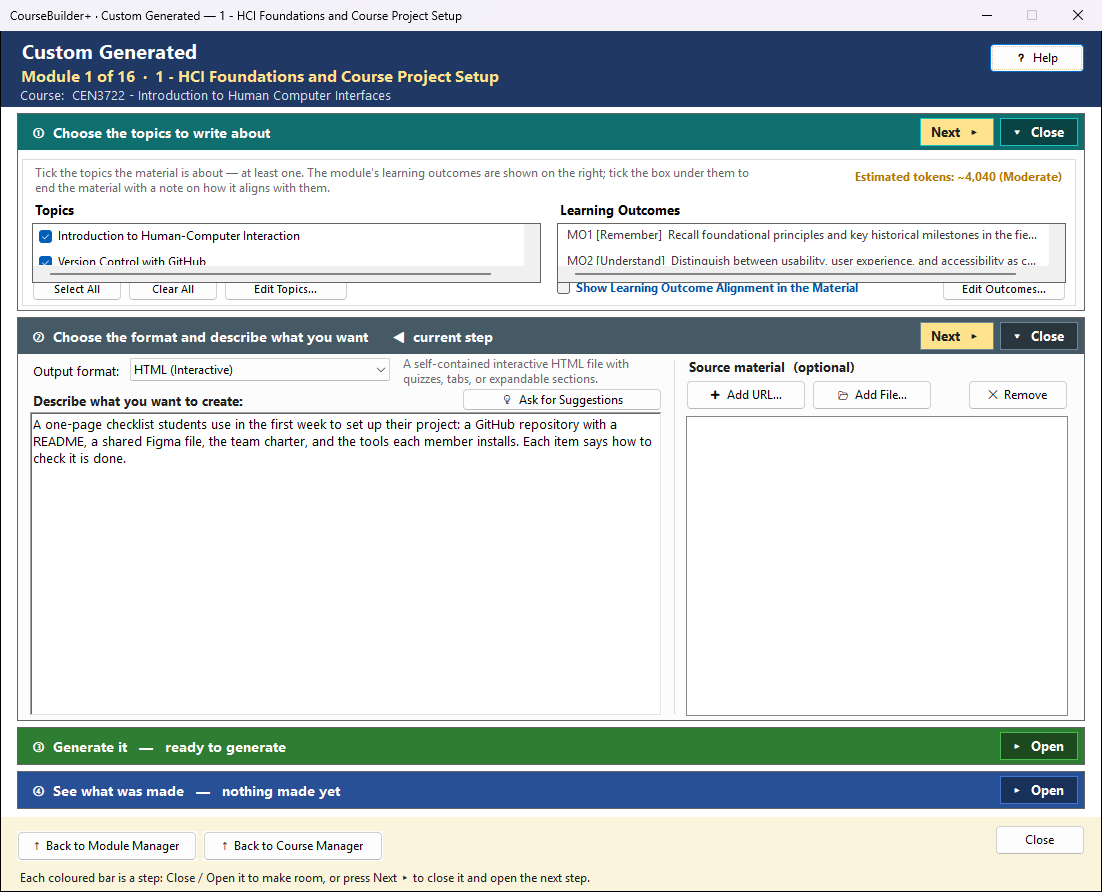
This window makes anything you can describe for the module — a study guide, a worked example, a checklist, a handout, or a playable HTML game — from your own description and the module's topics. It works in four steps, top to bottom; the step you are on is marked ◀ current step, and its button is the coloured one.
The coloured bars are steps that open and close — see How the Generate windows work.
① Choose the topics to write about
Tick the topics (left) the material is about — at least one. Their titles, summaries and subtopics are sent with your description.
The module's learning outcomes are listed on the right so you can see them; they are not written about and are not ticked one by one. Tick Show Learning Outcome Alignment in the Material (under the list) and it ends with a short "Alignment with Learning Outcomes" part that names each outcome by its code and says how the material supports it — or that it does not. For an HTML game it is a small section below the game.
Estimated tokens (at the bottom right of step ①, beside Edit Topics…) is an estimate before anything is sent — the chosen content, the instructions sent with each request and the answer — green = focused, amber = moderate, red = extensive (with one request per topic it judges the largest one). After Generate it changes to Tokens used: the input and output tokens the run really used, as your AI provider counted them — usually a little higher than the estimate.
② Choose the format and describe what you want
- Output format — Interactive HTML, HTML Game, printable HTML, Markdown, plain text or Word.
- Describe what you want to create — in plain words; this is the heart of the request. Say what it is, who it is for, how long, and anything it must include.
- Describe the game play (HTML Game only) — how the game is played: what the learner sees, what they choose, hints, and how answers are checked. A game cannot be generated without it.
- Source material (optional) — Add URL… (a web page or YouTube video) or Add File… (txt, docx, md, pdf, html). Their text is read and sent with the request, so the material can use it.
- 💡 Ask for Suggestions (beside the description box) — a separate, smaller AI request that helps write the description for the format you chose:
- with the box empty it suggests a few ideas to pick from — for an HTML Game, each idea says what the game is about and how it is played, and fills both boxes (your own game play is never replaced without asking);
- with a draft in the box it rewrites it more clearly, and shows yours and the suggestion side by side — Use this replaces your words, Keep mine changes nothing.
③ Generate it
The green line says exactly what will happen before you click:
- Your description (and game play), the chosen topics, the outcomes (when the alignment box is ticked, for the alignment note) and the text of any sources are sent to the AI with your own AI key, in one request, charged by your AI provider (Settings → AI Usage and Cost shows it).
- With Show the prompt before each AI call on in Settings (the usual setting), you see the exact prompt first; you can edit it, and your edited version is what is sent, or cancel and nothing is sent. With it off, the request is sent straight away — the green line says which.
■ Stop cancels while the AI is working — nothing is saved. (The Close button reads ■ Stop while the AI is working, too.)
🔍 View Prompt (beside Generate) shows exactly what Generate would send to the AI for your current choices (your sources are read only when you Generate, so their place in the request is marked) — read-only, and nothing is sent. It works whether or not Show the prompt before each AI call is on in Settings.
④ See what was made
The file is saved as soon as the AI answers — in the module's output folder — and listed in the Module Index under Custom Material. Every generation gets its own new file name; an older file is never written over, so there is no Save button: when ④ says Saved, you can close the window. Web pages are also checked for accessibility problems; when any are found, ④ says how many and ♿ Accessibility notes lists them.
| Button | What it does |
|---|---|
| View in Module Index | every custom material in this module (the highlighted next step after generating) |
| Open File | the file just made, in its usual program — a game opens in your browser, ready to play |
| Show in Folder | File Explorer, with the file selected |
| Preview | a web page, game or Markdown file inside CourseBuilder+'s own viewer |
If the HTML the AI sent looks cut short, ④ says so — preview it, and generate again if needed.
If saving ever fails, the AI's answer is kept in the window: Preview still shows it, and closing asks — Yes tries saving again, No closes and discards it, Cancel stays.