
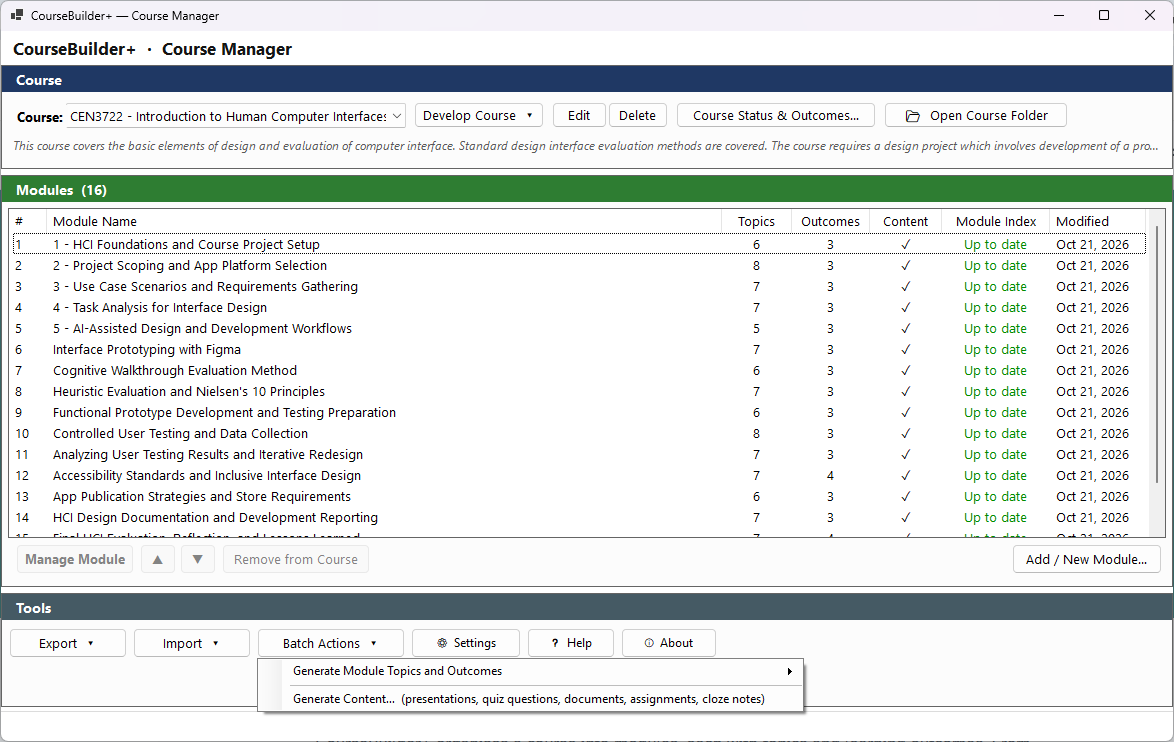
Batch Actions ▾ → Generate Module Topics and Outcomes in the Course Manager has the AI make the Module Topics (the topics and subtopics) and the student learning outcomes for the modules of the open course, one module after another. It does for the whole course what the Module Manager's Step 1 — Create Module Topics does for one module. Topics and outcomes are the foundation: every presentation, document, quiz and assignment is made from them, so this is usually the first batch to run on a new course.
It has two choices:
| Choice | What it does |
|---|---|
| Overwrite All Module Topics… | makes new topics and new outcomes for every module. Existing topics and outcomes are replaced, including any you edited by hand |
| Generate Only Missing Module Topics… | works only where something is missing. A module with no topics gets topics; a module with no outcomes gets outcomes. Topics and outcomes a module already has are kept |
With Generate Only Missing Module Topics…, a module that already has outcomes but no topics gets new topics and keeps its outcomes as they are.
Before it starts
If the course has no modules, a message says This course has no modules to process. If no AI key is set up, a window says The AI is not ready and how to fix it (⚙ Settings → AI Settings).
Otherwise CourseBuilder+ asks first (Generate Module Topics and Outcomes — Confirm). The message names the course, the number of modules, and which modules will be worked on — ALL modules (existing topics and outcomes will be replaced) or only modules missing topics or outcomes. Press Yes to start, No to stop.
What is sent to the AI
The AI is your own: CourseBuilder+ uses the AI provider and key you set up in AI Settings, and each request is charged by that provider. For each module that needs them:
- Topics. If the module was made from sources — a PowerPoint, a document, a web page, pasted text, a YouTube transcript or a topic description, saved when the module was created — those sources are read again and sent with the module's title and description. The first source leads the structure; the others add detail. A module with no saved sources (or whose sources can no longer be read) is sent its title and description only. The AI first proposes the topics (one request), then writes each topic's subtopics (one request per topic).
- Outcomes. Then the module's topics and subtopics are sent, with the course and module names, and the AI writes 2 to 5 learning outcomes for the module, grounded in those topics (one request).
If the AI's list of topics cannot be read, CourseBuilder+ asks once more. It pauses half a second between modules. A large course can take several minutes.
While it runs
The window Batch: Generate Module Topics and Outcomes opens and starts at once. The bar and the count (3 of 12) show how far it has got, and the blue line shows the module being worked on and what it is doing ("Preparing sources…", "Generating module topics…", "Generating outcomes…").
Each module gets a row when it is done:
| Column | What it shows |
|---|---|
| Module | the module's name |
| Status | ✓ Generated, — Skipped (it already had topics and outcomes), ✗ Failed or ⊘ Cancelled |
| Duration | how long the module took |
| Notes | what was made ("topics + outcomes"), where the topics came from ("2 saved sources", or "no saved sources — using description"), or why it failed. If the topics were made but the outcomes were not, it says "outcomes failed" and why |
If a topic's subtopics could not be made, the topic is kept without subtopics; you can add them in the module's Module Topics editor.
Cancel asks first, then stops the run. Modules already done keep what was made for them. Closing the window while it runs also asks first, and cancels the run.
When it ends, the line under the list adds it up (for example ✓ Complete — 10 generated · 2 skipped) and Close becomes available.
Where the results are saved
Each module's topics are saved in its module folder, and the outcomes in the course's outcomes file, in the course's folder under Documents\PreseMaker\Courses. When you close the window, the Course Manager's module list shows each module's new topic and outcome counts. Open a module in the Module Manager to read or edit its topics and outcomes. If a module failed, run Generate Only Missing Module Topics… again, or make its topics in the Module Manager.