
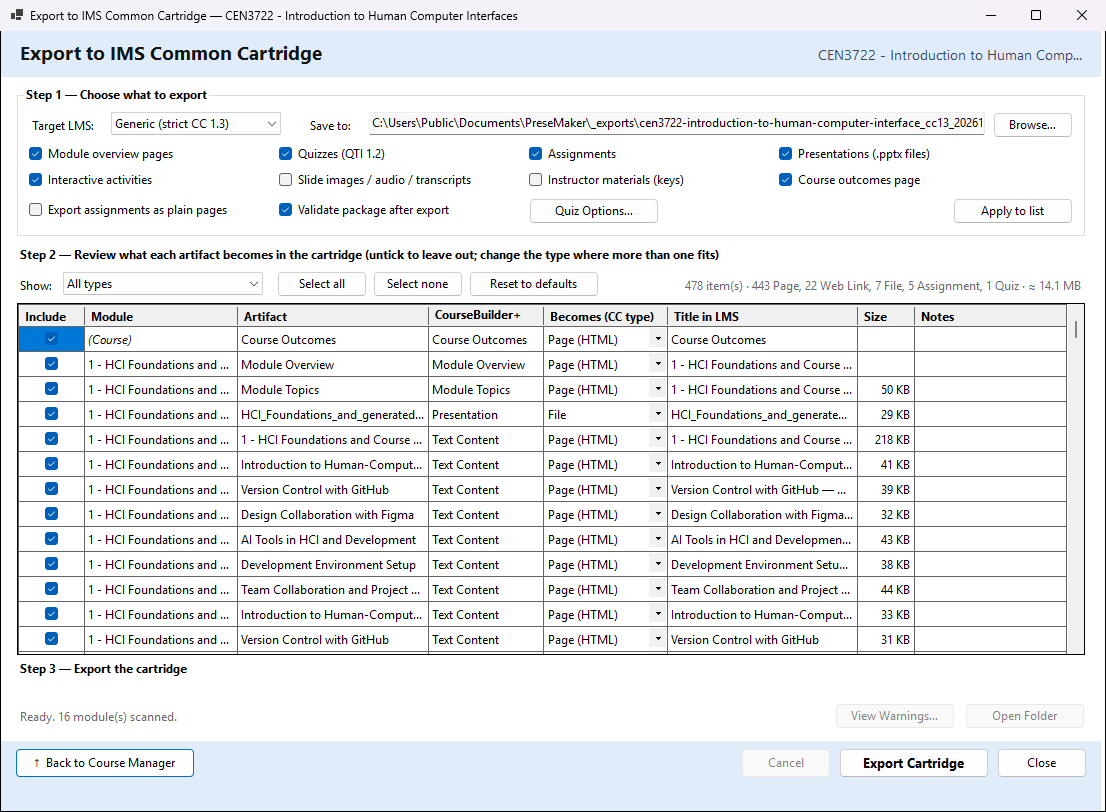
This window packages the course as an IMS Common Cartridge file (.imscc). Common Cartridge
is a standard course format that most learning management systems (LMSs) can import: Canvas,
Moodle, Blackboard, D2L Brightspace and others. The cartridge holds the course's modules, with
their pages, files, links, quizzes and assignments, so the course arrives in your LMS already laid
out module by module.
To open it: in the Course Manager, choose the course, then Export ▾ → Export to IMS Common Cartridge (.imscc)….
No AI is used. CourseBuilder+ writes the file on your computer; it does not send anything to your
LMS. You take the .imscc file to the LMS and import it there.
The window works in three steps, top to bottom. When it opens it scans every module first (the line at the bottom says Scanning modules…, then Ready.), so the list in Step 2 is ready to review. A module that had no Module Index yet is scanned fresh, and the line says so.
Step 1 — Choose what to export
Target LMS: the LMS you will import into: Generic (strict CC 1.3), Canvas, Moodle, Blackboard or D2L Brightspace. The cartridge itself is always standard Common Cartridge 1.3. The choice only changes one default: for Moodle and Blackboard it ticks Export assignments as plain pages (their support for Common Cartridge assignments is patchy); for the others it unticks it.
Save to: where the .imscc file will be written. It starts in the _exports folder in
Documents\PreseMaker, with a name made from the course name, cc13, the date and the time.
Browse… chooses another name or folder. If a file with that name is already there, you are
asked before it is replaced.
What to include — tick what goes into the cartridge:
| Option | What it does |
|---|---|
| Module overview pages | adds a first page to each module with its description, learning outcomes and topics |
| Quizzes (QTI 1.2) | exports each module's quiz bank as a quiz the LMS imports as a quiz |
| Assignments | exports assignments as LMS assignments (or as pages, see below) |
| Presentations (.pptx files) | includes the PowerPoint files, as files students can download |
| Interactive activities | includes activity pages. They contain JavaScript, and some LMSs remove it from pages |
| Slide images / audio / transcripts | includes slide images, narration audio and transcripts. These are large, so it is off at first |
| Instructor materials (keys) | includes instructor-only items such as the answer keys of cloze notes. Off at first |
| Course outcomes page | adds a page listing the course learning outcomes at the top of the cartridge |
| Export assignments as plain pages | writes assignments as ordinary pages instead of LMS assignments, for an LMS that ignores Common Cartridge assignments |
| Validate package after export | checks the finished file for problems such as missing files or broken references, and lists them in the export notes |
Quiz Options… opens a small window with the settings every exported quiz gets:
| Setting | What it means |
|---|---|
| Points per question | how much each question is worth (1 at first) |
| Maximum attempts (0 = unlimited) | how many times a student may take a quiz |
| Time limit in minutes (0 = none) | minutes allowed for each attempt |
| Matching / ordering questions | Convert to multiple choice (recommended), or Leave out of the quiz. Common Cartridge quizzes have no matching or ordering questions, so these must be changed or left out. Converted questions are listed in the export notes so you can check them in the LMS |
Save Quiz Options keeps them for this export; Close leaves them as they were.
Apply to list rebuilds the list in Step 2 from the options above. It keeps the choices you have already made on each row, so a row you ticked or unticked stays that way. To have the options decide every row again, use Reset to defaults in Step 2.
Step 2 — Review what each artifact becomes in the cartridge
The list has one row for every artifact of every module, in course order. Course-wide items, such as the course outcomes page, come first, with (Course) in the Module column.
| Column | What it is |
|---|---|
| Include | ticked rows go into the cartridge; untick a row to leave it out. Unticked rows are grey |
| Module | the module the artifact belongs to |
| Artifact | the artifact's name (for a quiz, how many questions it has) |
| CourseBuilder+ Type | what kind of artifact it is in CourseBuilder+, as in the Module Index |
| Becomes (CC type) | what it will be in the LMS. Where more than one kind fits, pick from the list |
| Title in LMS | the title the LMS will show. Click to change it |
| Size | the size of the file |
| Notes | warnings about this row, in orange (hover over a note to read all of it) |
What each artifact can become:
| Becomes | Used for |
|---|---|
| Page (HTML) | web pages and documents: text content, custom materials, cloze notes, Markdown and text files (turned into pages), topics and outcomes pages, overview pages. Pictures and other files a page uses are packed with it |
| File | files students download: presentations, PDFs, Word files and other files. A page or an interactive activity can also be sent as a file |
| Web Link | external materials that point to a web page or a video |
| Quiz (QTI 1.2) | the module's quiz bank: one quiz per module, called {module} — Quiz |
| Assignment | an LMS assignment worth 10 points, where students can hand in text or a file. An assignment can instead become a Page (HTML) or a Discussion |
| Discussion | a discussion topic in the LMS (offered for assignments) |
Some things to know about the list:
- An artifact you set to Exclude from Website Build in the Module Index starts unticked here.
- Images and prompts are never offered; they are tools for building the course, not course content.
- The Notes tell you, for example, that matching or ordering questions will be converted to multiple choice, that an interactive activity contains JavaScript (if it does not run in the LMS, switch it to File), or that a row is an instructor key.
Show: limits the list to one CourseBuilder+ type, or All types. Select all and Select none tick or untick every row the list is showing. Reset to defaults forgets your per-row choices (asked first) and rebuilds the list from the options in Step 1.
The line on the right adds up what is ticked: how many items, how many of each kind, and about how big the cartridge will be.
Your choices are remembered. Each export saves the options, the quiz options and every row's
Include, Becomes and Title choice for this course (in course_cc_export_defaults.json in the course
folder), so the next export starts the way you left it.
Step 3 — Export the cartridge
Export Cartridge writes the .imscc file with the choices above. The progress bar and the line
under it show each item as it is added. Cancel stops a scan or an export that is running; a
cancelled export leaves no file.
When it finishes, the line says ✓ Exported with the file name, how many modules and items of each kind went in, and the size. If there are notes it says so, in orange.
| Button | What it does |
|---|---|
| View Warnings… | opens the export notes: conversions, items that were skipped, and the validation results. Copy puts them on the clipboard. Keep them to check those items after importing into the LMS |
| Open Folder | opens File Explorer with the .imscc file selected |
| ↑ Back to Course Manager | returns to the Course Manager |
| Close | closes the window |
If an item cannot be written (for example its file is missing), it is left out and a note says so; the rest of the cartridge is still written.
Putting it into your LMS
CourseBuilder+ does not upload the cartridge; use your LMS's own import for Common Cartridge files
and choose the .imscc file. Inside the cartridge each module is one folder, holding its items in
the same order as the list (how the LMS shows them is up to the LMS). After importing, look at the
items named in the export notes, such as converted quiz questions and interactive activities.