
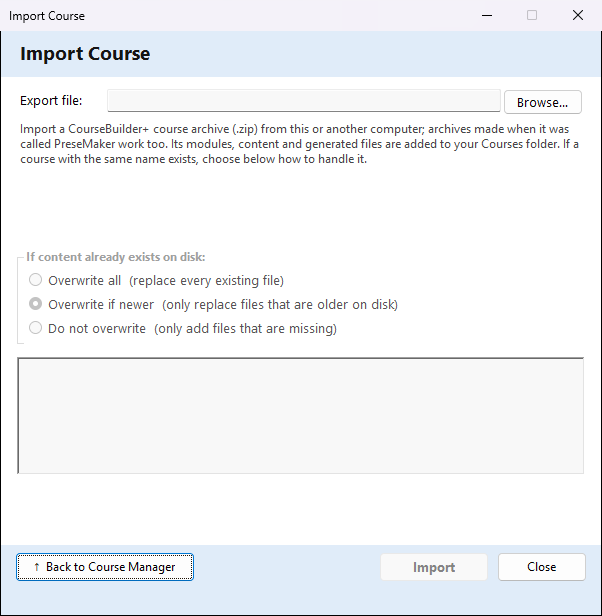
Import ▾ → Import CourseBuilder+ course archive (.zip)… in the Course Manager brings back a whole course from a course archive: a .zip file made with Export ▾ → Export as CourseBuilder+ course archive (.zip)… on this computer or another one. Use it to move a course to a new computer, to share a course with a colleague who also uses CourseBuilder+, or to restore a copy you saved. Archives made when the program was called PreseMaker work too. No AI is used, and nothing is sent anywhere: the files are copied from the .zip into your course folders.
You do not need to have a course open to use it.
Choose the archive
Browse… opens a file window; pick the archive (.zip). CourseBuilder+ checks the file at once:
- If it is a course archive, the window shows the course's name, how many modules it has, and the date and time it was exported (Exported:). The line "Validated: …" appears in the log box below.
- If it is not, a message says This file is not a CourseBuilder+ course archive, with the reason. Only archives made by CourseBuilder+ (or PreseMaker) can be imported here. An export from an LMS such as Canvas or D2L Brightspace (.imscc) is imported with Import IMS Common Cartridge instead.
If a course with the same name is already on this computer, an orange line warns: A course with this name already exists. The course record will be replaced.
If content already exists on disk
This choice matters only when some of the archive's files are already on your computer — for example when you import a newer copy of a course you already have. Files that are not there yet are always added.
| Choice | What happens to a file that is already there |
|---|---|
| Overwrite all | replaced with the copy in the archive |
| Overwrite if newer (the starting choice) | replaced only when the archive's copy is newer than yours |
| Do not overwrite | kept as it is; only missing files are added |
The course's own record (its name, description and list of modules) is always replaced by the one in the archive, whichever you choose. Course-wide files saved with it — the course and module learning outcomes, the standards alignment and the other course settings — follow the choice above, like the module files.
Import
Import starts the import. If a course with the same name already exists, CourseBuilder+ asks first (Course Already Exists): the course record will be replaced, and the module files are handled by your choice above. Press OK to go on, or Cancel to stop.
While it runs, the progress bar and the log box show what it is doing. At the end the log lists every file, Written or Skipped, and a message gives the totals: Files written and Files skipped. The Close button then reads Done.
Where the course goes
The course is put in your Courses folder, Documents\PreseMaker\Courses, in a folder named after the course (the program's old name is still used for the folder, so existing courses keep working). When you close the window, the Course Manager reloads its list of courses; choose the imported course at the top to open it.
| Button | What it does |
|---|---|
| Browse… | choose the course archive (.zip) |
| Import | import the archive with the choice you made |
| ↑ Back to Course Manager / Close | close the window and return to the Course Manager |