
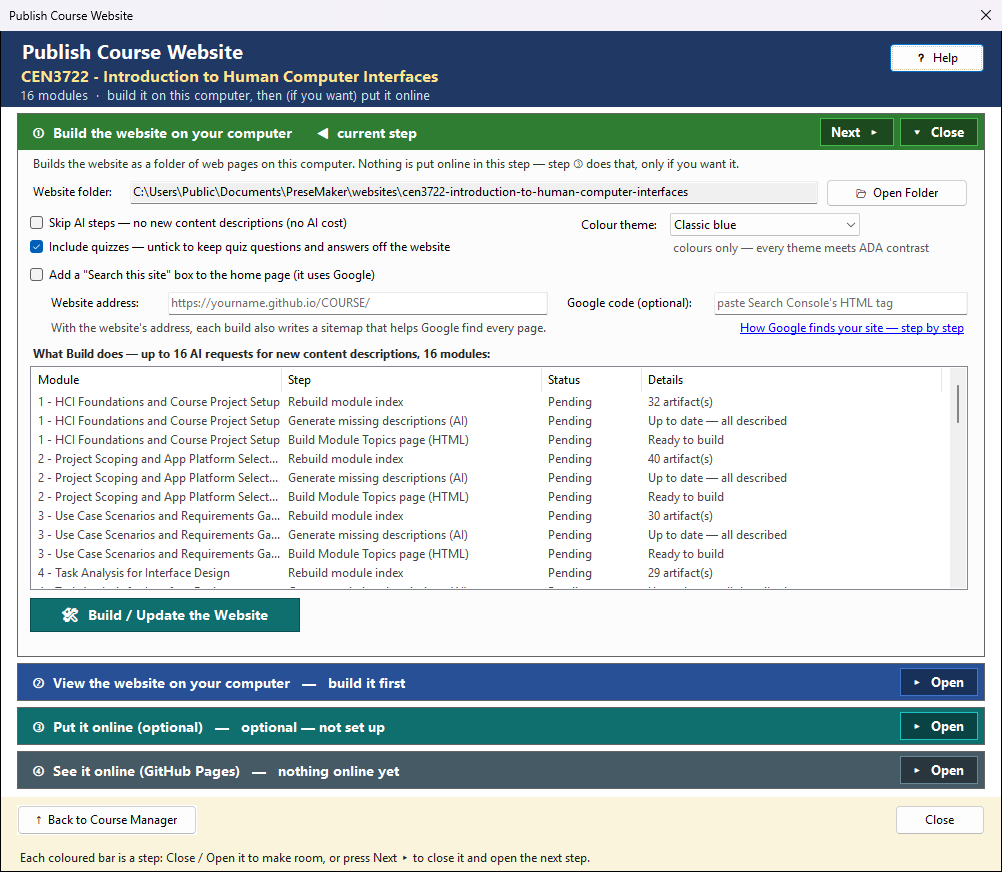
This window turns the course (or one module, or a project) into a website, a folder of web pages built on your computer, and, only if you want, puts that website online. It works in four steps, top to bottom. The step you are on is marked ◀ current step, and its button is the coloured one.
The coloured bars are steps that open and close — see How the Generate windows work.
① Build the website on your computer
🛠 Build / Update the Website builds the website in the website folder shown at the top of the step. Nothing is put online in this step.
- Skip AI steps — the module pages show a short description on each content card, written by the AI. Tick this to build without asking the AI for descriptions of new items (no tokens are used).
- Include quizzes — untick to leave quiz pages, and the quiz bank with its answers, off the website (for example when the website is the course's e-book).
- Colour theme — the colours of the website's headers, links and cards: Classic blue, Teal or Charcoal. The layout is the same, and every theme meets ADA contrast.
- Search this site — a search box on the home page that finds pages of this website with Google.
It needs the website's address (left empty, the GitHub Pages address from ③ is used), and it
finds pages only after Google has added the website — see
Search This Site, and How Google Finds Your Website. With the address known,
every build also writes
sitemap.xmlfor Google. Google code is the optional Search Console tag that proves the website is yours.
The list shows what Build does, module by module: it rebuilds the Module Index, asks the AI for missing descriptions, builds the topics page, then writes the website. Status and Details fill in as it runs. ■ Stop stops it. A step that fails does not stop the others.
What a module page shows. Its topics, then Module Content: the cards grouped by kind: Presentations, Topic Detail with Video, Topic Detail, Topic Videos, Quizzes, Assignments and so on. Each kind has a heading and a short paragraph telling students what these items are and how they were made, saying plainly where AI drafted them. Two kinds have student names on the website: Topics and Embedded Video is Topic Videos, and Cloze Notes are Fill-in-the-Blank Notes. Each topic card says how many materials were made for that topic. The module's Topics & Learning Outcomes page ends with Materials for Each Topic: under every topic, a link to each item made for that topic, and each topic in the list has a Materials for this topic link that jumps there. An item belongs to a topic when it was made for that topic (one topic, or a few, ticked in Generate Documents or Batch Actions) or when Import and Classify placed it there. Items made for the whole module are on the module page only.
🔍 View Prompt (beside Build) shows exactly what Build would send to the AI for your current choices (one description request per module whose content still needs a description) — read-only, and nothing is sent. It works whether or not Show the prompt before each AI call is on in Settings.
② View the website on your computer
🌐 Open in Browser opens the website from the folder, so you can check it before anyone else sees it. 📂 Open Folder shows the folder in File Explorer.
YouTube videos embedded in the pages may not play from your computer, because YouTube needs a web address. They play once the website is online.
③ Put it online (optional)
You do not have to use this step. The website folder is complete on its own, so any web host can serve it: your school's web server, an FTP site, Netlify and others. Copy everything in the website folder with that host's own tools; 📂 Open Website Folder in this step opens it.
CourseBuilder+ can put it on GitHub Pages for you. GitHub Pages is free; you need a GitHub account and Git for Windows. The first time, follow ❔ How to Set Up GitHub Pages to make the repository and turn on Pages.
- GitHub repository — the repository's HTTPS address (it ends in
.git). It is remembered. - Branch — keep gh-pages unless you know you need another. (A course whose own files are in
the same repository keeps them on
main; the website must use a different branch.) - Note for this update — a short note kept in GitHub's history.
- ⬆ Push to GitHub — sends the website folder to the repository (■ Stop stops it). It is off while the last build did not finish, so a half-built website never goes online. The first push to a branch that already has something on it asks before replacing it. The black box shows what git did; red lines are errors. If GitHub asks you to sign in, Git Credential Manager opens a window.
④ See it online (GitHub Pages)
The website's address on GitHub Pages (https://yourname.github.io/repository/). (If you put
the website on another host, its address is the one that host gives you.)
-
⚙ Turn On GitHub Pages… — after the first push to a repository, the one last step: it opens GitHub's Pages settings for the repository; choose the gh-pages branch and / (root), then Save. Once per website.
-
Copy puts the address on the clipboard, ready for your LMS, an email or the syllabus.
- 🌐 Open GitHub Page in Browser opens the website online, the newest copy rather than the one your browser saved earlier.
- Open Repository on GitHub opens the repository's page, where Settings → Pages is.
After a push, give it a moment. GitHub takes 1–2 minutes to update the website, and your browser may show its saved copy for up to 10 minutes. If a change is missing, wait, then reload the page with Ctrl+F5.
Setting up GitHub Pages
GitHub Pages puts a website online for free, from a GitHub repository (a folder on GitHub). You do this once per website; after that, ⬆ Push to GitHub in the Publish window updates the site.
You need:
- a GitHub account: sign up free at https://github.com
- Git for Windows: https://git-scm.com/download/win (restart CourseBuilder+ after installing it)
1. Make the repository
- Go to github.com and sign in.
- Click the + at the top right, then New repository.
- Give it a name, for example
EGN3214. The name becomes part of the website's address:https://yourname.github.io/EGN3214/. - Set it to Public. Free GitHub Pages needs a public repository.
- Leave Add a README file unticked, so the repository is empty.
- Click Create repository.
- On the next page, copy the HTTPS address, for example
https://github.com/yourname/EGN3214.git. - Paste it into GitHub repository in step ③ of the Publish window, then click ⬆ Push to GitHub.
2. Turn on GitHub Pages (after the first push)
- In step ④ click ⚙ Turn On GitHub Pages… — it opens the repository's Settings → Pages. (Or: Open Repository on GitHub, the Settings tab, then Pages in the list on the left.)
- Under Build and deployment → Branch, choose gh-pages (the branch shown in step ③) and the folder / (root), then click Save.
- Wait 1–2 minutes, then click 🌐 Open GitHub Page in Browser in step ④.
From then on, each ⬆ Push to GitHub updates the website within a minute or two.
If something goes wrong
- GitHub asks you to sign in. Git Credential Manager opens a window the first time. Sign in to GitHub there.
- "Repository not found" or "permission denied." Check the address in ③, and that you are signed in as the repository's owner.
- The website shows an old page. GitHub takes 1–2 minutes to update, and your browser may show its saved copy for up to 10 minutes. Wait, then reload with Ctrl+F5.
- 404 — page not found. GitHub Pages is not turned on yet (part 2 above), or it is set to a different branch than the one in ③.
Search this site, and how Google finds your website
A course website can have a Search this site box on its home page. A student types a few words,
and Google lists the pages of your course website only that contain them. It is the same as
typing site:yourname.github.io/COURSE in front of the words in Google.
Google can only find pages it has added to its index. A new website is not in Google yet, so the box finds nothing at first. The steps below ask Google to add it. It is free, and it is done once per website. It can take from a few days to a few weeks; you do not have to wait for it before publishing.
1. Turn the box on
In Publish Course Website, step ①:
- Tick Add a "Search this site" box to the home page.
- Website address — where the website is online, for example
https://yourname.github.io/EGN3214/. If you publish to GitHub Pages in ③, leave it empty: the GitHub Pages address is used (it is shown, greyed, in the box). If your website has its own address (a domain of your own, not github.io), type that address — otherwise the search looks in the wrong place. - Build / Update the Website, then put it online (③).
With the website's address known, every build also writes sitemap.xml — a list of every page
of the website at its full address — and robots.txt. Google reads the sitemap to find all the
pages, and the dates in it tell Google which pages changed.
2. Tell Google about the website (Google Search Console)
You need a Google account (a Gmail address works).
- Open https://search.google.com/search-console and sign in.
- Add property (top left) → choose URL prefix (not Domain) → type the website's address —
the one the line under the search option in step ① shows, for example
https://yourname.github.io/EGN3214/(the same as ④'s Website address for GitHub Pages) → Continue. - Google asks you to prove the website is yours. Open HTML tag and Copy the line it shows —
it looks like
<meta name="google-site-verification" content="AbC123…" />. - Back in CourseBuilder+, paste it into Google code (optional) in step ① (the whole line is fine). Build / Update the Website, and put it online again (③).
- Wait a minute or two for the website to update (GitHub Pages takes a moment), then press Verify in Search Console. If it says the tag was not found, wait a little longer and try again. If it still is not found, check that ① did not warn Google code not recognised — paste the whole line again. Leave the code in the box — Google checks it again from time to time.
Why not the other ways Google offers? Domain needs a domain name of your own (not github.io).
HTML file would be removed the next time the website is built. The HTML tag stays, because
CourseBuilder+ writes it into the home page on every build.
After putting the website online, step ④ of Publish Course Website reminds you of these steps.
3. Give Google the sitemap
- In Search Console, with your website chosen, open Sitemaps (left side).
- Under Add a new sitemap, type
sitemap.xmland press Submit. - The status shows Success once Google has read it (sometimes after a day). It lists how many pages it found.
You only submit it once. Google reads it again on its own, so later builds are picked up without doing anything.
4. Optional: ask for the home page now
Open URL inspection (the search bar at the top of Search Console), paste the home page's address, then Request indexing. This can bring the first pages in sooner.
5. Check that it works
Search Google for site:yourname.github.io/EGN3214 (your address without https://). When pages
appear, the Search this site box finds them too. Search Console's Pages report shows how
many pages are indexed and, for any that are not, why.
Good to know
- Without Search Console, Google may still find the website on its own when another page links to it (your college's course page, a syllabus, your LMS) — only more slowly, and not certainly.
- New pages appear in the search after Google has visited them again — usually days. Rebuilding the website updates the sitemap, which helps.
- A page left out of the website (for example quizzes, when Include quizzes is unticked) is not in the sitemap and is not on the site, so it cannot be found.
robots.txtis only read at the top of a web address (yourname.github.io/robots.txt), so on GitHub Pages under a course folder it is not used; the sitemap you submitted in step 3 does the job. On a website address of your own it is used as well.- Privacy: the search box sends the words a student types to Google, as any Google search does. The website itself still collects nothing.
Related: Publish Course Website · GitHub Pages