
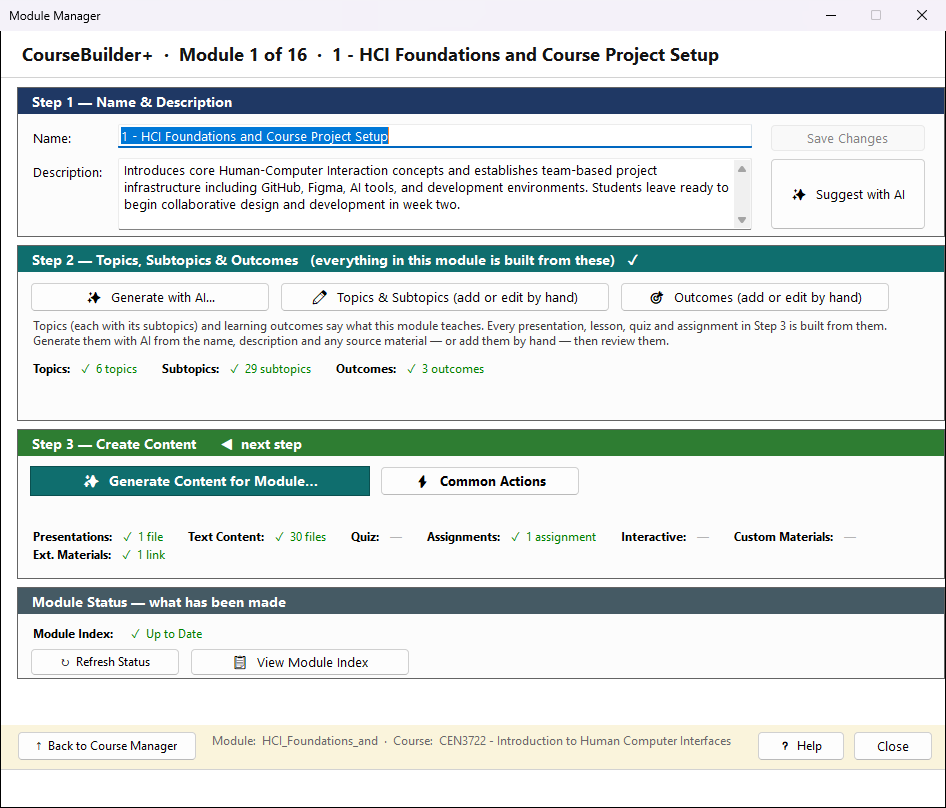
A module is one unit of your course — a week, a chapter, a topic. This window is where a module is built, and it is laid out in the order you build it. The heading says which module this is and where it sits in the course (Module 3 of 16). The step to do next is marked ◀ next step.
Step 1 — Name & Description
The module's name and a short description of what it covers. Change them here and click Save Changes. Suggest with AI writes a description from the name. The description matters: the AI builds the module's topics from it.
Step 2 — Topics, Subtopics & Outcomes
This is the foundation of the module. Everything you create in Step 3 is built from it.
- Topics are the main ideas the module teaches; each has subtopics (the points under it).
- Outcomes (student learning outcomes) say what a student should be able to do after the module — "Calculate the mean and standard deviation of a data set".
There are two ways to make them, and you can mix them:
| Button | What it does |
|---|---|
| Generate with AI… | Opens the Topic & Outcome Generator. The AI reads the name, the description and any source material you add (a syllabus, chapter, web page, PowerPoint), then proposes the topics, the subtopics of each, and the outcomes. You see the prompt before anything is sent |
| Topics & Subtopics (add or edit by hand) | Opens the Topics Editor: type your own, or change, reorder and delete what the AI made |
| Outcomes (add or edit by hand) | Opens the outcome editor for this module: write your own or edit the AI's |
The counts under the buttons show how many topics, subtopics and outcomes the module has now. Until it has topics, content cannot be created; a line says what is still missing.
Changed the name or description? Save it (Step 1) before generating — you are asked if you have not, and again when you close the window.
Step 3 — Create Content
Generate Content for Module… is where presentations, text lessons, quizzes, assignments, interactive activities and other material are made — each one from the topics and outcomes you choose. Generate Content for Module… and Common Actions both check first: without topics they say topics and outcomes come first and offer to generate them with AI or add them by hand; with topics but no outcomes they recommend adding outcomes (and carry on once you have) or let you continue without them. Common Actions runs the things teachers do most in one go (for example, a document for every topic). Publish Module to Website appears once the course has a website.
The line of counts shows what the module already has.
Module Status
View Module Index lists everything made in this module, with a viewer for each. Refresh Status looks at the module's folder again (use it after changing files in File Explorer).
Where the files are
The module is a folder inside the course folder: Modules\{module}. Topics are in
hierarchy.json, presentations in presentations\, everything else the program makes in output.
The outcomes are kept for the whole course in the course folder's course_outcomes.json, not in the
module folder.
See Where your course files are kept.