
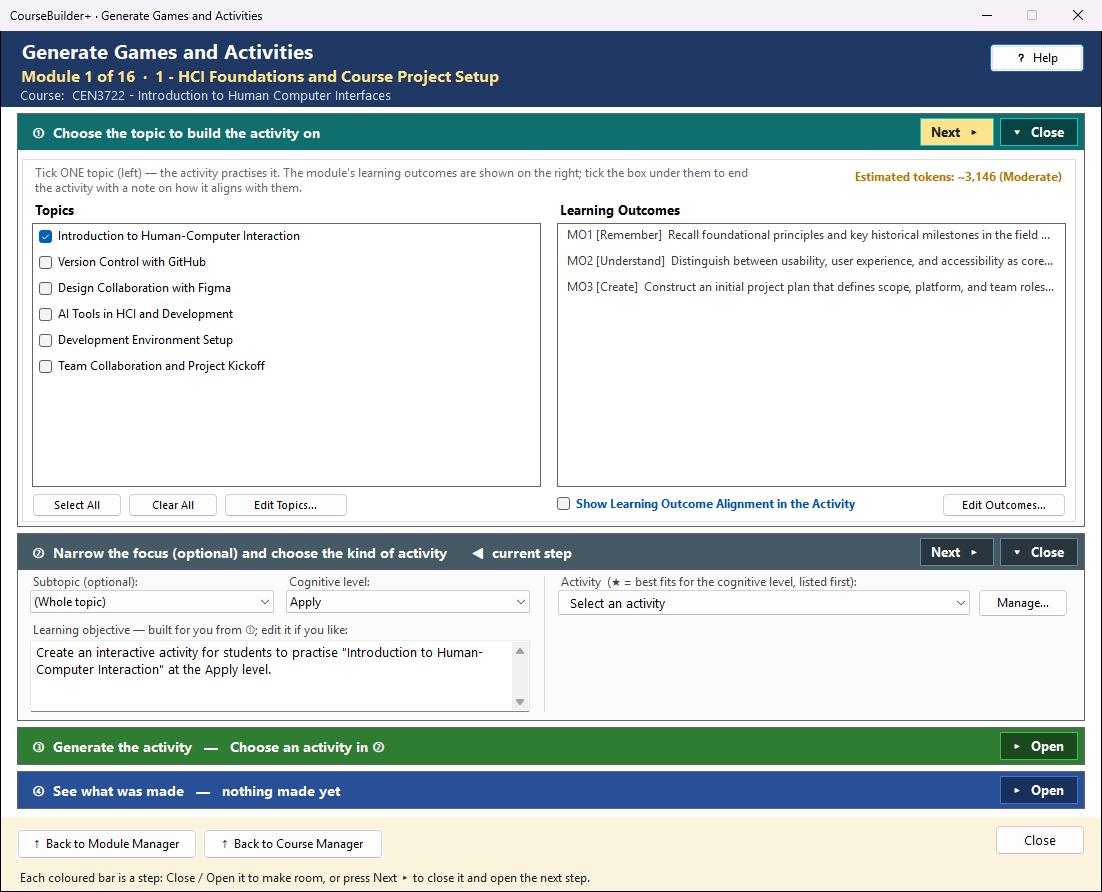
This window builds an interactive activity for your students — a game, a matching or sorting exercise, a simulation or a quiz-style challenge — as one web page (HTML and JavaScript) that works in any browser, even offline. Each activity is built from one topic of the module. It works in four steps, top to bottom; the step you are on is marked ◀ current step, and its button is the coloured one.
The coloured bars are steps that open and close — see How the Generate windows work.
① Choose the topic to build the activity on
Tick one topic (left). The activity practises that topic; its subtopics and notes are what the AI builds from. If you tick more than one topic, the Generate button asks you to tick just one.
The module's learning outcomes are listed on the right so you can see them; they are not written about and are not ticked one by one. Tick Show Learning Outcome Alignment in the Activity (under the list) and the page ends with a short "Alignment with Learning Outcomes" section that names each outcome by its code and says how the activity supports it — or that it does not address it.
Edit Outcomes… / Edit Topics… open the editors if something is missing.
Estimated tokens (at the bottom right of step ①, beside Edit Topics…) is an estimate before anything is sent — the chosen content, the instructions sent with each request and the answer — green = focused, amber = moderate, red = extensive (with one request per topic it judges the largest one). After Generate it changes to Tokens used: the input and output tokens the run really used, as your AI provider counted them — usually a little higher than the estimate.
② Narrow the focus and choose the kind of activity
- Subtopic (optional) — focus the activity on one subtopic of the topic.
- Cognitive level — the Bloom's level the activity aims at (Remember, Understand, Apply …). The activities that fit that level best are listed first in the Activity list, marked ★.
- Learning objective — written for you from the topic, subtopic and level. Edit it if you like; it is what the AI is asked to help students reach. Once you edit it, it is yours: changing the topic, subtopic or level no longer rewrites it. ↺ Rebuild from ① (shown beside it then) writes a fresh one from your choices.
- Activity — the kind of activity:
- a template (flashcards, matching, drag and drop, and more) — Manage… adds your own;
- Let AI Suggest — click Get AI Suggestions: your objective and the module's name and description are sent to the AI (one request), it proposes 3–5 ideas, and you pick one;
- User Described — describe the activity you want in your own words.
③ Generate the activity
The green line says exactly what will happen before you click. The topic, the learning objective, the activity type and the module's name and description — and the outcomes, when the alignment box is ticked, for the alignment note — are sent to the AI with your own AI key: one request, charged by your AI provider (Settings → AI Usage and Cost shows it). You see the exact prompt first and can edit it or cancel. 🔍 View Prompt shows it without generating, whatever the Settings preview says.
While Generate is greyed, its label says what is still missing (a topic, the objective, an activity, an AI idea, or your description).
■ Stop ends the request; nothing is saved. If something goes wrong, ④ says what.
④ See what was made
The activity is saved the moment it is made, in the module's output\interactive folder, and the
saved file opens in your browser (so a bookmark of that tab keeps working). It is listed in the Module Index under Interactive Activity. A new
activity never replaces an older one: if the name is taken, the new file gets the date and time
added to its name.
After every activity an automatic accessibility check runs against WCAG 2.1 (keyboard use, labels, headings, alternative text and the like). When it finds something, ④ says how many items there are and the ♿ Accessibility Notes button lists each one with what is wrong and how to fix it, in two groups:
- Must fix — fails WCAG 2.1, the standard the ADA Title II rule requires; some students cannot use the activity until it is fixed.
- Worth checking — likely problems that do not fail WCAG on their own.
Fix them by editing the activity's file (Show in Folder), or check the whole course with Course Status → ♿ Check Accessibility…, which offers guided fixes.
| Button | What it does |
|---|---|
| View in Module Index | every activity in this module, in one list (the highlighted next step after generating) |
| Open in Browser | play the saved activity |
| Show in Folder | File Explorer, with the activity selected (before that, the activities folder) |
| Try Saving Again | shown only if saving the activity failed — tries the save again |
| ♿ Accessibility Notes | what the accessibility check found, and how to fix each item |
Advanced games — Gamify+
🚀 Advanced (Gamify+)… (beside Generate) opens a window about Gamify+, a free companion program for learning games: card games, a 3D game, signed results you can check, the AI drafting and revising a game, and a course website. From there you can get Gamify+ from the Microsoft Store, start this module's games in Gamify+ (a Game File with the module's topics and outcomes), and import the games Gamify+ has built — or a game page from a folder or a web address — into this module as Interactive Activities. See Advanced Games — Gamify+.